Of course! Using Python with OpenOffice (or its successor, Apache OpenOffice) is a powerful way to automate document creation, manipulation, and reporting. The primary method for this is through UNO (Universal Network Objects), which is OpenOffice's component model.
Here’s a comprehensive guide covering the concepts, setup, and practical examples.
The Core Concept: UNO (Universal Network Objects)
Think of UNO as OpenOffice's internal API. It's a framework that allows different parts of OpenOffice (like the Writer word processor or Calc spreadsheet) to communicate with each other and with external programs.
- Language Agnostic: UNO can be accessed from many languages, including Python, Java, C++, and Basic.
- Client-Server Model: Your Python script acts as a UNO client, and the OpenOffice application acts as a UNO server. Your script sends commands (e.g., "get the 3rd paragraph," "set cell A1 to 'Hello'") to the OpenOffice server, which then executes them.
Prerequisites: Setting Up Your Environment
Before you start coding, you need to configure your system to allow Python to talk to OpenOffice.
Step 1: Install OpenOffice
Make sure you have a working installation of Apache OpenOffice. The "Python" integration is included by default.
Step 2: Locate the pyuno Python Library
This is the bridge between Python and UNO. Its location depends on your operating system and where you installed OpenOffice.
- Windows: It's usually in the OpenOffice installation directory, e.g.,
C:\Program Files (x86)\OpenOffice 4\program\pyuno.dll. - Linux: It's typically in a system library path, like
/usr/lib/libreoffice/program/pyuno.so(if you used a package manager likeapt). - macOS: It's often inside the OpenOffice app bundle, e.g.,
/Applications/OpenOffice.app/Contents/MacOS/pyuno.so.
Step 3: Set the PYTHONPATH Environment Variable
This is the most critical step. You need to tell Python where to find the pyuno library and its associated modules.
-
Find your OpenOffice
URE(Universal Runtime Environment)bindirectory. This directory contains essential shared libraries.- Windows:
C:\Program Files (x86)\OpenOffice 4\URE\bin - Linux:
/usr/lib/libreoffice/ure/bin - macOS:
/Applications/OpenOffice.app/Contents/MacOS/ure/bin
- Windows:
-
Add this
bindirectory to yourPYTHONPATHenvironment variable. (图片来源网络,侵删)
- Windows: Go to "Edit the system environment variables" -> "Environment Variables..." -> Under "System variables", find
PYTHONPATH, click "Edit...", and add the path to thebindirectory, separated by a semicolon if there are other paths.- Example value:
C:\Program Files (x86)\OpenOffice 4\URE\bin
- Example value:
- macOS / Linux: Add the following line to your shell's profile file (e.g.,
~/.bashrc,~/.zshrc):export PYTHONPATH=/Applications/OpenOffice.app/Contents/MacOS/ure/bin:$PYTHONPATH
Then, run
source ~/.bashrc(or your equivalent) to apply the changes.
- Windows: Go to "Edit the system environment variables" -> "Environment Variables..." -> Under "System variables", find
Verification: Open a new terminal/command prompt and run python -c "import uno; print('UNO imported successfully!')" or python3 -c "import uno". If it runs without an error, your setup is correct.
Connecting Python to OpenOffice
Your Python script needs to launch (or connect to) an OpenOffice instance. The recommended way is to have OpenOffice running in "headless" mode (without a visible GUI) for server tasks.
A. Method 1: Using unoconv (Simpler, but Limited)
unoconv is a command-line tool that uses UNO under the hood. It's great for simple conversions (e.g., DOCX to PDF) but not for complex document manipulation.
Installation:
# For Debian/Ubuntu
sudo apt-get install unoconv
# For macOS (using Homebrew)
brew install unoconv
Usage (Python):
import subprocess
# Convert a document
subprocess.call(['unoconv', '-f', 'pdf', 'my_document.docx'])
B. Method 2: Direct UNO Connection (Full Control)
This gives you complete programmatic control. You'll need to manage the OpenOffice process yourself.
Example Script (openoffice_automation.py):
import uno
import os
import sys
# --- Connection Setup ---
# This is the most reliable way to connect.
# It tells the uno component loader where to find the OpenOffice installation.
# The path should point to the directory containing 'pyuno.so' or 'pyuno.dll'.
# On Linux, this is often /usr/lib/libreoffice/program
# On Windows, it's C:\Program Files (x86)\OpenOffice 4\program
# On macOS, it's /Applications/OpenOffice.app/Contents/MacOS
# A more robust way is to find the 'bootstrap' executable and use its path.
bootstrap_path = "/Applications/OpenOffice.app/Contents/MacOS" # <-- CHANGE THIS TO YOUR PATH
# Add the bootstrap path to sys.path to find the uno module
sys.path.append(bootstrap_path)
def get_openoffice_context():
    """Connects to a running OpenOffice instance or starts one."""
    try:
        # Attempt to connect to a running OpenOffice instance
        local_context = uno.getComponentContext()
        resolver = local_context.ServiceManager.createInstanceWithContext(
            "com.sun.star.bridge.UnoUrlResolver", local_context
        )
        context = resolver.resolve("uno:socket,host=localhost,port=2002;urp;StarOffice.ComponentContext")
        print("Successfully connected to a running OpenOffice instance.")
        return context
    except:
        # If no instance is running, start one in headless mode
        print("No running OpenOffice instance found. Starting a new one in headless mode...")
        os.system(f"soffice --headless --accept='socket,host=localhost,port=2002;urp;StarOffice.ServiceManager' &")
        # Give it a moment to start
        import time
        time.sleep(5)
        # Now try connecting again
        return get_openoffice_context()
def main():
    # 1. Get the UNO context
    context = get_openoffice_context()
    # 2. Get the Desktop service (the root of all OpenOffice documents)
    desktop = context.ServiceManager.createInstanceWithContext("com.sun.star.frame.Desktop", context)
    # 3. Load a document (or create a new one)
    # Let's create a new text document
    # The URL 'private:factory/swriter' creates a new Writer document
    url = "private:factory/swriter"
    document = desktop.loadComponentFromURL(url, "_blank", 0, ())
    # 4. Get the text content of the document
    text = document.getText()
    # 5. Create a text cursor to navigate and edit the text
    cursor = text.createTextCursor()
    # 6. Manipulate the document
    # Insert text
    text.insertString(cursor, "Hello from Python via UNO!", False)
    # Move cursor to the end of the text
    cursor.gotoEnd(False)
    text.insertString(cursor, "\n\nThis is a second paragraph.", False)
    # Save the document
    # The URL must be a full file path with 'file:///' prefix
    save_url = "file:///Users/youruser/Documents/python_writer.odt" # <-- CHANGE THIS PATH
    props = (
        uno.createUnoStruct("com.sun.star.beans.PropertyValue", {'Name': 'Overwrite', 'Value': True}),
    )
    document.storeToURL(save_url, props)
    print(f"Document saved to {save_url}")
    # 7. Close the document
    document.close(True) # True disposes of the document
if __name__ == "__main__":
    main()
Practical Examples
Example 1: Automating a Spreadsheet (Calc)
This script creates a new spreadsheet, writes some data, and applies basic formatting.
import uno
import sys
# (Use the same connection setup as the previous example)
bootstrap_path = "/Applications/OpenOffice.app/Contents/MacOS"
sys.path.append(bootstrap_path)
def main():
    context = uno.getComponentContext() # Assuming soffice is already running
    desktop = context.ServiceManager.createInstanceWithContext("com.sun.star.frame.Desktop", context)
    # Create a new spreadsheet
    url = "private:factory/scalc"
    document = desktop.loadComponentFromURL(url, "_blank", 0, ())
    sheet = document.getSheets().getByIndex(0)
    # Get cell A1
    cell_a1 = sheet.getCellByPosition(0, 0)
    cell_a1.setString("Product")
    cell_a1.setCellBackColor(0x99CCFF) # Light blue background
    # Get cell B1
    cell_b1 = sheet.getCellByPosition(1, 0)
    cell_b1.setString("Price")
    cell_b1.setCellBackColor(0x99CCFF)
    # Fill in some data
    products = ["Apple", "Banana", "Cherry"]
    prices = [1.0, 0.5, 2.5]
    for i in range(len(products)):
        row = i + 1
        sheet.getCellByPosition(0, row).setString(products[i])
        sheet.getCellByPosition(1, row).setValue(prices[i])
    # Auto-size columns
    sheetColumns = sheet.getColumns()
    sheetColumns.queryColumns(0, 3).setIsAutomaticSize(True)
    # Save and close
    save_url = "file:///Users/youruser/Documents/python_calc.ods" # <-- CHANGE THIS PATH
    props = (uno.createUnoStruct("com.sun.star.beans.PropertyValue", {'Name': 'Overwrite', 'Value': True}),)
    document.storeToURL(save_url, props)
    print(f"Spreadsheet saved to {save_url}")
    document.close(True)
if __name__ == "__main__":
    # You would run soffice --headless... in a separate terminal first
    main()
Example 2: Reading Data from a Document
This script opens an existing document and reads all its text.
import uno
import sys
# (Connection setup...)
bootstrap_path = "/Applications/OpenOffice.app/Contents/MacOS"
sys.path.append(bootstrap_path)
def main():
    context = uno.getComponentContext()
    desktop = context.ServiceManager.createInstanceWithContext("com.sun.star.frame.Desktop", context)
    # Open an existing document
    # Note the 'file:///' prefix
    doc_url = "file:///Users/youruser/Documents/python_writer.odt" # <-- CHANGE THIS PATH
    document = desktop.loadComponentFromURL(doc_url, "_blank", 0, ())
    if document is None:
        print("Error: Could not open the document.")
        return
    # Get the text and cursor
    text = document.getText()
    cursor = text.createTextCursor()
    cursor.gotoStart(False)
    cursor.gotoEnd(True) # Select all text
    # Get the selected string
    all_text = text.getString()
    print("--- Document Content ---")
    print(all_text)
    print("------------------------")
    # Close without saving
    document.close(False)
if __name__ == "__main__":
    main()
Troubleshooting
ImportError: No module named 'uno': YourPYTHONPATHis not set correctly. Double-check that it points to thebindirectory of your OpenOfficeUREinstallation.com.sun.star.connection.NoConnectException: No OpenOffice instance is running or listening on the specified port (default is 2002). Make sure you've startedsofficein headless mode with the correct--acceptargument.General: Exception caught: java.lang.Exception: This is a generic UNO error. It often means you're trying to perform an action on aNoneobject (e.g., trying to get a sheet from a document that failed to load). Add moreprint()statements to check if your objects are being created correctly.- Permissions Issues (macOS/Linux): If you get permission denied errors, you might need to run your Python script with
sudoor ensure the OpenOffice installation has the correct permissions for the user running the script.
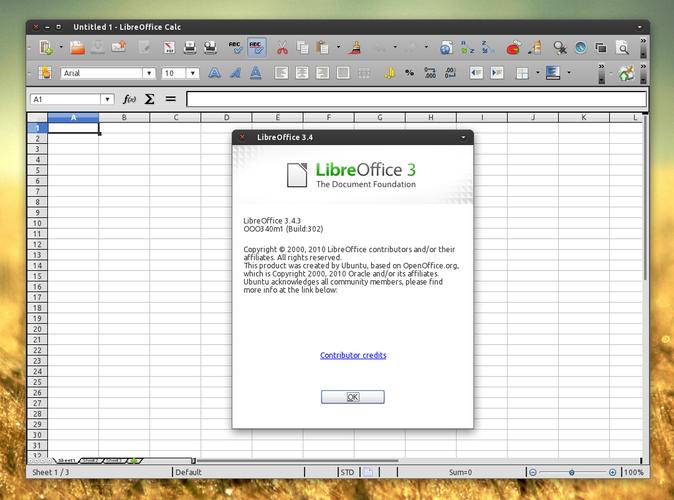
Modern Alternative: LibreOffice
Everything described above works identically with LibreOffice, as it is a direct fork of OpenOffice and uses the same UNO API. In fact, many developers find LibreOffice to have better performance and more active development. If you have the choice, using LibreOffice is perfectly fine and often recommended.