Of course! When you search for "python xlsxreader," you're likely looking for a Python library to read data from .xlsx files (the modern Excel format).

The most popular and recommended library for this task is openpyxl. It's powerful, well-documented, and can handle both reading and writing .xlsx files.
Here's a comprehensive guide covering the best options, with a primary focus on openpyxl.
The Best Choice: openpyxl
openpyxl is the go-to library for most Excel-related tasks in Python. It's pure Python, which means it doesn't require any external installations like Microsoft Excel.
Installation
First, you need to install it using pip:
pip install openpyxl
Basic Usage: Reading a File
Let's start with the fundamentals: loading a workbook, selecting a sheet, and reading data.
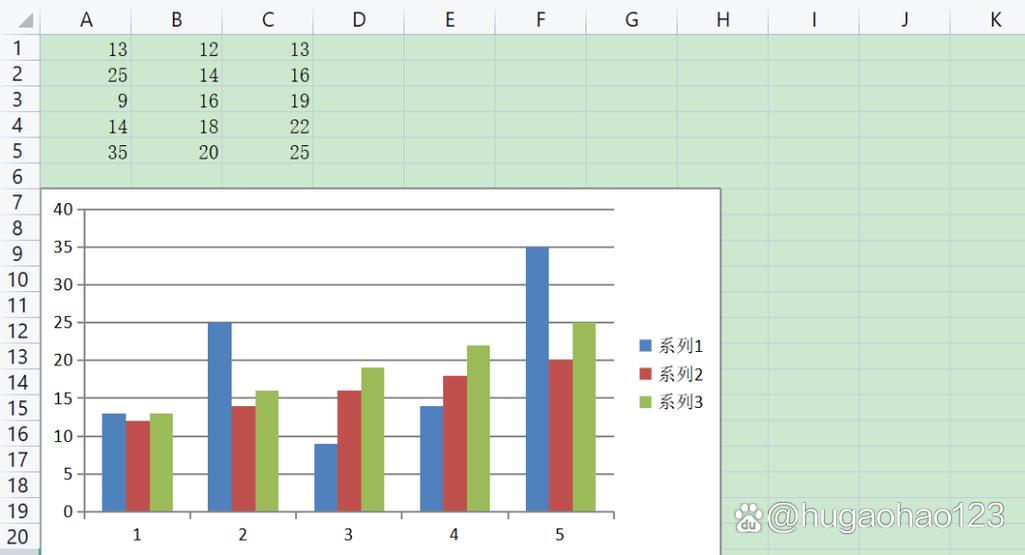
Example Excel File (data.xlsx):
| | A | B | C |
|---|---|---|---|
| 1 | Name | City | Age |
| 2 | Alice | New York | 30 |
| 3 | Bob | London | 25 |
| 4 | Charlie | Paris | 35 |
Python Code to Read It:
from openpyxl import load_workbook
# Load the workbook in read-only mode for better performance with large files
# 'data_only=True' ensures that you get the calculated value, not the formula
wb = load_workbook(filename='data.xlsx', data_only=True)
# Get the active sheet (the first sheet by default)
# Or get a sheet by its name: ws = wb['Sheet1']
ws = wb.active
# --- Reading Individual Cells ---
# Cells can be accessed by their coordinates (row, column)
# Note: Rows and columns are 1-indexed in openpyxl
name_cell = ws['A2']
print(f"Cell A2 contains: {name_cell.value}")  # Output: Cell A2 contains: Alice
# You can also use the .cell() method
city_cell = ws.cell(row=3, column=2)
print(f"Cell B3 contains: {city_cell.value}")  # Output: Cell B3 contains: London
# --- Reading a Range of Cells ---
# Get all values from a specific column, e.g., column A (Names)
names_column = []
for row in ws.iter_rows(min_col=1, max_col=1, min_row=2, max_row=4):
    for cell in row:
        names_column.append(cell.value)
print(f"Names from column A: {names_column}") # Output: ['Alice', 'Bob', 'Charlie']
# Get all values from a specific row, e.g., row 1 (Headers)
headers_row = []
for cell in ws[1]: # ws[1] is a shortcut for the first row
    headers_row.append(cell.value)
print(f"Headers from row 1: {headers_row}") # Output: ['Name', 'City', 'Age']
# --- Reading All Data into a List of Lists ---
# This is very common for processing data with libraries like pandas
data = []
for row in ws.iter_rows(values_only=True): # values_only=True gives just the cell values
    data.append(list(row))
print("\nAll data as a list of lists:")
for row in data:
    print(row)
Output:
Cell A2 contains: Alice
Cell B3 contains: London
Names from column A: ['Alice', 'Bob', 'Charlie']
Headers from row 1: ['Name', 'City', 'Age']
All data as a list of lists:
['Name', 'City', 'Age']
['Alice', 'New York', 30]
['Bob', 'London', 25]
['Charlie', 'Paris', 35]
Alternative Libraries
While openpyxl is excellent, other libraries have their strengths.
pandas - The Data Analysis Powerhouse
If your goal is to analyze the data, manipulate it, or use it for machine learning, pandas is almost always the best choice. It has a built-in function to read Excel files directly into a DataFrame.
Installation:
pip install pandas openpyxl # pandas needs openpyxl as a dependency to read .xlsx files
Usage:
pandas makes reading an entire sheet incredibly simple.
import pandas as pd
# Read the first sheet of an Excel file into a DataFrame
# By default, it uses the first row as column headers
df = pd.read_excel('data.xlsx', engine='openpyxl')
print(df)
Output:
      Name      City  Age
0    Alice  New York   30
1      Bob    London   25
2  Charlie     Paris   35
Key Advantages of pandas:
- Ease of Use: One line of code to load data.
- Data Manipulation: Powerful tools for filtering, grouping, sorting, and aggregating data.
- Integration: Seamlessly works with other data science libraries like NumPy, Matplotlib, and Scikit-learn.
xlrd and xlwt - The Legacy Libraries
xlrd: The classic library for reading.xls(pre-2007 Excel format) and.xlsxfiles. It is read-only.xlwt: The classic library for writing.xlsfiles. It is write-only.
⚠️ Important Note: xlrd version 2.0+ dropped support for .xlsx files. If you need to work with legacy .xls files, you might use xlrd, but for modern .xlsx files, openpyxl is the superior replacement.
Performance Considerations
For very large Excel files (thousands of rows or many sheets), performance can be an issue.
-
openpyxlinread_onlymode: When you load a workbook withread_only=True, it doesn't load the entire file into memory. Instead, it reads it piece by piece, which is much more memory-efficient.# This is crucial for large files wb = load_workbook(filename='huge_file.xlsx', read_only=True) ws = wb.active # You can only iterate over rows, you cannot access specific cells by ws['A1'] for row in ws.iter_rows(values_only=True): print(row) wb.close() # IMPORTANT: You must close the workbook in read-only mode -
pandaswithopenpyxl: Pandas also has aread_exceloption to use theopenpyxlengine in read-only mode, which can significantly reduce memory usage for large files.# For a very large file, specify the engine and read_only df_large = pd.read_excel('huge_file.xlsx', engine='openpyxl', read_only=True)
Summary: Which One Should You Use?
| Library | Best For | Pros | Cons |
|---|---|---|---|
openpyxl |
General purpose reading & writing. Good for modifying existing Excel files. | - Can read and write. - Good balance of features and performance. - Well-documented. |
- Can be memory-intensive for very large files if not used in read_only mode. |
pandas |
Data analysis, manipulation, and scientific computing. | - Extremely easy to read data. - Unmatched data manipulation tools. - Industry standard for data science. |
- Not ideal for creating complex, formatted Excel reports. - Requires openpyxl as a dependency for .xlsx files. |
xlrd / xlwt |
Legacy .xls files or simple read/write tasks. |
- Very stable and mature for .xls format. |
- xlrd can no longer read .xlsx (v2.0+).- xlwt can only write .xls (not .xlsx).- Generally superseded by openpyxl. |
Final Recommendation:
- If you just need to read data from an
.xlsxfile to analyze it, usepandas. - If you need to read, write, or modify the structure and formatting of an Excel file, use
openpyxl. - If you are working with huge files and only need to read the data row-by-row, use
openpyxlinread_onlymode.