Of course! This is the core of Android development. Let's break down Android, Java, and XML and how they work together. We'll start with a simple analogy and then dive into the details.

The Big Picture: An Analogy
Think of building a house:
- Android: The construction site and the building code. It's the entire platform, the operating system (Android OS), the tools (Android Studio), and the rules (the SDK) you must follow.
- Java: The architect and the construction crew. It's the programming language you use to write the instructions (the code). You tell the house what to do: "When the door is opened, turn on the light," "Calculate the total square footage," "Store the owner's name."
- XML (eXtensible Markup Language): The blueprint and the interior design plan. It's used to describe the structure and appearance of things. You define the layout of the rooms, the color of the walls, the size of the windows, and where the buttons go.
You don't build a house with just a blueprint, and you can't build it with just instructions. You need both. The same is true for Android apps.
Android: The Platform
Android is an open-source software stack created by Google for mobile devices. When you develop an Android app, you are building a software application that runs on the Android operating system.
- What it provides: The operating system, middleware, and key applications. For developers, it provides the Android Software Development Kit (SDK), which includes all the necessary tools, libraries (APIs), and a virtual device to test your apps.
- Key Concepts:
- Activities: A single screen with a user interface (e.g., the login screen, the settings screen). An app is usually made of multiple Activities.
- Services: Components that run in the background to perform long-running operations (e.g., playing music, downloading a file) without a user interface.
- Broadcast Receivers: Components that respond to system-wide broadcast announcements (e.g., the battery is low, the network is available).
- Content Providers: Components that manage a shared set of app data (e.g., your contacts, photos).
Java: The Programming Language (Logic)
Java is a class-based, object-oriented programming language. It's one of the primary languages (along with Kotlin) used for writing Android applications. Java is responsible for the logic and behavior of your app.
-
What it does: You write Java code to define how your app will function.
- Handle user input (e.g., what happens when a user clicks a button).
- Perform calculations.
- Fetch data from the internet or a database.
- Manipulate the UI that was defined in XML.
-
How it connects to XML: This is the most important part. The Java code doesn't create the UI elements; it finds them in the XML layout file and then manipulates them.
Let's look at a simple example:
activity_main.xml (The Blueprint)
<LinearLayout
    xmlns:android="http://schemas.android.com/apk/res/android"
    android:layout_width="match_parent"
    android:layout_height="match_parent"
    android:orientation="vertical">
    <TextView
        android:id="@+id/myTextView"
        android:layout_width="wrap_content"
        android:layout_height="wrap_content"
        android:text="Hello, World!" />
    <Button
        android:id="@+id/myButton"
        android:layout_width="wrap_content"
        android:layout_height="wrap_content"
        android:text="Click Me" />
</LinearLayout>
Notice the android:id attributes (@+id/myTextView, +id/myButton). This gives each element a unique name that Java can use to find it.
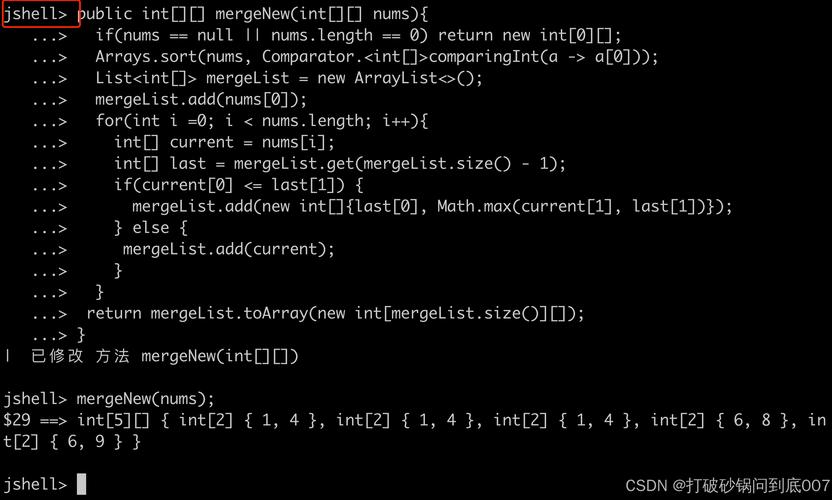
MainActivity.java (The Instructions)
import androidx.appcompat.app.AppCompatActivity;
import android.os.Bundle;
import android.view.View;
import android.widget.Button;
import android.widget.TextView;
public class MainActivity extends AppCompatActivity {
    // 1. Declare variables to hold the UI elements
    TextView myTextView;
    Button myButton;
    @Override
    protected void onCreate(Bundle savedInstanceState) {
        super.onCreate(savedInstanceState);
        // 2. Set the XML layout file as the content view for this Activity
        setContentView(R.layout.activity_main);
        // 3. Find the UI elements from the XML using their IDs
        myTextView = findViewById(R.id.myTextView);
        myButton = findViewById(R.id.myButton);
        // 4. Set a click listener for the button
        myButton.setOnClickListener(new View.OnClickListener() {
            @Override
            public void onClick(View v) {
                // 5. When the button is clicked, change the text of the TextView
                myTextView.setText("Button was clicked!");
            }
        });
    }
}
Explanation of the Java code:
- Declare Variables: We create
TextViewandButtonobjects. Right now, they are empty. setContentView(R.layout.activity_main);: This is the magic line. It tells the Activity to use the layout defined inactivity_main.xmlas its user interface.findViewById(R.id.myButton);: This searches the currently loaded XML layout for an element with the IDmyButton. When it finds it, it creates a corresponding Java object and assigns it to ourmyButtonvariable.setOnClickListener(...): We attach a "listener" to the button. This is an instruction that says, "Hey, button, pay attention. When someone clicks you, run this code."onClick(...): The code inside this method is what runs when the button is clicked. We change the text of ourmyTextViewobject.
XML: The Markup Language (Structure & Layout)
XML is a markup language designed to store and transport data. In Android, it's primarily used for defining the UI (User Interface).
-
What it does: XML files are human-readable and describe the hierarchy of UI elements. You define:
- Layouts: How elements are arranged (linearly, in a grid, etc.).
- Widgets: The actual UI elements (buttons, text fields, images).
- Attributes: The properties of those elements (width, height, color, text, etc.).
-
Syntax:
- Everything is an element (e.g.,
<Button>,<TextView>). - Elements have a start tag and an end tag (e.g.,
<Button> ... </Button>). - Elements can have attributes that provide extra information (e.g.,
android:text="Click Me").
- Everything is an element (e.g.,
-
Where is it used?
-
Layout Files: The most common use. Found in the
res/layout/directory. These files define what the screen looks like. -
Manifest File (
AndroidManifest.xml): This is a crucial XML file that lives in the root of theapp/directory. It describes your app to the Android system. It declares your app's components (Activities, Services), permissions (internet access, camera), and hardware/software features it requires.<!-- AndroidManifest.xml --> <manifest ...> <application android:allowBackup="true" android:icon="@mipmap/ic_launcher" android:label="@string/app_name" android:roundIcon="@mipmap/ic_launcher_round" android:supportsRtl="true" android:theme="@style/AppTheme"> <!-- Declares the MainActivity --> <activity android:name=".MainActivity"> <intent-filter> <action android:name="android.intent.action.MAIN" /> <category android:name="android.intent.category.LAUNCHER" /> </intent-filter> </activity> </application> </manifest>
-
Summary: The Workflow
- Design (XML): You design the user interface of a screen in an XML file (e.g.,
activity_main.xml). You define the layout, buttons, text fields, and give them IDs. - Code (Java): In your Java
Activityfile (e.g.,MainActivity.java), you usesetContentView()to load your XML layout. Then, you usefindViewById()to get references to the UI elements. - Logic (Java): You write Java code to add functionality. For example, you set a click listener on a button to change the text of a TextView or start a new Activity.
- Build & Run: The Android build system compiles your Java code into bytecode and packages it with your XML resources (and other assets) into an APK (Android Package Kit) file. This APK is then installed and run on an Android device or emulator.
A Note on Kotlin
While Java is still widely used, Google has officially declared Kotlin as the preferred language for Android development. Kotlin is 100% interoperable with Java, meaning you can have both in the same project. It's more modern, concise, and has features that reduce common bugs. However, the fundamental relationship between XML for UI and Java/Kotlin for logic remains the same.