Of course! Connecting Java to an Access 2025 database is a common task, especially for desktop applications or small to medium-sized projects. The primary method for this is using JDBC (Java Database Connectivity).
Here’s a comprehensive guide covering everything you need to know, from the "what" and "why" to a complete, step-by-step example.
The Core Concept: JDBC and ODBC
Java applications don't have a built-in driver for Access. To bridge the gap, you need a "bridge" technology. There are two main approaches:
Approach A: The Modern & Recommended Method (UCanAccess)
This is the best and most straightforward way to connect Java to Access today. It's a pure Java JDBC driver that doesn't require Microsoft Access to be installed on the machine running the Java application.
- How it works: UCanAccess uses the Jackcess library to read/write the Access
.mdbor.accdbfile directly. It's a self-contained solution. - Pros:
- Pure Java: No installation of Access or ODBC drivers required on the client machine.
- Supports both
.mdb(Access 2003 and earlier) and.accdb(Access 2007 and later) formats. - Actively maintained and feature-rich.
- Cons:
- Can be slightly slower than ODBC for very large, complex databases.
- Requires including several JAR files in your project.
Approach B: The Traditional Method (ODBC Bridge)
This was the standard method before UCanAccess became mature. It relies on the operating system's ODBC drivers.

- How it works:
- You create a "Data Source Name" (DSN) in your operating system's ODBC Data Source Administrator.
- This DSN points to your Access
.accdbfile. - The Java JDBC driver then talks to this ODBC data source.
- Pros:
Can be very performant.
- Cons:
- Requires Microsoft Access or the Access Database Engine to be installed on the machine where the Java code runs.
- Requires manual setup of the DSN on every client machine, which is a major deployment headache.
- Less portable.
Recommendation: Use UCanAccess. It is far easier to deploy and is the modern standard for this task.
Step-by-Step Guide with UCanAccess
Let's build a complete Java application that connects to an Access database, creates a table, inserts data, and retrieves it.
Step 1: Prepare Your Access Database
- Create a new Microsoft Access 2025 database.
- Save it as
C:\data\mydatabase.accdb. (You can use any path, but remember it for your Java code). - For this example, we won't create any tables beforehand. Our Java code will do that.
Step 2: Download UCanAccess JAR Files
You need to download the UCanAccess "Bundle" which contains all the necessary libraries.
- Go to the UCanAccess download page: https://sourceforge.net/projects/ucanaccess/files/
- Download the latest "Bundle" ZIP file (e.g.,
ucanaccess-5.0.1-bin.zip). - Unzip the file. You will see a folder containing several JAR files. You only need a few of them for a basic connection. The key ones are:
ucanaccess-x.x.x.jarjackcess-x.x.x.jarhsqldb.jarcommons-lang3-x.x.x.jar
Step 3: Set Up Your Java Project (Using an IDE like IntelliJ or Eclipse)
- Create a new Java project in your IDE.
- Add the downloaded JAR files to your project's classpath (libraries).
- In IntelliJ IDEA: Go to
File->Project Structure->Modules->Dependencies-> ->JARs or directories...and select the JARs you unzipped. - In Eclipse: Right-click your project ->
Build Path->Configure Build Path->Librariestab ->Add External JARs...and select the JARs.
- In IntelliJ IDEA: Go to
Step 4: Write the Java Code
Here is a complete, runnable example. It demonstrates connection, table creation, data insertion, and querying.
import java.sql.Connection;
import java.sql.DriverManager;
import java.sql.Statement;
import java.sql.ResultSet;
import java.sql.SQLException;
public class AccessDBExample {
    // The path to your Access database file (.accdb)
    private static final String DB_URL = "jdbc:ucanaccess://C:/data/mydatabase.accdb";
    public static void main(String[] args) {
        // Use try-with-resources to ensure the connection is closed automatically
        try (Connection conn = DriverManager.getConnection(DB_URL)) {
            System.out.println("Connection to Access database successful!");
            // 1. Create a table
            createTable(conn);
            // 2. Insert data into the table
            insertData(conn);
            // 3. Query and display data from the table
            queryData(conn);
        } catch (SQLException e) {
            System.err.println("Database connection or operation failed!");
            e.printStackTrace();
        }
    }
    private static void createTable(Connection conn) throws SQLException {
        // The SQL statement to create a new table
        String sql = "CREATE TABLE Employees ("
                   + "ID COUNTER PRIMARY KEY, " // COUNTER is an AutoNumber in Access
                   + "FirstName TEXT(50), "
                   + "LastName TEXT(50), "
                   + "Department TEXT(50))";
        try (Statement stmt = conn.createStatement()) {
            // Execute the update. This will throw an exception if the table already exists.
            // We can catch that and ignore it for this example.
            stmt.executeUpdate(sql);
            System.out.println("Table 'Employees' created successfully.");
        } catch (SQLException e) {
            // Expected if the table already exists
            if (e.getSQLState().equals("S0001")) { // S0001 is the state for "Table already exists"
                 System.out.println("Table 'Employees' already exists.");
            } else {
                throw e; // Re-throw other SQL exceptions
            }
        }
    }
    private static void insertData(Connection conn) throws SQLException {
        // The SQL statement to insert data
        String sql = "INSERT INTO Employees (FirstName, LastName, Department) VALUES (?, ?, ?)";
        // Using a PreparedStatement is the best practice to prevent SQL injection
        try (PreparedStatement pstmt = conn.prepareStatement(sql)) {
            // Set the values for the parameters
            pstmt.setString(1, "John");
            pstmt.setString(2, "Doe");
            pstmt.setString(3, "Engineering");
            pstmt.executeUpdate();
            pstmt.setString(1, "Jane");
            pstmt.setString(2, "Smith");
            pstmt.setString(3, "Human Resources");
            pstmt.executeUpdate();
            System.out.println("Data inserted successfully.");
        }
    }
    private static void queryData(Connection conn) throws SQLException {
        // The SQL statement to select all records
        String sql = "SELECT ID, FirstName, LastName, Department FROM Employees";
        try (Statement stmt = conn.createStatement();
             ResultSet rs = stmt.executeQuery(sql)) {
            System.out.println("\n--- Employee Records ---");
            // Loop through the result set and print each record
            while (rs.next()) {
                // Retrieve by column name for robustness
                int id = rs.getInt("ID");
                String firstName = rs.getString("FirstName");
                String lastName = rs.getString("LastName");
                String department = rs.getString("Department");
                System.out.printf("ID: %d, Name: %s %s, Department: %s%n", id, firstName, lastName, department);
            }
        }
    }
}
Step 5: Run the Code
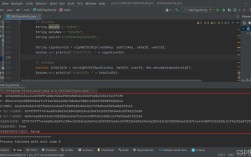
When you run the main method in AccessDBExample.java, you should see output similar to this:
Connection to Access database successful!
Table 'Employees' already exists.
Data inserted successfully.
--- Employee Records ---
ID: 1, Name: John Doe, Department: Engineering
ID: 2, Name: Jane Smith, Department: Human Resources
If you now open your mydatabase.accdb file in Microsoft Access, you will see the Employees table with the two records you just inserted.
Common Pitfalls and Troubleshooting
ClassNotFoundException: This means your IDE cannot find the JDBC driver. Double-check that you have added all the necessary UCanAccess JAR files to your project's classpath correctly.Database [path] not found: The path to your.accdbfile in theDB_URLis incorrect. Make sure the path is absolute and the file exists. Remember to use double backslashes (\\) in a string literal if you're on Windows, or a forward slash ().- Correct:
jdbc:ucanaccess://C:/data/mydatabase.accdb - Correct:
jdbc:ucanaccess://C:\\data\\mydatabase.accdb - Incorrect:
jdbc:ucanaccess://C:\data\mydatabase.accdb
- Correct:
[Microsoft][ODBC Driver Manager] Data source name not found: This error means you are trying to use the ODBC bridge approach (e.g.,jdbc:odbc:myDSN), but the DSNmyDSNwas not created on the machine. Stick with UCanAccess to avoid this.- File Locked by Another User: Make sure Microsoft Access is not open with the database file when your Java application is trying to write to it. UCanAccess can open a database in read-only mode if it detects it's locked.
Important Considerations
- Concurrency: UCanAccess handles concurrent access, but be aware of the limitations of the Jet/ACE database engine itself. For high-concurrency scenarios, a client-server database like PostgreSQL or MySQL is a much better choice.
- SQL Dialect: Access uses a slightly different SQL dialect (e.g.,
COUNTERfor auto-increment,TEXTfor strings) compared to standard SQL (INT AUTO_INCREMENT,VARCHAR). Be mindful of this when writing your queries. - Deployment: When you distribute your application, you must include all the required UCanAccess JAR files in the same directory as your compiled
.classfiles or package them into a JAR file with all dependencies.