Of course! Creating a Flappy Bird game in Java is a fantastic project for learning the fundamentals of game development, including game loops, collision detection, and user input.
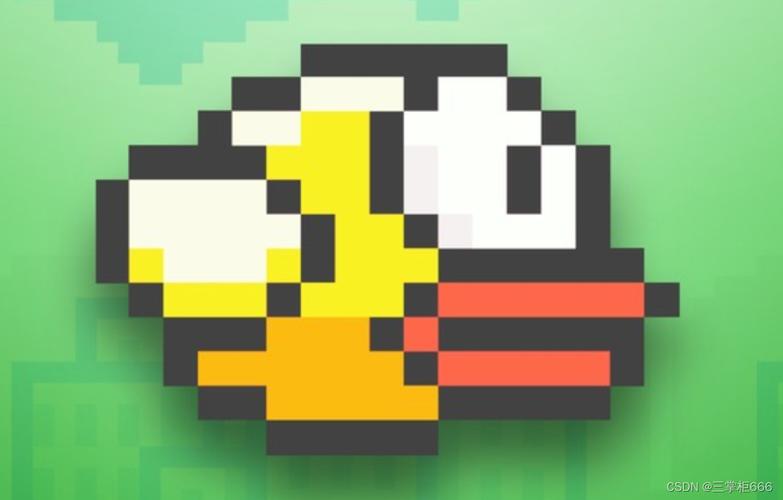
We'll use Java Swing, which is a built-in GUI toolkit for Java, making it perfect for this kind of 2D game.
Here is a complete, well-commented, and runnable Flappy Bird game in Java.
Core Concepts
- Game Loop: A continuous loop that updates the game state (bird position, pipe positions) and redraws the screen many times per second.
JFrame: The main window of our game.JPanel: The canvas where we will draw all our game elements (bird, pipes, background).KeyListener: To detect when the user presses the spacebar to make the bird "flap."- Collision Detection: Simple rectangular collision checks between the bird and the pipes.
- Game States: We'll manage different states like
START,PLAYING, andGAME_OVER.
The Complete Code
Here is the full source code. You can copy and paste this into a single file named FlappyBird.java.
import javax.swing.*;
import java.awt.*;
import java.awt.event.*;
import java.util.ArrayList;
import java.util.Random;
public class FlappyBird extends JPanel implements ActionListener, KeyListener {
    // --- Game Constants ---
    final int WIDTH = 360;
    final int HEIGHT = 640;
    final int GRAVITY = 1;
    final int VELOCITY = -11;
    final int PIPE_WIDTH = 64;
    final int PIPE_HEIGHT = 512;
    final int GAP = 150; // Gap between top and bottom pipes
    // --- Game Variables ---
    int birdX = WIDTH / 8;
    int birdY = HEIGHT / 2;
    int velocity = 0;
    int score = 0;
    int gameState = 0; // 0: Start Screen, 1: Playing, 2: Game Over
    // --- Images ---
    Image backgroundImage;
    Image birdImage;
    Image topPipeImage;
    Image bottomPipeImage;
    // --- Game Objects ---
    ArrayList<Pipe> pipes;
    Random random;
    // --- Timer for Game Loop ---
    Timer gameLoop;
    public FlappyBird() {
        // Set up the window
        setPreferredSize(new Dimension(WIDTH, HEIGHT));
        setFocusable(true);
        addKeyListener(this);
        // Load images (you'll need to add these to your project)
        // For simplicity, we'll draw rectangles instead of images in this version.
        // To use images, uncomment the lines below and provide the image files.
        // backgroundImage = new ImageIcon("bg.png").getImage();
        // birdImage = new ImageIcon("bird.png").getImage();
        // topPipeImage = new ImageIcon("toppipe.png").getImage();
        // bottomPipeImage = new ImageIcon("bottompipe.png").getImage();
        random = new Random();
        pipes = new ArrayList<>();
        // Start the game loop
        gameLoop = new Timer(1000 / 60, this); // 60 FPS
        gameLoop.start();
    }
    @Override
    public void paintComponent(Graphics g) {
        super.paintComponent(g);
        draw(g);
    }
    public void draw(Graphics g) {
        // --- Draw Background ---
        // If you have an image, use: g.drawImage(backgroundImage, 0, 0, this);
        g.setColor(new Color(70, 130, 180)); // Sky blue
        g.fillRect(0, 0, WIDTH, HEIGHT);
        // --- Draw Bird ---
        // If you have an image, use: g.drawImage(birdImage, birdX, birdY, this);
        g.setColor(Color.YELLOW);
        g.fillRect(birdX, birdY, 34, 24); // Bird body
        // Draw a simple eye
        g.setColor(Color.WHITE);
        g.fillOval(birdX + 20, birdY + 5, 8, 8);
        g.setColor(Color.BLACK);
        g.fillOval(birdX + 23, birdY + 7, 4, 4);
        // --- Draw Pipes ---
        for (Pipe pipe : pipes) {
            // Top pipe
            g.setColor(Color.GREEN);
            g.fillRect(pipe.x, 0, PIPE_WIDTH, pipe.topPipeHeight);
            // Bottom pipe
            g.fillRect(pipe.x, pipe.topPipeHeight + GAP, PIPE_WIDTH, HEIGHT - pipe.topPipeHeight - GAP);
        }
        // --- Draw Score ---
        g.setColor(Color.WHITE);
        g.setFont(new Font("Arial", Font.BOLD, 32));
        if (gameState == 0) {
            // Start Screen
            g.drawString("Press SPACE to Start", 40, HEIGHT / 2 - 50);
        } else if (gameState == 2) {
            // Game Over Screen
            g.drawString("Game Over", 80, HEIGHT / 2 - 50);
            g.drawString("Score: " + score, 100, HEIGHT / 2);
            g.drawString("Press SPACE to Restart", 40, HEIGHT / 2 + 50);
        } else {
            // Playing Screen
            g.drawString(String.valueOf(score), WIDTH / 2 - 10, 50);
        }
    }
    public void move() {
        if (gameState == 1) { // Only move bird and pipes if playing
            // Bird movement
            velocity += GRAVITY;
            birdY += velocity;
            // Add new pipes
            if (pipes.isEmpty() || pipes.get(pipes.size() - 1).x < WIDTH - 200) {
                int topPipeHeight = random.nextInt(150) + 50;
                pipes.add(new Pipe(WIDTH, topPipeHeight));
            }
            // Move pipes and check for collisions/score
            for (int i = 0; i < pipes.size(); i++) {
                Pipe pipe = pipes.get(i);
                pipe.x -= 4; // Pipe speed
                // Check for collision with pipes
                if (birdX < pipe.x + PIPE_WIDTH && birdX + 34 > pipe.x) {
                    if (birdY < pipe.topPipeHeight || birdY + 24 > pipe.topPipeHeight + GAP) {
                        gameState = 2; // Game Over
                    }
                }
                // Check if bird passed the pipe
                if (birdX > pipe.x + PIPE_WIDTH && !pipe.passed) {
                    score++;
                    pipe.passed = true;
                }
                // Remove pipes that are off-screen
                if (pipe.x + PIPE_WIDTH < 0) {
                    pipes.remove(i);
                    i--;
                }
            }
            // Check for collision with ground or ceiling
            if (birdY > HEIGHT - 24 || birdY < 0) {
                gameState = 2; // Game Over
            }
        }
    }
    @Override
    public void actionPerformed(ActionEvent e) {
        move();
        repaint();
    }
    @Override
    public void keyPressed(KeyEvent e) {
        if (e.getKeyCode() == KeyEvent.VK_SPACE) {
            if (gameState == 0 || gameState == 2) {
                // Reset game
                birdY = HEIGHT / 2;
                velocity = 0;
                pipes.clear();
                score = 0;
                gameState = 1;
            } else if (gameState == 1) {
                // Make the bird flap
                velocity = VELOCITY;
            }
        }
    }
    // --- Unused KeyListener methods ---
    @Override
    public void keyTyped(KeyEvent e) {}
    @Override
    public void keyReleased(KeyEvent e) {}
    // --- Main method to run the game ---
    public static void main(String[] args) {
        JFrame frame = new JFrame("Flappy Bird");
        FlappyBird flappyBird = new FlappyBird();
        frame.add(flappyBird);
        frame.pack();
        frame.setDefaultCloseOperation(JFrame.EXIT_ON_CLOSE);
        frame.setResizable(false);
        frame.setLocationRelativeTo(null); // Center the window
        frame.setVisible(true);
    }
    // --- Inner class for Pipe objects ---
    class Pipe {
        int x;
        int topPipeHeight;
        boolean passed = false;
        Pipe(int x, int topPipeHeight) {
            this.x = x;
            this.topPipeHeight = topPipeHeight;
        }
    }
}
How to Run the Code
- Save: Save the code in a file named
FlappyBird.java. - Compile: Open a terminal or command prompt, navigate to the directory where you saved the file, and compile it:
javac FlappyBird.java
- Run: Execute the compiled code:
java FlappyBird
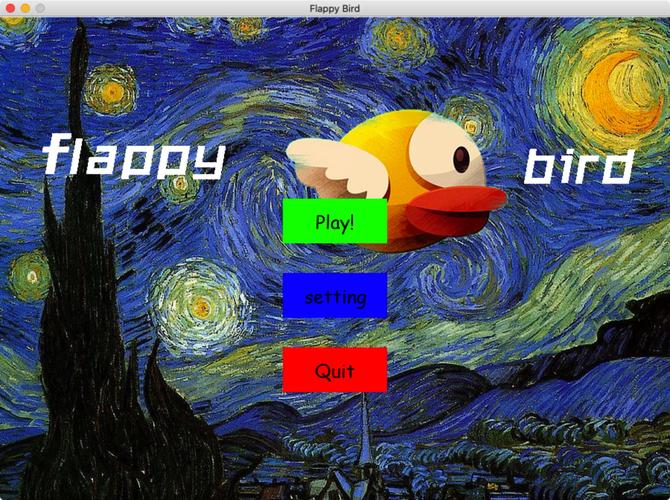
A window should appear with the Flappy Bird game.
How to Add Images (Optional Enhancement)
The current version uses simple colored shapes. To make it look like the real Flappy Bird, you need to add image files.
- Get the Images: Find or create images for the background, bird, and pipes. They should be transparent PNG files (
.png) with a transparent background. A quick search for "flappy bird assets png" will give you many options. - Place Images: Create a folder named
assetsin the same directory as yourFlappyBird.javafile and place your images inside it. Name them:bg.pngbird.pngtoppipe.pngbottompipe.png
- Update Code: In the
FlappyBirdconstructor, comment out theg.fillRectlines and uncomment theg.drawImagelines. You'll also need to adjust the image loading path.
Here is the modified constructor and draw method for using images:
// In the FlappyBird constructor
public FlappyBird() {
    // ... (previous code)
    // Load images from the "assets" folder
    try {
        backgroundImage = new ImageIcon(getClass().getResource("/assets/bg.png")).getImage();
        birdImage = new ImageIcon(getClass().getResource("/assets/bird.png")).getImage();
        topPipeImage = new ImageIcon(getClass().getResource("/assets/toppipe.png")).getImage();
        bottomPipeImage = new ImageIcon(getClass().getResource("/assets/bottompipe.png")).getImage();
    } catch (Exception e) {
        System.err.println("Could not load images. Make sure they are in the 'assets' folder.");
        e.printStackTrace();
    }
    // ... (rest of the constructor)
}
// In the draw(Graphics g) method
public void draw(Graphics g) {
    super.paintComponent(g);
    // Draw Background
    g.drawImage(backgroundImage, 0, 0, this);
    // Draw Bird
    g.drawImage(birdImage, birdX, birdY, this);
    // Draw Pipes
    for (Pipe pipe : pipes) {
        // Top pipe
        g.drawImage(topPipeImage, pipe.x, 0, this);
        // Bottom pipe
        g.drawImage(bottomPipeImage, pipe.x, pipe.topPipeHeight + GAP, this);
    }
    // ... (score drawing code remains the same)
}
Note: Using getClass().getResource() is a more robust way to load resources from a JAR file. Make sure your assets folder is part of your source path in your IDE or build process.
Breakdown of the Code
-
FlappyBirdClass: This class extendsJPanel, making it our main drawing surface. It also implementsActionListener(for the game loop) andKeyListener(for user input).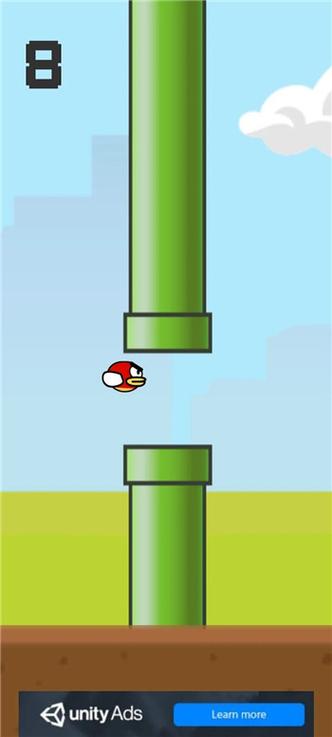 (图片来源网络,侵删)
 -
Constants:
WIDTH,HEIGHT,GRAVITY, etc., define the game's physics and dimensions. This makes the code easier to tweak. -
Constructor (
FlappyBird()):- Sets up the panel's size and focus.
- Initializes the
pipesArrayListand therandomnumber generator. - Creates and starts the
Timer. The timer fires anActionEvent60 times per second (1000ms / 60), which calls theactionPerformedmethod.
-
paintComponent(Graphics g):- This is the standard method in Swing for painting. We call
super.paintComponent(g)first to handle any background clearing. - The
draw(g)method contains all the drawing logic for the frame.
- This is the standard method in Swing for painting. We call
-
draw(Graphics g):- Uses
g.fillRect()to draw the background, bird, and pipes. - Uses
g.drawString()to display the score and messages on the start/game-over screens.
- Uses
-
move():- This is the heart of the game logic. It's called on every frame.
- It updates the bird's
velocityandyposition based on gravity. - It adds new
Pipeobjects to the list at regular intervals. - It loops through all pipes, moves them to the left, and checks for collisions with the bird.
- It also checks if the bird has passed a pipe to increment the
score. - Finally, it checks for collisions with the ground or ceiling.
-
actionPerformed(ActionEvent e):- This method is called by the
Timer. - It calls
move()to update the game state andrepaint()to request that thepaintComponentmethod be called again, refreshing the screen.
- This method is called by the
-
keyPressed(KeyEvent e):- This method is called when a key is pressed.
- It checks if the
SPACEkey was pressed. - If the game is not playing (
gameStateis 0 or 2), it resets the game. - If the game is playing, it applies an upward "flap" force by setting the
velocity.
-
PipeInner Class:- A simple class to hold the data for each pipe: its
xposition and theheightof the top part of the pipe. - The
passedboolean is a flag to ensure we only add a point to the score once per pipe.
- A simple class to hold the data for each pipe: its
-
main(String[] args):- The entry point of the program.
- It creates a
JFrame(the window), creates an instance of ourFlappyBirdgame panel, adds it to the frame, and configures the frame's properties (size, close operation, etc.).
This project is a great starting point. From here, you can easily add features like:
- Sound effects for flapping, scoring, and game over.
- A high score that persists between sessions.
- Different difficulty levels (faster pipes, smaller gaps).
- A menu system.