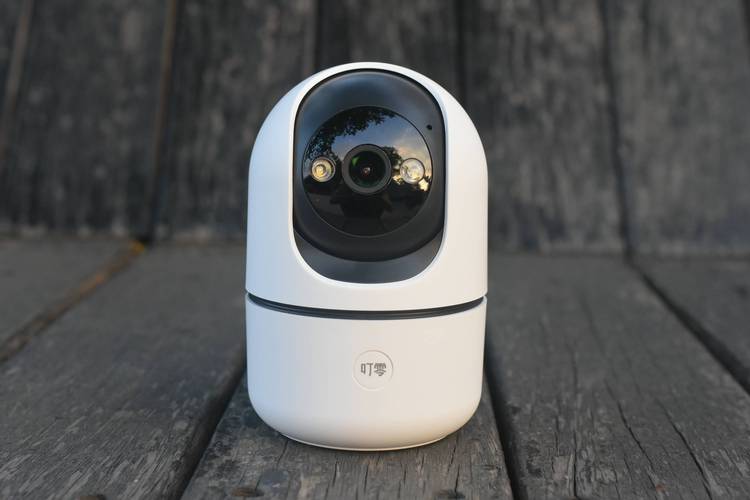
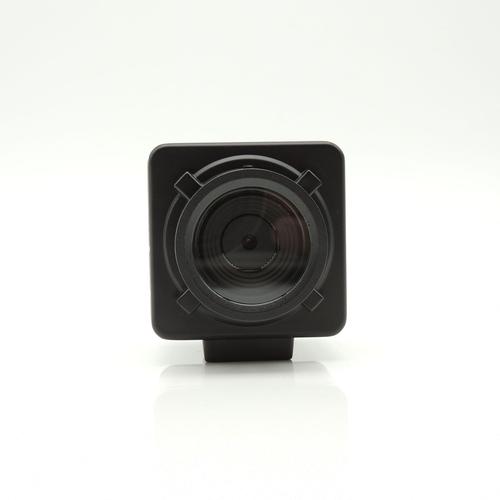
Of course! "Python shexiangtou" (Python 摄像头) refers to using Python to control and capture video from a camera. This is a very common task in projects like computer vision, security monitoring, image processing, and building simple photo booths.
I'll guide you through the most popular and easy-to-use methods, starting with the simplest and moving to more advanced ones.
Summary of Methods
| Method | Best For | Pros | Cons |
|---|---|---|---|
| OpenCV | Most use cases. Computer vision, video processing, accessing any camera. | Powerful, industry standard, huge community, works on Windows/macOS/Linux. | Can be a bit complex for just taking a picture. |
| Pygame | Simple projects, game development, getting a live preview quickly. | Very simple for displaying video, good for beginners. | Not ideal for complex video processing. |
| Picamera2 | Raspberry Pi users. Native, high-performance access to the Pi's camera. | Excellent performance, low overhead, designed specifically for the Pi. | Only works on Raspberry Pi. |
Method 1: OpenCV (The Standard & Most Powerful)
OpenCV (Open Source Computer Vision Library) is the go-to library for any image or video processing task in Python. It can access your webcam, IP cameras, and video files.
Step 1: Install OpenCV
You'll also need numpy as OpenCV uses it heavily for array operations.
pip install opencv-python numpy
Step 2: Basic Code to Capture and Display Video
This code will open a window showing your live camera feed. Press 'q' to quit.
import cv2
# 0 is usually the default webcam. If you have multiple cameras, try 1, 2, etc.
# You can also use a video file path, e.g., "my_video.mp4"
cap = cv2.VideoCapture(0)
# Check if the webcam is opened correctly
if not cap.isOpened():
    print("Error: Could not open video device.")
    exit()
while True:
    # Capture frame-by-frame
    # ret is a boolean that returns True if a frame is read correctly
    # frame is the image itself
    ret, frame = cap.read()
    if not ret:
        print("Error: Failed to capture frame.")
        break
    # Display the resulting frame
    cv2.imshow('Webcam Feed', frame)
    # Wait for the 'q' key to be pressed to exit
    # The `waitKey(1)` is crucial for the window to update
    if cv2.waitKey(1) & 0xFF == ord('q'):
        break
# When everything is done, release the capture
cap.release()
cv2.destroyAllWindows()
Step 3: Taking a Photo
You can easily modify the code above to take a snapshot.
import cv2
cap = cv2.VideoCapture(0)
if not cap.isOpened():
    print("Error: Could not open video device.")
    exit()
# Read a single frame
ret, frame = cap.read()
if ret:
    # Save the captured image to a file
    filename = "my_photo.jpg"
    cv2.imwrite(filename, frame)
    print(f"Photo saved as {filename}")
else:
    print("Error: Failed to capture frame.")
# Release the capture
cap.release()
cv2.destroyAllWindows()
Method 2: Pygame (Simple & Quick for Display)
Pygame is a library designed for making games. It has simple functions for capturing and displaying video, which is great for beginners who don't need all the power of OpenCV.
Step 1: Install Pygame
pip install pygame
Step 2: Basic Code to Display Video
This code provides a very simple way to get a live preview.
import pygame
import sys
# Initialize pygame
pygame.init()
# Set up the display window
# You can set the size to (640, 480) or whatever you like
screen_width, screen_height = 640, 480
screen = pygame.display.set_mode((screen_width, screen_height))
pygame.display.set_caption("Pygame Camera")
# Initialize the camera
# 0 is the default webcam
camera = pygame.camera.Camera(0, (screen_width, screen_height))
camera.start()
# Main loop
running = True
while running:
    for event in pygame.event.get():
        if event.type == pygame.QUIT:
            running = False
    # Capture a frame from the camera
    image = camera.get_image()
    # Display the image on the screen
    screen.blit(image, (0, 0))
    pygame.display.flip()
# Clean up
camera.stop()
pygame.quit()
sys.exit()
Note: Pygame's camera module is less powerful than OpenCV's. It's mainly for displaying a feed. Taking a photo is just a matter of saving the image surface.

Method 3: Picamera2 (For Raspberry Pi Users)
If you are using a Raspberry Pi and its official camera module, Picamera2 is the modern, recommended way to access it. It's much faster and more efficient than the older picamera library.
Step 1: Install Picamera2
It's best to install it directly on your Raspberry Pi using pip.
pip install picamera2
Step 2: Basic Code to Display Video
This code uses Picamera2 to capture a preview and display it using a Qt-based viewer (which is common on Raspberry Pi OS with a desktop).
from picamera2 import Picamera2
import time
# Create a Picamera2 instance
picam2 = Picamera2()
# Configure the camera for a simple preview
# You can adjust the size and format
config = picam2.create_preview_configuration(main={"size": (640, 480)})
picam2.configure(config)
# Start the camera
picam2.start()
print("Camera started. Press Ctrl+C to stop.")
try:
    while True:
        # The preview is shown automatically by the Qt-based preview window
        # You can add a small delay to prevent the loop from spinning too fast
        time.sleep(1)
except KeyboardInterrupt:
    print("Stopping camera...")
finally:
    # Stop the camera
    picam2.stop()
    print("Camera stopped.")
Step 3: Taking a Photo
Taking a photo is very straightforward with Picamera2.
from picamera2 import Picamera2
import time
picam2 = Picamera2()
# Configure for still capture
# You might want a higher resolution for photos
config = picam2.create_still_configuration(main={"size": (1920, 1080)})
picam2.configure(config)
picam2.start()
print("Camera started. Capturing photo in 2 seconds...")
time.sleep(2)
# Capture the image
filename = "pi_photo.jpg"
picam2.capture_file(filename)
print(f"Photo saved as {filename}")
# Stop the camera
picam2.stop()
print("Camera stopped.")
Which One Should You Choose?
- For general-purpose webcam work on a PC (Windows/macOS/Linux): Use OpenCV. It's the standard, most versatile, and has the most features.
- For a very simple, quick preview on a PC: Use Pygame. It's easier to get started with if you don't need complex functions.
- For a Raspberry Pi with its official camera: Use Picamera2. It's the best tool for the job, offering high performance and low CPU usage.