Of course! This is a very common and important topic for Python development in VS Code. The "import" issue usually boils down to one of two things:
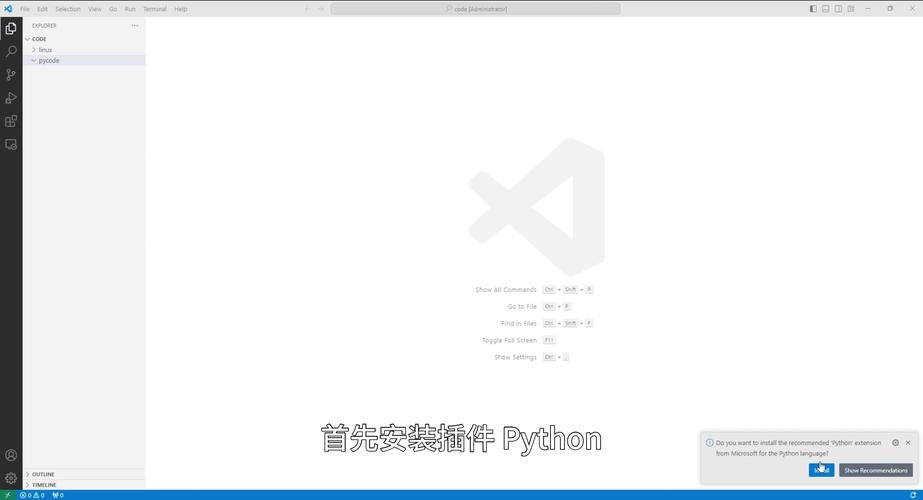
- VS Code not recognizing the correct Python interpreter (most common).
- Your Python project not being structured correctly (especially for relative imports).
Let's break down how to solve both.
Part 1: The Most Common Fix - Selecting the Correct Python Interpreter
VS Code needs to know which Python environment (or "interpreter") to use. If it's using the wrong one, it won't find your installed packages or your local project files.
Step 1: Open the Command Palette
This is the central hub for VS Code commands.
- Press
Ctrl+Shift+P(orCmd+Shift+Pon Mac). - Type
Python: Select Interpreterand press Enter.
Step 2: Choose Your Interpreter
A list of available Python interpreters will appear. You should see options like:

- A Global Python: Something like
Python 3.10(the version number may vary). This is the Python installed on your system. - A Virtual Environment: This is what you want for most projects. It will look something like
.../venv/Scripts/python.exe(Windows) or.../venv/bin/python(macOS/Linux). The namevenvis common, but it could be.venv,env, etc.
How to choose:
- If you have a virtual environment: Always select the interpreter from your virtual environment. This ensures you are using the packages installed specifically for that project.
- If you don't have a virtual environment: Select the global Python interpreter for your system. It's good practice to create one, though!
Step 3: Verify the Selection
- Look at the bottom-left corner of the VS Code status bar. It should now show the path to the selected Python interpreter.
Part 2: Ensuring Your Project Structure is Correct
Even with the right interpreter, Python has specific rules for importing files, especially from other files in the same project. This is where relative and absolute imports come in.
The Golden Rule: The Root Folder Must Be a "Source Root"
For Python to import modules from your project, the folder at the top level of your project must be recognized as a source root. This tells Python where to start looking for your packages.
Let's use a common project structure as an example:

my_project/              <-- This is the "root" of your project
├── my_project/          <-- This is the Python "package"
│   ├── __init__.py      <-- Makes this folder a package
│   ├── main.py          <-- Your main script
│   └── utils.py         <-- A module you want to import
└── venv/                <-- Your virtual environment (should be ignored)
    └── ...
How to set this up in VS Code:
-
Create the
__init__.pyfile: In themy_projectfolder (the one that will contain your other Python modules), create a file named__init__.py. This file can be empty, but its presence tells Python that the directory is a package. -
Mark the Root Folder as a Source Root:
-
In the VS Code Explorer panel (the file icon on the left), right-click on the outermost project folder (in our example, the
my_projectfolder). -
Select
Mark Folder as->Source Root. -
You will see a small blue circle with a number "1" appear on the folder icon. This confirms it's a source root.
-
How to Import with the Correct Structure
Now that your project is set up, you can write your imports correctly.
Scenario: You are in main.py and you want to import the helper_function from utils.py.
File: my_project/main.py
# --- Method 1: Absolute Import (Recommended) ---
# This is the clearest and most common method.
# It imports based on the project root (the source root).
from my_project.utils import helper_function
# --- Method 2: Relative Import ---
# This is useful for imports within the same package.
# A dot (.) means "from the current package".
# Two dots (..) mean "from the parent package".
# from .utils import helper_function # This also works if main.py is in my_project/
# --- Method 3: Add Root to sys.path (Advanced) ---
# If you don't want to mark the folder as a source root,
# you can programmatically add the project root to Python's path.
# This is generally not recommended if you can use a source root.
# import sys
# import os
# sys.path.append(os.path.dirname(os.path.dirname(os.path.abspath(__file__))))
# from my_project.utils import helper_function
# --- Now, use the imported function ---
helper_function()
File: my_project/utils.py
def helper_function():
    print("Hello from the utils module!")
Part 3: Using the Python Extension's "Run Python File" Button
If you're just trying to run a single script that imports another local file, make sure the file you are running is the "main entry point".
- Open the file you want to execute (e.g.,
main.py). - Click the "Run Python File" button (the play icon) in the top-right corner of the editor.
This will run the file using the currently selected interpreter, and all the import logic we discussed above will apply.
Summary Checklist for Import Issues
-
[ ] Is the correct Python interpreter selected?
- Press
Ctrl+Shift+P->Python: Select Interpreter. - Choose the one from your virtual environment if you have one.
- Press
-
[ ] Is your project structure correct?
- Do you have an
__init__.pyfile in the folders you want to import from? - Have you marked your project's root folder as a "Source Root" in VS Code?
- Do you have an
-
[ ] Are your import statements correct?
- Use absolute imports (e.g.,
from my_package import my_module) for clarity. - Use relative imports (e.g.,
from .my_module import my_function) only within the same package.
- Use absolute imports (e.g.,
-
[ ] Are you running the right file?
Make sure the file you are clicking "Run" on is the one that correctly imports the others.
By following these steps, you should be able to resolve almost any import error you encounter while using VS Code for Python development.