Of course! Using a VNC viewer in Python can be approached in two main ways:
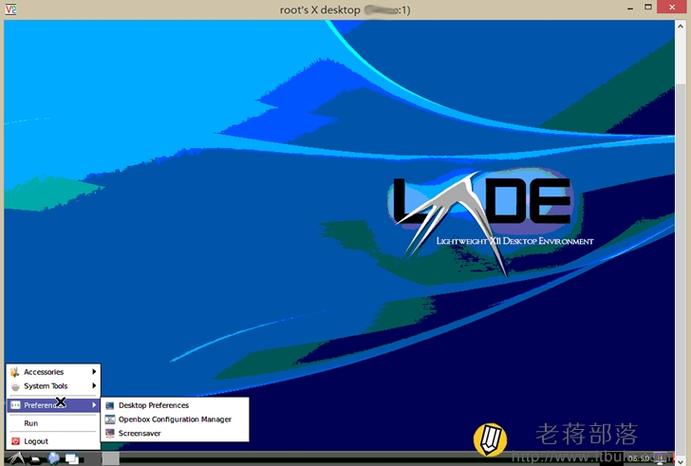
- Using a Python Library to Connect to a VNC Server: This is the most common and programmatic approach. You write a Python script that acts as a VNC client to control another machine.
- Automating a GUI VNC Viewer Application: You use Python to launch and control an existing VNC viewer application (like RealVNC, TightVNC, or Remmina) from your script. This is less common and usually more complex.
Let's focus on the first, more useful approach.
Method 1: Using a Python VNC Library (Recommended)
The most popular and well-maintained library for this is pyvnc. It allows you to connect to a VNC server and programmatically interact with the remote desktop.
Step 1: Install the pyvnc Library
You can install it easily using pip:
pip install pyvnc
Step 2: Basic Script to Connect and Interact
This script will connect to a VNC server, move the mouse, and type some text.
import pyvnc
import time
# --- Configuration ---
# The IP address or hostname of the VNC server
VNC_SERVER_HOST = '192.168.1.100'
# The port for the VNC server (default is 5900)
VNC_SERVER_PORT = 5900
# The password for the VNC server
VNC_PASSWORD = 'your_vnc_password'
def main():
    """
    Connects to a VNC server and performs simple interactions.
    """
    print(f"Connecting to {VNC_SERVER_HOST}:{VNC_SERVER_PORT}...")
    try:
        # 1. Create a VNC client instance
        # The 'shared=True' argument allows multiple connections to the same server
        vnc_client = pyvnc.RFBClient(VNC_SERVER_HOST, VNC_SERVER_PORT, shared=True)
        # 2. Authenticate with the password
        vnc_client.authenticate(VNC_PASSWORD)
        print("Authentication successful!")
        # Optional: Get information about the remote desktop
        print(f"Desktop size: {vnc_client.width}x{vnc_client.height}")
        print(f"Pixel format: {vnc_client.pixel_format}")
        # Give the user a moment to see the initial state
        time.sleep(2)
        # 3. Perform mouse movements and clicks
        print("Moving mouse to center...")
        vnc_client.mouseMove(vnc_client.width // 2, vnc_client.height // 2)
        time.sleep(1)
        print("Performing a left mouse click...")
        vnc_client.mousePress(pyvnc.Button.left)
        time.sleep(0.5)
        vnc_client.mouseRelease(pyvnc.Button.left)
        time.sleep(1)
        # 4. Type some text
        print("Typing 'Hello from Python!'...")
        vnc_client.keyPress('H')
        vnc_client.keyPress('e')
        vnc_client.keyPress('l')
        vnc_client.keyPress('l')
        vnc_client.keyPress('o')
        vnc_client.keyPress(' ')
        vnc_client.keyPress('f')
        vnc_client.keyPress('r')
        vnc_client.keyPress('o')
        vnc_client.keyPress('m')
        vnc_client.keyPress(' ')
        vnc_client.keyPress('P')
        vnc_client.keyPress('y')
        vnc_client.keyPress('t')
        vnc_client.keyPress('h')
        vnc_client.keyPress('o')
        vnc_client.keyPress('n')
        vnc_client.keyPress('!')
        print("Interaction complete.")
    except pyvnc.VNCError as e:
        print(f"VNC Error: {e}")
    except ConnectionRefusedError:
        print(f"Connection refused. Is the VNC server running on {VNC_SERVER_HOST}:{VNC_SERVER_PORT}?")
    except Exception as e:
        print(f"An unexpected error occurred: {e}")
if __name__ == "__main__":
    main()
Explanation of Key pyvnc Methods:
RFBClient(host, port, shared): Creates a new VNC client connection.authenticate(password): Sends the password to the server.mouseMove(x, y): Moves the mouse cursor to the specified pixel coordinates.mousePress(button)andmouseRelease(button): Simulates a mouse button press and release.buttoncan bepyvnc.Button.left,pyvnc.Button.right, orpyvnc.Button.middle.keyPress(key): Simulates pressing a single key. Thekeyis a single character string (e.g., 'a', '1', ' ').keyRelease(key): Simulates releasing a single key. For simple typing, you can often just usekeyPressand the library handles the release for you, but for full control, you should pair them.- Properties like
vnc_client.width,vnc_client.height, andvnc_client.pixel_formatgive you information about the remote desktop after connection.
Method 2: Automating a GUI VNC Viewer (Advanced)
Sometimes you might want to control a specific VNC viewer application that's already installed on your system. You can use a GUI automation library like pyautogui for this.
This approach is more brittle because it depends on the GUI of the viewer application (window titles, button positions, etc.) and will break if the UI changes.
Step 1: Install pyautogui
pip install pyautogui
Step 2: Example Script to Launch and Control RealVNC
This script will open the RealVNC viewer, type the connection details, and click "Connect".
import pyautogui
import time
import subprocess
import sys
# --- Configuration ---
VNC_VIEWER_PATH = "C:\\Program Files\\RealVNC\\VNC Viewer\\vncviewer.exe" # Windows example
# VNC_VIEWER_PATH = "/usr/bin/vncviewer" # Linux example
SERVER_ADDRESS = "192.168.1.100:5900"
PASSWORD = "your_vnc_password"
def main():
    """
    Launches the RealVNC viewer and automates the initial connection steps.
    """
    print("Launching RealVNC Viewer...")
    try:
        # Use subprocess to launch the application
        subprocess.Popen([VNC_VIEWER_PATH])
    except FileNotFoundError:
        print(f"Error: VNC Viewer not found at '{VNC_VIEWER_PATH}'")
        print("Please update the VNC_VIEWER_PATH variable.")
        sys.exit(1)
    print("Waiting for RealVNC window to appear...")
    # Give the application time to start
    time.sleep(5)
    try:
        # 1. Click on the "New Connection" button or address bar
        # You might need to use a tool like 'inspect.exe' (Windows) or 'xwininfo' (Linux)
        # to find the exact coordinates of these elements.
        # This is a guess and will likely need adjustment.
        pyautogui.click(x=200, y=400) # Click in the address bar area
        time.sleep(1)
        # 2. Type the server address
        print(f"Typing server address: {SERVER_ADDRESS}")
        pyautogui.write(SERVER_ADDRESS)
        time.sleep(1)
        # 3. Press Enter to connect
        pyautogui.press('enter')
        time.sleep(3) # Wait for password prompt
        # 4. Type the password and press Enter
        print("Typing password...")
        pyautogui.write(PASSWORD)
        pyautogui.press('enter')
        print("Connection attempt complete. Check the VNC viewer window.")
    except pyautogui.FailSafeException:
        print("\nPyAutoGUI fail-safe triggered! Moving mouse to corner to abort.")
    except Exception as e:
        print(f"An error occurred during GUI automation: {e}")
        print("This often means the window elements were not found. Check coordinates and window titles.")
if __name__ == "__main__":
    main()
Comparison and Recommendation
| Feature | Method 1: pyvnc Library |
Method 2: GUI Automation (pyautogui) |
|---|---|---|
| Purpose | Direct, programmatic control of a remote machine. | Automating a local GUI application. |
| Dependencies | Only pyvnc. |
Requires a specific VNC viewer app to be installed. |
| Reliability | High. Interacts directly with the VNC protocol. | Low. Brittle, breaks if the viewer's UI changes. |
| Use Case | Automated testing, remote administration, bot-like tasks. | Custom launchers or interacting with viewer-specific features. |
| Complexity | Low to Medium. Easy to connect and send commands. | Medium to High. Requires finding GUI element coordinates. |
Recommendation:
For almost all use cases, use Method 1 with the pyvnc library. It is the correct, reliable, and standard way to programmatically control a VNC server from Python. Use Method 2 only if you have a very specific reason to control a particular GUI application and cannot use a direct library.