Of course! The term "Python Django window" can mean a few different things, so I'll cover the most common interpretations, from running Django on Windows to building user interfaces (GUIs) with Django.
Let's break it down.
Interpretation 1: Running a Django Project on a Windows Machine
This is the most likely meaning. It refers to developing, running, and deploying a Django web application on a computer running the Windows operating system.
Here’s a complete guide to getting started with Django on Windows.
Step 1: Install Python
First, you need Python installed on your Windows machine.

-
Download the Installer: Go to the official Python website: python.org.
-
Download the Latest Version: Download the latest stable installer (e.g., Python 3.12.x).
-
Run the Installer: Open the downloaded
.exefile. -
CRITICAL STEP: Check the box that says "Add python.exe to PATH". This makes it easy to run Python and its tools from any command prompt or terminal window.
 (图片来源网络,侵删)
 -
Install: Click "Install Now". Wait for the installation to complete.
Step 2: Verify Installation
Open a new Command Prompt or PowerShell window and type:
python --version
You should see the version of Python you just installed (e.g., Python 3.12.0). If you get an error, it's likely because the "Add to PATH" step was missed. You may need to restart your computer or manually add the Python path to your system's environment variables.
Step 3: Install Django
Now, use pip (Python's package installer) to install Django.
pip install django
Step 4: Create a Django Project
Navigate to the directory where you want to create your project using the cd command. For example:
cd C:\Users\YourUsername\Documents\Dev
Now, run the Django project command. The last part, myproject, is the name of your project's main folder. You can name it whatever you like.
django-admin startproject myproject
This will create a folder structure like this:
myproject/
├── manage.py
└── myproject/
    ├── __init__.py
    ├── asgi.py
    ├── settings.py
    ├── urls.py
    └── wsgi.py
Step 5: Run the Development Server
Navigate into your new project's directory:
cd myproject
Now, run the development server:
python manage.py runserver
You should see output like this:
Watching for file changes with StatReloader
Performing system checks...
System check identified no issues (0 silenced).
December 15, 2025 - 15:30:00
Django version 4.2.7, using settings 'myproject.settings'
Starting development server at http://127.0.0.1:8000/
Quit the server with CTRL-BREAK.
Step 6: View Your "Window"
Open your web browser (like Chrome, Edge, or Firefox) and go to the address:
http://127.0.0.1:8000/
You should see the Django welcome page, which is a placeholder for your future web application.
Interpretation 2: Building a Desktop Window (GUI) with Django
This is a less common but interesting interpretation. Django is a web framework, not a GUI framework. It is designed to build websites that run in a web browser.
However, you can use it to create a desktop application that opens in a window using technologies like Electron.
How it works:
- You build a standard Django web application.
- You package that web application inside a lightweight, minimal web browser (like Chromium).
- You use a framework like Electron to create a desktop shell that contains this browser.
Result: The user gets a .exe file on Windows that opens a native-looking window. Inside that window is your Django app running in a browser.
Pros:
- Leverage Django's powerful features (admin panel, ORM, authentication) for a desktop app.
- Use standard web technologies (HTML, CSS, JavaScript) for the user interface.
Cons:
- The application is heavier than a native GUI app.
- It's not a "true" native window; it's a browser window in disguise.
- Can be overkill for simple desktop tools.
Libraries to achieve this:
- Electron: The most popular choice (used by VS Code, Slack, Discord).
- Tauri: A newer, more lightweight alternative to Electron.
Interpretation 3: Django Admin in a "Window"
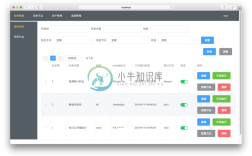
Another common point of confusion is the Django Admin. When you run python manage.py createsuperuser and log in, you get a powerful, built-in administration interface. This interface is what you use to manage your application's data.
While it runs in a web browser, it feels like a dedicated management application or "control panel" window. It's a key feature of Django that saves developers a massive amount of time.
To enable it:
- Make sure
django.contrib.adminis in yourINSTALLED_APPSinsettings.py. - Run
python manage.py makemigrationsandpython manage.py migrate. - Run
python manage.py createsuperuserto create an admin account. - Start the server (
runserver) and go to http://127.0.0.1:8000/admin/ to log in.
Summary
| Interpretation | What it Means | Best For |
|---|---|---|
| Django on Windows | Developing and running a Django web app on a Windows PC. | This is the standard and most common meaning. Everything described in Part 1. |
| Django for a Desktop GUI Window | Using Django as the backend for a desktop app packaged with Electron/Tauri. | Complex desktop applications that need web-like features or a rapid UI. |
| The Django Admin "Window" | The built-in administrative interface for managing your app's data. | Quickly managing content, users, and data models in your web project. |
For 99% of users, Interpretation #1 is what they're looking for. It's the foundation of all Django development on the Windows platform.