Of course. Using virtualenv with Python 2 is a common requirement when maintaining legacy projects. Here's a comprehensive guide covering everything you need to know.
What is virtualenv?
virtualenv is a tool that creates an isolated Python environment. This means you get a separate folder containing a specific version of Python and a set of installed packages. This is crucial for:
- Dependency Management: Ensuring a project uses the exact versions of its libraries, without conflicting with other projects or your system's Python.
- Cleanliness: Keeps your global Python installation clean and uncluttered with project-specific packages.
- Reproducibility: Makes it easy for others (or your future self) to set up the project exactly as it was.
Step 1: Install virtualenv
First, you need to install virtualenv itself. Since virtualenv is a Python package, you can install it using pip. It's best practice to install it for your system's Python 2.
# Use pip for Python 2 (often called pip2)
pip2 install virtualenv
Note: On some systems, you might need to use sudo if you're installing it globally. However, for Python 2, this is less common as it's often not the system's primary Python.
# If you get a permission error
sudo pip2 install virtualenv
Step 2: Create a Virtual Environment
Navigate to your project's root directory in the terminal. Then, run the virtualenv command followed by the name of the folder you want to create for your environment. A common convention is to name it venv or .venv.

# Create a virtual environment named 'venv'
virtualenv venv
What just happened?
This command created a new folder named venv. Inside it, you'll find:
bin/: Contains executables likepython,pip, andactivate.lib/: Contains the Python standard library and any packages you'll install.include/: Contains header files for C extensions.
You can also specify the Python interpreter to use if you have multiple versions installed. This is very important for Python 2 projects.
# Explicitly use a specific Python 2 interpreter
virtualenv -p /usr/bin/python2.7 venv
-por--pythonis the flag to specify the Python interpreter./usr/bin/python2.7is the path to your Python 2.7 executable. You can find this by runningwhich python2.7.
Step 3: Activate the Virtual Environment
To start using the environment, you need to "activate" it. This modifies your shell's PATH to point to the python and pip executables inside your venv folder.
source venv/bin/activate
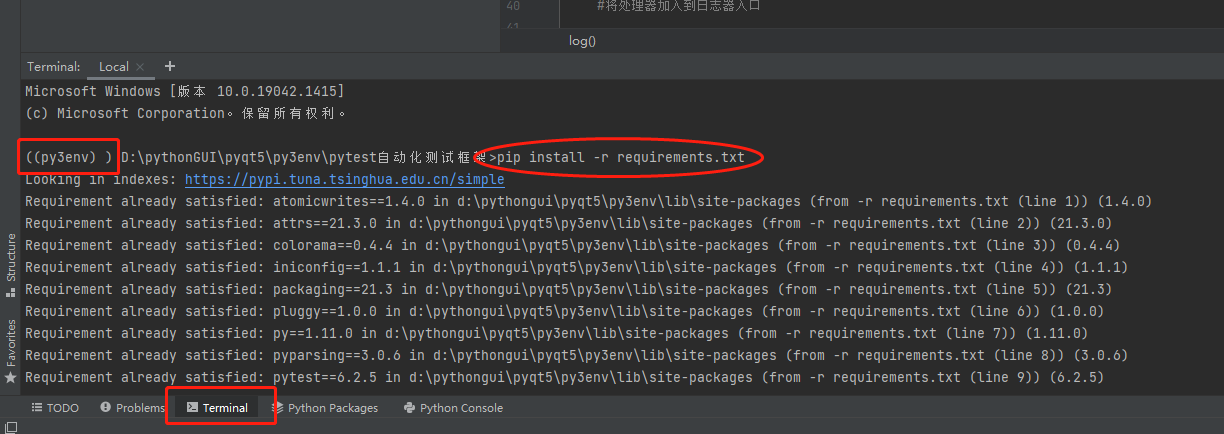
After activating, you'll see the environment's name in your command prompt, which serves as a helpful reminder that you're inside the virtual environment.
(venv) $ On Windows: The command is slightly different due to the command prompt.
venv\Scripts\activate
Step 4: Work Inside the Environment
Now that your environment is active, any pip or python command you run will be specific to this environment.
Install Project Dependencies
Let's say your project requires Flask==0.12.4 and requests==2.18.4. You would install them like this:
# The (venv) prefix shows the environment is active
(venv) $ pip install Flask==0.12.4 requests==2.18.4
Verify the Python Version
It's a good idea to confirm you're using the correct Python version.
(venv) $ python --version
Python 2.7.x  # The version you specified when creating the env
Run Your Application
Now you can run your Python scripts, and they will use the packages installed in this environment.
(venv) $ python my_legacy_app.py
Step 5: Deactivate the Environment
When you're finished working on the project, you can leave the virtual environment by simply running:
(venv) $ deactivate
Your command prompt will return to normal, and any python or pip commands will now use your system's global versions again.
Best Practice: requirements.txt
To make your project reproducible, you should save a list of all your project's dependencies.
Generate the file: While your virtual environment is active, run:
(venv) $ pip freeze > requirements.txt
This command creates a requirements.txt file in your project directory with a list of all installed packages and their exact versions.
Example requirements.txt:
Flask==0.12.4
itsdangerous==0.24
Jinja2==2.8
MarkupSafe==0.23
requests==2.18.4
Set up a new environment from scratch: On another machine or in a new directory, you can easily recreate the environment by doing the following:
# 1. Create the virtual environment
virtualenv venv
# 2. Activate it
source venv/bin/activate
# 3. Install all dependencies from the file
pip install -r requirements.txt
Common Issues and Solutions
Command 'virtualenv' not found
- Cause:
virtualenvis not installed or not in your system'sPATH. - Solution: Install it for your Python 2 installation:
pip2 install virtualenv.
ImportError: No module named virtualenv
- Cause: You might be trying to run
virtualenvfrom inside an already activated virtual environment that doesn't have it. - Solution: Deactivate your current environment, then install
virtualenvglobally for Python 2:pip2 install virtualenv.
Using pip vs pip2
pip: This command might be linked to your system's default Python (which could be Python 3).pip2: This is explicit and ensures you are using the package installer for your Python 2 installation.- Best Practice: Inside a Python 2 virtual environment,
pipwill point to the environment's pip, sopip installis fine. When installingvirtualenvitself,pip2 install virtualenvis safer and more explicit.
Modern Alternative: venv (Python 3.3+)
For modern Python 3 projects, Python includes a built-in module called venv (e.g., python3 -m venv venv). It's simpler and doesn't require installing virtualenv.
However, virtualenv is still the standard and most reliable tool for Python 2, as venv does not support Python 2.