Of course! Converting XML to HTML is a common task, especially for displaying structured data in a web browser. The best approach depends on your specific needs: whether you have a predefined XML structure, if you need a generic converter, or if you're working with a specific XML "dialect" like DocBook.
Here’s a comprehensive guide covering several methods, from simple and quick to more robust and flexible.
Scenario: Our Example XML File
Let's assume we have an XML file named books.xml that we want to convert to an HTML table.
books.xml
<?xml version="1.0"?>
<catalog>
    <book id="bk101">
        <author>Gambardella, Matthew</author>
        <title>XML Developer's Guide</title>
        <genre>Computer</genre>
        <price>44.95</price>
        <publish_date>2000-10-01</publish_date>
    </book>
    <book id="bk102">
        <author>Ralls, Kim</author>
        <title>Midnight Rain</title>
        <genre>Fantasy</genre>
        <price>5.95</price>
        <publish_date>2000-12-16</publish_date>
    </book>
    <book id="bk103">
        <author>Corets, Eva</author>
        <title>Maeve Ascendant</title>
        <genre>Fantasy</genre>
        <price>5.95</price>
        <publish_date>2000-11-17</publish_date>
    </book>
</catalog>
Our goal is to create an HTML file that looks like this:
books.html (Desired Output)
<!DOCTYPE html>
<html lang="en">
<head>
    <meta charset="UTF-8">Book Catalog</title>
    <style>
        table { width: 100%; border-collapse: collapse; }
        th, td { border: 1px solid #dddddd; text-align: left; padding: 8px; }
        th { background-color: #f2f2f2; }
    </style>
</head>
<body>
    <h1>Book Catalog</h1>
    <table>
        <thead>
            <tr>
                <th>ID</th>
                <th>Author</th>
                <th>Title</th>
                <th>Genre</th>
                <th>Price</th>
                <th>Publish Date</th>
            </tr>
        </thead>
        <tbody>
            <tr>
                <td>bk101</td>
                <td>Gambardella, Matthew</td>
                <td>XML Developer's Guide</td>
                <td>Computer</td>
                <td>$44.95</td>
                <td>2000-10-01</td>
            </tr>
            <tr>
                <td>bk102</td>
                <td>Ralls, Kim</td>
                <td>Midnight Rain</td>
                <td>Fantasy</td>
                <td>$5.95</td>
                <td>2000-12-16</td>
            </tr>
            <tr>
                <td>bk103</td>
                <td>Corets, Eva</td>
                <td>Maeve Ascendant</td>
                <td>Fantasy</td>
                <td>$5.95</td>
                <td>2000-11-17</td>
            </tr>
        </tbody>
    </table>
</body>
</html>
Method 1: Using Python's Standard Library (xml.etree.ElementTree)
This is the most common and straightforward method if you want to write a custom converter without any external dependencies. It involves parsing the XML and then building the HTML string manually.
Pros:
- No external libraries needed.
- Full control over the output HTML structure.
- Good for learning how XML parsing works.
Cons:
- Can be verbose for complex XML.
- You have to handle all the HTML formatting yourself.
Code (convert_etree.py)
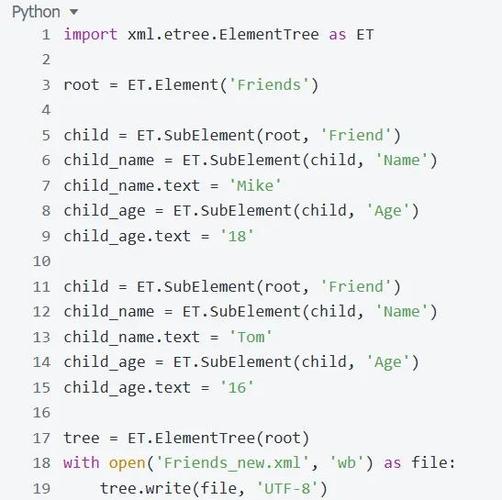
import xml.etree.ElementTree as ET
# --- 1. Parse the XML file ---
try:
tree = ET.parse('books.xml')
root = tree.getroot()
except FileNotFoundError:
print("Error: books.xml not found.")
exit()
# --- 2. Generate HTML content ---
html_content = []
# Start with the basic HTML structure
html_content.append('''<!DOCTYPE html>
<html lang="en">
<head>
<meta charset="UTF-8">Book Catalog</title>
<style>
table { width: 100%; border-collapse: collapse; }
th, td { border: 1px solid #dddddd; text-align: left; padding: 8px; }
th { background-color: #f2f2f2; }
</style>
</head>
<body>
<h1>Book Catalog</h1>
<table>
<thead>
<tr>
<th>ID</th>
<th>Author</th>
<th>Title</th>
<th>Genre</th>
<th>Price</th>
<th>Publish Date</th>
</tr>
</thead>
<tbody>
''')
# Iterate over each <book> element
for book in root.findall('book'):
# Get the 'id' attribute
book_id = book.get('id')
# Find the text for each child element
author = book.find('author').text= book.find('title').text
genre = book.find('genre').text
price = book.find('price').text
publish_date = book.find('publish_date').text
# Create a new table row
# Note: We use .replace() to escape potential special characters like '<' or '>'
row = f" <tr>\n"
row += f" <td>{book_id.replace('&', '&')}</td>\n"
row += f" <td>{author.replace('&', '&')}</td>\n"
row += f" <td>{title.replace('&', '&')}</td>\n"
row += f" <td>{genre.replace('&', '&')}</td>\n"
row += f" <td>${price.replace('&', '&')}</td>\n"
row += f" <td>{publish_date.replace('&', '&')}</td>\n"
row += " </tr>\n"
html_content.append(row)
# Close the HTML tags
html_content.append('''
</tbody>
</table>
</body>
</html>
''')
# --- 3. Write the HTML to a file ---
with open('books.html', 'w', encoding='utf-8') as f:
f.writelines(html_content)
print("Successfully converted books.xml to books.html")
How to Run:
- Save the code as
convert_etree.py. - Make sure
books.xmlis in the same directory. - Run the script:
python convert_etree.py - You will get a
books.htmlfile.
Method 2: Using lxml (More Powerful and Recommended)
The lxml library is a high-performance, user-friendly library for processing XML and HTML. It's a drop-in replacement for ElementTree but offers much more power, including better XPath support and HTML cleaning.
First, install it:
pip install lxml
The code is very similar to the standard library version, but lxml can make some parts easier, especially if you need to handle malformed HTML later.
Code (convert_lxml.py)
from lxml import etree
# --- 1. Parse the XML file ---
try:
    tree = etree.parse('books.xml')
    root = tree.getroot()
except FileNotFoundError:
    print("Error: books.xml not found.")
    exit()
# --- 2. Generate HTML content ---
# We can use a list and join for efficiency, or f-strings
html_parts = [
    '''<!DOCTYPE html>
<html lang="en">
<head>
    <meta charset="UTF-8">Book Catalog</title>
    <style>
        table { width: 100%; border-collapse: collapse; }
        th, td { border: 1px solid #dddddd; text-align: left; padding: 8px; }
        th { background-color: #f2f2f2; }
    </style>
</head>
<body>
    <h1>Book Catalog</h1>
    <table>
        <thead>
            <tr>
                <th>ID</th>
                <th>Author</th>
                <th>Title</th>
                <th>Genre</th>
                <th>Price</th>
                <th>Publish Date</th>
            </tr>
        </thead>
        <tbody>
'''
]
# lxml's findall is very powerful
for book in root.xpath('.//book'): # XPath './/book' finds all 'book' elements anywhere
    book_id = book.get('id')
    # Using findtext is a shortcut for find().text
    author = book.findtext('author')= book.findtext('title')
    genre = book.findtext('genre')
    price = book.findtext('price')
    publish_date = book.findtext('publish_date')
    # lxml.etree has a built-in way to escape text for HTML
    from lxml.html import escape
    row = f"            <tr>\n"
    row += f"                <td>{escape(book_id)}</td>\n"
    row += f"                <td>{escape(author)}</td>\n"
    row += f"                <td>{escape(title)}</td>\n"
    row += f"                <td>{escape(genre)}</td>\n"
    row += f"                <td>${escape(price)}</td>\n"
    row += f"                <td>{escape(publish_date)}</td>\n"
    row += "            </tr>\n"
    html_parts.append(row)
html_parts.append('''
        </tbody>
    </table>
</body>
</html>
''')
# --- 3. Write the HTML to a file ---
with open('books.html', 'w', encoding='utf-8') as f:
    f.write("".join(html_parts))
print("Successfully converted books.xml to books.html using lxml.")
Method 3: Using XSLT (The Standard, Declarative Approach)
XSLT (Extensible Stylesheet Language Transformations) is a W3C standard designed specifically for transforming XML documents into other formats, like HTML, XML, or plain text. Instead of writing a procedural script, you write an XSLT stylesheet that describes how the XML should be transformed.
This is the most robust and maintainable solution for complex or recurring transformations.
Pros:
- Declarative: You describe the what, not the how. The XSLT processor handles the iteration.
- Separation of Concerns: The data (XML) and the presentation logic (XSLT) are separate files. You can change the HTML look by just editing the
.xslfile without touching the Python code. - Standardized: It's an industry standard.
- Powerful: Excellent for complex transformations, conditional logic, and sorting.
Cons:
- Has a learning curve (XSLT syntax is different from Python).
- Requires an XSLT processor (like
lxmlorxsltproc).
Step 1: Create the XSLT Stylesheet (books.xsl)
This file defines the transformation rules.
<?xml version="1.0" encoding="UTF-8"?>
<xsl:stylesheet version="1.0" xmlns:xsl="http://www.w3.org/1999/XSL/Transform">
    <!-- This is the output method. We want to create an HTML document. -->
    <xsl:output method="html" indent="yes" encoding="UTF-8"/>
    <!--
      This is a template that matches the root element of the XML file.
      It will generate the main HTML structure.
    -->
    <xsl:template match="/catalog">
        <html lang="en">
            <head>
                <meta charset="UTF-8"/>
                <title>Book Catalog (via XSLT)</title>
                <style>
                    table { width: 100%; border-collapse: collapse; }
                    th, td { border: 1px solid #dddddd; text-align: left; padding: 8px; }
                    th { background-color: #f2f2f2; }
                </style>
            </head>
            <body>
                <h1>Book Catalog (via XSLT)</h1>
                <table>
                    <thead>
                        <tr>
                            <th>ID</th>
                            <th>Author</th>
                            <th>Title</th>
                            <th>Genre</th>
                            <th>Price</th>
                            <th>Publish Date</th>
                        </tr>
                    </thead>
                    <tbody>
                        <!--
                          Apply a template to every 'book' element.
                          This is where the magic of iteration happens.
                        -->
                        <xsl:apply-templates select="book"/>
                    </tbody>
                </table>
            </body>
        </html>
    </xsl:template>
    <!--
      This template matches each 'book' element.
      It generates one table row (<tr>) for each book.
    -->
    <xsl:template match="book">
        <tr>
            <!-- Get the 'id' attribute -->
            <td><xsl:value-of select="@id"/></td>
            <!-- Get the text content of child elements -->
            <td><xsl:value-of select="author"/></td>
            <td><xsl:value-of select="title"/></td>
            <td><xsl:value-of select="genre"/></td>
            <td>$<xsl:value-of select="price"/></td>
            <td><xsl:value-of select="publish_date"/></td>
        </tr>
    </xsl:template>
</xsl:stylesheet>
Step 2: Write the Python Script (convert_xslt.py)
This script uses lxml to apply the XSLT stylesheet to the XML file.
from lxml import etree
# --- 1. Parse the XML and XSLT files ---
try:
    xml_doc = etree.parse('books.xml')
    xslt_doc = etree.parse('books.xsl')
except FileNotFoundError as e:
    print(f"Error: File not found - {e.filename}")
    exit()
# --- 2. Create a XSLT transformer ---
transform = etree.XSLT(xslt_doc)
# --- 3. Apply the transformation ---
# The result is an XSLT object, which can be converted to a string
html_result = transform(xml_doc)
# --- 4. Write the result to a file ---
# The result object has a .text property to get the string content
with open('books_xslt.html', 'w', encoding='utf-8') as f:
    f.write(str(html_result))
print("Successfully converted books.xml to books_xslt.html using XSLT.")
How to Run:
- Save the XML, XSLT, and Python files in the same directory.
- Run the script:
python convert_xslt.py - You will get a
books_xslt.htmlfile.
Summary and Recommendation
| Method | Best For | Pros | Cons |
|---|---|---|---|
xml.etree.ElementTree |
Quick scripts, simple tasks, environments without external libraries. | Built-in, no dependencies, full control. | Verbose, manual HTML building, error-prone (e.g., forgetting to escape). |
lxml |
Most Python projects. Recommended for general use. | Fast, powerful XPath, built-in HTML escaping, easy to use. | Requires an external library (pip install lxml). |
| XSLT | Complex, recurring, or standardized transformations. | Declarative, separates data from presentation, powerful, standard-based. | Steeper learning curve, requires an XSLT processor. |
Recommendation:
- For a quick and dirty script where you just need to get data out of an XML file once,
ElementTreeis fine. - For most projects,
lxmlis the sweet spot. It's easy to install and use, and its features (like XPath andescape) are very helpful. - If you need to maintain a transformation over time, or if the transformation is complex, or if it's a formal requirement in your project, XSLT is the most robust and professional solution.