Of course! This is a very common and powerful combination for anyone doing data science, numerical computing, or scripting on Windows. Here’s a comprehensive guide covering everything from installation to best practices.
The Big Picture: What are these things?
- Windows: Your operating system. It's the foundation.
- Python: A high-level, versatile programming language. Think of it as the engine and chassis of your car.
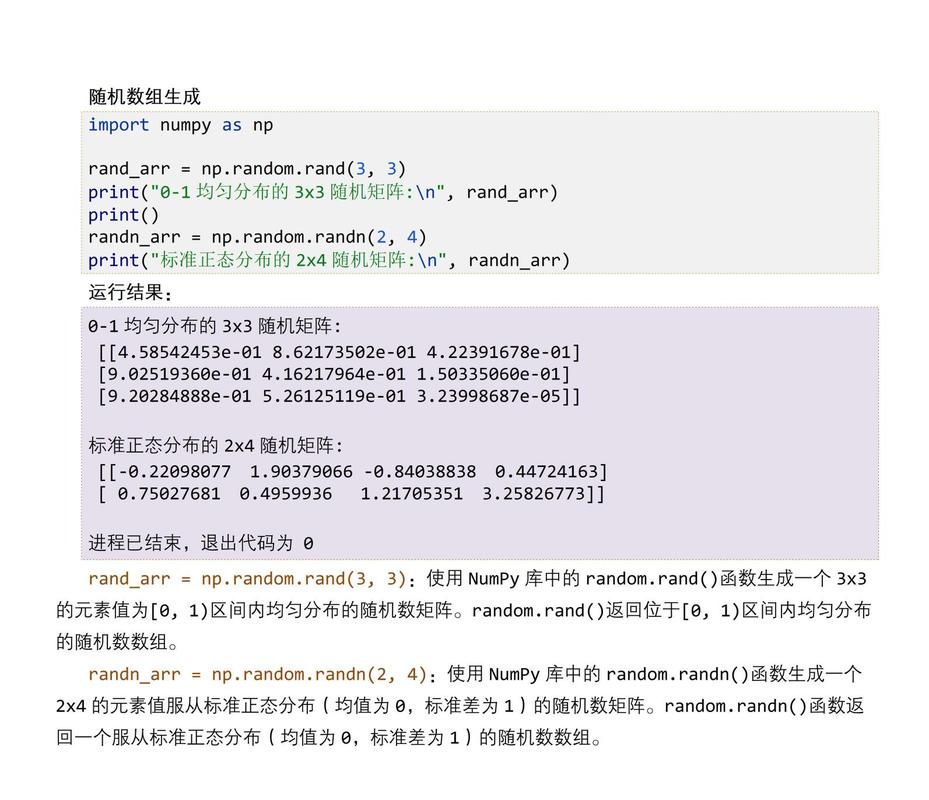
- NumPy: A fundamental package for scientific computing in Python. It provides the powerful engine specifically designed for handling numbers, arrays, and matrices. It's the reason Python is so popular for data science.
Analogy: If Python is a workshop, then NumPy is the high-precision set of power tools (like a laser cutter and a CNC machine) that makes building complex things with numbers incredibly fast and efficient.
Installation on Windows
The best and most standard way to install Python and manage packages on Windows is using the Python Package Installer, commonly known as pip. We'll use the official Python installer.
Step 1: Install Python
-
Download the Installer: Go to the official Python website: https://www.python.org/downloads/windows/
- Click the "Latest Python 3 Release" button. This will download the latest stable version (e.g., Python 3.12). Always use Python 3, as Python 2 is no longer supported.
-
Run the Installer:
 (图片来源网络,侵删)
- Open the downloaded
.exefile. - CRITICAL STEP: On the first screen of the installer, check the box that says "Add python.exe to PATH". This is the most common mistake for beginners. This option lets you run
pythonandpipfrom any command prompt or terminal, without having to type the full file path.
- Open the downloaded
-
Install: Click "Install Now". This will install Python with default settings.
Step 2: Verify the Installation
-
Open the Command Prompt or PowerShell. You can search for "cmd" or "PowerShell" in the Start Menu.
-
Type the following commands and press Enter after each one. You should see the version numbers printed.
# Check if Python is installed and see its version
python --version
# Or, if you have multiple Python versions, you might use:
py --version
# Check if pip (the package installer) is installed
pip --version
If you see version numbers, you're ready to go!
Installing NumPy
Now that you have Python and pip, installing NumPy is a single command.
-
In your Command Prompt or PowerShell, type:
pip install numpy
-
Press Enter.
pipwill download and install NumPy and any other packages it depends on.
Pro-Tip: It's good practice to use python -m pip or py -m pip to ensure you're using the pip associated with your Python installation.
py -m install numpy
Your First NumPy Script
Let's create a simple script to see NumPy in action.
-
Open a text editor (like Notepad++, VS Code, or even Notepad) and save a file named
numpy_test.py. -
Copy and paste the following code into the file:
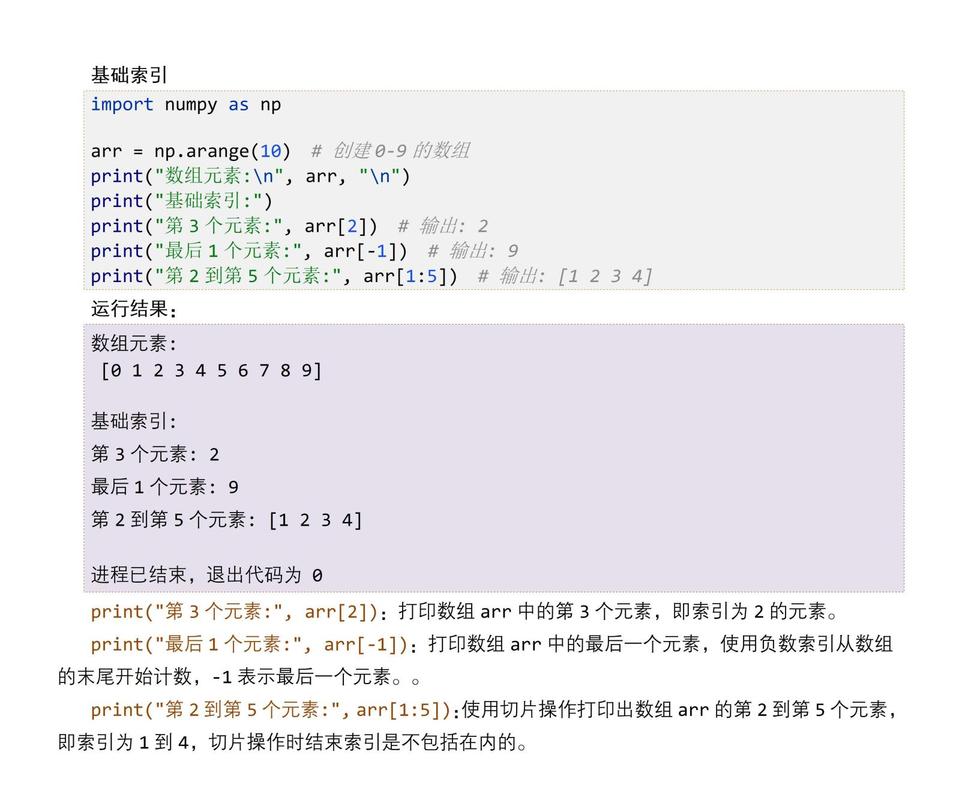
# Import the numpy library. We give it a shorter alias 'np' by convention. import numpy as np # Create a basic Python list python_list = [1, 2, 3, 4, 5] # Convert the Python list into a NumPy array numpy_array = np.array(python_list) # --- Let's do some things with it --- print(f"Original Python list: {python_list}") print(f"NumPy array: {numpy_array}") print("-" * 20) # --- Vectorized Operations (This is NumPy's superpower!) --- # You can perform math on an entire array at once, which is extremely fast. # Add 10 to every element in the array print(f"Array + 10: {numpy_array + 10}") # Square every element in the array print(f"Array squared: {numpy_array ** 2}") # Get the sum of all elements print(f"Sum of all elements: {np.sum(numpy_array)}") print("-" * 20) # --- More advanced features --- # Create a 2D array (a matrix) matrix = np.array([[1, 2, 3], [4, 5, 6]]) print(f"2D Matrix:\n{matrix}") # Get the shape of the matrix (rows, columns) print(f"Shape of the matrix: {matrix.shape}") -
Save the file and go back to your Command Prompt or PowerShell.
-
Navigate to the directory where you saved your file. For example, if you saved it on your Desktop:
cd Desktop
-
Run the script using Python:
python numpy_test.py
Expected Output:
Original Python list: [1, 2, 3, 4, 5]
NumPy array: [1 2 3 4 5]
--------------------
Array + 10: [11 12 13 14 15]
Array squared: [ 1  4  9 16 25]
Sum of all elements: 15
--------------------
2D Matrix:
[[1 2 3]
 [4 5 6]]
Shape of the matrix: (2, 3)
Essential NumPy Concepts
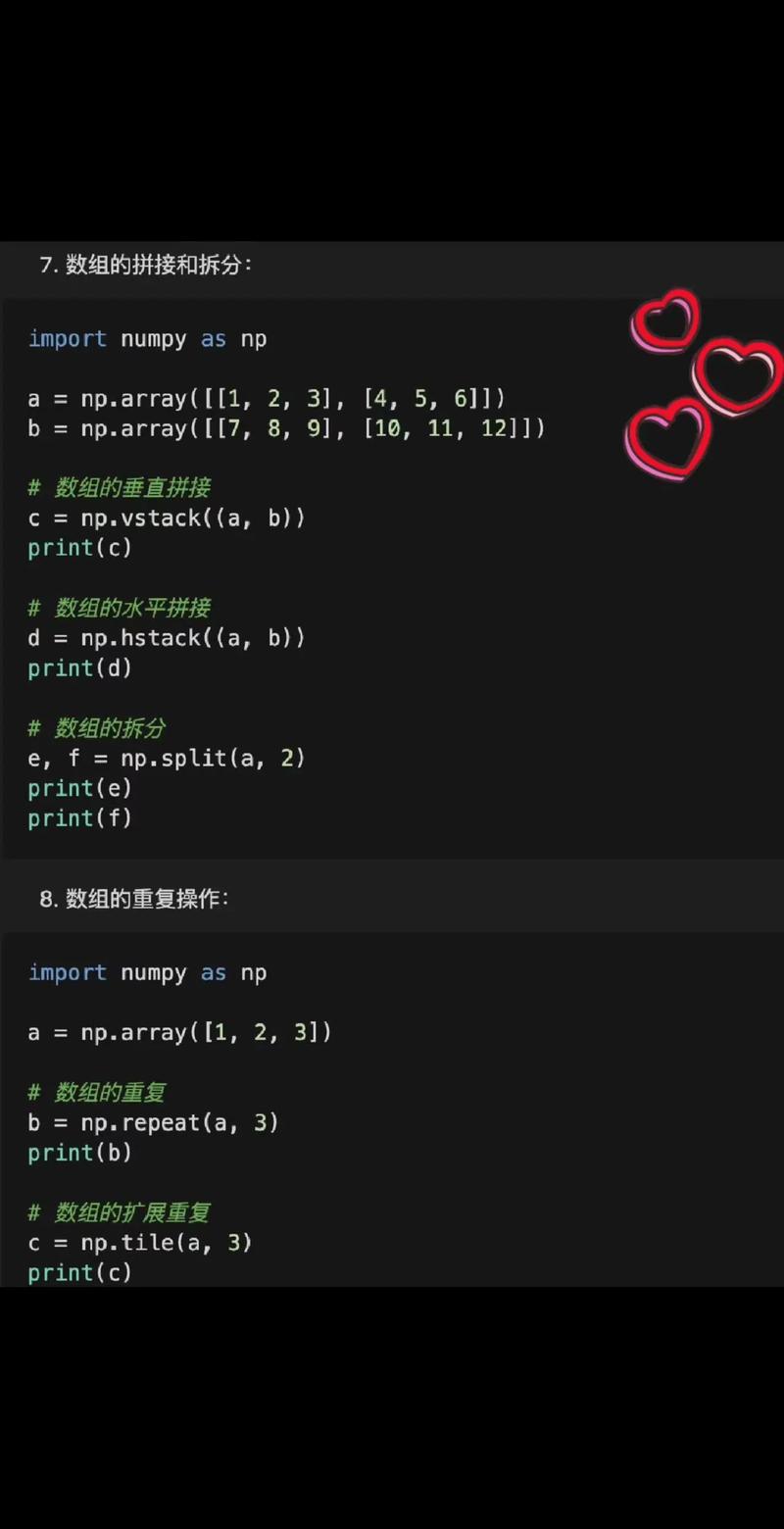
np.array: The core data structure. It's a grid of values, all of the same data type (unlike Python lists).- Vectorization: This is the key concept. Instead of looping through elements to perform an operation, you apply the operation to the whole array at once. NumPy's underlying C code makes this orders of magnitude faster than a Python
forloop. - Shape: A tuple describing the dimensions of the array.
(5,)for a 1D array with 5 elements,(2, 3)for a 2D array with 2 rows and 3 columns. - dtype: The data type of the elements in the array (e.g.,
int64,float32,bool). NumPy is strict about types, which is part of what makes it efficient.
Recommended Workflow & Tools
For serious work, you'll want more than just a text editor and a command line.
Recommended Editor/IDE: Visual Studio Code (VS Code)
VS Code is a free, powerful, and lightweight editor that is perfect for Python development.
- Install VS Code: https://code.visualstudio.com/
- Install the Python Extension: Open VS Code, go to the Extensions view (the icon on the left sidebar with four squares), and search for "Python" by Microsoft. Install it.
- Install the Jupyter Extension: This is a game-changer for data science. It allows you to run code in "cells" and see the output immediately, like in a lab notebook. Search for "Jupyter" by Microsoft and install it.
Recommended Package Manager: Conda
For managing complex projects with many dependencies (like NumPy, Pandas, Matplotlib, TensorFlow), pip is good, but Conda is often better.
- Why Conda? It can handle not just Python packages, but also non-Python libraries (like libraries with C or Fortran code) that NumPy often depends on. This can save you from many headaches.
- How to get it? Install the Anaconda Distribution or the lighter Miniconda.
- Miniconda is recommended if you're comfortable managing packages yourself. It's a minimal installer for Conda.
- Anaconda comes with Conda and hundreds of data science packages pre-installed.
Using Conda to install NumPy:
- Open Anaconda Prompt (installed with Anaconda/Miniconda).
- Create a new environment (a self-contained project space):
conda create -n mydataenv python=3.11
- Activate the environment:
conda activate mydataenv
- Now, install NumPy:
conda install numpy
Common Errors and Solutions
-
'python' is not recognized as an internal or external command...- Cause: You forgot to check the "Add python.exe to PATH" box during installation.
- Solution: Re-run the Python installer, and this time make sure to check the box. You can also manually add Python to your system's PATH environment variable, but the installer is easier.
-
ERROR: Could not build wheels for numpy which use PEP 517 and cannot be installed directly- Cause: This usually happens on Windows when you don't have the necessary C/C++ build tools (like Microsoft C++ Build Tools). NumPy has some components that need to be compiled.
- Solution: The easiest fix is to use Conda/Miniconda instead of
pip, as Conda handles these dependencies automatically. If you must usepip, you will need to install the "Build Tools for Visual Studio" from Microsoft's website.