Of course! Choosing the right Integrated Development Environment (IDE) is a crucial first step for Android development. Here’s a comprehensive breakdown of the best Android Java IDEs, comparing their features, pros, and cons.
The Short Answer: The Official Choice
For Android development in Java, the undisputed king and officially recommended IDE by Google is Android Studio.
It's built by Google specifically for Android development, so it has the deepest integration with the Android SDK, emulators, and developer tools. While other options exist, Android Studio provides the most seamless and powerful experience.
Detailed Comparison of Top IDEs
Here are the most popular IDEs for Android Java development, with a focus on their strengths and weaknesses.
Android Studio (The Gold Standard)
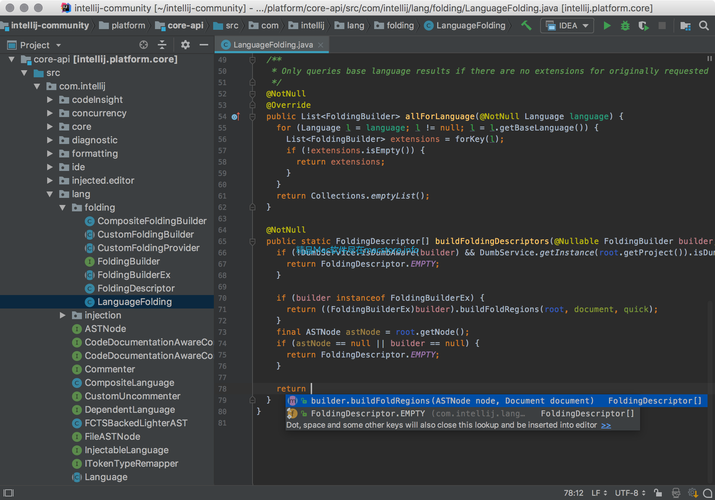
Android Studio is a specialized version of the popular IntelliJ IDEA, tailored specifically for Android development. It's free, open-source, and constantly updated by Google.
Key Features:
- Deep Android Integration: Seamless integration with the Android SDK, build tools (Gradle), and the Android Emulator.
- Visual Layout Editor: Drag-and-drop UI designer for building layouts with a live preview. It also supports ConstraintLayout for creating flexible, responsive UIs.
- Advanced Emulator: The Android Emulator is incredibly fast and feature-rich, with support for hardware sensors, GPS, network throttling, and different device configurations.
- Profiling Tools: Built-in profilers for CPU, memory, network, and battery usage, which are essential for debugging performance issues.
- Intelligent Code Editor: Features like smart code completion, refactoring, and real-time error checking make coding faster and less error-prone.
- Version Control (Git): Tight integration with Git for source control, including a visual diff/merge tool.
- APK Analyzer: A powerful tool to inspect the contents of your APK, helping you understand its structure and size.
Pros:
- Officially Supported: First-class support from Google. All new Android features and APIs are supported here first.
- All-in-One Solution: You get everything you need in a single download.
- Excellent Documentation & Community: Vast amounts of tutorials, documentation, and a huge community of developers to help you.
- Free and Open-Source.
Cons:
- Resource-Intensive: It can be slow on older or lower-spec computers (especially with limited RAM).
- Steeper Learning Curve: The sheer number of features can be overwhelming for absolute beginners.
Best For:
- Everyone. From beginners to professional developers. It is the industry standard for a reason.
IntelliJ IDEA (The Powerful Alternative)
IntelliJ IDEA is the full-featured IDE that Android Studio is based on. It comes in two versions:
- Community Edition (Free): Excellent for general Java development.
- Ultimate Edition (Paid): Includes all features, including full Android support.
Key Features:
- World-Class Code Intelligence: Renowned for its incredibly smart code completion, analysis, and refactoring capabilities. Many developers consider it the best Java IDE overall.
- Robust Plugin Ecosystem: You can install the "Android" plugin to get almost all the features of Android Studio.
- Cross-Platform Development: Strong support for other technologies like Kotlin, JavaScript, Spring, and more.
Pros:
- Superior Code Editor: Many experienced developers prefer the code intelligence and refactoring tools in IntelliJ IDEA.
- Flexible and Customizable: Highly customizable to fit your workflow.
- Excellent for Mixed Development: If you work on both Android and non-Android Java projects, IntelliJ IDEA is a great choice.
Cons:
- Android Setup is Not "Out-of-the-Box": You need to manually install the Android plugin and configure the SDK paths.
- Cost: The Ultimate version, which provides the most seamless Android experience, is a paid subscription.
- Can feel slower than Android Studio for Android-specific tasks.
Best For:
- Developers who already use IntelliJ IDEA for other projects and want to add Android development.
- Developers who prioritize raw code intelligence and are willing to pay for the Ultimate version.
Eclipse (The Veteran)
Eclipse was the dominant IDE for Android development before Android Studio was introduced. It's a very mature, open-source IDE, primarily for Java.
Key Features:
- Plugin-Based Architecture: Its functionality is extended via plugins. For Android, you use the "Android Development Tools" (ADT) plugin.
- Highly Customizable: Can be configured for almost any development task.
Pros:
- Lightweight: Can feel faster and less resource-intensive than Android Studio on older machines.
- Free and Mature: A very stable and reliable platform.
- Large User Base: Still has a significant following, especially in enterprise environments.
Cons:
- No Longer Recommended by Google: Google has officially deprecated support for Eclipse with the ADT plugin.
- Setup is Manual: Configuring the SDK, build tools, and emulator is more complex than in Android Studio.
- Dated UI and Workflow: The user interface and project structure feel dated compared to modern IDEs.
- Plugin Conflicts: Managing plugins can sometimes lead to conflicts.
Best For:
- Legacy projects that were already built on Eclipse.
- Developers or teams with specific, long-standing Eclipse-based workflows.
Visual Studio Code (The Lightweight Contender)
VS Code is a lightweight, source-code editor that can be turned into a powerful IDE through extensions. It's not a traditional IDE out of the box.
Key Features:
- Extensions: You install extensions for Java (from Red Hat), Android (from Microsoft), and Gradle support.
- Terminal Integration: Excellent built-in terminal, which is great for command-line tasks.
Pros:
- Extremely Lightweight and Fast: Starts up quickly and runs smoothly on almost any hardware.
- Highly Customizable: You can change the look, feel, and functionality to your exact liking.
- Cross-Platform: Works great on Windows, macOS, and Linux.
Cons:
- Not a True IDE for Android: You are essentially assembling a development environment yourself. It lacks the deep, integrated tooling of Android Studio (e.g., the visual layout editor is not as good, emulator integration is clunkier).
- Debugging Can Be Complex: Setting up a debugging session can be more involved than in a full-fledged IDE.
- Project Management: Managing large, complex Android projects can be less intuitive.
Best For:
- Web developers or backend engineers who occasionally need to touch Android code.
- Developers who prioritize a minimalistic, fast editor over a heavy, all-in-one IDE.
- Simple scripting or command-line-based Android tasks.
Summary Table & Recommendation
| IDE | Best For | Key Strength | Cost | Android Integration |
|---|---|---|---|---|
| Android Studio | Everyone | Official support, all-in-one, best tools | Free | Excellent (Native) |
| IntelliJ IDEA | Java/Kotlin Experts | Superior code intelligence & refactoring | Free (Community), Paid (Ultimate) | Good (via Plugin) |
| Eclipse | Legacy Projects | Lightweight, mature, customizable | Free | Poor (Deprecated) |
| VS Code | Lightweight Work | Speed, customizability, cross-platform | Free | Fair (via Extensions) |
Final Recommendation
-
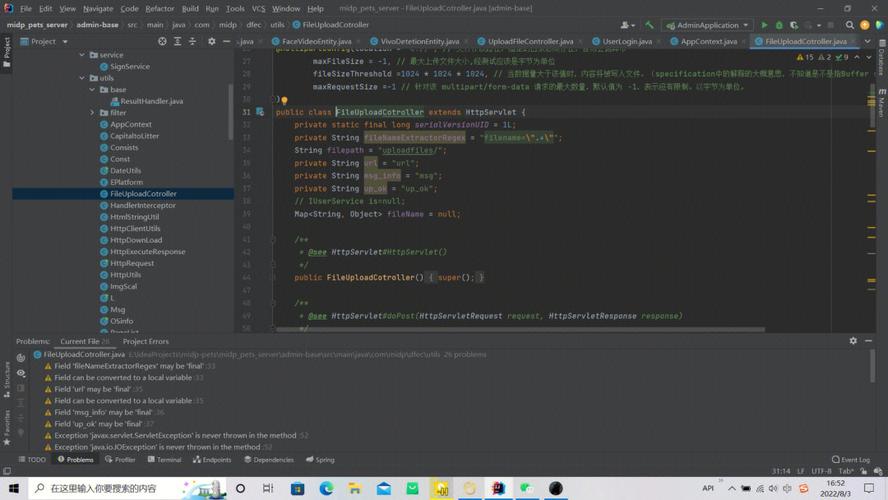
For 99% of developers, especially those starting out: Use Android Studio. It is the path of least resistance, provides the best tooling, and is what the entire Android ecosystem is built around. The investment in learning it will pay off immensely.
 (图片来源网络,侵删)
 -
If you are an experienced IntelliJ user: Stick with IntelliJ IDEA (Community or Ultimate) and install the Android plugin. You can maintain your preferred environment while still building for Android.
-
If you are working on a very old project or have specific legacy constraints: You might be stuck with Eclipse, but for any new project, this is strongly discouraged.
-
If you are primarily a web developer or need a quick editor for small tasks: VS Code is a fun and capable option, but be prepared to configure it yourself and accept that you won't have the full power of a dedicated Android IDE.