Of course. Here's a comprehensive guide on how to use the xlrd library in Python, including installation, basic usage, and handling common scenarios.
What is xlrd?
xlrd is a Python library for reading data and formatting information from Excel files (.xls and .xlsx). It's fast, efficient, and a popular choice for data extraction tasks.
Important Note on .xlsx Support:
As of version 0.0, xlrd** dropped support for the newer.xlsxfile format (which is based on OpenXML/.zip). It now **only reads.xlsfiles**. If you need to read.xlsxfiles, you should use theopenpyxlorpandas` library.
Installation
First, you need to install the library. Open your terminal or command prompt and run:
pip install xlrd
Basic Usage: Reading an Excel File
Let's start with a simple example. Imagine you have an Excel file named data.xls with the following content in the first sheet:

| Name | Age | City |
|---|---|---|
| Alice | 30 | New York |
| Bob | 24 | London |
| Charlie | 35 | Paris |
The Code
import xlrd
# Path to your Excel file
file_path = 'data.xls'
# Open the workbook
workbook = xlrd.open_workbook(file_path)
# Get the first sheet (by index or name)
sheet = workbook.sheet_by_index(0)
# Alternatively: sheet = workbook.sheet_by_name('Sheet1')
# --- Read Data ---
# 1. Get the number of rows and columns
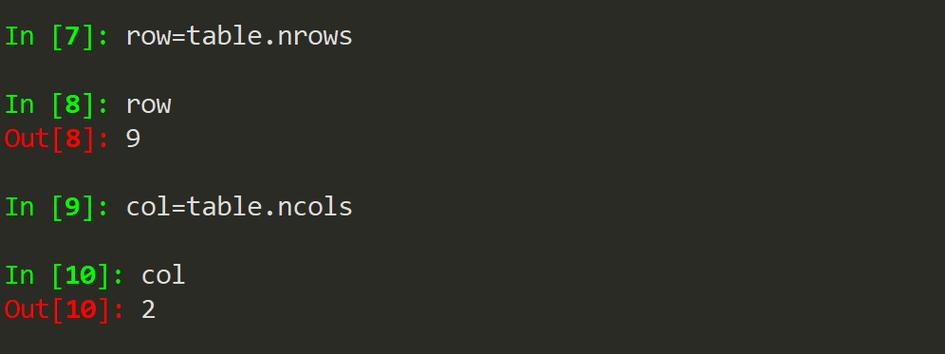
num_rows = sheet.nrows
num_cols = sheet.ncols
print(f"Sheet has {num_rows} rows and {num_cols} columns.\n")
# 2. Read a specific cell (row, col). Note: indexing starts at 0.
#    cell_value = sheet.cell_value(row_index, col_index)
name_of_first_person = sheet.cell_value(1, 0)  # Row 1, Column 0
age_of_second_person = sheet.cell_value(2, 1)  # Row 2, Column 1
print(f"Name of first person: {name_of_first_person}")
print(f"Age of second person: {age_of_second_person}\n")
# 3. Read a row as a list
first_row = sheet.row_values(0)  # Header row
print(f"Header row: {first_row}\n")
# 4. Read a column as a list
names_column = sheet.col_values(0)  # First column
print(f"Names column: {names_column}\n")
# 5. Iterate through all rows (excluding the header)
print("--- Reading all data rows ---")
for row_idx in range(1, sheet.nrows):
    row_data = sheet.row_values(row_idx)
    print(f"Row {row_idx}: {row_data}")
# --- Don't forget to close the workbook (optional in xlrd, but good practice) ---
workbook.release_resources()
Expected Output
Sheet has 4 rows and 3 columns.
Name of first person: Alice
Age of second person: 24
Header row: ['Name', 'Age', 'City']
Names column: ['Name', 'Alice', 'Bob', 'Charlie']
--- Reading all data rows ---
Row 1: ['Alice', 30.0, 'New York']
Row 2: ['Bob', 24.0, 'London']
Row 3: ['Charlie', 35.0, 'Paris']
Advanced Features
Accessing Sheet Names
If your workbook has multiple sheets, you can list their names and access them by name.
import xlrd
workbook = xlrd.open_workbook('data.xls')
# Get a list of all sheet names
sheet_names = workbook.sheet_names()
print(f"All sheet names: {sheet_names}")
# Access a sheet by its name
if 'Sheet1' in sheet_names:
    sheet = workbook.sheet_by_name('Sheet1')
    print(f"First value in 'Sheet1': {sheet.cell_value(0, 0)}")
Handling Different Data Types
xlrd intelligently converts cell values into Python types. You can check the type of a cell's value.
| Cell Value Type in Excel | Python Type from xlrd |
|---|---|
| String | str |
| Number (Integer) | int or float |
| Number (Float/Decimal) | float |
| Boolean (TRUE/FALSE) | bool |
| Blank | (empty string) |
| Date/Time | float (a special number representing a date) |
import xlrd
from datetime import datetime, date
workbook = xlrd.open_workbook('data.xls')
sheet = workbook.sheet_by_index(0)
# Example with mixed data types
# Assume the sheet has a date in cell A5
date_cell_value = sheet.cell_value(4, 0)
# xlrd stores dates as floats
print(f"Date cell value (raw): {date_cell_value} (type: {type(date_cell_value)})")
# You need to convert it using the workbook's datemode
# datemode: 0 for 1900-based, 1 for 1904-based
datemode = workbook.datemode
if xlrd.xldate.xldate_as_tuple(date_cell_value, datemode):
    year, month, day, hour, minute, second = xlrd.xldate.xldate_as_tuple(date_cell_value, datemode)
    python_date = date(year, month, day)
    print(f"Converted Python date: {python_date}")
Checking for Empty Cells
You can check if a cell is empty before trying to read its value.
import xlrd
workbook = xlrd.open_workbook('data.xls')
sheet = workbook.sheet_by_index(0)
# Let's assume cell C1 is empty
cell_value = sheet.cell_value(0, 2) # Reading C1
if cell_value == '':
    print("Cell C1 is empty.")
else:
    print(f"Cell C1 contains: {cell_value}")
Important Considerations and Alternatives
xlrd vs. openpyxl vs. pandas
| Library | Primary Use Case | .xls Support |
.xlsx Support |
Key Feature |
|---|---|---|---|---|
xlrd |
Reading only | Yes | No (v2.0+) | Extremely fast for reading .xls files. |
openpyxl |
Reading & Writing | Yes | Yes | Good for reading and manipulating .xlsx. |
pandas |
Data Analysis | Yes | Yes | Easiest way to read data directly into a DataFrame. |
When to use pandas instead?
If your goal is simply to get the data from an Excel file into a structured format (like a pandas DataFrame) for analysis, pandas is almost always the better choice. It's more convenient and handles many data type conversions automatically.
Example using pandas:
import pandas as pd
# pandas uses xlrd in the background for .xls files
df = pd.read_excel('data.xls', sheet_name='Sheet1')
print(df)
print("\nData types:")
print(df.dtypes)
This single line of code achieves what several lines of xlrd code do, and it gives you a powerful DataFrame object to work with.
Summary
| Task | xlrd Code |
|---|---|
| Open Workbook | workbook = xlrd.open_workbook('file.xls') |
| Get Sheet by Index | sheet = workbook.sheet_by_index(0) |
| Get Sheet by Name | sheet = workbook.sheet_by_name('Sheet1') |
| Get Number of Rows | num_rows = sheet.nrows |
| Get Number of Columns | num_cols = sheet.ncols |
| Read Cell Value | value = sheet.cell_value(row, col) |
| Read Row as List | row_data = sheet.row_values(row) |
| Read Column as List | col_data = sheet.col_values(col) |
| Iterate Rows | for i in range(sheet.nrows): ... |
| Get Sheet Names | names = workbook.sheet_names() |
For reading legacy .xls files, xlrd is an excellent, fast, and lightweight choice. For anything involving the modern .xlsx format, or if you need to write to Excel files, switch to openpyxl or pandas.