Of course! The phrase "Python array image" almost always refers to representing an image as a NumPy array. This is a fundamental concept in image processing with Python.
Here's a complete guide covering:
- Why use NumPy arrays for images?
- How an image becomes a NumPy array.
- Key properties of an image array (shape, dtype).
- Practical examples with code.
Why Use NumPy Arrays for Images?
NumPy (Numerical Python) is the core library for numerical operations in Python. Images are, at their heart, numerical data. A digital image is just a grid of pixels, where each pixel has a numerical value representing its color.
Using a NumPy array for images is powerful because:
- Performance: NumPy operations are implemented in C and are incredibly fast, much faster than iterating over pixels with pure Python loops.
- Convenience: NumPy provides a vast library of functions for mathematical operations, linear algebra, and transformations that can be applied to the entire image or parts of it with a single line of code.
- Ecosystem Integration: It's the foundation for almost all major scientific and image processing libraries in Python, including OpenCV, scikit-image, Pillow (PIL), and Matplotlib.
How an Image Becomes a NumPy Array
You typically load an image from a file (like a .png, .jpg, or .gif) into a NumPy array using a library. The most common libraries for this are Pillow and OpenCV.
Key Concepts: Shape and Data Type (dtype)
- Shape: The dimensions of the array.
- Grayscale Image: A 2D array of shape
(height, width). Each element is a single number (e.g., from 0 to 255). - Color Image (RGB/RGBA): A 3D array of shape
(height, width, channels). The third dimension contains the color values for each pixel.- RGB: 3 channels (Red, Green, Blue).
- RGBA: 4 channels (Red, Green, Blue, Alpha/Transparency).
- Grayscale Image: A 2D array of shape
- Data Type (
dtype): The type of the numbers stored in the array.uint8: 8-bit unsigned integer. This is the most common for images. It uses values from 0 to 255, which is perfect for representing pixel intensities.float32orfloat64: Floating-point numbers. Used when you need precision, for example, when performing calculations or storing normalized pixel values (from 0.0 to 1.0).
Practical Examples
Let's go through some common tasks.
Setup: Install Necessary Libraries
If you don't have them installed, open your terminal or command prompt and run:
pip install numpy pillow matplotlib opencv-python
Example 1: Loading and Displaying an Image with Pillow
Pillow is a modern fork of the Python Imaging Library (PIL) and is great for basic image manipulation.
import numpy as np
from PIL import Image
import matplotlib.pyplot as plt
# Load an image from a file
# Make sure you have an image named 'my_image.jpg' in the same directory
# If not, you can download one or use a different path.
try:
    img = Image.open('my_image.jpg')
except FileNotFoundError:
    print("Image not found. Please create a file named 'my_image.jpg'")
    # Create a dummy image for demonstration if the file doesn't exist
    img = Image.new('RGB', (100, 100), color = 'red')
# Convert the Pillow image object to a NumPy array
img_array = np.array(img)
# --- Let's inspect the array ---
print("Image shape:", img_array.shape)
print("Image dtype:", img_array.dtype)
print("\nPixel value at (row 50, col 50):", img_array[50, 50])
# Display the original image using Matplotlib
plt.figure(figsize=(10, 5))
plt.subplot(1, 2, 1)
plt.imshow(img)"Original Image (Pillow)")
plt.axis('off') # Hide axes
# Display the NumPy array representation
# Matplotlib can directly display a NumPy array
plt.subplot(1, 2, 2)
plt.imshow(img_array)"Image as NumPy Array")
plt.axis('off')
plt.tight_layout()
plt.show()
Output Explanation:
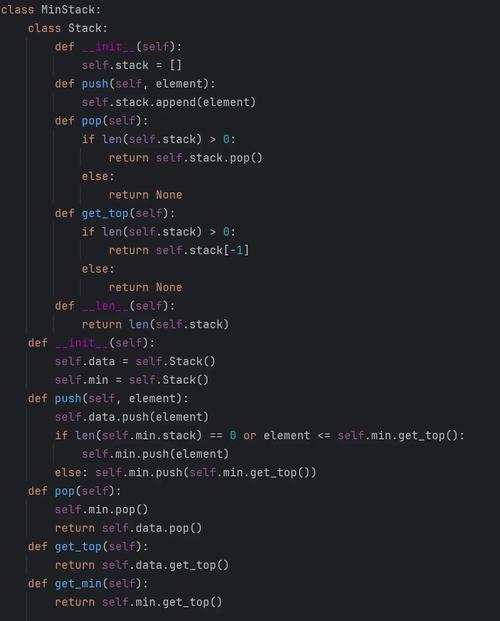
Image shape: (height, width, 3)for a color image.Image dtype: uint8Pixel value at (row 50, col 50): [R_value G_value B_value](e.g.,[255 100 50])
Example 2: Loading an Image with OpenCV
OpenCV is the go-to library for computer vision. A key difference is that OpenCV loads images in BGR format by default, while Matplotlib and Pillow expect RGB format.
import cv2
import matplotlib.pyplot as plt
# Load an image using OpenCV
# Note: cv2.imread loads in BGR format
img_bgr = cv2.imread('my_image.jpg')
if img_bgr is None:
    print("Image not found. Please create a file named 'my_image.jpg'")
else:
    # --- Inspect the array ---
    print("OpenCV image shape:", img_bgr.shape)
    print("OpenCV image dtype:", img_bgr.dtype)
    print("\nBGR Pixel value at (row 50, col 50):", img_bgr[50, 50])
    # To display with Matplotlib, you MUST convert BGR to RGB
    img_rgb = cv2.cvtColor(img_bgr, cv2.COLOR_BGR2RGB)
    # Display the images
    plt.figure(figsize=(12, 6))
    plt.subplot(1, 2, 1)
    plt.imshow(img_bgr) # This will show the colors incorrectly (red looks blue)
    plt.title("OpenCV Image (BGR) - Incorrect Colors in Matplotlib")
    plt.axis('off')
    plt.subplot(1, 2, 2)
    plt.imshow(img_rgb) # This is the correct way to display with Matplotlib
    plt.title("Corrected Image (RGB)")
    plt.axis('off')
    plt.tight_layout()
    plt.show()
Example 3: Basic Image Manipulation with NumPy
This is where NumPy's power shines. Let's manipulate the image array directly.
import numpy as np
from PIL import Image
import matplotlib.pyplot as plt
# Load the image
img = Image.open('my_image.jpg')
img_array = np.array(img)
# 1. Accessing a specific color channel
# The shape is (height, width, 3). We can slice the last dimension.
red_channel = img_array[:, :, 0]
green_channel = img_array[:, :, 1]
blue_channel = img_array[:, :, 2]
# 2. Modifying a channel (e.g., set the green channel to zero)
# This creates a new array
img_no_green = img_array.copy()
img_no_green[:, :, 1] = 0
# 3. Cropping an image
# Slicing works just like with any other NumPy array
cropped_img = img_array[100:400, 200:500]
# 4. Resizing (using Pillow for better quality, but can be done with NumPy)
# Let's convert back to a Pillow image to resize
pil_img_from_array = Image.fromarray(img_array)
resized_img = pil_img_from_array.resize((256, 256))
# Display the results
plt.figure(figsize=(15, 10))
plt.subplot(2, 2, 1)
plt.imshow(red_channel, cmap='gray')"Red Channel (Grayscale)")
plt.axis('off')
plt.subplot(2, 2, 2)
plt.imshow(img_no_green)"Image with No Green Channel")
plt.axis('off')
plt.subplot(2, 2, 3)
plt.imshow(cropped_img)"Cropped Image")
plt.axis('off')
plt.subplot(2, 2, 4)
plt.imshow(resized_img)"Resized Image (256x256)")
plt.axis('off')
plt.tight_layout()
plt.show()
Summary
| Task | Method | Key Point |
|---|---|---|
| Load Image | np.array(Image.open('path')) or cv2.imread('path') |
OpenCV loads in BGR, Pillow loads in RGB. |
| Shape | img_array.shape |
(height, width) for grayscale, (height, width, channels) for color. |
| Data Type | img_array.dtype |
Usually uint8. |
| Access Pixel | img_array[y, x] (grayscale) or img_array[y, x, c] (color) |
Remember, y is row, x is column. |
| Access Channel | img_array[:, :, 0] (Red), img_array[:, :, 1] (Green), etc. |
Slicing is efficient and easy. |
| Modify Image | Direct assignment: img_array[:, :, 1] = 0 |
Always work on a copy (img_copy = img_array.copy()) if you don't want to change the original. |
| Display Image | plt.imshow(your_numpy_array) |
Ensure the array is in RGB format if using Matplotlib. |