Of course! Let's break down what "Python 3.8.1 shell" means and how you can use it. This is a fundamental concept for Python development.
What is the Python Shell?
The Python Shell (also known as the REPL) is an interactive command-line tool that comes built-in with Python.
- REPL stands for Read, Evaluate, Print, Loop.
- Read: It reads the Python command you type.
- Evaluate: It executes (evaluates) the command.
- Print: It prints the result of the command back to the screen.
- Loop: It waits for you to enter the next command.
Think of it as a "Python playground" or a "scratchpad" where you can test small snippets of code without creating a full file. It's incredibly useful for quick experiments, testing a function's behavior, or learning Python features.
How to Start the Python 3.8.1 Shell
The process is the same regardless of your specific Python version (3.8.1, 3.10, etc.). You just need to make sure you have Python 3.8.1 installed and in your system's PATH.
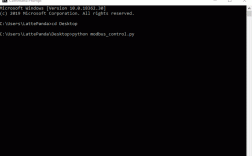
On Windows:
- Open the Start Menu.
- Type
cmdorpowershelland open the Command Prompt or PowerShell. - Type the following command and press Enter:
python --version
If you see
Python 3.8.1, you're ready. If it says "python is not recognized," you might need to usepyinstead: (图片来源网络,侵删)
py --version
- To start the shell, simply type
pythonorpyand press Enter:python
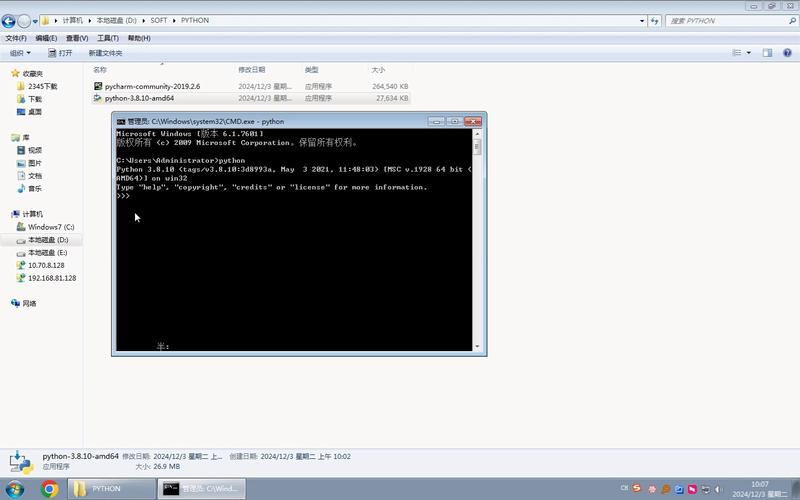
You will see a message like this, indicating the shell is ready:
Python 3.8.1 (default, ... )
[GCC ...] on win32
Type "help", "copyright", "credits" or "license" for more information.
>>>
The
>>>is the prompt, telling you the shell is waiting for your input.
On macOS or Linux:
- Open your Terminal application.
- Type the following command to check your version:
python3 --version
Note: On many systems,
pythonrefers to an older Python 2.x version, whilepython3explicitly runs Python 3. - If the version is correct, start the shell by typing
python3:python3
You will see a similar welcome message and the
>>>prompt:Python 3.8.1 (default, ... ) [GCC ...] on darwin Type "help", "copyright", "credits" or "license" for more information. >>>
Using the Python Shell: Basic Examples
Once you see the >>> prompt, you can start typing Python code.
Simple Math
The shell evaluates expressions and prints the result immediately.
>>> 2 + 2
4
>>> 10 * 5
50
>>> (100 - 25) / 5
15.0
Using Variables
You can assign values to variables and use them in later expressions.
>>> message = "Hello, World!"
>>> print(message)
Hello, World!
>>> x = 15
>>> y = 10
>>> x + y
25
Calling Functions
You can call any built-in Python function.
>>> len("This is a string")
16
>>> max([10, 4, 99, 2])
99
>>> help(len)  # Get help for a function
Help on built-in function len in module builtins:
len(obj, /)
    Return the number of items in a container.
...
To exit the help() screen, press q.
Defining and Calling Your Own Functions
You can write multi-line code like functions. The shell uses indentation to know when a block is finished.
>>> def greet(name):
...     return f"Hello, {name}!"
...
>>>
Notice the prompt. It means Python is waiting for you to finish the indented block. Just press Enter on a blank line to finish it.
Now you can call your new function:
>>> greet("Alice")
'Hello, Alice!'
>>> greet("Bob")
'Hello, Bob!'
Exiting the Python Shell
When you are done using the shell, you can exit it in a few ways:
-
Type
exit()orquit(): (This is the most common method)>>> exit() C:\Users\YourUser>
-
Use the Keyboard Shortcut:
- Windows/Linux:
Ctrl + ZthenEnter - macOS:
Ctrl + D
- Windows/Linux:
-
Type
EOF:>>> ^D C:\Users\YourUser>
When to Use the Shell vs. a .py File
| Use the Python Shell (REPL) when... | Use a .py File when... |
|---|---|
| ✅ You want to quickly test a small piece of code. | ✅ You are writing a complete, reusable program or script. |
| ✅ You are learning a new Python feature or function. | ✅ Your code is long and complex (more than a few lines). |
| ✅ You are debugging a specific part of a larger script. | ✅ You need to save your code to run it again later. |
| ❌ You need to save your work for later. (It's not persistent). | ✅ You want to share your code with others. |
Advanced Shells: IPython
While the built-in shell is great, many developers prefer a more powerful shell called IPython. It offers features like:
- Syntax highlighting
- Auto-completion (press
Tab) - Rich output (e.g., displaying images, tables)
- Magic commands (e.g.,
%timeitto time code execution)
If you install IPython, you can start it with the ipython command, and it will automatically use your Python 3.8.1 installation.