Of course! Using Python with GDB on Windows is a powerful way to automate debugging, analyze complex data structures, and extend GDB's functionality. While the traditional GNU GDB is a Linux tool, the primary way to do this on Windows is through WSL (Windows Subsystem for Linux).
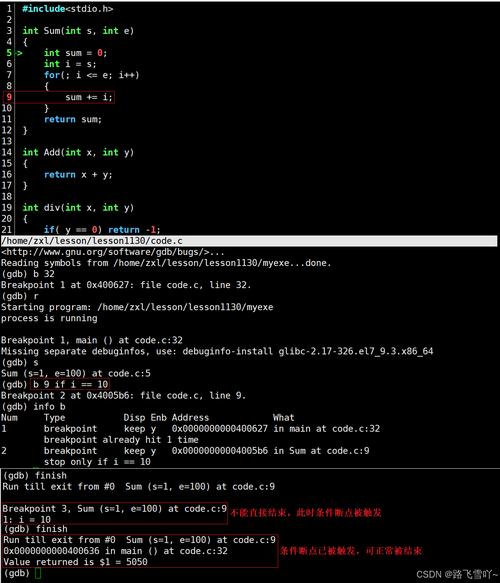
This guide will walk you through the entire process, from setup to writing and using your first Python script in GDB.
The Core Concept: GDB + Python on Windows
The most robust and recommended method is to run a full Linux environment (like Ubuntu) on Windows using WSL. This environment includes the native gdb debugger, which has excellent, built-in Python 3 support.
Why WSL and not native Windows GDB?
- Native Windows GDB (from MinGW): While it exists, its Python integration can be less consistent and is often based on an older version of Python.
- WSL GDB: This is the real deal. It's the same GDB you'd find on Ubuntu, with full, modern Python 3 support. It can debug both Linux applications running inside WSL and even native Windows applications.
Prerequisites
-
Enable WSL: You need to have the Windows Subsystem for Linux installed.
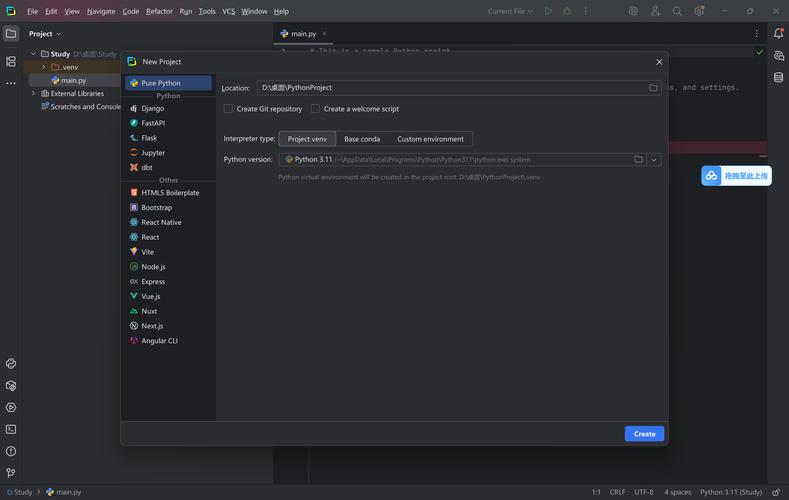 (图片来源网络,侵删)
- Open PowerShell as Administrator and run:
wsl --install
- This will enable the required Windows features and install a Linux distribution (usually Ubuntu). You'll be prompted to create a Linux user and password during the first boot.
- Open PowerShell as Administrator and run:
-
Install GDB and Python in WSL: Once your WSL distribution is running, open its terminal (you can search for "Ubuntu" in the Start Menu).
- Update your package list and install GDB and its Python development libraries:
sudo apt update
sudo apt install gdb python3-dev
gdb: The debugger itself.python3-dev: This provides the necessary header files (Python.h) and libraries that GDB uses to compile its Python extensions.
- Update your package list and install GDB and its Python development libraries:
-
(Optional) A C++ Compiler: To follow the examples, you'll need a C++ compiler.
sudo apt install build-essential
Step-by-Step Example: Debugging a C++ Program
Let's create a simple C++ program, compile it, and then use a Python script within GDB to inspect its state.
Create a Sample C++ Program
In your WSL terminal, create a file named main.cpp:
// main.cpp
#include <iostream>
#include <vector>
#include <string>
struct Person {
    std::string name;
    int age;
    Person(std::string n, int a) : name(n), age(a) {}
};
int main() {
    std::vector<Person> people;
    people.emplace_back("Alice", 30);
    people.emplace_back("Bob", 24);
    // Let's set a breakpoint here
    int x = 10;
    int y = 20;
    int sum = x + y;
    std::cout << "Sum is: " << sum << std::endl;
    for (const auto& p : people) {
        std::cout << p.name << " is " << p.age << " years old." << std::endl;
    }
    return 0;
}
Compile the Program
Compile it with debug symbols (-g), which is crucial for GDB to work properly.
g++ -g main.cpp -o my_program
Create a Python Script for GDB
Now, let's create a Python script that GDB will load. This script will contain a command that prints the contents of our std::vector<Person> in a nice format.
Create a file named pretty_printers.py in the same directory:
# pretty_printers.py
import gdb
import re
# A helper function to format a GDB value representing a std::string
def format_std_string(string_val):
    try:
        # The string data is stored in a member named '_M_dataplus'
        # which points to a character array.
        chars = string_val['_M_dataplus']['_M_p']
        length = int(string_val['_M_string_length'])
        return chars.string(length=length)
    except gdb.error:
        return "<error reading string>"
# The custom pretty-printer for the Person struct
class PersonPrinter:
    def __init__(self, val):
        self.val = val
    def to_string(self):
        name = format_std_string(self.val['name'])
        age = self.val['age']
        return f"Person(name='{name}', age={age})"
# The custom pretty-printer for std::vector<Person>
class PersonVectorPrinter:
    def __init__(self, val):
        self.val = val
    def children(self):
        # Get the start and end iterators of the vector
        start = self.val['_M_impl']['_M_start']
        finish = self.val['_M_impl']['_M_finish']
        # Loop through the elements and yield them
        current = start
        while current < finish:
            yield f"[{current - start}]", current.dereference()
            current += 1
    def to_string(self):
        # GDB will automatically call this to get the summary string
        size = self.val['_M_impl']['_M_finish'] - self.val['_M_impl']['_M_start']
        return f"std::vector<Person> of length {size}"
# The main function that GDB will call to register our printers
def register_printers(objfile):
    # We register our printers for the 'Person' struct
    objfile.pretty_printers.append(lambda val: PersonPrinter(val) if str(val.type) == 'Person' else None)
    # And for the std::vector containing Persons
    objfile.pretty_printers.append(lambda val: PersonVectorPrinter(val) if str(val.type).startswith('std::vector<Person>') else None)
# This is the GDB command we will define
class PrintPeopleCommand(gdb.Command):
    """A custom command to print the 'people' vector in a nice format."""
    def __init__(self):
        super().__init__("print-people", gdb.COMMAND_DATA)
    def invoke(self, arg, from_tty):
        try:
            people_var = gdb.parse_and_eval('people')
            # The pretty printer will be automatically invoked by GDB
            # when we try to print the variable.
            print(people_var)
        except gdb.error:
            print("Error: Variable 'people' not found or not in scope.")
# Register our command when the script is loaded
PrintPeopleCommand()
# Register our pretty printers globally
register_printers(gdb)
Run the Debugger with Python
Now, let's fire up GDB, load our program, and use our new tools.
gdb ./my_program
Inside the GDB prompt ((gdb)):
-
Load the Python script: This tells GDB to load our
pretty_printers.pyfile.(gdb) source pretty_printers.py
You won't see any output, but your custom command and pretty printers are now active.
-
Set a breakpoint: Let's stop the program at the line where
sumis calculated.(gdb) break main.cpp:13 Breakpoint 1 at 0x55555555518a: file main.cpp, line 13.
-
Run the program:
(gdb) run
The program will start and hit the breakpoint.
-
Use our custom Python command: Now, let's use the
print-peoplecommand we defined in our Python script.(gdb) print-people std::vector<Person> of length 2 [0] = Person(name='Alice', age=30) [1] = Person(name='Bob', age=24)
This is much cleaner than GDB's default output for a complex
std::vector! -
See the automatic pretty printing: You can also just use the standard
printcommand. Because we registered the pretty printers globally, GDB will automatically use them.(gdb) print people $1 = std::vector<Person> of length 2 [0] = Person(name='Alice', age=30) [1] = Person(name='Bob', age=24)
-
Inspect a single element: Let's see how GDB displays a single
Personobject.(gdb) print people[0] $2 = Person(name='Alice', age=30)
-
Continue and finish: You can continue the program to see the rest of the output.
(gdb) continue
Continuing.
Sum is: 30
Alice is 30 years old.
Bob is 24 years old.
[Inferior 1 (process 12345) exited normally]
(gdb)
Key Python Modules in GDB
When you're writing your own scripts, you'll primarily interact with these modules:
-
gdb: The main module. It's the bridge between your script and the debugger.gdb.execute(command_string): Executes a GDB command.gdb.parse_and_eval(expression): Parses and evaluates a GDB expression (like a variable name orp people[0]), returning agdb.Valueobject.gdb.lookup_type(type_name): Looks up a data type (e.g.,gdb.lookup_type('int')).gdb.selected_thread(),gdb.selected_frame(): Get the current context.g.Command: The base class for creating new GDB commands.
-
gdb.Value: Represents a value in the debugged program (a variable, a register, etc.).val.type: Gets the type of the value.val.cast(type): Casts the value to a different type.val.address: Gets the address of the value.val.dereference(): Dereferences a pointer.- You can access members using
val['member_name'](for C structs/classes) orval.member_name(if it's a simple field).
-
gdb.types: For more advanced type introspection.
Troubleshooting Common Issues
-
ImportError: No module named 'gdb'- Cause: You are trying to run the Python script outside of GDB, or GDB was not compiled with Python support.
- Solution: Make sure you are running the script from within the GDB prompt using the
(gdb) sourcecommand. You can check GDB's Python support with(gdb) python import gdb; print("GDB Python support OK").
-
gdb.error: No symbol "..." in current context.- Cause: You are trying to access a variable that is not in the current scope (e.g., before the function has been called or after it has returned).
- Solution: Make sure your program is stopped at a breakpoint where the variable you want to inspect exists.
-
Compilation errors in your Python script (
TypeError: ... cannot be converted to a Python object)- Cause: You are trying to use a
gdb.Valueobject as a standard Python type. You must inspect its.typeand access its members according to the C/C++ memory layout. - Solution: Use
gdb.Valuemethods like.cast(),.dereference(), and member access (val['member']) to correctly interpret the data in memory. Usegdb.execute("info frame")orgdb.execute("info locals")to see what variables are available.
- Cause: You are trying to use a