Of course! This is a fundamental concept for running Tomcat. Here’s a detailed explanation of what JAVA_HOME is, why Tomcat needs it, and how to set or verify it.
What is JAVA_HOME?
JAVA_HOME is an environment variable that points to the root directory of your Java Development Kit (JDK) or Java Runtime Environment (JRE) installation on your operating system.
Think of it as an address. Instead of Tomcat needing to know the exact, complex path to the java.exe executable (e.g., C:\Program Files\Java\jdk-17.0.2\bin\java.exe), you simply tell it where the JDK lives (C:\Program Files\Java\jdk-17.0.2). Tomcat can then find everything it needs from that location.
Why Does Tomcat Need JAVA_HOME?
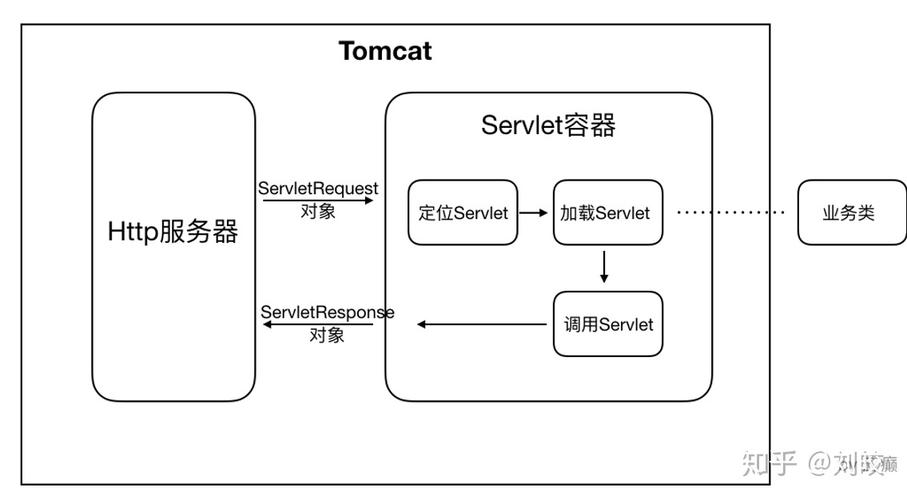
Tomcat is a Java application. To run, it needs a Java Virtual Machine (JVM). The JVM is contained within the JDK/JRE.
- To Launch: The
startup.sh(orstartup.baton Windows) script uses theJAVA_HOMEvariable to find and execute thejavacommand to start the Tomcat server. - To Compile JSPs: When you access a JSP (JavaServer Page) for the first time, Tomcat's Jasper compiler needs to compile it into a Java servlet and then into bytecode. This process requires the
javac(Java compiler) and other tools from the JDK, which are located under thebindirectory insideJAVA_HOME. - To Run Applications: All the web applications you deploy on Tomcat run inside the JVM. Tomcat uses the JVM specified by
JAVA_HOMEto execute your application's code.
In short: JAVA_HOME is the bridge between the Tomcat server and the Java environment it needs to function.
How to Find Your JAVA_HOME Path
Before you can set JAVA_HOME, you need to know where your Java is installed.
On Windows:
-
Open a Command Prompt or PowerShell.
-
Run the following command to see where Java is located:
where java
You might get an output like:
C:\Program Files\Java\jdk-17.0.2\bin\java.exe
C:\Program Files\Common Files\Oracle\Java\javapath\java.exe
The first path is usually the one you want (the JDK). The second is often a shortcut.
-
To confirm the version and get the canonical path, run:
java -version
The output will show the version. Now, take the path from step 2 and remove the
\bin\java.exepart. That's yourJAVA_HOME.Example: If
where javashowsC:\Program Files\Java\jdk-17.0.2\bin\java.exe, then:JAVA_HOME = C:\Program Files\Java\jdk-17.0.2
On Linux or macOS:
-
Open a Terminal.
-
Run the following command to find the symbolic link for the
javaexecutable:which java
You might get an output like:
/usr/bin/javaThis is usually a symbolic link. To find where it points, use
ls -l:ls -l /usr/bin/java
Output might look like:
lrwxrwxrwx 1 root root 16 Apr 11 2025 /usr/bin/java -> /etc/alternatives/javaNow, check that path:
ls -l /etc/alternatives/java
Output might finally point to the real location:
lrwxrwxrwx 1 root root 47 Apr 11 2025 /etc/alternatives/java -> /usr/lib/jvm/temurin-17-jdk-amd64/bin/java -
Take the final path and remove the
/bin/javapart. That's yourJAVA_HOME.Example: If the final path is
/usr/lib/jvm/temurin-17-jdk-amd64/bin/java, then:JAVA_HOME = /usr/lib/jvm/temurin-17-jdk-amd64
How to Set JAVA_HOME
The method depends on your operating system and whether you're setting it for your current user or for all users.
For the Current Session (Temporary)
This is useful for testing but will be lost after you close the terminal/command prompt.
- Windows (Command Prompt):
set JAVA_HOME="C:\Program Files\Java\jdk-17.0.2"
set PATH=%JAVA_HOME%\bin;%PATH%
- Windows (PowerShell):
$env:JAVA_HOME="C:\Program Files\Java\jdk-17.0.2"
$env:PATH="$env:JAVA_HOME\bin;$env:PATH"
- Linux / macOS (bash):
export JAVA_HOME=/usr/lib/jvm/temurin-17-jdk-amd64
export PATH=$JAVA_HOME/bin:$PATH
Permanently (Recommended)
This ensures JAVA_HOME is always available.
On Windows:
- Press the Windows Key, type "environment variables", and select "Edit the system environment variables".
- In the System Properties window, click the "Environment Variables..." button.
- Under the "User variables for [YourUsername]" section (for just your user) or the "System variables" section (for all users), click "New...".
- For Variable name, enter:
JAVA_HOME - For Variable value, enter your JDK path (e.g.,
C:\Program Files\Java\jdk-17.0.2). Do not include quotes. - Click OK to close all windows.
- Important: To make the change take effect for any open Command Prompts, you must close them and reopen new ones. To update the
PATH, find thePathvariable in the same list, click "Edit...", and add a new entry with the value%JAVA_HOME%\bin.
On Linux (using bash shell):
- Open your shell configuration file. This is usually
~/.bashrcor~/.profile. You can use a text editor likenanoorvim.nano ~/.bashrc
- Add the following lines to the end of the file:
export JAVA_HOME=/usr/lib/jvm/temurin-17-jdk-amd64
export PATH=$JAVA_HOME/bin:$PATH
(Remember to use your actual path)
- Save the file and exit the editor.
- Apply the changes to your current terminal session by running:
source ~/.bashrc
On macOS:
- The method can vary. If you installed Java using Homebrew, it's often best to let Homebrew manage the path. Otherwise, you can edit your shell profile (e.g.,
~/.zshrcfor modern macOS or~/.bash_profilefor older versions).nano ~/.zshrc
- Add the lines:
export JAVA_HOME=/Library/Java/JavaVirtualMachines/zulu-17.jdk/Contents/Home
export PATH=$JAVA_HOME/bin:$PATH
(This is an example path for Azul Zulu JDK; use your own)
- Save and apply the changes with
source ~/.zshrc.
How to Verify JAVA_HOME in Tomcat
After setting JAVA_HOME, you should verify that Tomcat is using it correctly.
- Start Tomcat using its startup script (
startup.shorstartup.bat). - Open a web browser and go to the Tomcat Manager page:
http://localhost:8080/ - Click on the "Server Status" link in the left menu.
- Scroll down to the "JVM" section. You will see a line that says:
Java Home: C:\Program Files\Java\jdk-17.0.2(or your Linux/macOS path)
If this path is correct, you have successfully configured JAVA_HOME for Tomcat. If it shows an incorrect path or nothing at all, Tomcat is not finding the variable, and you should re-check your configuration.