Of course! Let's dive deep into the QStatusBar in Python using PyQt or PySide.
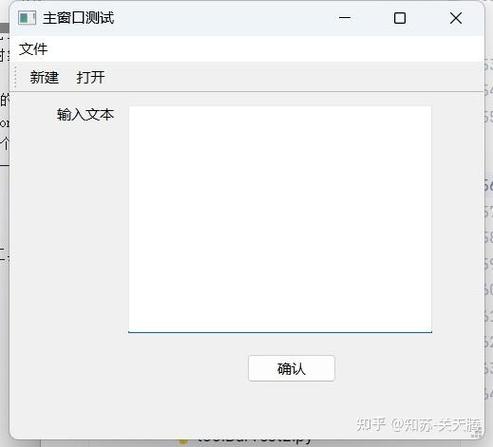
The QStatusBar is a fundamental widget in Qt applications, typically found at the bottom of a main window (QMainWindow). Its primary purpose is to display temporary messages, provide a permanent area for widgets (like progress bars or labels), and give context-sensitive feedback based on the user's current focus.
Basic Usage: Showing Temporary Messages
The most common use case for a status bar is to show brief messages, like "File saved" or "Ready".
Core Methods:
widget(): Returns the widget currently occupying the given permanent section.addWidget(widget, stretch=0): Adds a widget to the status bar. The widget will be there permanently until removed.stretchdetermines how much space it should get relative to other permanent widgets.removeWidget(widget): Removes a permanently added widget.showMessage(message, timeout=0): Displays a temporary message. Iftimeoutis in milliseconds (e.g., 3000 for 3 seconds), the message will automatically disappear. A timeout of 0 means the message will stay until anothershowMessage()is called (even with an empty string).
Example: Simple Message Display
Here's a basic example showing how to display messages with and without a timeout.
import sys
from PyQt5.QtWidgets import (QApplication, QMainWindow, QPushButton,
                             QLabel, QVBoxLayout, QWidget, QStatusBar)
class MainWindow(QMainWindow):
    def __init__(self):
        super().__init__()
        self.setWindowTitle("QStatusBar Example")
        self.setGeometry(100, 100, 400, 200)
        # A central widget and a button for interaction
        central_widget = QWidget()
        self.setCentralWidget(central_widget)
        layout = QVBoxLayout()
        button = QPushButton("Click Me for a Status Message")
        button.clicked.connect(self.show_temp_message)
        layout.addWidget(button)
        central_widget.setLayout(layout)
        # 1. Create the status bar
        self.status_bar = QStatusBar()
        self.setStatusBar(self.status_bar) # Set it to the main window
        # 2. Show an initial permanent message
        self.status_bar.showMessage("Ready", 5000) # Shows for 5 seconds
    def show_temp_message(self):
        # This message will appear and stay until another message is shown
        self.status_bar.showMessage("Button was clicked! No timeout set.")
        # You can clear the message by calling it with an empty string
        # QTimer.singleShot(3000, lambda: self.status_bar.showMessage(""))
if __name__ == '__main__':
    app = QApplication(sys.argv)
    window = MainWindow()
    window.show()
    sys.exit(app.exec_())
Adding Permanent Widgets
Sometimes you want widgets to be always visible in the status bar, like a label showing the current line number in a text editor or a permanent "Ready" indicator.
Core Methods:
addWidget(widget, stretch=0): Adds a widget to the status bar. The widget will be there permanently until removed.stretchdetermines how much space it should get relative to other permanent widgets.removeWidget(widget): Removes a permanently added widget.
Example: Adding a Permanent Label
In this example, we'll add a QLabel that stays on the status bar permanently.
import sys
from PyQt5.QtWidgets import (QApplication, QMainWindow, QPushButton,
                             QLabel, QVBoxLayout, QWidget, QStatusBar)
from PyQt5.QtCore import Qt
class MainWindow(QMainWindow):
    def __init__(self):
        super().__init__()
        self.setWindowTitle("Permanent Widgets Example")
        self.setGeometry(100, 100, 400, 200)
        central_widget = QWidget()
        self.setCentralWidget(central_widget)
        layout = QVBoxLayout()
        self.button = QPushButton("Update Permanent Label")
        self.button.clicked.connect(self.update_permanent_label)
        layout.addWidget(self.button)
        central_widget.setLayout(layout)
        self.status_bar = QStatusBar()
        self.setStatusBar(self.status_bar)
        # --- Permanent Widget Example ---
        # Create a label
        self.permanent_label = QLabel("Status: Idle")
        # Add the label to the status bar
        # The stretch factor of 0 means it won't expand to fill extra space
        self.status_bar.addPermanentWidget(self.permanent_label, stretch=0)
        # You can add another permanent widget
        self.another_label = QLabel("v1.0")
        self.status_bar.addPermanentWidget(self.another_label)
    def update_permanent_label(self):
        self.permanent_label.setText("Status: Processing...")
        # You can change its style
        self.permanent_label.setStyleSheet("color: blue; font-weight: bold;")
        # Simulate some work and then revert
        # QTimer.singleShot(2000, self.reset_permanent_label)
    def reset_permanent_label(self):
        self.permanent_label.setText("Status: Idle")
        self.permanent_label.setStyleSheet("")
if __name__ == '__main__':
    app = QApplication(sys.argv)
    window = MainWindow()
    window.show()
    sys.exit(app.exec_())
Context-Sensitive Messages (Using Signals)
A powerful feature of QStatusBar is its ability to show messages based on which widget has focus. This is done using the QWidget's statusTip property.
QWidget.setStatusTip(str): Sets the text that will be displayed in the status bar when the widget is active.
Example: Focus-Based Status Tips
This example demonstrates how different widgets can provide their own context-sensitive help.
import sys
from PyQt5.QtWidgets import (QApplication, QMainWindow, QLineEdit,
                             QPushButton, QStatusBar, QWidget, QVBoxLayout, QLabel)
class MainWindow(QMainWindow):
    def __init__(self):
        super().__init__()
        self.setWindowTitle("Context-Sensitive Tips")
        self.setGeometry(100, 100, 400, 200)
        central_widget = QWidget()
        self.setCentralWidget(central_widget)
        layout = QVBoxLayout()
        # Create widgets and set their status tips
        name_label = QLabel("Name:")
        self.name_input = QLineEdit()
        self.name_input.setStatusTip("Enter your full name here. e.g., 'Jane Doe'")
        email_label = QLabel("Email:")
        self.email_input = QLineEdit()
        self.email_input.setStatusTip("Enter your valid email address. e.g., 'jane@example.com'")
        submit_button = QPushButton("Submit")
        submit_button.setStatusTip("Click to submit the form. All fields are required.")
        layout.addWidget(name_label)
        layout.addWidget(self.name_input)
        layout.addWidget(email_label)
        layout.addWidget(self.email_input)
        layout.addWidget(submit_button)
        central_widget.setLayout(layout)
        # Create the status bar
        self.status_bar = QStatusBar()
        self.setStatusBar(self.status_bar)
        # Set a default message
        self.status_bar.showMessage("Ready. Hover over a widget for help.")
if __name__ == '__main__':
    app = QApplication(sys.argv)
    window = MainWindow()
    window.show()
    sys.exit(app.exec_())
Now, when you hover your mouse over the "Name" input field, the status bar will automatically show the tip you set for it. This is a very user-friendly way to provide inline help.
Advanced Example: Combining Everything
Let's create a more realistic example that combines temporary messages, permanent widgets (a progress bar and a label), and context-sensitive tips.
import sys
from PyQt5.QtWidgets import (QApplication, QMainWindow, QPushButton,
                             QProgressBar, QLabel, QVBoxLayout, QWidget, QStatusBar)
from PyQt5.QtCore import QThread, pyqtSignal, QTimer
# A worker thread to simulate a long task
class WorkerThread(QThread):
    progress_updated = pyqtSignal(int)
    finished = pyqtSignal()
    def run(self):
        for i in range(101):
            self.msleep(50) # Simulate work
            self.progress_updated.emit(i)
        self.finished.emit()
class MainWindow(QMainWindow):
    def __init__(self):
        super().__init__()
        self.setWindowTitle("Advanced QStatusBar")
        self.setGeometry(100, 100, 500, 250)
        # Central UI
        central_widget = QWidget()
        self.setCentralWidget(central_widget)
        layout = QVBoxLayout()
        self.start_button = QPushButton("Start Long Task")
        self.start_button.setStatusTip("Begin a process that will take a few seconds.")
        self.start_button.clicked.connect(self.start_task)
        layout.addWidget(self.start_button)
        central_widget.setLayout(layout)
        # Status Bar Setup
        self.status_bar = QStatusBar()
        self.setStatusBar(self.status_bar)
        # Permanent Widgets
        self.status_label = QLabel("Status: Idle")
        self.status_bar.addPermanentWidget(self.status_label, 1) # stretch=1
        self.progress_bar = QProgressBar()
        self.progress_bar.setMaximumWidth(150)
        self.status_bar.addPermanentWidget(self.progress_bar, 0) # stretch=0
        self.version_label = QLabel("v2.1")
        self.status_bar.addPermanentWidget(self.version_label, 0)
        self.worker_thread = None
    def start_task(self):
        self.start_button.setEnabled(False)
        self.status_label.setText("Status: Running...")
        self.progress_bar.setValue(0)
        self.status_bar.showMessage("Task started...", 3000)
        self.worker_thread = WorkerThread()
        self.worker_thread.progress_updated.connect(self.update_progress)
        self.worker_thread.finished.connect(self.task_finished)
        self.worker_thread.start()
    def update_progress(self, value):
        self.progress_bar.setValue(value)
    def task_finished(self):
        self.status_label.setText("Status: Complete!")
        self.status_bar.showMessage("Task finished successfully!", 5000)
        self.start_button.setEnabled(True)
        self.progress_bar.setValue(0)
        # self.worker_thread.deleteLater() # Good practice for cleaning up threads
if __name__ == '__main__':
    app = QApplication(sys.argv)
    window = MainWindow()
    window.show()
    sys.exit(app.exec_())
Key Takeaways
- Set it on
QMainWindow: Useself.setStatusBar(QStatusBar()). - Temporary Messages: Use
showMessage(text, timeout_ms). Timeout of 0 means "sticky". - Permanent Widgets: Use
addPermanentWidget(QWidget, stretch). These widgets persist until explicitly removed. - Context Help: Use
widget.setStatusTip("your helpful text")for a powerful, built-in help system. - Flexibility: The status bar is highly flexible. You can add almost any
QWidgetto it, making it a great place for indicators, controls, and dynamic information.