Of course! Using Python with LibreOffice is a powerful way to automate tasks, create custom templates, and integrate your office suite with other applications. The primary method for this is through UNO (Universal Network Objects), which is the component model that LibreOffice (and OpenOffice) is built on.
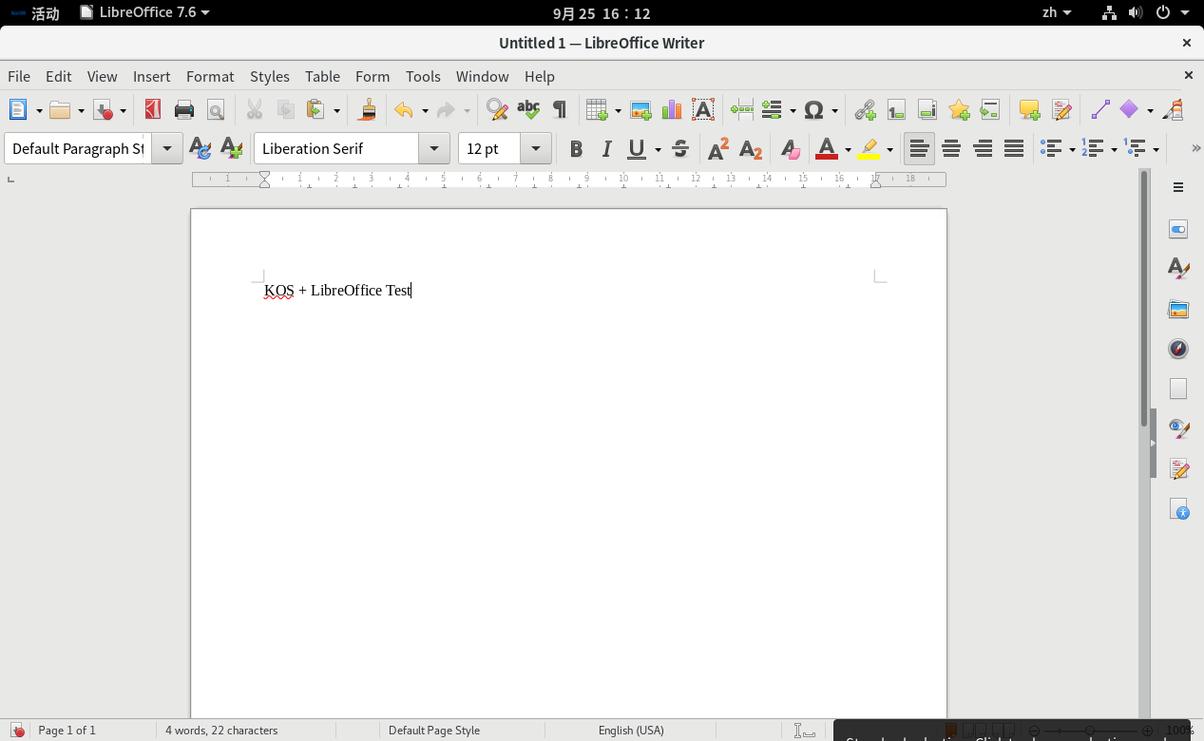
Here’s a comprehensive guide covering everything you need to know to get started.
What is UNO?
Think of UNO as the "nervous system" of LibreOffice. It's a cross-platform, language-independent programming interface that allows you to control every aspect of the office suite.
- Object-Oriented: You interact with LibreOffice as a collection of objects (e.g., a
Document, aSheet, aCell, aParagraph). - Language Agnostic: While you can use it in C++, Java, and other languages, Python is one of the most popular due to its simplicity and the great libraries available.
- Automation: You can write a Python script to open a document, read data, modify it, format it, and save it—all without opening the LibreOffice GUI.
How to Connect Python to LibreOffice
There are two main ways to run Python code "inside" LibreOffice.
Method 1: Using the pyuno Bridge (The Classic Way)
This is the traditional method. You run a Python script from your system's command line, and it launches a hidden instance of LibreOffice to perform the tasks.
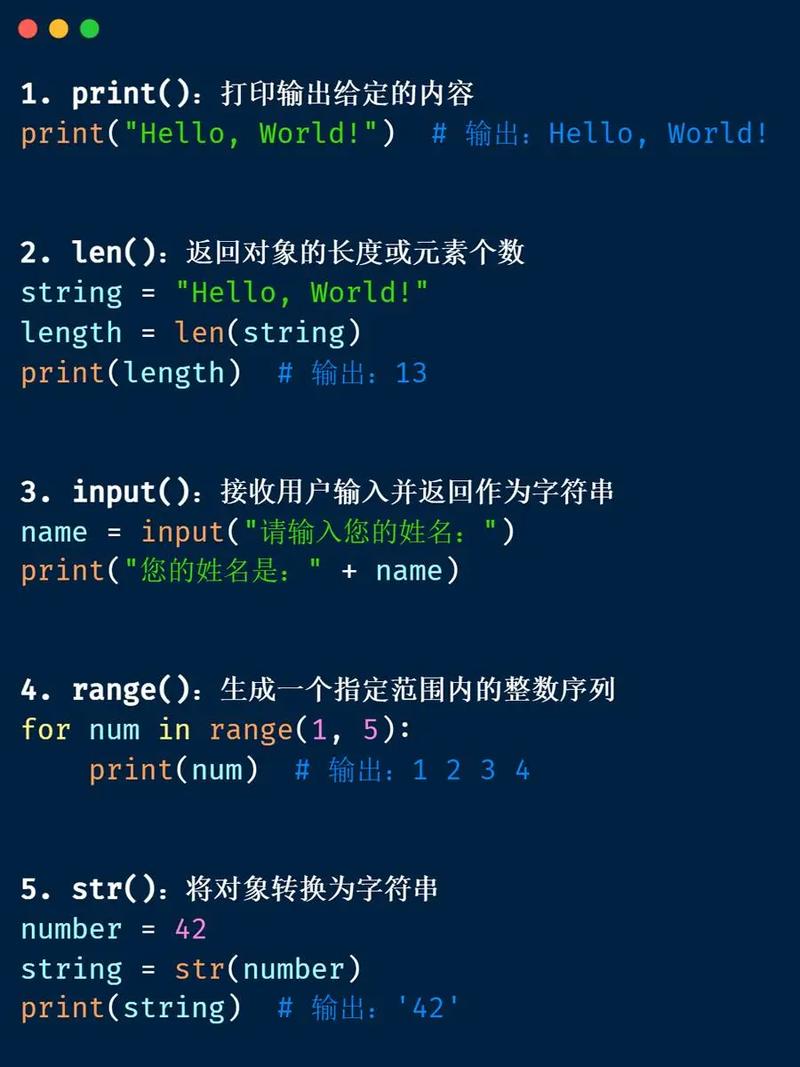
Step 1: Install the LibreOffice Python
When you install LibreOffice, it includes its own Python interpreter and the necessary pyuno libraries. You don't need to install a separate Python for this.
Step 2: Find the libreoffice Executable
You need to know the path to the libreoffice command on your system.
- Windows: Usually
C:\Program Files\LibreOffice\program\soffice.exe - macOS: Usually
/Applications/LibreOffice.app/Contents/MacOS/soffice - Linux: Usually
/usr/bin/libreofficeor/usr/bin/soffice
Step 3: Write a Python Script
Create a Python file (e.g., my_script.py). The key is to import the uno module, which is provided by the pyuno bridge.
Example: my_script.py
import uno
import sys
# This function will be our entry point
def main():
    # Get the component context from the UNO bridge
    local_context = uno.getComponentContext()
    # Create a resolver service
    resolver = local_context.ServiceManager.createInstanceWithContext(
        "com.sun.star.bridge.UnoUrlResolver", local_context
    )
    # Connect to the running office
    # Note: This requires LibreOffice to be running with the --accept flag
    # For now, let's show the simpler method (starting office from the command line)
    # context = resolver.resolve("uno:socket,host=localhost,port=2002;urp;StarOffice.ComponentContext")
    # desktop = context.ServiceManager.createInstanceWithContext("com.sun.star.frame.Desktop", context)
    # --- The easier way: Let the command line start office for us ---
    # We will see this in the next section.
    print("Script started. This example is best run from the command line.")
if __name__ == "__main__":
    main()
Step 4: Run the Script from the Command Line
Open your terminal or command prompt and run the script, telling LibreOffice to accept connections and load the Python interpreter.
# On Linux/macOS
# Replace /path/to/your/libreoffice with the actual path
/path/to/your/libreoffice --headless --accept="socket,host=localhost,port=2002;urp;Python" python my_script.py
# On Windows
"C:\Program Files\LibreOffice\program\soffice.exe" --headless --accept="socket,host=localhost,port=2002;urp;Python" python my_script.py
--headless: Runs LibreOffice without a graphical user interface.--accept=...: Starts a listener that allows external scripts to connect.python my_script.py: The command to execute after LibreOffice has started.
This method is powerful for server-side automation but can be a bit clunky for simple tasks.
Method 2: Using the pyodide WebAssembly Interpreter (The Modern Way)
This is a revolutionary new method. LibreOffice 7.6+ can run Python code directly within the office application using a WebAssembly interpreter. This is the recommended approach for most new development.
Advantages:
- No external Python installation needed.
- No command-line tricks required. You run the script directly from LibreOffice.
- Access to a huge ecosystem of Python libraries (NumPy, Pandas, Matplotlib, etc.) directly inside your office document.
How to Use It:
- Ensure you have LibreOffice 7.6 or newer.
- Go to
Tools->Options->LibreOffice->Advanced. - Check the box for "Enable Python scripting". This will download and set up the
pyodideenvironment on first use. - Run the Script:
- Open any LibreOffice document (Writer, Calc, etc.).
- Go to
Tools->Macros->Run Macro.... - Select your script from the list and click
Run.
Example: hello_world_pyodide.py
# This script runs directly inside LibreOffice using Pyodide
# No imports needed, the 'uno' module is automatically available
def main():
    # Get the current document
    doc = XSCRIPTCONTEXT.getDocument()
    # Get the text object from a Writer document
    text = doc.getText()
    # Insert some text
    text.setString("Hello from Python inside LibreOffice (Pyodide)!")
    # You can even use standard libraries!
    import datetime
    now = datetime.datetime.now().strftime("%Y-%m-%d %H:%M:%S")
    text.setString(f"Hello! The current time is: {now}")
# The standard entry point for a macro
g_exportedScripts = main,
Practical Examples
Let's look at some common tasks. These examples will work with both methods, but the Pyodide method is much simpler to run.
Example 1: Write "Hello World" in a Writer Document
# This script works with both pyuno and pyodide
# The way to get the XSCRIPTCONTEXT is slightly different.
# In Pyodide, it's a global variable. In pyuno, you pass it.
def write_hello_world():
    # In Pyodide, XSCRIPTCONTEXT is a global variable
    # In pyuno, it's passed as an argument to the macro function.
    # We can handle both:
    try:
        doc = XSCRIPTCONTEXT.getDocument()
    except NameError:
        # Fallback for pyuno bridge (you'd pass this as a macro argument)
        # For simplicity, we'll assume XSCRIPTCONTEXT is available.
        pass
    # Get the text cursor
    text = doc.getText()
    cursor = text.createTextCursor()
    # Insert text
    text.insertString(cursor, "Hello, World from Python UNO!", False)
# The macro entry point
g_exportedScripts = write_hello_world,
Example 2: Read Data from a Calc Spreadsheet and Write to Another
def process_spreadsheet():
    doc = XSCRIPTCONTEXT.getDocument()
    # Get the first sheet
    sheet = doc.getSheets().getByIndex(0)
    # Get cell A1 and print its value to the console
    # (The console is visible in Tools -> Macros -> Organize Macros -> Python -> Edit)
    cell_a1 = sheet.getCellByPosition(0, 0) # Column 0, Row 0
    print(f"Value in A1 is: {cell_a1.getString()}")
    # Write a new value to cell B1
    cell_b1 = sheet.getCellByPosition(1, 0) # Column 1, Row 0
    cell_b1.setString("Processed by Python")
    # Set a number in cell A2 and apply a format
    cell_a2 = sheet.getCellByPosition(0, 1)
    cell_a2.setValue(123.456)
    cell_a2.getNumberFormat().setFormatCode("#,##0.00")
# The macro entry point
g_exportedScripts = process_spreadsheet,
Example 3: Create a New Writer Document and Save It
def create_and_save_document():
    # Get the desktop to create a new document
    desktop = XSCRIPTCONTEXT.getDesktop()
    # Create a new text document
    doc = desktop.loadComponentFromURL("private:factory/swriter", "_blank", 0, ())
    # Get the text and add content
    text = doc.getText()
    text.setString("This is a new document created by Python.\nIt will be saved automatically.")
    # Define the save path (use a file URL)
    # IMPORTANT: Replace with your actual path and use forward slashes
    save_url = "file:///C:/Users/YourUser/Documents/my_new_doc.odt"
    # Save the document
    doc.storeToURL(save_url, ())
    print(f"Document saved to {save_url}")
# The macro entry point
g_exportedScripts = create_and_save_document,
Learning Resources and Documentation
The official documentation is a bit sparse, but these resources are invaluable:
-
The Official UNO API Documentation: This is the ultimate reference for all objects, properties, and methods.
-
Andrew Pitonyak's Macro Document: This is the single best resource for learning LibreOffice macros. It's a free book available in PDF and HTML format.
-
Stack Overflow: Search for questions tagged
[libreoffice]and[uno]. The community is very helpful. -
LibreOffice Extensions: Look at existing extensions written in Python. Their source code is a great learning tool.
-
Python UNO Bridge Examples: Search for "python uno bridge examples" for more code snippets.
Summary
| Feature | pyuno Bridge |
pyodide (WebAssembly) |
|---|---|---|
| How it Works | External Python script connects to a LibreOffice process. | Python code runs inside the LibreOffice application itself. |
| Setup | Requires knowing LibreOffice executable path and command-line flags. | Built-in. Just enable in Options -> Advanced. |
| Libraries | Standard Python libraries. | Standard Python libraries + NumPy, Pandas, etc. |
| Use Case | Server-side automation, complex scripts, integration with other system tools. | End-user macros, data analysis within Calc, document generation, interactive tools. |
| Recommendation | Good for existing scripts or specific server needs. | Highly recommended for all new development. |