Of course! Working with Excel sheets in Java is a very common task, especially for data export, import, and reporting. There are several excellent libraries to choose from, each with its own strengths.
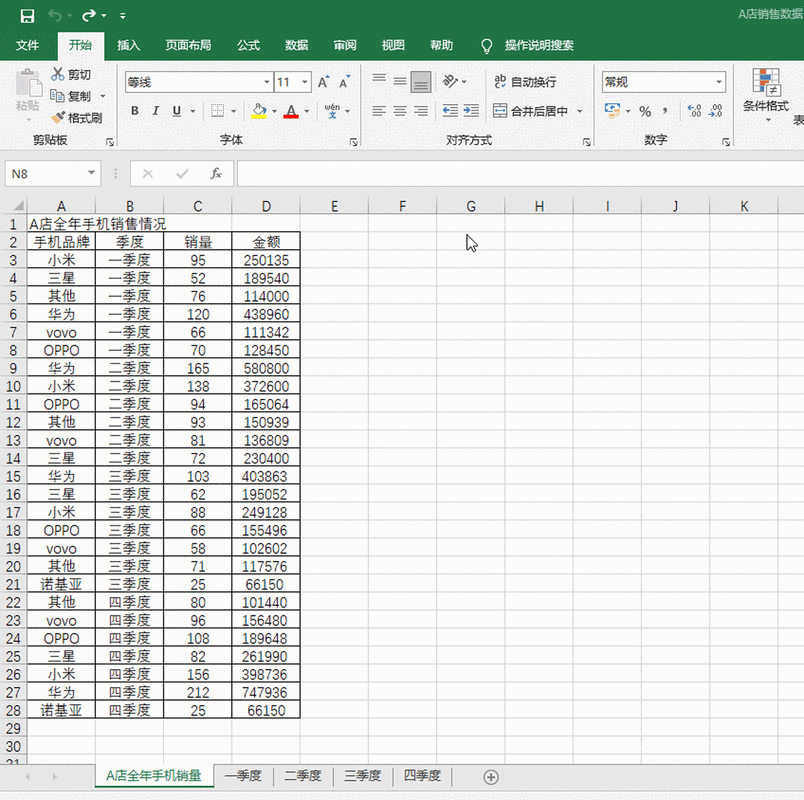
Here’s a comprehensive guide covering the most popular options, with code examples.
Summary of Popular Java Excel Libraries
| Library | Key Features | License | Best For |
|---|---|---|---|
| Apache POI | The industry standard. Supports both .xls (older) and .xlsx (newer) formats. Very feature-rich. |
Apache 2.0 | General-purpose, legacy systems, full control over Excel files. |
| EasyExcel | From Alibaba. Extremely fast and memory-efficient, especially for reading/writing large files. | Apache 2.0 | High-performance applications, big data, and simple read/write operations. |
| JExcelApi | Lightweight and simple. Good for basic tasks. | LGPL | Simple, small-scale operations where you don't need all of POI's features. |
Apache POI (The Classic Choice)
Apache POI is the most well-known and feature-rich library for handling Microsoft Office files in Java. It's a must-know for any Java developer.
Setup (Maven)
Add this dependency to your pom.xml:
<dependencies>
    <!-- For .xlsx (Office 2007 and later) -->
    <dependency>
        <groupId>org.apache.poi</groupId>
        <artifactId>poi-ooxml</artifactId>
        <version>5.2.5</version> <!-- Use the latest version -->
    </dependency>
    <!-- For .xls (Office 97-2003) -->
    <dependency>
        <groupId>org.apache.poi</groupId>
        <artifactId>poi</artifactId>
        <version>5.2.5</version> <!-- Use the latest version -->
    </dependency>
</dependencies>
Example: Writing to an Excel Sheet (.xlsx)
This example creates a new Excel file, writes data to it, and saves it.
import org.apache.poi.ss.usermodel.*;
import org.apache.poi.xssf.usermodel.XSSFWorkbook;
import java.io.FileOutputStream;
import java.io.IOException;
public class ApachePoiWriteExample {
    public static void main(String[] args) {
        // The file path where the Excel file will be saved
        String filePath = "C:/temp/data.xlsx";
        // 1. Create a new Workbook (XSSFWorkbook for .xlsx)
        try (Workbook workbook = new XSSFWorkbook()) {
            // 2. Create a Sheet
            Sheet sheet = workbook.createSheet("Employee Data");
            // 3. Create a Font for styling (bold)
            Font headerFont = workbook.createFont();
            headerFont.setBold(true);
            headerFont.setFontHeightInPoints((short) 14);
            headerFont.setColor(IndexedColors.RED.getIndex());
            // 4. Create a Cell Style for the header
            CellStyle headerCellStyle = workbook.createCellStyle();
            headerCellStyle.setFont(headerFont);
            // 5. Create a Row and Cells for the header
            Row headerRow = sheet.createRow(0);
            String[] columns = {"ID", "Name", "Email", "Salary"};
            for (int i = 0; i < columns.length; i++) {
                Cell cell = headerRow.createCell(i);
                cell.setCellValue(columns[i]);
                cell.setCellStyle(headerCellStyle);
            }
            // 6. Create some data rows
            Object[][] employees = {
                    {1, "John Doe", "john.doe@example.com", 75000.00},
                    {2, "Jane Smith", "jane.smith@example.com", 82000.50},
                    {3, "Peter Jones", "peter.jones@example.com", 68000.00}
            };
            int rowNum = 1;
            for (Object[] employee : employees) {
                Row row = sheet.createRow(rowNum++);
                int colNum = 0;
                for (Object field : employee) {
                    Cell cell = row.createCell(colNum++);
                    if (field instanceof String) {
                        cell.setCellValue((String) field);
                    } else if (field instanceof Integer) {
                        cell.setCellValue((Integer) field);
                    } else if (field instanceof Double) {
                        cell.setCellValue((Double) field);
                    }
                }
            }
            // 7. Auto-size columns for better readability
            for (int i = 0; i < columns.length; i++) {
                sheet.autoSizeColumn(i);
            }
            // 8. Write the workbook to a file
            try (FileOutputStream fileOut = new FileOutputStream(filePath)) {
                workbook.write(fileOut);
                System.out.println("Excel file written successfully to " + filePath);
            }
        } catch (IOException e) {
            e.printStackTrace();
        }
    }
}
Example: Reading from an Excel Sheet (.xlsx)
This example reads the data from the file we just created.
import org.apache.poi.ss.usermodel.*;
import org.apache.poi.xssf.usermodel.XSSFWorkbook;
import java.io.FileInputStream;
import java.io.IOException;
public class ApachePoiReadExample {
    public static void main(String[] args) {
        String filePath = "C:/temp/data.xlsx";
        try (FileInputStream fileIn = new FileInputStream(filePath);
             Workbook workbook = new XSSFWorkbook(fileIn)) {
            // 1. Get the first sheet from the workbook
            Sheet sheet = workbook.getSheetAt(0);
            // 2. Use a for-each loop to iterate over the rows
            for (Row row : sheet) {
                // 3. Use a for-each loop to iterate over the cells in the row
                for (Cell cell : row) {
                    // 4. Print the cell value based on its type
                    switch (cell.getCellType()) {
                        case STRING:
                            System.out.print(cell.getStringCellValue() + "\t");
                            break;
                        case NUMERIC:
                            // Check if it's a date or a number
                            if (DateUtil.isCellDateFormatted(cell)) {
                                System.out.print(cell.getDateCellValue() + "\t");
                            } else {
                                System.out.print(cell.getNumericCellValue() + "\t");
                            }
                            break;
                        case BOOLEAN:
                            System.out.print(cell.getBooleanCellValue() + "\t");
                            break;
                        case FORMULA:
                            System.out.print(cell.getCellFormula() + "\t");
                            break;
                        default:
                            System.out.print("UNKNOWN\t");
                    }
                }
                System.out.println(); // New line after each row
            }
        } catch (IOException e) {
            e.printStackTrace();
        }
    }
}
EasyExcel (High-Performance & Simple)
EasyExcel, developed by Alibaba, is designed to be extremely fast and memory-efficient, especially when dealing with large files (millions of rows). It uses a streaming API to avoid loading the entire file into memory.
Setup (Maven)
Add this dependency to your pom.xml:
<dependency>
    <groupId>com.alibaba</groupId>
    <artifactId>easyexcel</artifactId>
    <version>3.3.2</version> <!-- Use the latest version -->
</dependency>
Example: Writing to an Excel Sheet
EasyExcel uses annotations to map Java objects to Excel columns.
Define a Data Model:
import com.alibaba.excel.annotation.ExcelProperty;
import com.alibaba.excel.annotation.write.style.ContentStyle;
import com.alibaba.excel.annotation.write.style.HeadStyle;
// The @HeadStyle annotation can be used to style the header row
@HeadStyle(fillForegroundColor = 10) // Light green fill
public class DataModel {
    // The index determines the column order
    @ExcelProperty(index = 0)
    private Integer id;
    @ExcelProperty(index = 1)
    private String name;
    @ExcelProperty(index = 2)
    private String email;
    @ExcelProperty(index = 3)
    private Double salary;
    // Getters and Setters are required
    public Integer getId() { return id; }
    public void setId(Integer id) { this.id = id; }
    public String getName() { return name; }
    public void setName(String name) { this.name = name; }
    public String getEmail() { return email; }
    public void setEmail(String email) { this.email = email; }
    public Double getSalary() { return salary; }
    public void setSalary(Double salary) { this.salary = salary; }
}
Write the Data:
import com.alibaba.excel.EasyExcel;
import java.util.ArrayList;
import java.util.List;
public class EasyExcelWriteExample {
    public static void main(String[] args) {
        String filePath = "C:/temp/easyexcel_data.xlsx";
        // 1. Prepare data
        List<DataModel> dataList = new ArrayList<>();
        dataList.add(new DataModel(1, "John Doe", "john.doe@example.com", 75000.00));
        dataList.add(new DataModel(2, "Jane Smith", "jane.smith@example.com", 82000.50));
        dataList.add(new DataModel(3, "Peter Jones", "peter.jones@example.com", 68000.00));
        // 2. Write data to Excel
        // EasyExcel.write(filePath, DataModel.class).sheet("Employee Data").doWrite(dataList);
        // More modern API
        EasyExcel.write(filePath, DataModel.class)
                .sheet("Employee Data")
                .doWrite(dataList);
        System.out.println("EasyExcel file written successfully to " + filePath);
    }
}
Example: Reading from an Excel Sheet
EasyExcel also uses a listener-based model for reading, which is highly memory-efficient.
import com.alibaba.excel.EasyExcel;
import com.alibaba.excel.context.AnalysisContext;
import com.alibaba.excel.event.AnalysisEventListener;
import java.util.ArrayList;
import java.util.List;
public class EasyExcelReadExample {
    public static void main(String[] args) {
        String filePath = "C:/temp/easyexcel_data.xlsx";
        // 1. Create a listener to handle data as it's read
        DataListener listener = new DataListener();
        // 2. Read the Excel file
        EasyExcel.read(filePath, DataModel.class, listener).sheet().doRead();
        // 3. Get the data from the listener
        List<DataModel> dataList = listener.getDataList();
        dataList.forEach(System.out::println);
    }
    /**
     * A custom listener to process data rows
     */
    public static class DataListener extends AnalysisEventListener<DataModel> {
        private List<DataModel> dataList = new ArrayList<>();
        @Override
        public void invoke(DataModel data, AnalysisContext context) {
            // This method is called for each row
            dataList.add(data);
            System.out.println("Parsed data: " + data);
        }
        @Override
        public void doAfterAllAnalysed(AnalysisContext context) {
            // This method is called after all rows are read
            System.out.println("All data has been parsed.");
        }
        public List<DataModel> getDataList() {
            return dataList;
        }
    }
}
Which One Should You Choose?
-
Choose Apache POI if:
- You need maximum compatibility and features (e.g., complex formulas, charts, rich formatting).
- You are working on an existing project that already uses POI.
- You need to support very old
.xlsformats.
-
Choose EasyExcel if:
- Performance is critical, especially for large files (10,000+ rows).
- You want a simpler, more modern API with less boilerplate code.
- Your main use case is simple data import/export (CRUD operations on Excel).
For most new projects in 2025, EasyExcel is often the recommended choice due to its superior performance and developer-friendly API, unless you have a specific need for POI's advanced features.