Of course! QTreeWidget is a powerful and versatile widget in PyQt (and PySide) used to display hierarchical data in a tree structure. It's part of the QtWidgets module.
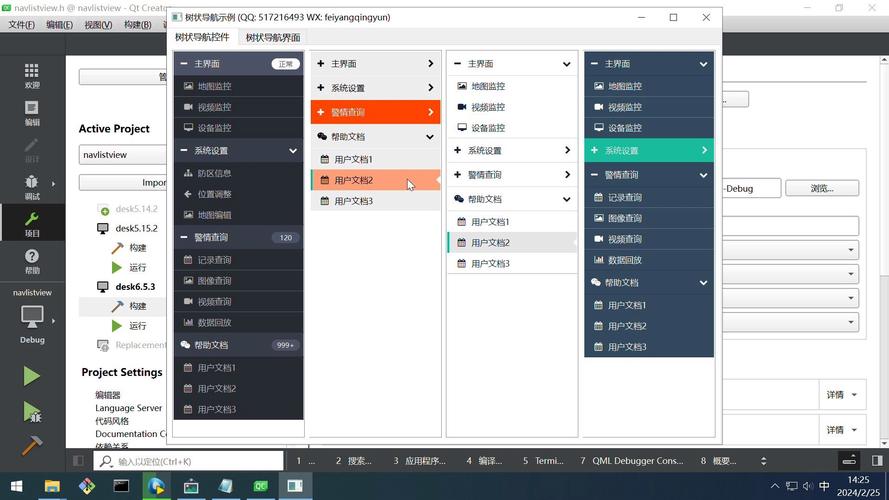
Here's a comprehensive guide covering the basics, key concepts, and practical examples.
What is QTreeWidget?
QTreeWidget is a high-level convenience class that provides a ready-to-use tree widget. It's built on top of the more flexible but more complex QTreeView and QAbstractItemModel classes.
- Key Features:
- Displays a hierarchical list of items.
- Each item can have its own icon, text, and check state.
- Items can have child items, forming branches.
- Columns can be added to display more information per item.
- Supports item editing, selection, and sorting.
- Integrates well with other Qt widgets.
Core Concepts and Classes
To use QTreeWidget, you need to understand these three main classes:
QTreeWidget: The main widget that you place on your window. It manages the entire tree.QTreeWidgetItem: The individual item that appears in the tree. You create these and add them to theQTreeWidget. Each item can have text, icons, and other data.QTreeWidget.topLevelItem(): A method to get the top-level items (the items with no parent) in the tree.
Basic Example: Creating a Simple Tree
Let's start with the most basic example: creating a window with a QTreeWidget and adding some items.
import sys
from PyQt5.QtWidgets import QApplication, QMainWindow, QTreeWidget, QTreeWidgetItem
from PyQt5.QtGui import QIcon
class MainWindow(QMainWindow):
    def __init__(self):
        super().__init__()
        self.setWindowTitle("QTreeWidget Example")
        self.setGeometry(100, 100, 400, 500)
        # 1. Create the QTreeWidget
        self.tree = QTreeWidget()
        self.setCentralWidget(self.tree)
        # 2. Set up the columns
        self.tree.setColumnCount(2)
        self.tree.setHeaderLabels(["Name", "Type"])
        # 3. Add top-level items
        # Create a top-level item
        item_fruits = QTreeWidgetItem(self.tree, ["Fruits"])
        item_vegetables = QTreeWidgetItem(self.tree, ["Vegetables"])
        # 4. Add child items to the top-level items
        QTreeWidgetItem(item_fruits, ["Apple", "Fruit"])
        QTreeWidgetItem(item_fruits, ["Banana", "Fruit"])
        QTreeWidgetItem(item_fruits, ["Orange", "Fruit"])
        QTreeWidgetItem(item_vegetables, ["Carrot", "Vegetable"])
        QTreeWidgetItem(item_vegetables, ["Broccoli", "Vegetable"])
        QTreeWidgetItem(item_vegetables, ["Spinach", "Vegetable"])
        # 5. Expand the tree by default
        self.tree.expandAll()
if __name__ == '__main__':
    app = QApplication(sys.argv)
    window = MainWindow()
    window.show()
    sys.exit(app.exec_())
Explanation:
QTreeWidget(): We instantiate the tree widget.setColumnCount(2): We tell the tree to have two columns.setHeaderLabels(["Name", "Type"]): We set the text for the column headers.QTreeWidgetItem(self.tree, ["Fruits"]): This is a key step. We create aQTreeWidgetItemand pass theQTreeWidgetas its parent. This makes it a top-level item. The list["Fruits"]populates the first column.QTreeWidgetItem(item_fruits, ["Apple", "Fruit"]): Here, we passitem_fruits(anotherQTreeWidgetItem) as the parent. This creates a child item nested underFruits. The list["Apple", "Fruit"]populates the first and second columns of this new child item.expandAll(): This is a helpful utility to open all branches of the tree when the window is first shown.
Common Operations
Here are some of the most frequent things you'll do with a QTreeWidget.
Adding and Removing Items
# Add a new top-level item
new_item = QTreeWidgetItem(self.tree, ["Grains"])
# Add a child to an existing item
# First, find the item you want to add to (e.g., "Fruits")
fruits_item = self.tree.findItems("Fruits", Qt.MatchExactly | Qt.MatchRecursive)[0]
QTreeWidgetItem(fruits_item, ["Grape", "Fruit"])
# Remove an item
# Find the item to remove
apple_item = self.tree.findItems("Apple", Qt.MatchExactly | Qt.MatchRecursive)[0]
# Get its parent and remove it from there
parent_item = apple_item.parent()
if parent_item:
    parent_item.removeChild(apple_item)
else:
    # It's a top-level item
    self.tree.invisibleRootItem().removeChild(apple_item)
Note:
findItemsis very useful. TheQt.MatchRecursiveflag is essential for searching through all items, including children.
Accessing Item Data
# Get the text from the first column of the currently selected item
selected_item = self.tree.currentItem()
if selected_item:
    print(f"Selected item text: {selected_item.text(0)}")
    print(f"Data from column 1: {selected_item.text(1)}")
# You can also set data
selected_item.setText(0, "A New Name")
Working with Checkboxes
A very common use case is to have checkable items.
# Make an item checkable
item_to_check = self.tree.findItems("Broccoli", Qt.MatchExactly)[0]
item_to_check.setCheckState(0, Qt.Checked) # Qt.Checked, Qt.Unchecked, Qt.PartiallyChecked
# Connect to a signal to detect state changes
self.tree.itemChanged.connect(self.on_item_changed)
def on_item_changed(self, item, column):
    if item.checkState(0) == Qt.Checked:
        print(f"'{item.text(0)}' was checked.")
    else:
        print(f"'{item.text(0)}' was unchecked.")
Icons
# Create an icon object (you need image files for this)
# For this example, we'll use a built-in icon if available, or a placeholder
try:
    folder_icon = self.style().standardIcon(QStyle.SP_DirIcon)
    file_icon = self.style().standardIcon(QStyle.SP_FileIcon)
except:
    # Fallback if style icons aren't available
    folder_icon = QIcon.fromTheme("folder")
    file_icon = QIcon.fromTheme("text-x-generic")
# Assign an icon to an item
fruits_item.setIcon(0, folder_icon)
apple_item.setIcon(0, file_icon)
Advanced: Custom Widgets in Items
A powerful feature of QTreeWidget is the ability to embed any QWidget (like a QProgressBar, QComboBox, or a QPushButton) directly into a tree item.
How it works:
- Create a widget and lay it out in a
QWidget. - Set this
QWidgetas the widget for a specific item and column usingsetItemWidget().
Example: Adding a Progress Bar
from PyQt5.QtWidgets import QProgressBar, QHBoxLayout, QWidget
# ... inside your MainWindow __init__ method ...
# Create a top-level item for "Downloads"
item_downloads = QTreeWidgetItem(self.tree, ["Downloads"])
# Create a widget container for the progress bar
progress_widget = QWidget()
progress_layout = QHBoxLayout(progress_widget)
progress_layout.setContentsMargins(5, 0, 5, 0) # Add some padding
# Create the progress bar
progress_bar = QProgressBar()
progress_bar.setValue(75) # Set a value
# Add the progress bar to the layout
progress_layout.addWidget(progress_bar)
# Create the tree item for the file
item_file = QTreeWidgetItem(item_downloads, ["large_file.zip"])
# Set the custom widget for the second column of the item
self.tree.setItemWidget(item_file, 1, progress_widget)
QTreeWidget vs. QTreeView
This is a crucial distinction for any Qt developer.
| Feature | QTreeWidget |
QTreeView |
|---|---|---|
| Complexity | Simple & High-level. A ready-to-use widget. | Complex & Low-level. A view class. |
| Data Source | Hardcoded. Data is stored directly in QTreeWidgetItem objects. |
Model/View. Displays data from a separate QAbstractItemModel (e.g., QStandardItemModel, QFileSystemModel, QSqlTableModel). |
| Use Case | Perfect for simple, static, or small trees where you don't need complex data management. | Essential for large datasets, dynamic data, data from databases, or when you need to display the same data in multiple views (e.g., a tree and a table). |
| Performance | Can be slow with thousands of items because all data is loaded into memory. | Highly performant with large datasets because it only loads the items that are visible (lazy loading). |
| Flexibility | Less flexible. You are tied to the QTreeWidgetItem structure. |
Extremely flexible. You can use any model that implements the QAbstractItemModel interface. |
Rule of Thumb:
- Use
QTreeWidgetfor simple configuration dialogs, file explorers for a small project, or any UI where you just need to quickly display a fixed hierarchy. - Use
QTreeViewwith a model for almost everything else, especially in larger applications.
Summary
QTreeWidget is an excellent tool for creating user interfaces that require hierarchical data representation. Its API is straightforward for common tasks like adding, removing, and managing items. For more advanced scenarios, understanding the difference between QTreeWidget and the more powerful QTreeView/Model architecture is key to building efficient and scalable Qt applications.