Of course! The Blender Python API (also known as BPY) is an incredibly powerful tool for automating tasks, creating custom tools, and even building entire games and interactive applications within Blender.
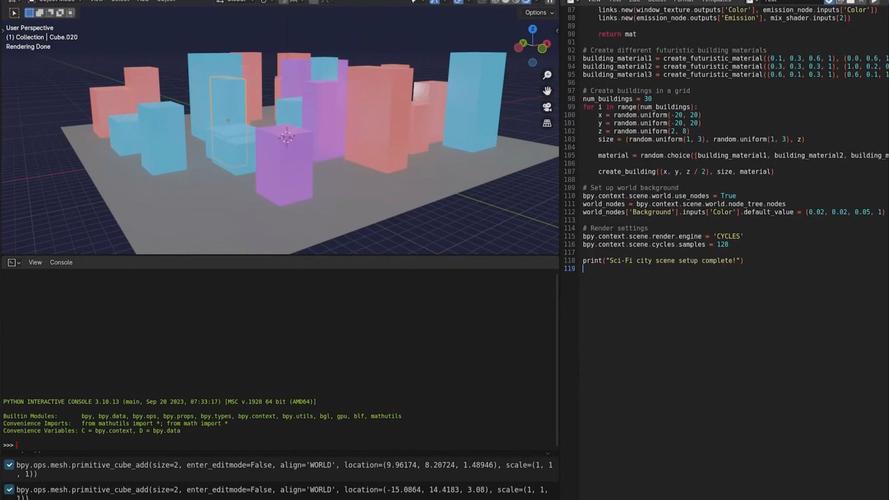
Here's a comprehensive guide to get you started, covering the essentials, key concepts, and practical examples.
What is the Blender Python API?
It's a programming interface that allows you to control almost every aspect of Blender using the Python language. Think of it as giving you a remote control for Blender, where you can write scripts to:
- Automate Repetitive Tasks: Automatically rig a character, arrange objects, or apply materials.
- Create Custom Tools: Build a specialized UI for a specific workflow (e.g., a car modeling toolkit).
- Procedural Generation: Generate complex geometry, landscapes, or cities with code.
- Game Logic: Write scripts for your Blender Game Engine projects.
- Export/Import Data: Create custom exporters for your game engine or 3D printer.
The API is tightly integrated into Blender. You can run Python code directly from the Text Editor, or you can write scripts in any external text editor and run them from Blender.
How to Access and Run Scripts
There are two main ways to run Python code in Blender:
A) The Built-in Text Editor
This is the best place for learning and quick testing.
- Open Blender.
- Go to the Scripting workspace (the icon looks like
</>). - You'll see a layout with the Text Editor on the left and a Python Console on the right.
- Click + New in the Text Editor to create a new text block.
- Write your Python code in the text editor.
- Click the Run Script button (the "play" icon) in the header of the Text Editor.
The Python Console will show you the output of your script, including any errors (tracebacks). You can also type single lines of Python directly into the console and press Enter to execute them.
B) External Scripts
For larger projects, you'll use an external code editor like Visual Studio Code (highly recommended), PyCharm, or Sublime Text.
- Install Python on your system (Blender comes with its own, but an external install is good for libraries).
- Install an IDE.
- In your IDE, open the directory where your
.blendfile is located. - Write your script in a
.pyfile. - In Blender, go to Edit > Preferences > Add-ons.
- Click Install..., select your
.pyfile, and enable it. (For more complex add-ons, you'll need to package them correctly).
Core Concepts of the API
Understanding these three concepts is 90% of the battle.
A) The bpy Module
This is the heart of the Blender API. It's the main Python module you import to interact with Blender. bpy acts as a bridge, giving you access to Blender's data, operators, and properties.
import bpy
B) Data vs. Context
This is the most crucial distinction for beginners.
-
Data (
bpy.data): This is the collection of all the "assets" in your current Blender file. Think of it as the library of everything.bpy.data.objects: All objects in the scene (Meshes, Cameras, Lights, etc.).bpy.data.meshes: All the mesh data.bpy.data.materials: All materials.bpy.data.scenes: All scenes.- You can access items by their name:
my_cube = bpy.data.objects["Cube"]
-
Context (
bpy.context): This represents the "active" state of Blender. It's what the user is currently interacting with.bpy.context.active_object: The object that is currently selected.bpy.context.selected_objects: A list of all objects that are selected.bpy.context.scene: The active scene.bpy.context.view_layer: The current view layer.
Key Rule: You can often get a data block from the context (e.g., bpy.context.active_object), but you should generally modify the data block directly, not the context.
C) Operators (bpy.ops)
Operators are the actions you can perform in Blender, just like clicking a button in the UI. They are the verbs of the API (e.g., move, rotate, add, delete).
- They are accessed via
bpy.ops.followed by the menu path. - Example: To add a cube, you run the
mesh.primitive_cube_addoperator.
# This is the same as going to "Add > Mesh > Cube"
bpy.ops.mesh.primitive_cube_add(location=(1, 2, 3))
Operators can take arguments (keywords) just like functions.
bpy.ops.mesh.primitive_uv_sphere_add(
    radius=1.0,
    location=(5, 0, 0),
    rotation=(0, 0, 1.5708) # 90 degrees in Z
)
Practical Examples
Let's put these concepts into practice.
Example 1: Create and Modify a Cube
This script creates a new cube, moves it, and changes its scale.
import bpy
# 1. Get the active scene from the context
scene = bpy.context.scene
# 2. Create a new mesh data block
mesh_data = bpy.data.meshes.new("MyCustomCube")
# 3. Create a new object with the mesh data
cube_object = bpy.data.objects.new("MyCube", mesh_data)
# 4. Link the object to the scene so it appears
scene.collection.objects.link(cube_object)
# 5. Make it the active object
bpy.context.view_layer.objects.active = cube_object
# 6. Now, let's modify the object's data (the mesh)
# We need to create geometry for the mesh
from bpy import context
bpy.ops.object.mode_set(mode='EDIT')
bpy.ops.mesh.subdivide(number_cuts=2)
bpy.ops.object.mode_set(mode='OBJECT')
# 7. Modify the object's transform properties
cube_object.location = (2, 0, 0)
cube_object.rotation_euler = (0.7854, 0, 0) # 45 degrees in X
cube_object.scale = (1, 2, 1)
print(f"Created a new cube named: {cube_object.name}")
Example 2: Create a Custom Material and Apply it
This script creates a new red material and applies it to the active object.
import bpy
# 1. Create a new material data block
red_material = bpy.data.materials.new(name="RedMaterial")
red_material.use_nodes = True # Use nodes for more control
# 2. Find the Principled BSDF node and change its color
bsdf_node = red_material.node_tree.nodes.get('Principled BSDF')
if bsdf_node:
    bsdf_node.inputs['Base Color'].default_value = (1, 0, 0, 1) # RGBA (Red, Green, Blue, Alpha)
# 3. Get the active object from the context
active_object = bpy.context.active_object
# 4. Check if the object has a material slot and assign the new material
if active_object:
    # Clear existing materials (optional)
    active_object.data.materials.clear()
    # Add the new material
    active_object.data.materials.append(red_material)
    print(f"Applied '{red_material.name}' to '{active_object.name}'")
else:
    print("No active object selected.")
Example 3: Create a Simple UI Panel
This is a more advanced example that adds a custom button to the 3D Viewport's N panel.
import bpy
# Define a new Panel for the 3D Viewport
class SimplePanel(bpy.types.Panel):
    """Creates a simple Panel in the 3D Viewport"""
    bl_label = "My Simple Tool"
    bl_idname = "OBJECT_PT_simple_tool"
    bl_space_type = 'VIEW_3D'
    bl_region_type = 'UI'
    bl_category = 'My Tools' # The name of the tab in the N-panel
    def draw(self, context):
        layout = self.layout
        scene = context.scene
        # Create a button that calls our operator
        layout.operator("mesh.primitive_cube_add")
        layout.operator("object.delete")
# Define a custom operator
class HelloWorldOperator(bpy.types.Operator):
    """ prints 'Hello World' to the console """
    bl_idname = "object.hello_world"
    bl_label = "Hello World Operator"
    def execute(self, report):
        print("Hello World from my custom operator!")
        return {'FINISHED'}
# --- Registration ---
# This function registers all the classes and operators
def register():
    bpy.utils.register_class(SimplePanel)
    bpy.utils.register_class(HelloWorldOperator)
# This function unregisters them
def unregister():
    bpy.utils.unregister_class(SimplePanel)
    bpy.utils.unregister_class(HelloWorldOperator)
# This allows the script to be run directly
if __name__ == "__main__":
    register()
Essential Learning Resources
- Blender Python API Reference: The official, comprehensive documentation. Use this as your primary reference. It's dense but essential.
- Blender Artists - Python Scripting Forum: A very active community where you can ask questions and find solutions.
- BlenderNation - Tutorials: They often feature excellent scripting tutorials.
- YouTube: Many great channels focus on Blender scripting. Search for "Blender Python API tutorial".
dir()andhelp(): Your best friends in the Python Console. If you have an object likecube, typingdir(cube)in the console will show you all its attributes and methods.help(cube.location)will give you more details.
Best Practices
- Use Meaningful Names: Name your variables and functions clearly (
my_character_armatureis better thanobj). - Comment Your Code: Explain why you are doing something, not just what you are doing.
- Don't Modify the
bpy.contextDirectly: For most operations, get the data from the context, modify the data block, and let Blender update the UI automatically. - Embrace the Blender Way: The API is designed around Blender's data-block system. Trying to force a purely object-oriented or procedural mindset can be frustrating. Learn Blender's structure, and the API will make more sense.