Of course! This is a very common and important task for any developer or system administrator on Windows. Here’s a comprehensive guide on how to get CPU information in Python on Windows, covering everything from simple methods to detailed, cross-platform solutions.
We'll explore several methods, starting with the easiest and moving to the most robust.
Summary of Methods
| Method | Best For | Pros | Cons |
|---|---|---|---|
psutil (Recommended) |
Almost all use cases. | Cross-platform, easy to use, comprehensive info. | Requires an external library (pip install psutil). |
wmi |
Advanced Windows-specific info. | Direct access to Windows Management Instrumentation, deep hardware details. | Windows-only, requires an external library (pip install WMI). |
os module |
Quick, basic info. | Built-in to Python, no extra installs. | Very limited information (logical core count only). |
ctypes & GetSystemInfo |
Low-level, built-in info. | Built-in, no extra installs, provides some useful system-wide metrics. | More complex syntax, less intuitive than psutil. |
Method 1: psutil (The Recommended Approach)
psutil (System and Process Utilities) is a fantastic cross-platform library for retrieving information on system utilization (CPU, memory, disks, network) and managing processes. It's the go-to solution for this kind of task.
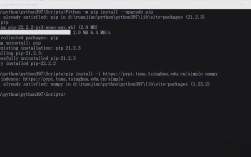
Step 1: Install psutil
Open your command prompt or PowerShell and run:
pip install psutil
Step 2: Use Python Code
psutil makes it incredibly simple.
import psutil
# --- CPU Information ---
# 1. Get the number of logical CPUs (includes hyper-threading cores)
logical_cores = psutil.cpu_count(logical=True)
print(f"Number of logical CPUs: {logical_cores}")
# 2. Get the number of physical CPU cores
physical_cores = psutil.cpu_count(logical=False)
print(f"Number of physical CPU cores: {physical_cores}")
# 3. Get current CPU utilization as a percentage (over a 1 second interval)
# This is a non-blocking call.
cpu_usage_percent = psutil.cpu_percent(interval=1)
print(f"Current CPU usage: {cpu_usage_percent}%")
# 4. Get per-CPU core utilization
cpu_usage_per_core = psutil.cpu_percent(interval=1, percpu=True)
print(f"CPU usage per core: {cpu_usage_per_core}")
# 5. Get CPU frequency information
# Note: On some systems, freq might be None
cpu_freq = psutil.cpu_freq()
if cpu_freq:
    print(f"Current CPU Frequency: {cpu_freq.current:.2f} MHz")
    print(f"Min CPU Frequency: {cpu_freq.min:.2f} MHz")
    print(f"Max CPU Frequency: {cpu_freq.max:.2f} MHz")
# 6. Get detailed CPU times (user, system, idle, etc.)
# This shows how much time the CPU has spent in each state.
cpu_times = psutil.cpu_times()
print("\nCPU Times:")
print(f"User: {cpu_times.user}s")
print(f"System: {cpu_times.system}s")
print(f"Idle: {cpu_times.idle}s")
print(f"Interrupt: {cpu_times.interrupt}s")
Why psutil is the best choice:
- Cross-Platform: The same code works on Linux, macOS, and Windows.
- Comprehensive: It gives you almost everything you'd need to know about the CPU and other system resources.
- Easy to Use: The API is intuitive and well-documented.
Method 2: wmi (For Deep Windows-Specific Details)
The Windows Management Instrumentation (WMI) is the underlying infrastructure for management data and operations on Windows systems. The wmi Python library is a wrapper around this, allowing you to query hardware directly.
Step 1: Install wmi
pip install WMI
Step 2: Use Python Code
This approach is more verbose but gives you access to the raw hardware data exposed by Windows.
import wmi
# Initialize the WMI connection
c = wmi.WMI()
# --- CPU Information ---
# Query for all CPU instances
for processor in c.Win32_Processor():
    print(f"--- Processor: {processor.Name} ---")
    print(f"  ID: {processor.ProcessorId.strip()}")
    print(f"  Manufacturer: {processor.Manufacturer}")
    print(f"  Max Clock Speed: {processor.MaxClockSpeed} MHz")
    print(f"  Current Clock Speed: {processor.CurrentClockSpeed} MHz")
    print(f"  Number of Cores: {processor.NumberOfCores}")
    print(f"  Number of Logical Processors: {processor.NumberOfLogicalProcessors}")
    print(f"  Socket Designation: {processor.SocketDesignation}")
    print("-" * 20)
# You can also get system-wide load info
os = c.Win32_OperatingSystem()[0]
print(f"\nSystem Load (1, 5, 15 min avg): {os.LoadPercentage}%")
Why use wmi?
- Deep Hardware Info: You can get the exact model name, CPU ID, and other details that
psutilmight not provide. - Windows-Native: Directly uses the OS's own management system.
Method 3: The Built-in os Module (For Quick, Basic Info)
If you cannot install external libraries, the os module has a built-in function for this, but it's very limited.
import os
# Get the number of logical CPUs
# This is the only piece of CPU info easily available in the standard library.
logical_cores = os.cpu_count()
print(f"Number of logical CPUs (from os module): {logical_cores}")
This is great for a quick check but not for detailed monitoring.
Method 4: ctypes & GetSystemInfo (Low-Level Built-in)
This method uses Python's ctypes library to call the Windows API function GetSystemInfo. It doesn't require external libraries and provides some useful system-wide metrics, but it's more complex to use.
import ctypes
from ctypes import wintypes
# Define the necessary Windows structures and functions
class SYSTEM_INFO(ctypes.Structure):
    _fields_ = [
        ("wProcessorArchitecture", wintypes.WORD),
        ("wReserved", wintypes.WORD),
        ("dwPageSize", wintypes.DWORD),
        ("lpMinimumApplicationAddress", wintypes.LPVOID),
        ("lpMaximumApplicationAddress", wintypes.LPVOID),
        ("dwActiveProcessorMask", ctypes.POINTER(wintypes.DWORD)),
        ("dwNumberOfProcessors", wintypes.DWORD),
        ("dwProcessorType", wintypes.DWORD),
        ("dwAllocationGranularity", wintypes.DWORD),
        ("wProcessorLevel", wintypes.WORD),
        ("wProcessorRevision", wintypes.WORD),
    ]
kernel32 = ctypes.WinDLL('kernel32', use_last_error=True)
# GetSystemInfo is a function that takes a pointer to a SYSTEM_INFO structure
kernel32.GetSystemInfo.argtypes = [ctypes.POINTER(SYSTEM_INFO)]
kernel32.GetSystemInfo.restype = None
# Create an instance of the structure
system_info = SYSTEM_INFO()
# Call the function
kernel32.GetSystemInfo(ctypes.byref(system_info))
# Access the data
# Note: This gives the number of *logical* processors.
num_logical_cpus = system_info.dwNumberOfProcessors
print(f"Number of logical CPUs (from GetSystemInfo): {num_logical_cpus}")
Final Recommendation
| Your Goal | Recommended Method |
|---|---|
| Get CPU usage, core counts, frequency, etc., for a script or application. | psutil. It's the standard, easiest, and most reliable way. |
| Get the exact model name, CPU ID, or other deep hardware details on Windows only. | wmi. It's powerful but Windows-specific. |
You are in an environment where you cannot pip install anything. |
Use the os module for a basic core count or ctypes for more detailed (but complex) built-in info. |