Of course! Creating GUI (Graphical User Interface) applications in Python is a popular and powerful way to build desktop tools. Python has several excellent libraries for this, each with its own strengths.
Here’s a comprehensive guide to the most popular Python GUI libraries, complete with code examples to get you started.
The Big Four: A Quick Comparison
| Library | Best For | Pros | Cons | Difficulty |
|---|---|---|---|---|
| Tkinter | Beginners, simple tools, quick scripts | Built-in, simple, great for learning | Looks dated, less flexible for complex UIs | Easy |
| PyQt/PySide | Professional, complex, feature-rich applications | Powerful, modern look, excellent tools | Steeper learning curve, licensing can be complex | Intermediate |
| Kivy | Cross-platform (especially mobile), multi-touch apps | Modern look, multi-touch support, runs on Android/iOS | Not native look on desktop, different paradigm | Intermediate |
| wxPython | Native look and feel, cross-platform | Feels like a native app, very mature | Can be complex, less documentation than others | Intermediate |
Tkinter: The Built-in Beginner's Choice
Tkinter is Python's standard GUI library. It's included with every Python installation, so you don't need to install anything extra. It's perfect for learning the basics of GUI programming and for creating simple utility applications.
Installation
Tkinter comes pre-installed with Python. If for some reason it's not, you can install it based on your system:
- On Ubuntu/Debian:
sudo apt-get install python3-tk - On Fedora:
sudo dnf install python3-tkinter - On macOS/Windows: It's usually included with the Python installer.
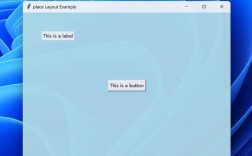
Example: A Simple Window with a Button and Label
This is the "Hello, World!" of Tkinter.
import tkinter as tk
from tkinter import ttk
# --- 1. Create the main window ---
# The root window is the main application window.
root = tk.Tk()"My First GUI App")
root.geometry("400x300") # Set the window size (width x height)
# --- 2. Add Widgets (UI elements) ---
# A Label widget to display text
label = ttk.Label(root, text="Welcome to my App!", font=("Helvetica", 18))
label.pack(pady=20) # .pack() is a simple geometry manager. pady adds vertical padding.
# A Button widget
def on_button_click():
    """This function is called when the button is clicked."""
    label.config(text="Button was clicked!") # Update the label's text
    print("Button clicked!")
button = ttk.Button(root, text="Click Me!", command=on_button_click)
button.pack(pady=10)
# --- 3. Start the application's main loop ---
# This line keeps the window open and listens for events (like clicks).
root.mainloop()
To run this: Save it as app.py and run python app.py in your terminal.
PyQt6 / PySide6: The Professional Powerhouse
PyQt and PySide are Python bindings for the Qt application framework. They are incredibly powerful, used to create professional, complex applications like Blender, Spyder, and Qt Creator. PySide6 is the official binding from The Qt Company, while PyQt6 is from a third party.
Installation
You'll need to install the library using pip.
# For PySide6 (recommended)
pip install PySide6
# For PyQt6
pip install PyQt6
Example: A Simple Window with a Button and Label
This example uses PySide6. The code is more structured than Tkinter, using an object-oriented approach.
import sys
from PySide6.QtWidgets import QApplication, QMainWindow, QLabel, QPushButton, QVBoxLayout, QWidget
# --- 1. Create a custom window class ---
class MainWindow(QMainWindow):
    def __init__(self):
        super().__init__()
        self.setWindowTitle("PySide6 App")
        self.setGeometry(100, 100, 400, 300) # x, y, width, height
        # --- 2. Create the central widget and layout ---
        # A central widget holds all other widgets
        central_widget = QWidget()
        self.setCentralWidget(central_widget)
        # A layout manager arranges widgets
        layout = QVBoxLayout()
        central_widget.setLayout(layout)
        # --- 3. Add Widgets ---
        self.label = QLabel("Welcome to my App!")
        self.label.setStyleSheet("font-size: 18px;") # Style with CSS-like syntax
        self.button = QPushButton("Click Me!")
        self.button.clicked.connect(self.on_button_click) # Connect the click event
        # Add widgets to the layout
        layout.addWidget(self.label)
        layout.addWidget(self.button)
    def on_button_click(self):
        """This function is called when the button is clicked."""
        self.label.setText("Button was clicked!")
        print("Button clicked!")
# --- 4. Create the application instance and run the main loop ---
if __name__ == "__main__":
    app = QApplication(sys.argv) # Every PyQt app needs a QApplication instance
    window = MainWindow()
    window.show() # Windows are hidden by default
    sys.exit(app.exec()) # Start the event loop
Kivy: The Modern & Cross-Platform Specialist
Kivy is an open-source Python library for developing multitouch applications. It's designed to be cross-platform and runs on Windows, macOS, Linux, Android, and iOS. It uses its own UI toolkit, so your apps don't look like the native OS widgets, but they have a consistent, modern look.
Installation
pip install kivy
Example: A Simple Window with a Button and Label
Kivy uses a special language called KV Language to design the UI, which separates the design from the logic.
File: main.py
from kivy.app import App
from kivy.uix.button import Button
from kivy.uix.label import Label
from kivy.uix.boxlayout import BoxLayout
class MyLayout(BoxLayout):
    def __init__(self, **kwargs):
        super(MyLayout, self).__init__(**kwargs)
        # Orientation can be 'vertical' or 'horizontal'
        self.orientation = 'vertical'
        self.label = Label(text="Welcome to my App!", font_size=24)
        self.button = Button(text="Click Me!", on_press=self.on_button_click)
        self.add_widget(self.label)
        self.add_widget(self.button)
    def on_button_click(self, instance):
        """This function is called when the button is clicked."""
        self.label.text = "Button was clicked!"
        print("Button clicked!")
class MyApp(App):
    def build(self):
        return MyLayout()
if __name__ == '__main__':
    MyApp().run()
File: myapp.kv (Place this in the same directory as main.py)
This file defines the layout. It's a cleaner way to design the UI.
# myapp.kv
<MyLayout>:
    orientation: 'vertical'
    Label:
        text: "Welcome to my App!"
        font_size: 24
    Button:
        text: "Click Me!"
        on_press: root.on_button_click(self)
wxPython: The Native Look-and-Feel
wxPython is a wrapper around the cross-platform C++ wxWidgets library. Its biggest advantage is that it uses the native widgets of the operating system it's running on, so your app looks and feels like it was built with the system's default tools (like C++ or C#).
Installation
pip install wxPython
Example: A Simple Window with a Button and Label
wxPython is event-driven, like PyQt.
import wx
# --- 1. Create the main application class ---
class MyFrame(wx.Frame):
    def __init__(self, title):
        super().__init__(None, title=title, size=(400, 300))
        # --- 2. Add Widgets ---
        panel = wx.Panel(self)
        self.label = wx.StaticText(panel, label="Welcome to my App!", pos=(100, 50))
        self.label.SetFont(wx.Font(18, wx.FONTFAMILY_DEFAULT, wx.FONTSTYLE_NORMAL, wx.FONTWEIGHT_BOLD))
        self.button = wx.Button(panel, label="Click Me!", pos=(150, 100))
        # Bind the button's click event to our method
        self.button.Bind(wx.EVT_BUTTON, self.on_button_click)
    def on_button_click(self, event):
        """This function is called when the button is clicked."""
        self.label.SetLabel("Button was clicked!")
        print("Button clicked!")
# --- 3. Create the application instance and run the main loop ---
if __name__ == "__main__":
    app = wx.App(False) # False means no redirect of stdout/stderr
    frame = MyFrame("wxPython App")
    frame.Show()
    app.MainLoop()
Which One Should You Choose?
- If you are a beginner or just need a simple utility: Start with Tkinter. It's the easiest to learn and is already installed.
- If you want to build a professional, feature-rich desktop application: Go with PySide6 or PyQt6. They have the most features and best tools (like Qt Designer for drag-and-drop UI creation).
- If your goal is to build an app for Android, iOS, or a modern, multi-touch desktop app: Kivy is your best bet.
- If you want your application to look and feel like a native Windows, macOS, or Linux app: Use wxPython.