Of course! Creating an MQTT server in Python is a common task, and the most popular library for it is Eclipse Mosquitto, which has a fantastic Python client library called paho-mqtt.
However, it's important to clarify a key point first:
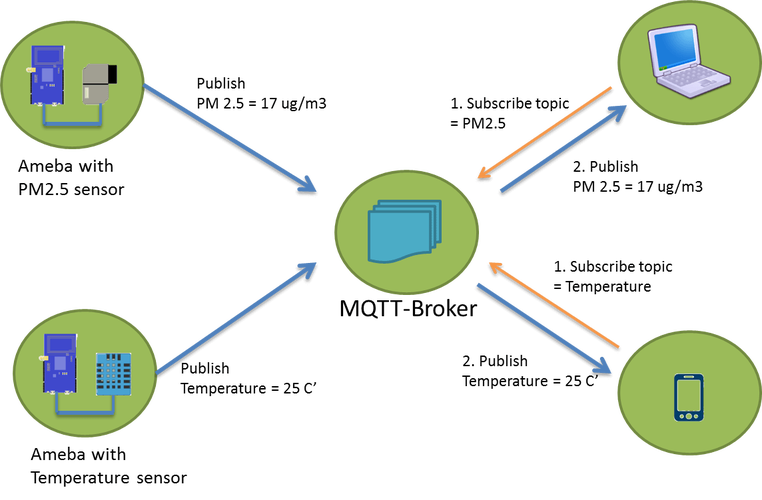
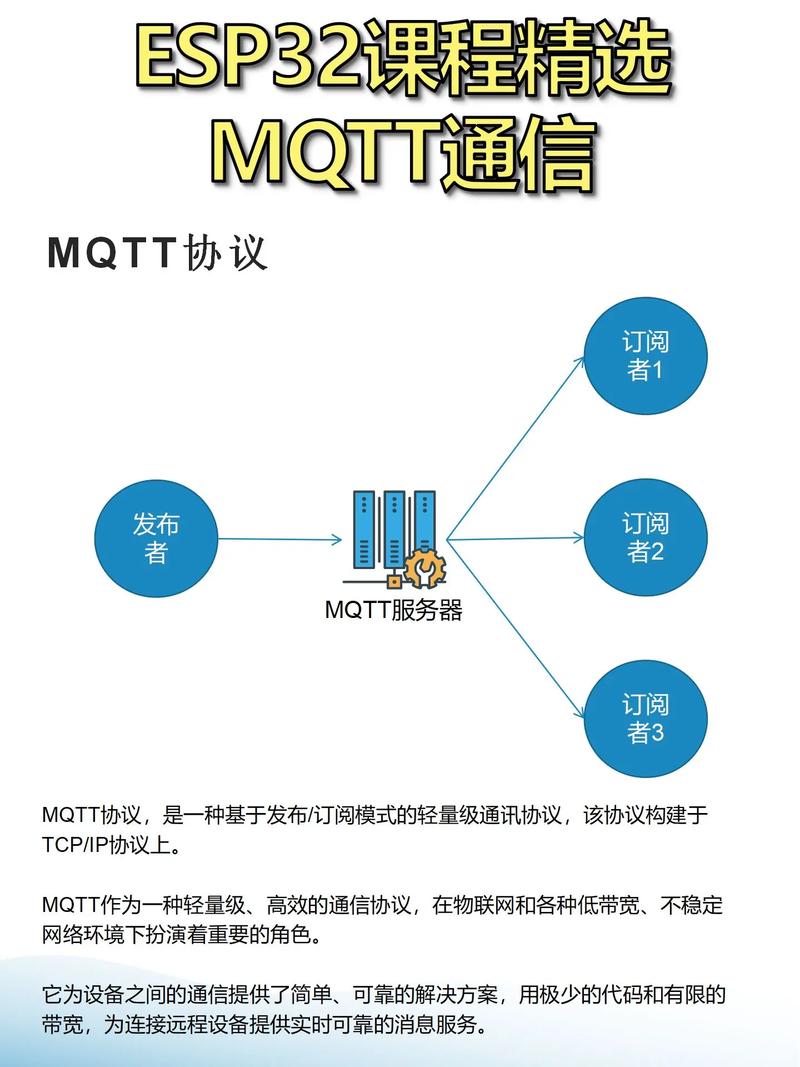
- MQTT Server (Broker): This is the central hub that receives messages from publishers and sends them to subscribers. It's not typically written in Python for production use because C/C++ implementations like Mosquitto, EMQX, and HiveMQ are more robust, scalable, and performant.
- MQTT Client (Publisher/Subscriber): This is the application that connects to the broker, sends messages, or listens for messages. This is what you write in Python.
So, when people ask for a "Python MQTT server," they usually mean one of two things:
- A Python client that acts as both a publisher and a subscriber. (This is the most common request and what I'll focus on).
- A script to programmatically start and manage a real C/C++ Mosquitto broker. (This is less common but possible).
I will guide you through the first and most practical scenario: creating a Python MQTT client that can both publish and subscribe.
Part 1: The Practical Approach - Python MQTT Client
This is the standard way to interact with an MQTT broker from a Python application.
Step 1: Install the Paho-MQTT Library
First, you need to install the library. Open your terminal or command prompt and run:
pip install paho-mqtt
Step 2: Choose an MQTT Broker
You need a broker to connect to. For development and testing, you have excellent free options:
- Public Test Broker:
broker.hivemq.com(No login required) - Local Mosquitto Broker: Install Mosquitto on your own machine. This is great for learning and offline development.
- On Ubuntu/Debian:
sudo apt-get install mosquitto mosquitto-clients - On macOS (with Homebrew):
brew install mosquitto - On Windows: Download the installer from the Mosquitto website.
- On Ubuntu/Debian:
For this example, we'll use the public broker.hivemq.com.
Step 3: Create a Publisher Script
This script will connect to the broker and publish a message to a specific topic.
Create a file named publisher.py:
import paho.mqtt.client as mqtt
import time
# The callback for when the client receives a CONNACK response from the server.
def on_connect(client, userdata, flags, rc):
    if rc == 0:
        print("Connected successfully to broker!")
    else:
        print(f"Failed to connect, return code {rc}\n")
# The callback for when a PUBLISH message is received from the server.
def on_publish(client, userdata, mid):
    print(f"Message {mid} published.")
# Set up the client
client = mqtt.Client("python_publisher")  # Create a new instance
client.on_connect = on_connect
client.on_publish = on_publish
# --- Connection Details ---
broker_address = "broker.hivemq.com"
port = 1883
# Connect to the broker
client.connect(broker_address, port, 60)
# Start the network loop in a separate thread
# This allows the script to continue running and publish messages
client.loop_start()
try:
    # Publish messages
    topic = "home/livingroom/temperature"
    messages = [
        {"sensor": "temp_01", "value": 22.5, "unit": "celsius"},
        {"sensor": "temp_02", "value": 23.1, "unit": "celsius"},
        {"sensor": "temp_01", "value": 22.8, "unit": "celsius"},
    ]
    for msg in messages:
        # Convert the dictionary to a JSON string
        payload = str(msg)
        # Publish the message
        # client.publish(topic, payload, qos=1)
        result = client.publish(topic, payload)
        # Block until the message is published
        result.wait_for_publish()
        print(f"Published to '{topic}': {payload}")
        time.sleep(2)  # Wait for 2 seconds
except KeyboardInterrupt:
    print("Publisher stopped by user.")
# Stop the network loop
client.loop_stop()
client.disconnect()
Step 4: Create a Subscriber Script
This script will connect to the same broker and listen for messages on the same topic.
Create a file named subscriber.py:
import paho.mqtt.client as mqtt
import json
# The callback for when the client receives a CONNACK response from the server.
def on_connect(client, userdata, flags, rc):
    if rc == 0:
        print("Connected successfully to broker!")
        # Subscribe to the topic when connected
        client.subscribe("home/livingroom/temperature")
        print("Subscribed to topic: home/livingroom/temperature")
    else:
        print(f"Failed to connect, return code {rc}\n")
# The callback for when a PUBLISH message is received from the server.
def on_message(client, userdata, msg):
    try:
        # Decode the message payload from bytes to string
        payload_str = msg.payload.decode("utf-8")
        # Parse the JSON string into a Python dictionary
        payload_dict = json.loads(payload_str)
        print(f"Received message from '{msg.topic}':")
        print(f"  -> Sensor: {payload_dict.get('sensor')}")
        print(f"  -> Value: {payload_dict.get('value')} {payload_dict.get('unit')}")
        print("-" * 20)
    except json.JSONDecodeError:
        print(f"Received non-JSON message from '{msg.topic}': {payload_str}")
# Set up the client
client = mqtt.Client("python_subscriber")  # Create a new instance
client.on_connect = on_connect
client.on_message = on_message
# --- Connection Details ---
broker_address = "broker.hivemq.com"
port = 1883
# Connect to the broker
client.connect(broker_address, port, 60)
# Blocking call that processes network traffic, dispatches callbacks, and handles reconnects.
# This will keep the script running until you press Ctrl+C
print("Starting subscriber... Press Ctrl+C to exit.")
client.loop_forever()
How to Run It
-
Open two separate terminal windows.
-
In the first terminal, run the subscriber:
python subscriber.py
You should see: "Starting subscriber... Press Ctrl+C to exit." and "Connected successfully to broker!"
-
In the second terminal, run the publisher:
python publisher.py
You will see the publisher connecting and sending messages.
-
Go back to the first terminal. You will see the messages being received in real-time!
Part 2: The Advanced Approach - Scripting a Mosquitto Server
If you truly need to start and manage a Mosquitto broker from a Python script (e.g., for automated testing), you can use Python's subprocess module to call the mosquitto command-line executable.
Prerequisite: You must have the Mosquitto server installed on your system.
Step 1: Create a Server Script
This script will start the Mosquitto broker, run for a while, and then stop it.
Create a file named mqtt_server_manager.py:
import subprocess
import time
import os
import signal
import sys
# --- Configuration ---
# Find the path to the mosquitto executable
# This might vary depending on your system
try:
    # On Linux/macOS with 'which' or 'whereis'
    mosquitto_path = subprocess.check_output(["which", "mosquitto"]).decode().strip()
except FileNotFoundError:
    try:
        # On Windows or if 'which' is not found
        mosquitto_path = subprocess.check_output(["whereis", "mosquitto"]).decode().strip().split()[1]
    except (FileNotFoundError, IndexError):
        # Fallback to a common default path (e.g., on Windows after installer)
        mosquitto_path = "C:\\Program Files\\mosquitto\\mosquitto.exe"
        if not os.path.exists(mosquitto_path):
            print("Error: Mosquitto executable not found. Please install Mosquitto and update the 'mosquitto_path' variable.")
            sys.exit(1)
# Create a temporary config file for this server instance
config_file = "mosquitto_temp.conf"
with open(config_file, "w") as f:
    f.write("listener 1883 127.0.0.1\n")  # Listen only on localhost
    f.write("allow_anonymous true\n")      # Allow anonymous connections (for testing)
print(f"Starting Mosquitto server from: {mosquitto_path}")
print(f"Using config file: {config_file}")
# Start the Mosquitto process
# The '-c' flag specifies the configuration file
process = subprocess.Popen([mosquitto_path, "-c", config_file])
print(f"Server started with PID: {process.pid}")
print("You can now connect clients to '127.0.0.1' on port 1883.")
print("The server will stop in 30 seconds or if you press Ctrl+C...")
try:
    # Let the server run for 30 seconds
    time.sleep(30)
except KeyboardInterrupt:
    print("\nServer shutdown requested by user.")
print("Stopping Mosquitto server...")
# Send a SIGTERM signal to gracefully stop the process
process.terminate()
# Wait for the process to finish
process.wait()
print(f"Server stopped with return code: {process.returncode}")
# Clean up the temporary config file
os.remove(config_file)
print("Temporary config file removed.")
How to Run It
-
Make sure Mosquitto is installed on your machine.
-
Run the script from your terminal:
python mqtt_server_manager.py
-
While it's running (for 30 seconds), you can run the
publisher.pyandsubscriber.pyscripts from Part 1, but change thebroker_addressto"127.0.0.1".# In publisher.py and subscriber.py, change this line: broker_address = "127.0.0.1"
Summary
| Task | Best Tool / Method | Why? |
|---|---|---|
| Interact with an MQTT Broker (Publish/Subscribe) | paho-mqtt Python Client Library |
It's the standard, easy-to-use, and well-documented library for creating MQTT clients in Python. |
| Run an MQTT Broker (Server) | Install a C/C++ Broker (Mosquitto, EMQX, HiveMQ) | For production, these are superior in performance, stability, and features. |
| Automatically Start/Stop a Broker | Python subprocess module to call the mosquitto executable. |
Useful for testing, development, or CI/CD pipelines where you need a broker on demand. |