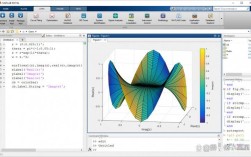
Of course! Creating images with Python is a common task, and there are several excellent libraries to choose from depending on your needs.
Here's a breakdown of the most popular methods, from simple in-memory creation to advanced file manipulation.
Summary of Libraries
| Library | Best For | Difficulty | Key Feature |
|---|---|---|---|
| Pillow (PIL Fork) | General-purpose image manipulation (opening, resizing, saving). | Easy | The standard, go-to library for most image tasks. |
| Matplotlib | Plotting charts, graphs, and visualizing data as an image. | Easy | Excellent for scientific plotting. |
| NumPy | High-performance, pixel-level manipulation and generation. | Medium | The foundation for many other libraries. |
| OpenCV | Computer vision, real-time video processing, advanced effects. | Medium-Hard | Industry standard for CV tasks. |
| Pygame | Game development, interactive graphics, real-time rendering. | Medium | Optimized for speed in game loops. |
Pillow (PIL Fork) - The Most Common Choice
Pillow is the modern, maintained fork of the Python Imaging Library (PIL). It's perfect for creating images programmatically, adding text, drawing shapes, and saving them in various formats (PNG, JPEG, etc.).
Installation
pip install Pillow
Example 1: Create a simple colored image
This example creates a 400x300 pixel red image and saves it as a PNG file.
from PIL import Image
# Create a new image with a red background
# Mode 'RGB' means Red, Green, Blue. Each color is a value from 0 to 255.
width, height = 400, 300
red_color = (255, 0, 0) # (R, G, B)
# The 'Image.new()' function creates an image
image = Image.new('RGB', (width, height), red_color)
# Save the image to a file
image.save('red_image.png')
print("Image 'red_image.png' created successfully!")
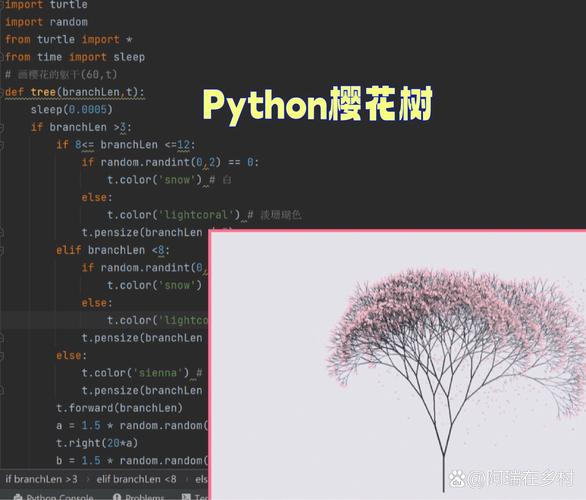
Example 2: Create an image with a gradient
This example creates a horizontal gradient from black to white.
from PIL import Image
width, height = 400, 300
gradient_image = Image.new('RGB', (width, height))
# Get the pixel access object
pixels = gradient_image.load()
for x in range(width):
    # Calculate the grayscale value for the current x position
    # It will range from 0 (black) to 255 (white)
    color_value = int(255 * x / width)
    for y in range(height):
        # Set the color for every pixel in this column
        pixels[x, y] = (color_value, color_value, color_value)
gradient_image.save('gradient.png')
print("Image 'gradient.png' created successfully!")
Example 3: Draw shapes and add text
This example demonstrates drawing a rectangle and adding text to an image.
from PIL import Image, ImageDraw, ImageFont
# Create a white background image
width, height = 400, 300
image = Image.new('RGB', (width, height), 'white')
draw = ImageDraw.Draw(image) # Create a drawing context
# Draw a blue rectangle
# The coordinates are (left, top, right, bottom)
draw.rectangle([50, 50, 150, 200], fill='blue', outline='darkblue', width=3)
# Draw a green circle (an ellipse with equal width and height)
# The coordinates are (bounding box left, top, right, bottom)
draw.ellipse([200, 100, 300, 200], fill='lightgreen', outline='green', width=2)
# Try to load a font. If it fails, use the default font.
try:
    # On Linux/Windows, you might need to specify a path to a .ttf file
    # e.g., "/usr/share/fonts/truetype/dejavu/DejaVuSans.ttf"
    font = ImageFont.truetype("arial.ttf", 40)
except IOError:
    font = ImageFont.load_default()
# Add text to the image
draw.text((10, 10), "Hello, Python!", fill="black", font=font)
image.save('shapes_and_text.png')
print("Image 'shapes_and_text.png' created successfully!")
Matplotlib - For Data Visualization
If your "image" is actually a chart or plot, Matplotlib is the best tool. You can create a plot and then save it as an image file.
Installation
pip install matplotlib numpy
Example: Create a line plot and save it as an image
import matplotlib.pyplot as plt
import numpy as np
# Generate some data
x = np.linspace(0, 10, 100)
y = np.sin(x)
# Create the plot
plt.figure(figsize=(8, 6)) # Set the figure size
plt.plot(x, y, label='sin(x)', color='purple')"Sine Wave")
plt.xlabel("X-axis")
plt.ylabel("Y-axis")
plt.grid(True)
plt.legend()
# Save the plot to a file
plt.savefig('sine_wave_plot.png', dpi=300) # dpi for high resolution
# Close the plot to free memory
plt.close()
print("Plot 'sine_wave_plot.png' created successfully!")
NumPy - For Pixel-Level Control
NumPy is a library for numerical operations. Images can be represented as NumPy arrays, where each element is a pixel value. This is extremely fast and is the foundation for libraries like OpenCV and Scikit-image.
Installation
pip install numpy
Example: Create an image using a NumPy array
import numpy as np
from PIL import Image # We'll use Pillow to save the NumPy array as an image
# Create a 100x100x3 array (height, width, color channels)
# Values are between 0 and 255
image_array = np.zeros((100, 100, 3), dtype=np.uint8)
# Make the left half red
image_array[:, :50, 0] = 255 # Set Red channel to 255
# Make the right half green
image_array[:, 50:, 1] = 255 # Set Green channel to 255
# Convert the NumPy array to a Pillow Image object
image_from_array = Image.fromarray(image_array)
# Save the image
image_from_array.save('numpy_image.png')
print("Image 'numpy_image.png' created successfully from a NumPy array!")
OpenCV - For Computer Vision
OpenCV is a massive library designed for real-time computer vision. It's overkill for simple image creation but is the best choice if you need to apply filters, detect objects, or work with video streams.
Installation
# Note: OpenCV often requires additional setup for non-Python dependencies
pip install opencv-python
Example: Create a blank image and draw on it
import cv2
import numpy as np
# OpenCV uses BGR (Blue, Green, Red) instead of RGB
# Create a 300x400 black image
width, height = 400, 300
blank_image = np.zeros((height, width, 3), dtype=np.uint8)
# Draw a green line
# cv2.line(image, start_point, end_point, color, thickness)
cv2.line(blank_image, (0, 0), (width, height), (0, 255, 0), 5)
# Draw a blue circle
# cv2.circle(image, center, radius, color, thickness)
cv2.circle(blank_image, (width//2, height//2), 50, (255, 0, 0), -1) # -1 for a filled circle
# Save the image
# OpenCV saves images with BGR color by default
cv2.imwrite('opencv_image.png', blank_image)
print("Image 'opencv_image.png' created successfully with OpenCV!")
Pygame - For Interactive Graphics and Games
Pygame is a set of Python modules designed for writing games. It's optimized for speed and is perfect for creating images that are part of an interactive application or game loop.
Installation
pip install pygame
Example: Create an image and display it in a window
import pygame
import sys
# Initialize pygame
pygame.init()
# Set up the display window
width, height = 400, 300
screen = pygame.display.set_mode((width, height))
pygame.display.set_caption("Pygame Image Creation")
# Create a surface (this is our image)
# A surface is like a blank piece of paper
image_surface = pygame.Surface((width, height))
# Fill the surface with a color (RGB)
image_surface.fill((255, 0, 0)) # Red
# Main game loop
running = True
while running:
    for event in pygame.event.get():
        if event.type == pygame.QUIT:
            running = False
    # Draw the image surface onto the screen
    screen.blit(image_surface, (0, 0))
    # Update the display
    pygame.display.flip()
# Quit pygame
pygame.quit()
sys.exit()
Which One Should You Choose?
- For general-purpose image creation, manipulation, and saving: Use Pillow. It's the easiest and most versatile.
- For creating charts, graphs, or scientific plots: Use Matplotlib.
- For high-performance, pixel-by-pixel manipulation: Use NumPy. It's the foundation and is extremely fast.
- For computer vision tasks (filters, object detection, video): Use OpenCV.
- For interactive applications or games: Use Pygame.