Of course. Here is a comprehensive guide to Java JDK 1.6 32-bit, including where to find it, how to install it, and important warnings about its use.
⚠️ Critical Warning: Security and Support
Java 6 (JDK 1.6) is extremely outdated and no longer supported.
- No Security Updates: You will not receive any security patches. Using it exposes your system and applications to significant vulnerabilities.
- High Risk of Exploits: Malware and ransomware specifically target outdated software like Java 6.
- Compatibility Issues: It will not run modern Java applications, libraries, or frameworks.
- Not Recommended for Production: Under no circumstances should you use this for any public-facing or production environment.
Only use JDK 1.6 for legacy systems, specific legacy development, or educational purposes where you need to understand old codebases.
Where to Download JDK 1.6 32-bit
Since Oracle no longer hosts JDK 1.6 on its main site, you need to find it from archived sources. Be extremely careful and only download from reputable sources to avoid malware.
Here are the most reliable options:
Option 1: Oracle Java Archive (Recommended)
This is the safest official source. Oracle maintains an archive of older JDK versions.
- Go to the Oracle Java Archive page: https://www.oracle.com/java/technologies/javase/javase-archive-downloads.html
- Scroll down to find JDK 6u45 (or the latest update in the 1.6 family, which is 6u45).
- Click on the link for JDK 6u45.
- You will be taken to a license agreement page. Accept it.
- Find the download link for your operating system. For Windows 32-bit, look for:
- "Windows x86": This is the 32-bit version.
- Filename:
jdk-6u45-windows-i586.exe
Option 2: AdoptOpenJDK (Historical Builds)
AdoptOpenJDK used to provide builds of OpenJDK 6, but they are no longer available on their main site. You might find them on community archives, but this is less reliable than the Oracle archive.
Option 3: Other Community Sites (Use with Caution)
Sites like filehippo.com or softpedia.com may host the installer. Always verify the file checksum (MD5/SHA-1) if provided to ensure the file hasn't been tampered with.
How to Install JDK 1.6 on Windows 32-bit
The installation process is straightforward.
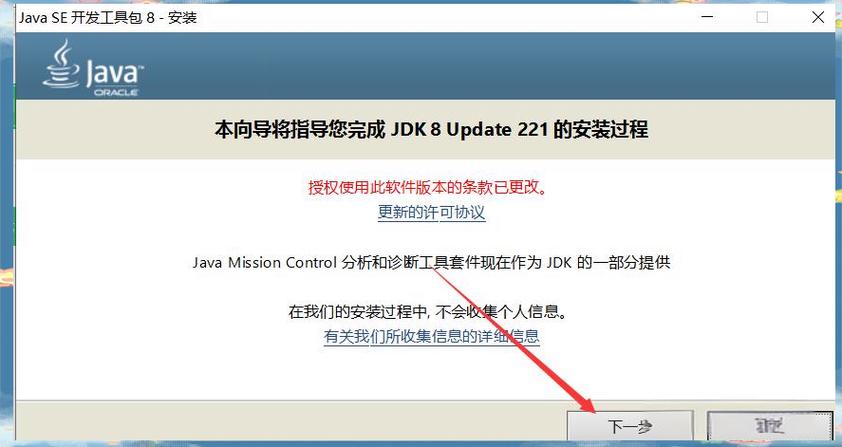
- Run the Installer: Double-click the downloaded
jdk-6u45-windows-i586.exefile. - Follow the Wizard: The installer will guide you through the steps. You can accept the default installation path, which is typically:
C:\Program Files (x86)\Java\jdk1.6.0_45Note: On a 32-bit Windows system, it would install to
C:\Program Files\Java\..., but on a 64-bit system, 32-bit programs go toProgram Files (x86). - Complete Installation: Click "Install" and then "Finish" once the process is complete.
How to Set Up the Environment Variables
For Java to be recognized from the command line (e.g., to run javac or java), you need to set the JAVA_HOME and Path environment variables.
-
Open System Properties:
- Press the Windows Key + Pause/Break to open the System window.
- Click on "Advanced system settings" on the left.
- In the "System Properties" window, click the "Environment Variables..." button.
-
Set
JAVA_HOME:- In the "System variables" section (bottom half), click "New...".
- Variable name:
JAVA_HOME - Variable value:
C:\Program Files (x86)\Java\jdk1.6.0_45- Important: Use the exact path where you installed the JDK.
- Click OK.
-
Update the
PathVariable:- In the "System variables" section, find the variable named
Pathand select it, then click "Edit...". - In the "Edit environment variable" window, click "New".
- Add the following two lines, one by one:
%JAVA_HOME%\bin %JAVA_HOME%\jre\bin - Click OK on all the open windows to save your changes.
- In the "System variables" section, find the variable named
-
Verify the Installation:
- Open a new Command Prompt (cmd). Closing and reopening is crucial to pick up the new environment variables.
- Type the following commands and press Enter after each:
java -version
You should see output similar to:
java version "1.6.0_45"
Java(TM) SE Runtime Environment (build 1.6.0_45-b06)
Java HotSpot(TM) Client VM (build 20.45-b01, mixed mode, sharing)
javac -version
You should see:
javac 1.6.0_45
Key Features and Limitations of JDK 1.6
Understanding what this version can and cannot do is important.
Features (at the time of its release):
- Scripting Language Support: Integrated support for JavaScript (via Nashorn) and other dynamic languages via the Scripting Engine.
- Pluggable Annotations: Introduced the
javax.annotationpackage for pluggable annotations, a precursor to modern dependency injection frameworks. - JDBC 4.0: Improved connection management with features like automatic connection enlistment.
- Java Compiler API (
javax.tools.JavaCompiler): Allowed programs to invoke the Java compiler programmatically. - Desktop Integration: Better support for system tray, desktop notifications, and the Windows Look and Feel (on Windows).
- Core Library Updates: Introduced
Dequeand other useful collections, andStringBuilderfor better performance.
Limitations (by today's standards):
- No Lambda Expressions: Functional programming features were not available (introduced in Java 8).
- No Streams API: The powerful Stream API for data processing did not exist (Java 8).
- No
try-with-resources: Resource management had to be done manually withtry-finallyblocks. - No
OptionalClass: TheOptionalclass for safer null handling was not available (Java 8). - Limited Concurrency Utilities: The
java.util.concurrentpackage was much smaller.CompletableFutureand other modern concurrency tools were missing. - Old Memory Model: The memory model was less optimized for modern multi-core processors compared to newer versions.