Of course! This is a very common and important topic in mobile and desktop development. Let's break down how to create a socket connection between a Java application (which could be a desktop app, a server, or an Android app) and an iOS application (written in Swift).
We'll cover:
- The Core Concept: How sockets work and the key considerations for this cross-platform communication.
- The Java Server: A simple Java server that listens for connections.
- The iOS (Swift) Client: A Swift app that connects to the Java server.
- Putting It All Together: A step-by-step guide to running both.
- Important Considerations: Threads, data serialization, and security.
The Core Concept: TCP Sockets
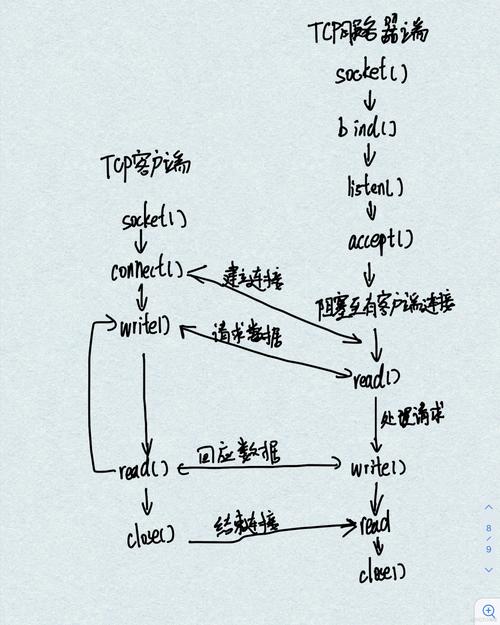
For reliable, connection-based communication, we'll use TCP (Transmission Control Protocol) sockets. The model is simple:
-
Server (Java):
- Creates a
ServerSocketthat listens on a specific IP address and port. - It waits for a client to request a connection (
accept()). - When a client connects, it returns a
Socketobject representing the connection to that specific client. - The server can then read from and write to this socket to communicate with the client.
- Creates a
-
Client (iOS):
 (图片来源网络,侵删)
- Creates a
Socketobject, specifying the server's IP address and port. - It attempts to connect to the server.
- If the connection is successful, it can read from and write to the socket to communicate with the server.
- Creates a
Key Considerations:
- IP Address & Port: The client must know the server's IP address (or hostname) and the port it's listening on.
- Threading: This is critical. The
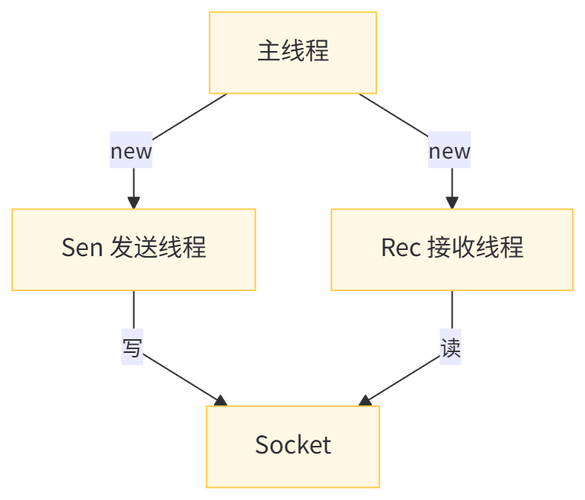
serverSocket.accept()call is a blocking operation—it will pause the server's main thread until a client connects. In modern applications, you should never block the main thread. We'll use a background thread (aThreadin Java andDispatchQueuein Swift) to handle the server and client connections. - Data Serialization: You can't just send raw strings or objects directly over the socket. You need to serialize your data into a byte format. For simple text, you can use
UTF-8. For complex objects, you'd use a format like JSON, XML, or Protocol Buffers.
The Java Server (Desktop App)
This server will listen for a connection, read a message from the client, print it to the console, and send a response back.
Project Setup:
- Create a new Java project in your favorite IDE (IntelliJ, Eclipse, VS Code).
- Create a new Java file named
SimpleSocketServer.java.
Code (SimpleSocketServer.java):
import java.io.BufferedReader;
import java.io.IOException;
import java.io.InputStreamReader;
import java.io.PrintWriter;
import java.net.ServerSocket;
import java.net.Socket;
public class SimpleSocketServer {
    // The port number the server will listen on
    private static final int PORT = 8080;
    public static void main(String[] args) {
        // The try-with-resources statement ensures the serverSocket is closed automatically
        try (ServerSocket serverSocket = new ServerSocket(PORT)) {
            System.out.println("Server is listening on port " + PORT);
            // The accept() method blocks until a client connects.
            // We run this in a new thread so the main thread isn't blocked.
            // This allows the server to handle multiple clients (though this simple example only handles one at a time).
            new Thread(() -> {
                try (Socket clientSocket = serverSocket.accept();
                     BufferedReader in = new BufferedReader(new InputStreamReader(clientSocket.getInputStream()));
                     PrintWriter out = new PrintWriter(clientSocket.getOutputStream(), true)) {
                    System.out.println("New client connected: " + clientSocket.getInetAddress().getHostAddress());
                    // Read data from the client
                    String inputLine;
                    while ((inputLine = in.readLine()) != null) {
                        System.out.println("Received from client: " + inputLine);
                        // Send a response back to the client
                        out.println("Server received: " + inputLine);
                    }
                } catch (IOException e) {
                    System.out.println("Server exception: " + e.getMessage());
                }
            }).start();
        } catch (IOException e) {
            System.out.println("Could not start server on port " + PORT);
            e.printStackTrace();
        }
    }
}
Explanation:
ServerSocket serverSocket = new ServerSocket(8080): Creates a server socket that listens on port 8080.serverSocket.accept(): This is the blocking call. It waits until a client connects. When it does, it returns aSocketobject for that specific client connection.BufferedReaderandPrintWriter: These are high-level stream classes used for easy reading and writing of text data.new Thread(...).start(): We wrap theaccept()and communication logic in a new thread. This is a basic way to prevent the main thread from blocking, allowing the server to continue running. A production server would use a thread pool.in.readLine(): Reads a line of text from the client (ends with a newline character\n). This is a blocking call.out.println(...): Sends a line of text to the client. Thetrueargument in the constructor enables auto-flushing, so the data is sent immediately.
The iOS Client (Swift App)
This client will connect to the Java server, send a message, and print the server's response.
Project Setup:
- Open Xcode and create a new iOS -> App project.
- Choose SwiftUI for the interface.
- Open
ContentView.swift.
Code (ContentView.swift):
import SwiftUI
struct ContentView: View {
    // State variables to hold the server's response and connection status
    @State private var serverResponse: String = "No response yet."
    @State private var isConnected: Bool = false
    @State private var messageToSend: String = "Hello from iOS!"
    var body: some View {
        VStack(spacing: 20) {
            Text("Socket Client")
                .font(.largeTitle)
            Text(isConnected ? "Connected" : "Not Connected")
                .foregroundColor(isConnected ? .green : .red)
            TextField("Message to send", text: $messageToSend)
                .textFieldStyle(RoundedBorderTextFieldStyle())
                .padding(.horizontal)
            Button(action: sendMessage) {
                Text("Send Message")
                    .padding()
                    .background(Color.blue)
                    .foregroundColor(.white)
                    .cornerRadius(8)
            }
            .disabled(!isConnected)
            Text("Server Response:")
                .font(.headline)
            Text(serverResponse)
                .padding()
                .frame(maxWidth: .infinity, alignment: .leading)
                .background(Color.gray.opacity(0.1))
                .cornerRadius(8)
        }
        .padding()
        .onAppear(perform: connectToServer)
    }
    // This function will establish the connection
    func connectToServer() {
        // Use a background queue for network operations
        DispatchQueue.global(qos: .userInitiated).async {
            // Replace "YOUR_IP_ADDRESS" with your computer's local IP address
            // e.g., "192.168.1.10"
            guard let serverAddress = "127.0.0.1".ipv4Address else {
                DispatchQueue.main.async {
                    self.serverResponse = "Invalid server address."
                }
                return
            }
            let port = 8080
            // Create a socket
            guard let socket = NWConnection(host: serverAddress, port: NWEndpoint.Port(rawValue: UInt16(port))!, using: .tcp) else {
                DispatchQueue.main.async {
                    self.serverResponse = "Could not create socket."
                }
                return
            }
            // Define the state update handler
            let stateUpdateHandler = { (newState: NWConnection.State) in
                switch newState {
                case .ready:
                    print("Client: Connection is ready.")
                    DispatchQueue.main.async {
                        self.isConnected = true
                    }
                    // Send an initial message
                    self.sendViaSocket(socket: socket, content: "iOS client has connected.")
                case .failed(let error):
                    print("Client: Connection failed with error: \(error.localizedDescription)")
                    DispatchQueue.main.async {
                        self.isConnected = false
                        self.serverResponse = "Connection failed."
                    }
                    socket.cancel()
                case .cancelled:
                    print("Client: Connection was cancelled.")
                    DispatchQueue.main.async {
                        self.isConnected = false
                    }
                default:
                    break
                }
            }
            // Set up the connection
            stateUpdateHandler(socket.state)
            socket.stateUpdateHandler = stateUpdateHandler
            // Start the connection
            socket.start(queue: .global(qos: .userInitiated))
            // Store the socket in a way that other functions can access it.
            // For a real app, you'd use a class property or a singleton.
            // Here, we'll just keep a reference for the send function.
            self.currentSocket = socket
        }
    }
    // Store a reference to the socket
    @State private var currentSocket: NWConnection?
    func sendMessage() {
        guard let socket = currentSocket, isConnected else {
            serverResponse = "Not connected to server."
            return
        }
        sendViaSocket(socket: socket, content: messageToSend)
    }
    func sendViaSocket(socket: NWConnection, content: String) {
        // Send the message
        let contentToSend = content + "\n" // Java's readLine() expects a newline
        if let data = contentToSend.data(using: .utf8) {
            socket.send(content: data, completion: .contentProcessed({ error in
                if let error = error {
                    print("Send error: \(error)")
                    DispatchQueue.main.async {
                        self.serverResponse = "Send error: \(error.localizedDescription)"
                    }
                } else {
                    print("Client: Message sent successfully.")
                    // To receive a response, we need to set up a listener.
                    // This is a simplified example. A full app would have a continuous receive loop.
                    self.receiveFromSocket(socket: socket)
                }
            }))
        }
    }
    func receiveFromSocket(socket: NWConnection) {
        socket.receive(minimumIncompleteLength: 1, maximumLength: 65536) { (data, _, isComplete, error) in
            if let data = data, !data.isEmpty {
                if let response = String(data: data, encoding: .utf8) {
                    DispatchQueue.main.async {
                        self.serverResponse = response
                    }
                }
            }
            if isComplete {
                // The connection has been closed by the server
                print("Client: Connection closed by server.")
                DispatchQueue.main.async {
                    self.isConnected = false
                    self.serverResponse = "Connection closed by server."
                }
                socket.cancel()
            } else if let error = error {
                // An error occurred
                print("Client: Receive error: \(error)")
                DispatchQueue.main.async {
                    self.isConnected = false
                    self.serverResponse = "Receive error: \(error.localizedDescription)"
                }
                socket.cancel()
            } else {
                // Connection is still open, continue listening for more data
                self.receiveFromSocket(socket: socket)
            }
        }
    }
}
// Helper extension to parse IP addresses
extension String {
    var ipv4Address: NWEndpoint.Host? {
        // A simple check for a valid IPv4 address format
        let components = self.split(separator: ".").compactMap { Int($0) }
        return components.count == 4 ? .init(self) : nil
    }
}
// NWConnection is part of the modern Network framework.
// For older projects, you might see CFNetwork or CFSocket, but NWConnection is the recommended approach now.
struct ContentView_Previews: PreviewProvider {
    static var previews: some View {
        ContentView()
    }
}
Explanation:
- NWConnection: This is the modern, Apple-recommended way to handle network connections in Swift. It's part of the
Networkframework. DispatchQueue.global(qos: .userInitiated).async: All network operations must be performed on a background thread/queue. We useuserInitiatedto indicate this is a task the user directly started.NWEndpoint.Host: You need to provide the server's IP address as aNWEndpoint.Hostobject.socket.start(): This begins the connection process. The actual connection is handled asynchronously.stateUpdateHandler: This is a closure that gets called when the connection's state changes (e.g.,ready,failed,cancelled). We update our UI (isConnected) from the main queue inside this handler.socket.send(...): This sends data. We usecompletion: .contentProcessedto get a callback when the data has been sent.socket.receive(...): This is the equivalent of Java'sreadLine(). It's asynchronous. You provide a completion handler that gets called when data is received. The key is that you must callreceiveFromSocketagain from within its own completion handler to create a loop that continuously listens for new data. This is a common pattern for async I/O.
Putting It All Together: Step-by-Step Guide
-
Find Your IP Address:
- macOS (where the Java server will run): Go to
System Settings>Network. Find your active connection (e.g., Wi-Fi or Ethernet). Your IP address will be listed (e.g.,168.1.10). - Windows: Open Command Prompt and type
ipconfig. Look for your "IPv4 Address". - Important: If both the Java server and the iOS simulator are on the same computer, you can often use
0.0.1(localhost) for the server address in the Swift app.
- macOS (where the Java server will run): Go to
-
Run the Java Server:
- Open your terminal or command prompt.
- Navigate to the directory containing
SimpleSocketServer.java. - Compile the code:
javac SimpleSocketServer.java - Run the server:
java SimpleSocketServer - You should see the output:
Server is listening on port 8080. Leave this terminal window open.
-
Run the iOS App:
- In Xcode, open the
ContentView.swiftfile. - In the
connectToServer()function, replace"127.0.0.1"with your actual local IP address (e.g.,"192.168.1.10"). - Select an iOS simulator (e.g., iPhone 15) or a physical device connected via USB.
- Press the Run button (▶) in Xcode.
- In Xcode, open the
-
Test the Connection:
- In the iOS app, you should see the "Not Connected" text turn green to "Connected".
- Type a message into the "Message to send" field (e.g., "Hello, Java Server!").
- Press the "Send Message" button.
- In the iOS App: The "Server Response" box should update with:
Server received: Hello, Java Server! - In the Java Server Terminal: You should see the output:
New client connected: 192.168.1.15  (or the simulator's IP)
Received from client: Hello, Java Server!
Important Considerations & Next Steps
-
Threading & Concurrency:
- The Java server example is very basic. A real server would use a thread pool (
ExecutorService) to handle multiple clients simultaneously without creating a new thread for every single one. - The iOS client example also needs to manage its socket connection carefully. If the app goes to the background, the OS might terminate the connection. You should store the socket connection in a long-lived object (like a
ViewModelor a dedicatedNetworkManagerclass) and handle state restoration.
- The Java server example is very basic. A real server would use a thread pool (
-
Data Serialization (Crucial for Real Apps):
- Sending plain text is fine for "Hello World," but it's brittle. What if your message contains a newline character?
- For complex data (like user objects, game states, etc.), you should use a structured format.
- JSON: The most common choice. Use a library like
Codablein Swift and libraries like Jackson, Gson, or Moshi in Java to easily convert objects to/from JSON strings. - Protocol Buffers (Protobuf): A binary format created by Google. It's more efficient than JSON but requires you to define your data structures in a
.protofile and generate code for both languages.
-
Security:
- The code above uses plain TCP, which is not secure. All data is sent in cleartext and can be intercepted.
- For any real-world application (especially one involving user data), you must use TLS/SSL to encrypt the connection.
- This involves using
SSLSocketin Java andNWProtocolTLSin Swift. You'll need to configure them with digital certificates (.pemor.p12files). This is more complex but essential for security.
-
Alternatives to Raw Sockets:
- HTTP/WebSockets: For many applications, especially web or mobile apps that communicate with a backend server, using a higher-level protocol is easier.
- HTTP/REST APIs: Perfect for client-server request-response models (e.g., mobile app fetching data from a server).
- WebSockets: Provide a full-duplex, two-way communication channel over a single TCP connection. This is ideal for chat applications, live notifications, or real-time games. Libraries like Socket.IO (which can be used on both Java and Swift) simplify working with WebSockets significantly.