Of course! Working with Excel 2025 using Java is a common requirement for enterprise applications, reporting, and data processing. Here’s a comprehensive guide covering the most popular libraries, how to use them, and important considerations.

Summary of Options
| Library | Format | Best For | License | Key Feature |
|---|---|---|---|---|
| Apache POI | .xls (BIFF), .xlsx (OOXML) |
Most versatile. Reading, writing, formatting, formulas. | Apache 2.0 (Very Permissive) | The industry standard. Supports both legacy and modern formats. |
| EasyExcel | .xlsx (OOXML) |
High performance reading. Large files, simple write scenarios. | Apache 2.0 | Uses less memory (SAX model) for reading huge files. |
| JExcelApi | .xls (BIFF) |
Simple .xls files. |
LGPL | Lightweight and simple, but no support for .xlsx. |
Recommendation:
- For most use cases, start with Apache POI. It's the most powerful and widely used.
- If you need to read very large Excel files (e.g., hundreds of thousands of rows) and run into memory issues with POI, switch to EasyExcel.
Apache POI (The Standard Choice)
Apache POI is the most popular Java library for manipulating Microsoft Office formats, including Excel.
Step 1: Add the Dependency
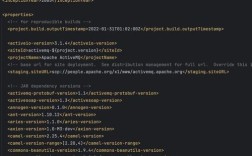
You need to add the POI dependencies to your project. If you're using Maven, add this to your pom.xml:
<dependencies>
    <!-- For .xlsx (Excel 2007 and later) -->
    <dependency>
        <groupId>org.apache.poi</groupId>
        <artifactId>poi</artifactId>
        <version>5.2.5</version> <!-- Use the latest stable version -->
    </dependency>
    <dependency>
        <groupId>org.apache.poi</groupId>
        <artifactId>poi-ooxml</artifactId>
        <version>5.2.5</version>
    </dependency>
    <!-- For .xls (Excel 97-2003) -->
    <dependency>
        <groupId>org.apache.poi</groupId>
        <artifactId>poi-scratchpad</artifactId>
        <version>5.2.5</version>
    </dependency>
</dependencies>
Step 2: Writing an Excel File (.xlsx)
This example creates a new Excel file, writes data to it, and saves it.
import org.apache.poi.ss.usermodel.*;
import org.apache.poi.xssf.usermodel.XSSFWorkbook;
import java.io.FileOutputStream;
import java.io.IOException;
public class ApachePoiWriteExample {
    public static void main(String[] args) {
        // The workbook is the .xlsx file in memory
        Workbook workbook = new XSSFWorkbook();
        try (// Create a sheet inside the workbook
             Sheet sheet = workbook.createSheet("Employee Data");
             // FileOutputStream to write the workbook to a file
             FileOutputStream fileOut = new FileOutputStream("employees.xlsx")) {
            // --- Create a Header Row ---
            Row headerRow = sheet.createRow(0);
            headerRow.createCell(0).setCellValue("ID");
            headerRow.createCell(1).setCellValue("Name");
            headerRow.createCell(2).setCellValue("Salary");
            // --- Create Data Rows ---
            Object[][] employees = {
                    {1, "Alice Smith", 75000.50},
                    {2, "Bob Johnson", 82000.00},
                    {3, "Charlie Brown", 67000.75}
            };
            int rowNum = 1;
            for (Object[] employee : employees) {
                Row row = sheet.createRow(rowNum++);
                int colNum = 0;
                for (Object field : employee) {
                    // Handle different data types
                    if (field instanceof String) {
                        row.createCell(colNum).setCellValue((String) field);
                    } else if (field instanceof Integer) {
                        row.createCell(colNum).setCellValue((Integer) field);
                    } else if (field instanceof Double) {
                        row.createCell(colNum).setCellValue((Double) field);
                    }
                    colNum++;
                }
            }
            // --- Auto-size columns for better readability ---
            for (int i = 0; i < 3; i++) {
                sheet.autoSizeColumn(i);
            }
            // --- Write the workbook to the file ---
            workbook.write(fileOut);
            System.out.println("employees.xlsx file created successfully!");
        } catch (IOException e) {
            e.printStackTrace();
        } finally {
            // Important: Close the workbook to free up resources
            try {
                if (workbook != null) {
                    workbook.close();
                }
            } catch (IOException e) {
                e.printStackTrace();
            }
        }
    }
}
Step 3: Reading an Excel File (.xlsx)
This example reads the employees.xlsx file we just created.
import org.apache.poi.ss.usermodel.*;
import org.apache.poi.xssf.usermodel.XSSFWorkbook;
import java.io.FileInputStream;
import java.io.IOException;
public class ApachePoiReadExample {
    public static void main(String[] args) {
        String excelFilePath = "employees.xlsx";
        try (FileInputStream fis = new FileInputStream(excelFilePath);
             Workbook workbook = new XSSFWorkbook(fis)) {
            // Get the first sheet from the workbook
            Sheet sheet = workbook.getSheetAt(0);
            // Use an Iterator to loop through the rows
            for (Row row : sheet) {
                // Skip the header row
                if (row.getRowNum() == 0) {
                    continue;
                }
                // Get cell values and handle potential nulls
                Cell idCell = row.getCell(0);
                Cell nameCell = row.getCell(1);
                Cell salaryCell = row.getCell(2);
                int id = (int) idCell.getNumericCellValue();
                String name = nameCell.getStringCellValue();
                double salary = salaryCell.getNumericCellValue();
                System.out.println("ID: " + id + ", Name: " + name + ", Salary: " + salary);
            }
        } catch (IOException e) {
            e.printStackTrace();
        }
    }
}
EasyExcel (High Performance for Large Files)
EasyExcel, from Alibaba, is designed to solve the main performance issue with POI: high memory consumption. It uses a SAX (Simple API for XML) model to read files, which means it processes the file row by row without loading the entire file into memory.
Step 1: Add the Dependency
<dependency>
    <groupId>com.alibaba</groupId>
    <artifactId>easyexcel</artifactId>
    <version>3.3.2</version> <!-- Use the latest stable version -->
</dependency>
Step 2: Define a Data Model
EasyExcel works best with a simple Java class (POJO) that maps to the Excel columns.
// The @ExcelProperty annotation links the field to a column header.
// The index can also be used: @ExcelProperty(index = 0)
public class Employee {
    @ExcelProperty("ID")
    private Integer id;
    @ExcelProperty("Name")
    private String name;
    @ExcelProperty("Salary")
    private Double salary;
    // Getters and Setters are required
    public Integer getId() { return id; }
    public void setId(Integer id) { this.id = id; }
    public String getName() { return name; }
    public void setName(String name) { this.name = name; }
    public Double getSalary() { return salary; }
    public void setSalary(Double salary) { this.salary = salary; }
    @Override
    public String toString() {
        return "Employee{" +
                "id=" + id +
                ", name='" + name + '\'' +
                ", salary=" + salary +
                '}';
    }
}
Step 3: Reading a Large File (The EasyExcel Way)
This is where EasyExcel shines. You provide a listener that gets called for each row.
import com.alibaba.excel.EasyExcel;
import com.alibaba.excel.context.AnalysisContext;
import com.alibaba.excel.event.AnalysisEventListener;
import java.util.ArrayList;
import java.util.List;
public class EasyExcelReadExample {
    // 1. Create a listener class
    public static class EmployeeDataListener extends AnalysisEventListener<Employee> {
        // This list will hold all the data (be careful with memory if the file is huge)
        private final List<Employee> data = new ArrayList<>();
        @Override
        public void invoke(Employee employee, AnalysisContext context) {
            // This method is called for each row
            System.out.println("Parsed a row of data: " + employee);
            data.add(employee);
        }
        @Override
        public void doAfterAllAnalysed(AnalysisContext context) {
            // This method is called after all rows are processed
            System.out.println("All data parsing completed!");
        }
    }
    public static void main(String[] args) {
        // 2. Specify the file path
        String fileName = "employees.xlsx";
        // 3. Start reading
        EasyExcel.read(fileName, Employee.class, new EmployeeDataListener()).sheet().doRead();
        System.out.println("Reading finished.");
    }
}
Key Considerations for Java & Excel
-
File Format (
.xlsvs..xlsx).xls: The old binary format (Excel 97-2003). It has a limit of 65,536 rows and 256 columns. Use POI'sHSSFWorkbook..xlsx: The modern XML-based format (Excel 2007 and later). It has a much larger row limit (1,048,576). Use POI'sXSSFWorkbookor EasyExcel.
-
Memory Management (CRITICAL)
- POI's
XSSFWorkbookloads the entire Excel file into memory. This is convenient but will cause anOutOfMemoryErrorwith large files (e.g., >500MB). - POI's
SXSSFWorkbookis a streaming variant for.xlsxfiles. It writes data to a temporary disk file, keeping only a configurable number of rows in memory. This is the POI solution for large files. - EasyExcel uses a SAX-style parser by default, which is extremely memory-efficient for reading. For writing, it also has a
WriteSheetandWriteTablemodel to control memory usage.
- POI's
-
Dates and Numbers
- Excel stores dates and numbers as numeric values. You must use
DataFormatterto get the formatted string value as it appears in the cell, or check the cell type (CellType.NUMERIC,CellType.STRING) and handle it accordingly. - For dates, you also need to check if the numeric value represents a date using
DateUtil.isCellDateFormatted(cell).
- Excel stores dates and numbers as numeric values. You must use
-
Performance
- For simple reading of huge files, EasyExcel is significantly faster and uses less memory than POI.
- For complex operations like writing formulas, applying rich formatting (colors, borders), or manipulating charts, Apache POI is more comprehensive and powerful.
-
Closing Resources
- Always use
try-with-resources(as shown in the examples) to ensure thatWorkbook,Sheet,Row,FileInputStream, andFileOutputStreamobjects are closed properly. This prevents resource leaks.
- Always use