Of course! java.awt.Graphics2D is a powerful and fundamental class in the Java AWT (Abstract Window Toolkit) package for drawing 2D graphics. It's the successor to the older Graphics class and provides a rich set of features for rendering shapes, text, and images.
Here's a comprehensive guide covering everything from the basics to more advanced concepts.
What is Graphics2D?
Graphics2D is an abstract class that extends the Graphics class. It provides more sophisticated control over geometry, coordinate transformations, color management, and text layout. Think of it as the main "artist" or "paintbrush" you use to draw on a component like a JPanel or a JFrame.
You almost always get a Graphics2D object by casting the Graphics object passed to a component's paintComponent method.
@Override
protected void paintComponent(Graphics g) {
    // Cast the Graphics object to Graphics2D
    Graphics2D g2d = (Graphics2D) g;
    // Now you can use Graphics2D methods
    g2d.drawString("Hello, Graphics2D!", 50, 50);
}
The Rendering Pipeline: paintComponent
All drawing in Swing happens within the paintComponent(Graphics g) method of a JComponent (or its subclasses like JPanel). The process is:
- Trigger: The system calls
paintComponentwhen the component first appears, is resized, or needs to be repainted (e.g., another window moves over it). - Get Context: You receive a
Graphicsobject. You cast it toGraphics2D. - Draw: Use the
g2dobject to draw shapes, text, and images. - Clean Up: The
paintComponentmethod should be as fast as possible. Avoid complex calculations or I/O operations here.
Core Drawing Operations
Graphics2D allows you to draw two types of objects: Shapes and Text.
A. Drawing Shapes
Graphics2D has two primary methods for drawing shapes:
draw(Shape s): Draws the outline of a shape.fill(Shape s): Draws a filled shape.
First, you need to create a Shape object. java.awt.geom provides many useful shapes like Rectangle2D, Ellipse2D, Line2D, Arc2D, and Path2D.
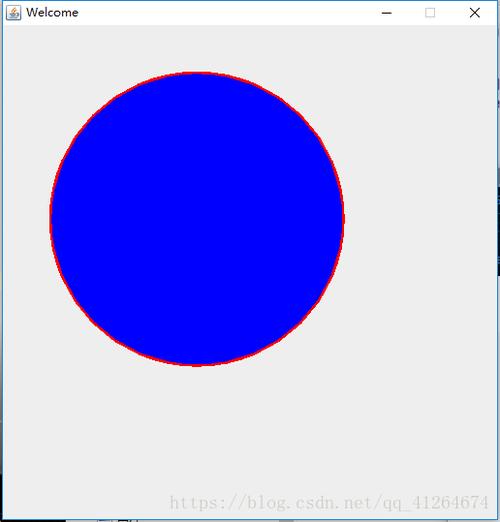
Example: Drawing a Rectangle
import java.awt.Graphics;
import java.awt.Graphics2D;
import java.awt.geom.Rectangle2D;
import javax.swing.JPanel;
public class MyPanel extends JPanel {
    @Override
    protected void paintComponent(Graphics g) {
        super.paintComponent(g); // Always call this first!
        Graphics2D g2d = (Graphics2D) g;
        // Create a Rectangle2D object
        Rectangle2D rect = new Rectangle2D.Double(50, 50, 200, 100);
        // Set the drawing color
        g2d.setColor(Color.BLUE);
        // Draw the outline of the rectangle
        g2d.draw(rect);
        // Change the color and fill the rectangle
        g2d.setColor(Color.CYAN);
        g2d.fill(rect);
    }
}
B. Drawing Text
The drawString(String str, float x, float y) method is used for drawing text. The (x, y) coordinates specify the baseline of the first character.
g2d.setColor(Color.BLACK);
g2d.setFont(new Font("Serif", Font.BOLD, 24));
g2d.drawString("This is a sample text", 10, 30);
Styling and Appearance
This is where Graphics2D becomes truly powerful. You use a java.awt.Stroke object to define line styles and a java.awt.Paint object to define fill patterns.
A. Stroke (Line Style)
A Stroke object defines the characteristics of a line's outline, such as its width and whether it's dashed.
- Basic Stroke:
new BasicStroke(float width) - Dashed Stroke:
new BasicStroke(width, cap, join, dash_phase, float[] dash_array, dash_phase)
Example: Drawing with different strokes
Graphics2D g2d = (Graphics2D) g;
// 1. A thick, solid line
g2d.setColor(Color.BLACK);
g2d.setStroke(new BasicStroke(5.0f));
g2d.draw(new Line2D.Double(20, 20, 100, 20));
// 2. A thin, dashed line
float dash[] = {10.0f};
g2d.setStroke(new BasicStroke(1.0f, BasicStroke.CAP_BUTT, BasicStroke.JOIN_MITER, 10.0f, dash, 0.0f));
g2d.draw(new Line2D.Double(20, 40, 100, 40));
// 3. A thick, dashed line
float dash2[] = {10.0f, 5.0f};
g2d.setStroke(new BasicStroke(3.0f, BasicStroke.CAP_ROUND, BasicStroke.JOIN_ROUND, 0.0f, dash2, 0.0f));
g2d.draw(new Line2D.Double(20, 60, 100, 60));
B. Paint (Color and Gradients)
Paint is more general than a simple color. It can be a solid color, a gradient, or even a pattern.
- Solid Color:
setColor(Color.RED)is a shortcut forsetPaint(Color.RED). - Gradient:
new GradientPaint(x1, y1, color1, x2, y2, color2)
Example: Using a Gradient
import java.awt.GradientPaint;
import java.awt.geom.Rectangle2D;
// ...
// Define a gradient from red to yellow
GradientPaint gradient = new GradientPaint(50, 150, Color.RED, 250, 250, Color.YELLOW);
// Set the gradient as the "paint" to be used for filling
g2d.setPaint(gradient);
// Fill a rectangle with the gradient
g2d.fill(new Rectangle2D.Double(50, 150, 200, 100));
Coordinate Transformations
This is a very powerful feature. You can transform the entire coordinate system, which makes it easy to rotate, scale, or translate your drawings.
The key methods are:
translate(double tx, double ty): Moves the origin.rotate(double theta): Rotates the coordinate system around the origin.scale(double sx, double sy): Scales the coordinate system.AffineTransform: A more general class for creating complex transformations.
Important: Transformations are cumulative. The order matters! A common pattern is:
- Save the original state with
g2d.getTransform(). - Apply your transformations.
- Draw your shapes.
- Restore the original state with
g2d.setTransform(savedTransform).
Example: Drawing a Rotated Rectangle
@Override
protected void paintComponent(Graphics g) {
    super.paintComponent(g);
    Graphics2D g2d = (Graphics2D) g;
    // Save the original transformation
    AffineTransform oldTransform = g2d.getTransform();
    // 1. Translate to the center of the area where we want to draw
    g2d.translate(200, 200);
    // 2. Rotate the coordinate system (in radians)
    g2d.rotate(Math.toRadians(45)); // 45 degrees
    // 3. Draw the rectangle. Its coordinates are now relative to the new origin.
    // The rectangle is drawn from its top-left corner, so we need to adjust.
    g2d.setColor(Color.MAGENTA);
    g2d.fill(new Rectangle2D.Double(-50, -25, 100, 50)); // Centered at (0,0)
    // 4. Restore the original transformation
    g2d.setTransform(oldTransform);
}
Antialiasing
Antialiasing is a technique to smooth the jagged edges of lines and shapes. Graphics2D makes it easy to enable.
// Enable antialiasing for better-looking graphics
g2d.setRenderingHint(RenderingHints.KEY_ANTIALIASING, RenderingHints.VALUE_ANTIALIAS_ON);
// You can set other hints too
g2d.setRenderingHint(RenderingHints.KEY_TEXT_ANTIALIASING, RenderingHints.VALUE_TEXT_ANTIALIAS_ON);
Complete Runnable Example
Here is a full, self-contained example that demonstrates many of the concepts above.
import javax.swing.*;
import java.awt.*;
import java.awt.geom.*;
public class Graphics2DDemo extends JFrame {
    public Graphics2DDemo() {
        setTitle("Java Graphics2D Demo");
        setSize(600, 500);
        setDefaultCloseOperation(JFrame.EXIT_ON_CLOSE);
        add(new DrawingPanel());
    }
    public static void main(String[] args) {
        SwingUtilities.invokeLater(() -> {
            Graphics2DDemo demo = new Graphics2DDemo();
            demo.setVisible(true);
        });
    }
}
class DrawingPanel extends JPanel {
    @Override
    protected void paintComponent(Graphics g) {
        super.paintComponent(g);
        Graphics2D g2d = (Graphics2D) g;
        // --- 1. Enable Antialiasing ---
        g2d.setRenderingHint(RenderingHints.KEY_ANTIALIASING, RenderingHints.VALUE_ANTIALIAS_ON);
        // --- 2. Draw Filled and Outlined Shapes ---
        g2d.setColor(Color.BLUE);
        g2d.fill(new Ellipse2D.Double(20, 20, 100, 80));
        g2d.setColor(Color.BLACK);
        g2d.draw(new Ellipse2D.Double(20, 20, 100, 80));
        // --- 3. Draw Text ---
        g2d.setFont(new Font("Arial", Font.BOLD, 16));
        g2d.drawString("Basic Shapes", 20, 130);
        // --- 4. Draw with a Custom Stroke ---
        g2d.setStroke(new BasicStroke(3.0f, BasicStroke.CAP_ROUND, BasicStroke.JOIN_ROUND, 0, new float[]{10}, 0));
        g2d.setColor(Color.GREEN);
        g2d.draw(new Line2D.Double(150, 20, 300, 100));
        // --- 5. Draw with a Gradient ---
        GradientPaint gradient = new GradientPaint(350, 20, Color.ORANGE, 450, 100, Color.PINK);
        g2d.setPaint(gradient);
        g2d.fill(new Rectangle2D.Double(350, 20, 100, 80));
        // --- 6. Draw a Transformed Shape (Rotated Rectangle) ---
        g2d.setColor(Color.MAGENTA);
        AffineTransform oldTransform = g2d.getTransform();
        g2d.translate(250, 250); // Move origin to center of rotation
        g2d.rotate(Math.toRadians(30)); // Rotate 30 degrees
        g2d.fill(new Rectangle2D.Double(-40, -20, 80, 40)); // Draw rectangle centered at new origin
        g2d.setTransform(oldTransform); // Restore original transform
        // --- 7. Draw a Complex Path ---
        Path2D path = new Path2D.Double();
        path.moveTo(400, 250);
        path.lineTo(450, 300);
        path.lineTo(500, 250);
        path.lineTo(480, 350);
        path.lineTo(420, 350);
        path.closePath(); // Connects the last point to the first
        g2d.setColor(Color.DARK_GRAY);
        g2d.fill(path);
    }
}
Key Takeaways
Graphics2Dis the core of 2D drawing in Java AWT/Swing.- Always cast the
Graphicsobject inpaintComponenttoGraphics2D. - Use
draw()for outlines andfill()for solid shapes. - Style your drawings with
setStroke()for lines andsetPaint()for fills (colors, gradients). - Use transformations (
translate,rotate,scale) to manipulate the coordinate system, making complex drawings easier. - Enable antialiasing for a much better visual quality.
- Keep your
paintComponentmethod efficient.