Of course! Working with ArcGIS 10.5 using Python is a powerful way to automate your geoprocessing tasks. Here’s a comprehensive guide covering the essentials, from setup to practical examples.
The Core: The ArcPy Site Package
In ArcGIS 10.5, the primary way to interact with the software's geoprocessing tools and data is through the arcpy module. This module is a Python library that acts as a gateway to the ArcGIS geoprocessing framework.
- What it is:
arcpyis a site package that gets installed with ArcGIS for Desktop (ArcMap, ArcCatalog, ArcScene, ArcGlobe). - What it provides:
- Access to all geoprocessing tools (e.g.,
arcpy.Buffer_analysis,arcpy.AddField_management). - Functions for managing data (workspaces, layers, fields).
- Classes for working with map documents (
.mxd), layers (.lyr), etc. - An environment settings manager (
arcpy.env) to control the behavior of your scripts (e.g., workspace, output coordinate system, cell size).
- Access to all geoprocessing tools (e.g.,
Setting Up Your Python Environment
Before you start writing scripts, you need to ensure you're using the correct Python interpreter that has access to the arcpy module.
Method 1: The Python Command Window (Easiest for Beginners)
This is the simplest way to start. It's an interactive window built directly into ArcMap and ArcCatalog.
- Open ArcMap.
- Go to the Geoprocessing menu and select Python....
- A window will appear with a
>>>prompt. You can typearcpycommands directly here. - Pro Tip: Use the "Import" button to load layers or datasets from your map into the window as variables, which saves you from typing full paths.
Method 2: The IDLE IDE (Recommended for Scripting)
ArcGIS 10.5 comes bundled with its own version of Python and the IDLE (Integrated DeveLopment Environment) editor. This is the best way to write, save, and run your scripts.

- Navigate to your ArcGIS installation directory (e.g.,
C:\ArcGIS\Desktop10.5). - Find and run the
PythonWin.exeorIDLE (Python GUI).exe.PythonWinis more advanced, whileIDLEis simpler and great for beginners. - In the IDLE editor, you can write your script. When you're ready to run it, go to Run > Run Module (or press F5).
- Crucially, the first time you do this, IDLE will ask you to select a "Python Script". Navigate to
C:\ArcGIS\Desktop10.5\ArcToolbox\Scriptsand selectgp.py. This action tells IDLE to use the correct Python interpreter that has thearcpymodule pre-loaded.
Method 3: External IDE (Like PyCharm or VS Code)
For more advanced development, you might want to use a modern IDE. This requires a bit more setup.
- Find the Python Executable: The
arcpymodule is not part of your standard Python installation. You must point your external IDE to the Python executable that comes with ArcGIS.- Typical Path:
C:\ArcGIS\Desktop10.5\bin\python.exe
- Typical Path:
- Configure the IDE:
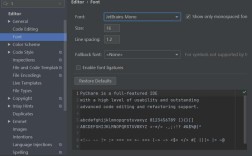
- In PyCharm/VS Code, create a new project and set its interpreter to the
python.exepath found above. - You may need to add the ArcGIS
bindirectory to your system'sPATHenvironment variable for your IDE to find all necessary DLLs.
- In PyCharm/VS Code, create a new project and set its interpreter to the
Key arcpy Concepts and Syntax
A. Calling Geoprocessing Tools
The syntax is arcpy.ToolName(input_data, output_data, {parameter}, {parameter}).
- Tool Names: Use underscores instead of spaces (e.g.,
Buffer_analysis). - Tool Aliases: You can also use the toolbox alias (e.g.,
arcpy.Buffer_analysis(...)is the same asarcpy.analysis.Buffer(...)).
Example: Buffering a feature class
import arcpy
# Set the workspace environment
arcpy.env.workspace = "C:/Data/MyProject.gdb"
arcpy.env.overwriteOutput = True # Good practice to allow overwriting
# Define input and output
input_fc = "schools"
output_buffer = "schools_500m_Buffer"
# Execute the Buffer tool
# The "500 Meters" is the distance, and "FULL" is the dissolve option
arcpy.Buffer_analysis(input_fc, output_buffer, "500 Meters", "FULL")
print("Buffer complete!")
B. The arcpy.env Environment
This is one of the most powerful parts of arcpy. It controls the "context" in which your tools run.

arcpy.env.workspace: Sets the default location for input and output data (e.g., a folder or a geodatabase).arcpy.env.overwriteOutput: Set toTrueto automatically overwrite existing output datasets. Highly recommended during development.arcpy.env.outputCoordinateSystem: Ensures all outputs are in a specific projection.arcpy.env.cellSize: For raster analysis, sets the resolution of the output.
C. Working with Data (Feature Classes, Rasters, Tables)
arcpy provides functions to manage your data without always needing a geoprocessing tool.
-
Listing Data:
# List all feature classes in a workspace fcs = arcpy.ListFeatureClasses() for fc in fcs: print(fc) # List all datasets in a geodatabase datasets = arcpy.ListDatasets() for dataset in datasets: print(dataset) -
Getting Information:
# Get the list of fields in a feature class fields = arcpy.ListFields("counties.shp") for field in fields: print(f"Field Name: {field.name}, Type: {field.type}") -
Data Management Tools:
# Add a new field to a table
arcpy.AddField_management("counties.shp", "POP_SQMI", "DOUBLE")
# Delete a field
arcpy.DeleteField_management("counties.shp", "OLD_FIELD")
Practical Example: A Complete Script
Let's create a script that reads a CSV of points, projects them, and creates buffers around them.
Scenario:
- You have a CSV file (
fire_stations.csv) with latitude and longitude columns. - You want to convert these to a point shapefile in a specific projection (NAD_1983_Contiguous_USA_Albers).
- You want to create a 1-mile buffer around each station.
- You want to calculate the area of each buffer in acres.
process_fire_stations.py:
# -*- coding: utf-8 -*-
import arcpy
import os
# --- 1. SCRIPT SETUP ---
# Set environment variables
arcpy.env.workspace = "C:/Data/Project" # A folder to hold outputs
arcpy.env.overwriteOutput = True
# Define input and output paths
csv_path = "C:/Data/fire_stations.csv"
output_folder = arcpy.env.workspace
output_gdb = "Fire_Station_Analysis.gdb"
output_fc_name = "Fire_Stations_Project"
output_buffer_name = "Fire_Station_Buffers"
# --- 2. CREATE OUTPUT GEODATABASE ---
# A geodatabase is better for managing datasets
if not arcpy.Exists(output_gdb):
    print(f"Creating geodatabase: {output_gdb}")
    arcpy.CreateFileGDB_management(output_folder, output_gdb)
# --- 3. PROCESS THE DATA ---
# A. Make XY Event Layer from CSV
# Assumes the CSV has 'X' (longitude) and 'Y' (latitude) columns
print("Creating XY event layer from CSV...")
arcpy.MakeXYEventLayer_management(csv_path, "X", "Y", "temp_fire_stations")
# B. Project the points to the desired coordinate system
# The NAD_1983_Contiguous_USA_Albers projection is good for area calculations
print("Projecting points...")
arcpy.Project_management("temp_fire_stations",
                         f"{output_gdb}/{output_fc_name}",
                         "NAD_1983_Contiguous_USA_Albers")
# C. Create Buffers
# The linear unit must match the data's unit (meters for this projection)
print("Creating 1-mile (1609.34 meter) buffers...")
arcpy.Buffer_analysis(f"{output_gdb}/{output_fc_name}",
                      f"{output_gdb}/{output_buffer_name}",
                      "1609.34 Meters")
# D. Calculate Area in Acres
print("Calculating buffer area in acres...")
# Add a new field to store the area
arcpy.AddField_management(f"{output_gdb}/{output_buffer_name}", "ACRES", "DOUBLE")
# Use the Calculate Field tool with the !shape.area@acres token
# This token calculates the area of each polygon in acres
arcpy.CalculateField_management(f"{output_gdb}/{output_buffer_name}",
                                "ACRES",
                                "!shape.area@acres",
                                "PYTHON3")
# --- 4. CLEANUP ---
# Delete the temporary layer
print("Cleaning up temporary files...")
arcpy.Delete_management("temp_fire_stations")
print("\nScript finished successfully!")
print(f"Output feature class: {output_gdb}/{output_fc_name}")
print(f"Output buffers: {output_gdb}/{output_buffer_name}")
Important Considerations for ArcGIS 10.5
- Legacy Python 2.7: ArcGIS 10.5 uses Python 2.7. This means:
- Print Statements: Use
print "Hello"notprint("Hello"). - Integer Division:
5 / 2results in2, not5. Use5 / 2.0for floating-point division. - String Handling: Be mindful of Unicode if you're dealing with special characters.
- Print Statements: Use
- Licensing: Your script can only access tools for which you have a license. For example, if you only have ArcView, you cannot run Spatial Analyst tools. You can check the license status with
arcpy.CheckExtension("spatial")andarcpy.CheckOutExtension("spatial"). - Error Handling: Always wrap your code in a
try...exceptblock to gracefully handle errors.try: arcpy.Buffer_analysis(...) except arcpy.ExecuteError: print(arcpy.GetMessages(2)) # Print detailed error messages except Exception as e: print(e)
Getting Help
- ArcGIS Help Documentation: The best resource. Search for any tool name (e.g., "Buffer analysis") to get its syntax, parameters, and examples. The examples section often includes Python code snippets.
arcpyWindow: In ArcMap's Python window, typearcpy.Buffer_analysis?and press Enter to see the tool's signature and help.dir()function: In Python,dir(arcpy)will list all the modules and functions available in thearcpypackage.dir(arcpy.analysis)will list the tools within the analysis toolbox.