Of course! Here’s a comprehensive guide on how to use ZBar with OpenCV in Python to read barcodes and QR codes.
Overview
ZBar is an open-source library for reading 1D barcodes (like EAN, UPC, Code 128) and 2D QR codes. It's very fast and accurate. The common way to use it with OpenCV is to use the pyzbar library, which is a Python wrapper for the ZBar C++ library.
The typical workflow is:
- Capture an Image: Get an image from a file, a webcam, or any other source.
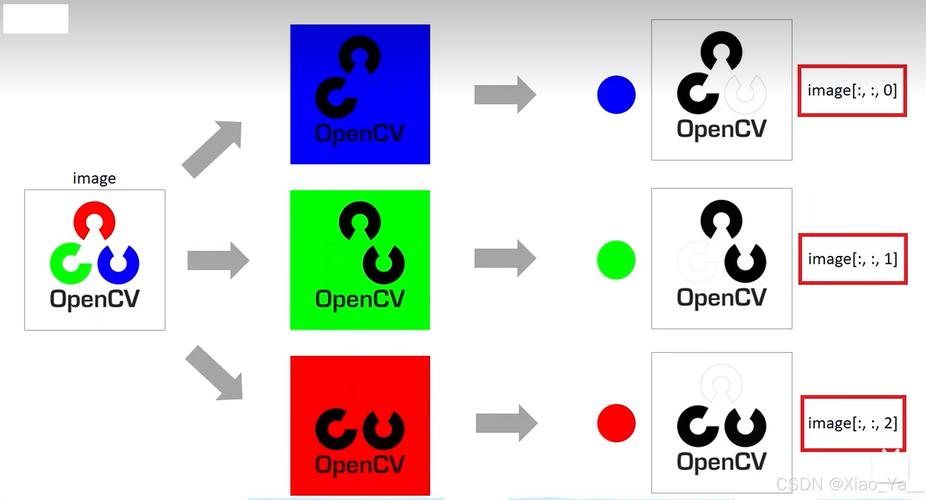
- Preprocess (Optional but Recommended): Convert the image to grayscale to speed up processing.
- Decode: Pass the image to
pyzbarto find and decode all barcodes/QR codes. - Draw Results: Loop through the decoded results, draw a bounding box around each code, and put the decoded text on the image.
- Display: Show the final image with the results.
Step 1: Installation
You need to install two main libraries: opencv-python and pyzbar.
pip install opencv-python
pip install pyzbar
Important Note on pyzbar and ZBar:
The pyzbar library is a wrapper, but it needs the underlying ZBar library to be installed on your system. pip install pyzbar often handles this automatically, but if you run into errors, you may need to install ZBar manually.

- On Ubuntu/Debian:
sudo apt-get update
sudo apt-get install libzbar0
- On macOS (using Homebrew):
brew install zbar
- On Windows: This can be tricky. The easiest way is to use a pre-compiled binary from a site like Gohlke's unofficial binaries and install it using
pip. Download the appropriate.whlfile (e.g.,pyzbar‑0.1.8‑cp38‑cp38‑win_amd64.whlfor Python 3.8 on 64-bit Windows) and run:pip install path\to\your\downloaded\pyzbar‑0.1.8‑cp38‑cp38‑win_amd64.whl
Step 2: Basic Code Example (Reading from an Image File)
This is the simplest example. It reads an image from a file, finds all QR codes and barcodes in it, and draws boxes around them.
import cv2
from pyzbar.pyzbar import decode
# 1. Read the image
image_path = 'my_qr_code.png'  # Replace with your image path
image = cv2.imread(image_path)
if image is None:
    print(f"Error: Could not read image from {image_path}")
else:
    # 2. Decode the barcodes/QR codes
    # The decode function returns a list of decoded objects
    decoded_objects = decode(image)
    # 3. Loop through the decoded objects and draw on the image
    for obj in decoded_objects:
        # Get the data and type of the barcode
        data = obj.data.decode('utf-8')
        type = obj.type
        # Get the bounding box coordinates
        (x, y, w, h) = obj.rect
        # Draw the bounding box and the text
        cv2.rectangle(image, (x, y), (x + w, y + h), (0, 255, 0), 2)
        text = f"{type}: {data}"
        cv2.putText(image, text, (x, y - 10), cv2.FONT_HERSHEY_SIMPLEX, 0.5, (0, 255, 0), 2)
    # 4. Display the result
    cv2.imshow('Image with Barcodes', image)
    cv2.waitKey(0)  # Wait for a key press to close the window
    cv2.destroyAllWindows()
Step 3: Reading from a Webcam (Real-Time)
This example extends the concept to a live video stream from your webcam. It will continuously read frames, decode them, and display the result.
import cv2
from pyzbar.pyzbar import decode
# Open the webcam
cap = cv2.VideoCapture(0)  # 0 is the default webcam
if not cap.isOpened():
    print("Error: Could not open webcam.")
    exit()
print("Press 'q' to quit.")
while True:
    # Read a frame from the webcam
    success, frame = cap.read()
    if not success:
        print("Error: Failed to capture frame.")
        break
    # Decode the barcodes/QR codes in the current frame
    decoded_objects = decode(frame)
    # Loop through the decoded objects and draw on the frame
    for obj in decoded_objects:
        data = obj.data.decode('utf-8')
        type = obj.type
        (x, y, w, h) = obj.rect
        cv2.rectangle(frame, (x, y), (x + w, y + h), (0, 255, 0), 2)
        text = f"{type}: {data}"
        cv2.putText(frame, text, (x, y - 10), cv2.FONT_HERSHEY_SIMPLEX, 0.5, (0, 255, 0), 2)
    # Display the resulting frame
    cv2.imshow('Live Barcode Scanner', frame)
    # Check for 'q' key press to quit
    if cv2.waitKey(1) & 0xFF == ord('q'):
        break
# Release the webcam and close all windows
cap.release()
cv2.destroyAllWindows()
Step 4: Handling Multiple Codes and Error Handling
The decode() function returns a list, so it naturally handles multiple codes in one image. We can also add some basic error handling.
import cv2
from pyzbar.pyzbar import decode, ZBarSymbol
import sys
def read_barcodes(image_path):
    """
    Reads barcodes and QR codes from an image and prints the results.
    """
    try:
        image = cv2.imread(image_path)
        if image is None:
            print(f"Error: Image not found at {image_path}")
            return
        # You can specify which types of symbols to look for
        # For example, to only look for QR codes:
        # decoded_objects = decode(image, symbols=[ZBarSymbol.QRCODE])
        # Or for Code 128 barcodes:
        # decoded_objects = decode(image, symbols=[ZBarSymbol.CODE128])
        decoded_objects = decode(image)
        if not decoded_objects:
            print("No barcodes or QR codes found.")
            return
        print(f"Found {len(decoded_objects)} code(s):")
        for obj in decoded_objects:
            print(f"  Type: {obj.type}")
            print(f"  Data: {obj.data.decode('utf-8')}")
            print(f"  Bounding Box: {obj.rect}")
            print("-" * 20)
        # Draw results on the image for visualization
        for obj in decoded_objects:
            (x, y, w, h) = obj.rect
            cv2.rectangle(image, (x, y), (x + w, y + h), (0, 255, 0), 2)
            cv2.putText(image, obj.data.decode('utf-8'), (x, y - 10),
                        cv2.FONT_HERSHEY_SIMPLEX, 0.8, (0, 255, 0), 2)
        cv2.imshow('Decoded Codes', image)
        cv2.waitKey(0)
        cv2.destroyAllWindows()
    except Exception as e:
        print(f"An error occurred: {e}")
        sys.exit(1)
if __name__ == "__main__":
    if len(sys.argv) > 1:
        read_barcodes(sys.argv[1])
    else:
        print("Usage: python script.py <image_path>")
Important Functions and Parameters
-
decode(image, symbols=[...]): The core function frompyzbar. (图片来源网络,侵删)
image: The input image (a NumPy array, as provided by OpenCV). It's best to use a grayscale image for performance.symbols(optional): A list ofZBarSymbolconstants to specify which barcode types to decode. This can speed up processing if you only need a specific type.ZBarSymbol.QRCODEZBarSymbol.EAN13ZBarSymbol.CODE128ZBarSymbol.UPC_A- And many more. See the ZBar documentation for a full list.
-
Decoded Object Attributes: Each object returned by
decode()has useful attributes:obj.data: The raw bytes of the decoded data.obj.type: The type of the symbol (e.g., 'QRCODE', 'CODE128').obj.rect: ARectobject containing the bounding box(x, y, width, height).obj.polygon: APolygonobject with the four corner points of the code. This can be more accurate thanrectfor skewed images.
Performance Tips
- Use Grayscale Images: ZBar processes single-channel (grayscale) images much faster than 3-channel (BGR) images. Convert your image before decoding.
gray_image = cv2.cvtColor(image, cv2.COLOR_BGR2GRAY)
decoded_objects = decode(gray_image)
- Specify Symbols: If you know you are only looking for QR codes, tell ZBar! It will ignore other types and be faster.
decoded_objects = decode(image, symbols=[ZBarSymbol.QRCODE])
- Region of Interest (ROI): If you know the general area where the code will be, you can crop the image to that region before passing it to
decode(). This dramatically reduces the area ZBar needs to search.