Of course! Here is a comprehensive guide on how to use the FastDFS Java API, covering everything from setup and configuration to common operations and best practices.
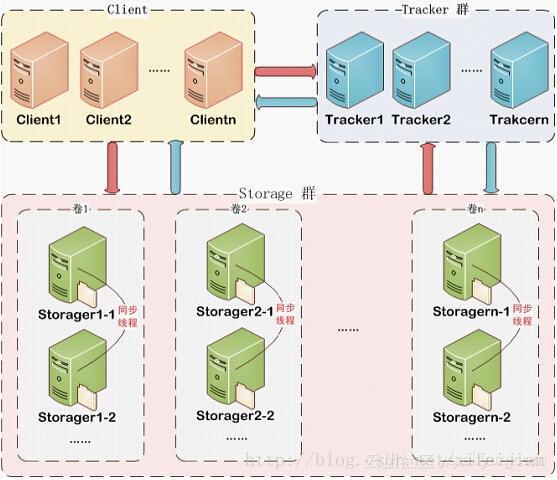
Understanding FastDFS and its Java API
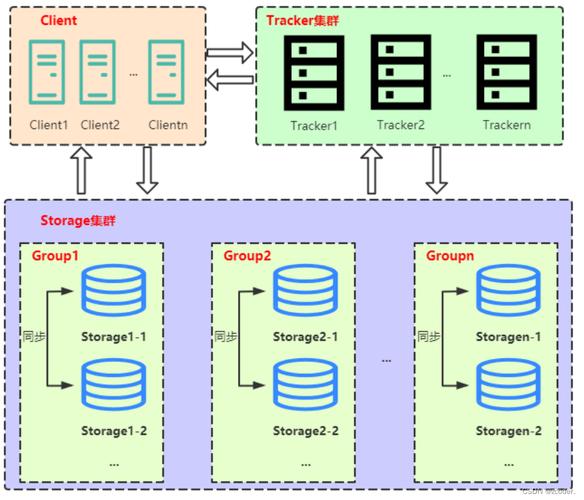
FastDFS is an open-source, high-performance, lightweight distributed file system written in C. It's designed to handle a large number of files, such as photos, videos, and documents, and is commonly used for serving static assets in web applications.
The Java API for FastDFS is a client library that allows Java applications to interact with the FastDFS cluster. It handles the communication protocol with the Tracker and Storage servers, abstracting away the complexity of the underlying C-based network calls.
Prerequisites
Before you start, you need a running FastDFS cluster. For development and testing, you can easily set one up using Docker. The most popular image is morunchang/fastdfs.
You would typically run at least two containers: one for the tracker and one for a storage node.
# Start a tracker server
docker run -d --name tracker -p 22122:22122 morunchang/fastdfs
# Start a storage server (linking it to the tracker)
docker run -d --name storage -e TRACKER_SERVER=tracker:22122 -p 23000:23000 -p 8888:8888 morunchang/fastdfs
This setup gives you a single tracker and a single storage node, which is sufficient for local development.
Setting Up Your Java Project (Maven)
The most widely used and recommended Java client for FastDFS is fastdfs-client-java. You can add it to your project using Maven.
Add the following dependency to your pom.xml:
<dependency>
    <groupId>org.csource</groupId>
    <artifactId>fastdfs-client-java</artifactId>
    <version>1.27.0.0</version> <!-- Check for the latest version -->
</dependency>
Configuration
The Java client needs to know how to connect to your FastDFS cluster. This is done through a configuration file.
Step 4.1: Create the fdfs_client.conf file
Create a file named fdfs_client.conf in your project's classpath (e.g., in src/main/resources/).
Example fdfs_client.conf:
# The address of the tracker server
# Use the IP and port of your tracker node
# If you have multiple trackers, list them all, separated by a space
tracker_server=192.168.1.101:22122
tracker_server=192.168.1.102:22122
# Connection pool settings (optional but recommended)
connect_timeout_out=60000     # Connection timeout in milliseconds (60s)
network_timeout_out=60000     # Network timeout in milliseconds (60s)
# HTTP settings (optional, for downloading files via HTTP)
http.tracker_server_port=8888 # The HTTP port of your storage nodes
Note: Replace 168.1.101 with the IP address of your FastDFS tracker server.
Step 4.2: Load the Configuration in Java
In your Java application, you need to load this configuration file when the application starts. A good place is in a Spring @Configuration class or a static initializer block.
import org.csource.common.MyException;
import org.csource.fastdfs.ClientGlobal;
import org.springframework.context.annotation.Configuration;
import java.io.File;
import java.io.IOException;
@Configuration
public class FastDFSConfig {
    public FastDFSConfig() {
        try {
            // Get the classpath resource path
            String filePath = this.getClass().getClassLoader().getResource("fdfs_client.conf").getFile();
            // Initialize the client
            ClientGlobal.init(filePath);
            System.out.println("FastDFS client initialized successfully.");
        } catch (Exception e) {
            e.printStackTrace();
            throw new RuntimeException("Failed to initialize FastDFS client!", e);
        }
    }
}
Core Operations
The main class for interacting with FastDFS is org.csource.fastdfs.TrackerClient. You use it to get a connection to a Tracker server, and from there, you can interact with Storage servers.
1. Uploading a File
Uploading is a two-step process:
- Get the file's
FileId(metadata) from the Tracker. - Upload the file content to the Storage server assigned by the Tracker.
import org.csource.fastdfs.*;
import java.io.File;
import java.io.IOException;
public class FastDFSUploader {
    public static String uploadFile(File file, String extName) throws IOException, MyException {
        // 1. Create a TrackerClient
        TrackerClient trackerClient = new TrackerClient();
        // 2. Connect to the TrackerServer
        TrackerServer trackerServer = trackerClient.getConnection();
        // 3. Get a StorageServer (the client will choose one for you)
        StorageServer storageServer = trackerClient.getStoreStorage(trackerServer);
        // 4. Create a StorageClient
        StorageClient storageClient = new StorageClient(trackerServer, storageServer);
        // 5. Upload the file
        // The uploadFile method returns an array of two strings:
        // [0] The group name (e.g., "group1")
        // [1] The file ID (e.g., "M00/00/00/...")
        String[] fileIds = storageClient.upload_file(file.getAbsolutePath(), extName, null);
        // 6. Construct the full file ID (Group + remote file name)
        String fileId = fileIds[0] + "/" + fileIds[1];
        // Close connections (important!)
        storageClient.close();
        trackerServer.close();
        return fileId;
    }
    public static void main(String[] args) {
        try {
            // Path to the file you want to upload
            File fileToUpload = new File("/path/to/your/local/image.jpg");
            // File extension (e.g., "jpg", "png", "pdf")
            String fileExtension = "jpg";
            String fileId = uploadFile(fileToUpload, fileExtension);
            System.out.println("File uploaded successfully! File ID: " + fileId);
            // Example output: File ID: group1/M00/00/00/rBABFV5tR9uAGkP5AAAAAElmN0U423.jpg
        } catch (Exception e) {
            e.printStackTrace();
        }
    }
}
2. Downloading a File
To download a file, you need the fileId you received during the upload.
import org.csource.fastdfs.*;
import java.io.File;
import java.io.FileOutputStream;
import java.io.IOException;
public class FastDFSDownloader {
    public static void downloadFile(String fileId, String localSavePath) throws IOException, MyException {
        // 1. Create a TrackerClient
        TrackerClient trackerClient = new TrackerClient();
        // 2. Connect to the TrackerServer
        TrackerServer trackerServer = trackerClient.getConnection();
        // 3. Create a StorageClient
        StorageClient storageClient = new StorageClient(trackerServer, null);
        // 4. Split the fileId into group and remote filename
        String[] parts = fileId.split("/");
        String groupName = parts[0];
        String remoteFileName = parts[1];
        // 5. Download the file
        // The downloadFile method returns a byte array
        byte[] fileContent = storageClient.download_file(groupName, remoteFileName);
        // 6. Save the byte array to a local file
        try (FileOutputStream fos = new FileOutputStream(localSavePath)) {
            fos.write(fileContent);
        }
        // Close connections
        storageClient.close();
        trackerServer.close();
        System.out.println("File downloaded successfully to: " + localSavePath);
    }
    public static void main(String[] args) {
        try {
            // The fileId from a previous upload
            String fileIdToDownload = "group1/M00/00/00/rBABFV5tR9uAGkP5AAAAAElmN0U423.jpg";
            // Where to save the downloaded file locally
            String localPath = "/path/to/save/downloaded_image.jpg";
            downloadFile(fileIdToDownload, localPath);
        } catch (Exception e) {
            e.printStackTrace();
        }
    }
}
3. Deleting a File
Deleting a file is similar to downloading. You just need the fileId.
import org.csource.fastdfs.*;
import java.io.IOException;
public class FastDFSDeleter {
    public static void deleteFile(String fileId) throws IOException, MyException {
        // 1. Create a TrackerClient
        TrackerClient trackerClient = new TrackerClient();
        // 2. Connect to the TrackerServer
        TrackerServer trackerServer = trackerClient.getConnection();
        // 3. Create a StorageClient
        StorageClient storageClient = new StorageClient(trackerServer, null);
        // 4. Split the fileId into group and remote filename
        String[] parts = fileId.split("/");
        String groupName = parts[0];
        String remoteFileName = parts[1];
        // 5. Delete the file
        int result = storageClient.delete_file(groupName, remoteFileName);
        if (result == 0) {
            System.out.println("File deleted successfully! File ID: " + fileId);
        } else {
            System.out.println("Failed to delete file. File ID: " + fileId);
        }
        // Close connections
        storageClient.close();
        trackerServer.close();
    }
    public static void main(String[] args) {
        try {
            // The fileId to delete
            String fileIdToDelete = "group1/M00/00/00/rBABFV5tR9uAGkP5AAAAAElmN0U423.jpg";
            deleteFile(fileIdToDelete);
        } catch (Exception e) {
            e.printStackTrace();
        }
    }
}
Best Practices and Important Considerations
-
Connection Pooling: The
fastdfs-client-javalibrary has a built-in connection pool. Make sure you configure it in yourfdfs_client.conffile (as shown in step 4.1) to avoid the overhead of creating new connections for every file operation. This is crucial for performance in a production environment. -
Connection Management: Always close the
TrackerServerandStorageClientconnections after you are done with an operation using theclose()method. Not doing this can lead to resource leaks on your FastDFS servers. -
Error Handling: The
upload_file,download_file, anddelete_filemethods can throwIOException,MyException, andInterruptedException. Wrap your calls intry-catchblocks to handle these exceptions gracefully. -
File Access via HTTP: If you configured the
http.tracker_server_portin your config, you can access files directly via a web browser. The URL format is:http://<storage_ip>:<http_port>/<group_name>/<remote_file_name>For example:http://192.168.1.101:8888/group1/M00/00/00/rBABFV5tR9uAGkP5AAAAAElmN0U423.jpgThis is useful for serving files to web clients. -
Alternatives: While
fastdfs-client-javais the original, another popular library isfastdfs-client-java-spring-boot-starter. This is a Spring Boot starter that simplifies configuration significantly, often by using properties inapplication.propertiesinstead of a separate.conffile. If you are using Spring Boot, this is a great option to explore.