Of course! This is a very common and powerful setup for Java development on macOS. Using Sublime Text as your IDE for Java is a fantastic way to get a lightweight, fast, and highly customizable coding environment.
Here is a comprehensive guide covering everything from installation to running and debugging your Java code.
Part 1: Prerequisites - Installing the Necessary Tools
Before you can write and run Java code, you need two things installed on your Mac.
Install a Java Development Kit (JDK)
The JDK contains the Java compiler (javac) and the Java Virtual Machine (java) needed to build and run your programs.
- Recommended: OpenJDK (LTS Version). The Long-Term Support (LTS) versions are stable and widely used.
- How to Install: The easiest way is using a package manager like Homebrew.
- If you don't have Homebrew, open your Terminal and run:
/bin/bash -c "$(curl -fsSL https://raw.githubusercontent.com/Homebrew/install/HEAD/install.sh)"
- Once Homebrew is installed, install the latest LTS version of OpenJDK:
brew install openjdk@17
- If you don't have Homebrew, open your Terminal and run:
- Alternative: Download the installer directly from the Oracle Java SE Development Kit 17 Downloads page or the Eclipse Temurin (Adoptium) page.
- How to Install: The easiest way is using a package manager like Homebrew.
Verify Your Java Installation
After installation, you need to tell your system where to find Java and verify it's working.
-
Find the Java Installation Path: If you used Homebrew, it's typically here:
/usr/local/opt/openjdk@17
You can also find it by running
which javaorls /usr/local/opt/. -
Set the
JAVA_HOMEEnvironment Variable: This is crucial. Many tools (including our build script) need to know where the JDK is located.- Open your Terminal.
- Edit your shell profile file. If you use Zsh (default on modern macOS), edit
~/.zshrc. If you use Bash, edit~/.bash_profile.open -e ~/.zshrc
- Add the following line to the end of the file. Replace the path with your actual JDK path.
export JAVA_HOME=/usr/local/opt/openjdk@17
- Save the file and close the editor.
-
Update Your
PATHVariable: Add the JDK'sbindirectory to yourPATHso you can runjavaandjavacfrom anywhere. (图片来源网络,侵删)
export PATH="$JAVA_HOME/bin:$PATH"
-
Your profile should now look something like this:
# ... other stuff ...
export JAVA_HOME=/usr/local/opt/openjdk@17
export PATH="$JAVA_HOME/bin:$PATH"
-
Apply the changes by either restarting your Terminal or running
source ~/.zshrc.
-
-
Verify Everything: In a new Terminal window, run these commands to confirm:
java -version
You should see the Java version you installed (e.g., 17.x.x).
javac -version
You should see the matching compiler version.
Part 2: Setting Up Sublime Text
Now let's configure Sublime Text to work seamlessly with Java.
Install Sublime Text
If you haven't already, download and install Sublime Text from the official website.
Install Package Control (The Package Manager)
Package Control is the essential tool for installing other packages in Sublime Text.
-
Open Sublime Text.
-
Go to the View menu -> Show Console.
-
A console panel will appear at the bottom. Copy and paste the appropriate code for your Sublime Text version into the console and press Enter.
- Sublime Text 4:
import urllib.request,os,hashlib; h = '6f4c264a24d933ce70df5dedcf1dcaee' + 'ebe013ee18cced0fe167a5c889def35d'; pf = 'Package Control.sublime-package'; ipp = sublime.installed_packages_path(); urllib.request.install_opener( urllib.request.build_opener( urllib.request.ProxyHandler()) ); by = urllib.request.urlopen('http://packagecontrol.io/' + pf.replace(' ', '%20')).read(); dh = hashlib.sha256(by).hexdigest(); print('Error validating download (got %s instead of %s), please try manual install' % (dh, h)) if dh != h else open(os.path.join( ipp, pf), 'wb' ).write(by) - Sublime Text 3:
import urllib.request,os,hashlib; h = '6f4c264a24d933ce70df5dedcf1dcaee' + 'ebe013ee18cced0fe167a5c889def35d'; pf = 'Package Control.sublime-package'; ipp = sublime.installed_packages_path(); urllib.request.install_opener( urllib.request.build_opener( urllib.request.ProxyHandler()) ); by = urllib.request.urlopen('http://packagecontrol.io/' + pf.replace(' ', '%20')).read(); dh = hashlib.sha256(by).hexdigest(); print('Error validating download (got %s instead of %s), please try manual install' % (dh, h)) if dh != h else open(os.path.join( ipp, pf), 'wb' ).write(by)
- Sublime Text 4:
-
Restart Sublime Text. You should see a new Preferences > Package Settings menu.
Install Essential Packages
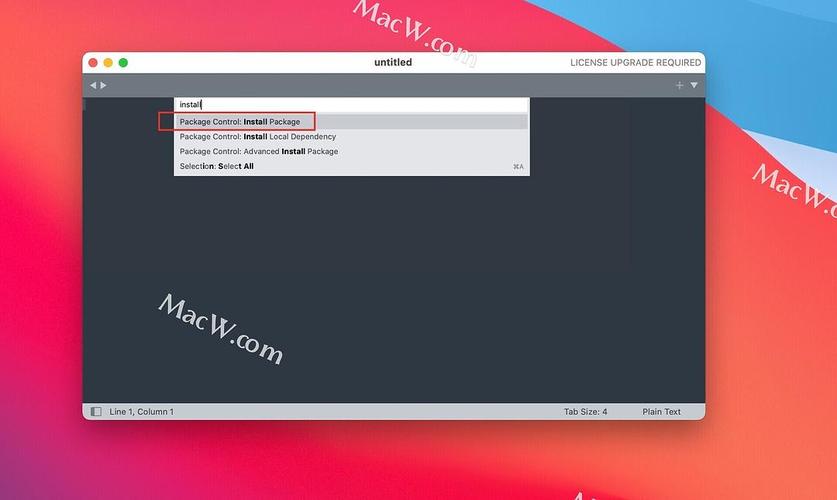
Press Cmd+Shift+P to open the Command Palette, type install, and select "Package Control: Install Package". Search for and install these:
- JavaC (or Java Compiler): This is the most important one. It provides syntax highlighting and, crucially, a build system for compiling Java code directly in Sublime Text.
- SublimeLinter: Provides real-time linting to catch errors as you type.
- SublimeLinter-contrib-javac: The linter plugin for Java.
- DocBlockr: Helps you quickly generate Javadoc-style comments.
Part 3: The Build System - The "Magic" Link
This is the core of the setup. A build system tells Sublime Text how to execute a command (in our case, compile and run Java). We will create a custom build system that automatically finds your JAVA_HOME.
Create a Custom Build System
-
Go to Tools > Build System > New Build System...
-
A new, empty file will open. Delete everything in it and paste the following code:
{ "shell_cmd": "javac \"$file\" && java -cp \"${file_path%/*}\" \"${file_base_name}\"", "selector": "source.java", "working_dir": "${file_path}", "env": { "JAVA_HOME": "/usr/local/opt/openjdk@17" } }- Important: If your JDK is installed in a different location, change the
JAVA_HOMEpath to match what you set in your shell profile.
- Important: If your JDK is installed in a different location, change the
Save the Build System
- Save the file with a descriptive name, like
JavaC.sublime-build, in the default location that Sublime Text suggests. - Now, go to Tools > Build System. You should see your new
JavaCoption at the bottom of the list. Select it. This will make it the default for all.javafiles.
Part 4: Putting It All Together - A Complete Example
Let's write a simple "Hello, World!" program to see it in action.
-
Create a Project Folder: In your Terminal, create a folder for your project and
cdinto it.mkdir java-sublime-demo cd java-sublime-demo
-
Create the Java File in Sublime Text: Open Sublime Text, go to File > Open Folder..., and select
java-sublime-demo. Create a new file namedHelloWorld.javaand paste this code into it:public class HelloWorld { public static void main(String[] args) { System.out.println("Hello, from Sublime Text!"); } } -
Compile and Run:
- Make sure
JavaCis selected as your build system (Tools > Build System > JavaC). - Press
Cmd+B. - What happens:
- Sublime Text will run the
javac HelloWorld.javacommand in the background. - If there are no errors, you'll see a "Build finished" message in the console at the bottom.
- It will then automatically run
java -cp . HelloWorld.
- Sublime Text will run the
- You should see the output
Hello, from Sublime Text!appear in the Sublime Text console.
- Make sure
Part 5: Advanced - Debugging with LLDB
Sublime Text has a built-in debugger, but it's a bit complex to set up. A more modern and user-friendly approach is to use an external debugger like Visual Studio Code's Java Extension Pack. However, if you want to stay within Sublime, here's the basic idea.
The built-in debugger requires you to manually configure launch and attach configurations. This is more involved than a full-fledged IDE like IntelliJ.
For most beginners and intermediate users, the print-based debugging (System.out.println()) combined with the excellent build system is more than enough. For more complex debugging, consider:
- Using a separate terminal: Open a new Terminal,
cdinto your project directory, and runjava -cp . HelloWorlddirectly. You can then use tools likejdb(Java Debugger) from the command line. - Using a real IDE: For large projects, a dedicated IDE like IntelliJ IDEA Community Edition (which is also free) is superior for its advanced refactoring, debugging, and project management features.
Summary Workflow
- Write Code: Write your Java code in Sublime Text.
- Compile & Run: Press
Cmd+B. - View Output: See the results in the Sublime Text console.
- Debug: Use
System.out.println()statements to check variable values and program flow.
This setup gives you a fast, clean, and efficient Java development environment that is perfectly tailored to your preferences.