Of course! Let's break down how to get pixel data from an image in Python using the Pillow library (which is the modern, maintained fork of PIL).

First, a crucial point: The original PIL.Image.getpixel() method exists, but it is very slow. It's not recommended for anything other than retrieving a single pixel. For any real image processing, you should use the more efficient methods described below.
Here's a complete guide, from the simple (but slow) method to the highly recommended methods.
The Direct getpixel() Method (Not Recommended for Performance)
This method is straightforward but extremely inefficient if you need to read many pixels.
Syntax: image.getpixel((x, y))
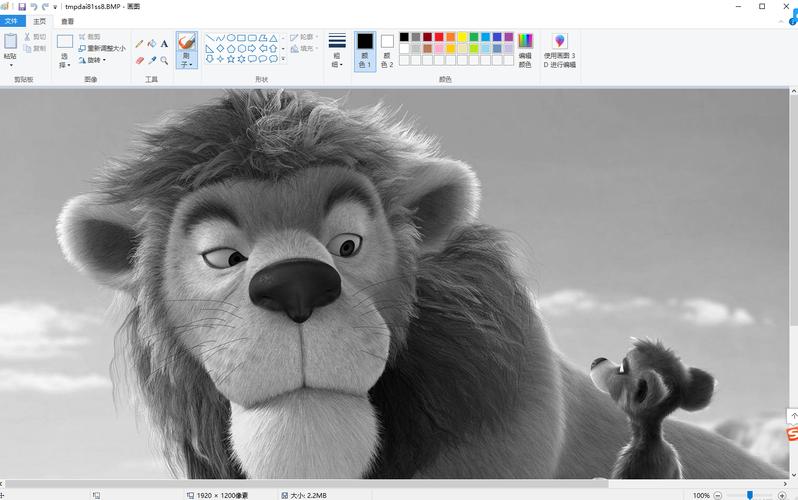
image: Your PillowImageobject.(x, y): A tuple containing the coordinates of the pixel. The origin(0, 0)is at the top-left corner of the image. The x-coordinate increases to the right, and the y-coordinate increases downward.
Example:
from PIL import Image
# Open an image
try:
    img = Image.open("my_image.jpg")
except FileNotFoundError:
    print("Error: 'my_image.jpg' not found. Please create a dummy image.")
    exit()
# Get the pixel value at a specific location (x=50, y=100)
# Note: Coordinates are (x, y)
pixel_value = img.getpixel((50, 100))
print(f"Pixel at (50, 100) has value: {pixel_value}")
# --- Handling Different Image Modes ---
# The format of `pixel_value` depends on the image's mode:
# - 'L' (grayscale): Returns a single integer (e.g., 128)
# - 'RGB': Returns a tuple of three integers (e.g., (R, G, B))
# - 'RGBA': Returns a tuple of four integers (e.g., (R, G, B, A))
# - 'P' (palette): Returns an index into the color palette
# Let's check the image mode to understand the output
print(f"Image mode: {img.mode}")
# Example with an RGBA image
img_rgba = Image.new("RGBA", (100, 100), color=(255, 0, 0, 128))
pixel_rgba = img_rgba.getpixel((10, 10))
print(f"RGBA Pixel at (10, 10) has value: {pixel_rgba}") # Output: (255, 0, 0, 128)
img.close()
Why is it slow? Every time you call getpixel(), Python has to perform a function call, check the bounds, and retrieve the data from the image object. If you loop through thousands of pixels, this overhead becomes a major bottleneck.
The Recommended Method: load() and Pixel Access
This is the standard and most efficient way to access pixel data when you need to read multiple pixels.
How it works:
- You call
image.load()once. This returns a pixel access object. - You then access pixels on this object using dictionary-like syntax:
pixel_access[x, y].
This method is significantly faster because the load() call does the heavy lifting once, and subsequent accesses are much quicker.
Example:
from PIL import Image
# Open an image
try:
    img = Image.open("my_image.jpg")
except FileNotFoundError:
    print("Error: 'my_image.jpg' not found. Please create a dummy image.")
    exit()
# Load the pixel data into a "pixel access" object
pixels = img.load()
# Now, access pixels efficiently
# Get the pixel at (50, 100)
pixel_value = pixels[50, 100]
print(f"Pixel at (50, 100) using load(): {pixel_value}")
# Loop through a 10x10 area in the top-left corner
print("\nPixels in the top-left 10x10 area:")
for y in range(10):
    for x in range(10):
        # Note: Access is [x, y], not (x, y)
        p = pixels[x, y]
        print(f"({x},{y}): {p}", end=" ")
    print() # New line for each row
img.close()
The Most Powerful Method: Converting to a NumPy Array
For any serious image manipulation, analysis, or numerical computation, converting the image to a NumPy array is the best practice. It leverages the power of NumPy's highly optimized C-based operations.
How it works:
- Convert the Pillow
Imageobject to a NumPy array usingnumpy.array(image). - The image becomes a multi-dimensional array where:
- The first dimension is the rows (y-coordinate).
- The second dimension is the columns (x-coordinate).
- The third dimension (if present) holds the color channels (e.g., R, G, B).
Example:
from PIL import Image
import numpy as np
# Open an image
try:
    img = Image.open("my_image.jpg")
except FileNotFoundError:
    print("Error: 'my_image.jpg' not found. Please create a dummy image.")
    exit()
# Convert the image to a NumPy array
img_array = np.array(img)
print(f"Shape of the NumPy array: {img_array.shape}")
print(f"Data type of the array: {img_array.dtype}")
# Accessing pixels is now done with array indexing [y, x]
# Note the order: [y, x] is different from [x, y] in the other methods!
# Get the pixel at (x=50, y=100)
# In NumPy, this is accessed as [100, 50]
pixel_value = img_array[100, 50]
print(f"\nPixel at (50, 100) using NumPy: {pixel_value}")
# Accessing a color channel (e.g., the Red channel of the pixel at (50, 100))
# The third dimension is the channel index. For 'RGB', 0=R, 1=G, 2=B.
red_value = img_array[100, 50, 0]
print(f"Red channel of pixel at (50, 100): {red_value}")
# NumPy allows for extremely fast operations on the entire image
# For example, let's make the image brighter by adding 50 to each pixel
# (We need to clip values that exceed the maximum, e.g., 255)
brighter_img_array = np.clip(img_array.astype(np.int16) + 50, 0, 255).astype(np.uint8)
# Convert the NumPy array back to a Pillow Image
brighter_img = Image.fromarray(brighter_img_array)
# Save the result
brighter_img.save("brighter_image.jpg")
print("\nSaved a brighter version as 'brighter_image.jpg'")
img.close()
brighter_img.close()
Summary: Which Method to Use?
| Method | Best For | Performance | Syntax | Notes |
|---|---|---|---|---|
getpixel() |
Reading a single pixel for a quick check. | Very Slow | img.getpixel((x, y)) |
Simple but inefficient for loops. Avoid for bulk operations. |
load() |
Reading or writing multiple pixels in a loop. | Fast | pixels = img.load()pixels[x, y] |
The standard, recommended way for general-purpose pixel manipulation in Pillow. |
| NumPy Array | Image analysis, numerical processing, machine learning, and any complex operation. | Extremely Fast | arr = np.array(img)arr[y, x] |
The most powerful and flexible method. Requires numpy. |
Final Recommendation:
- If you just need to check one pixel,
getpixel()is fine. - If you need to loop through pixels to modify them one by one, use
load(). - If you are doing anything more complex (filtering, transformations, finding features, machine learning), convert to a NumPy array. It is the industry standard for a reason.