Of course! Creating a standalone .exe file from a Python script on Windows is a very common task. The goal is to package your script and all its dependencies (like libraries, images, data files, etc.) into a single executable that can be run on other Windows machines without needing Python installed.
Here’s a comprehensive guide covering the most popular tools, best practices, and troubleshooting.
Why Create an EXE?
- Distribution: Easily share your application with non-technical users who don't have Python.
- Simplicity: The user just needs to double-click the file to run it.
- Deployment: Simplify the installation process for your application.
The Most Popular Tools
There are two main tools for this job:
- PyInstaller: The most popular, flexible, and well-documented tool. It's the go-to choice for most projects.
- cx_Freeze: A solid alternative, known for being very straightforward and producing smaller executables in some cases.
We'll focus primarily on PyInstaller as it's the most widely used.
Method 1: Using PyInstaller (Recommended)
Py analyzes your script, finds all the imported modules, and bundles them into a single .exe file.
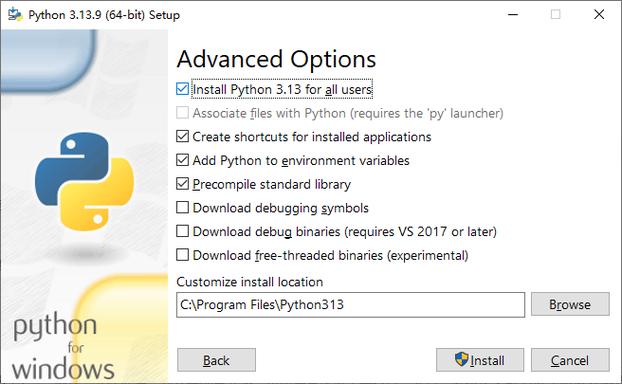
Step 1: Install PyInstaller
Open your command prompt (CMD) or PowerShell and run:
pip install pyinstaller
Step 2: Prepare Your Python Script
Let's say you have a simple script named app.py that uses an external library (Pillow) and a data file (logo.png).
app.py
import sys
import time
from PIL import Image # Requires Pillow: pip install Pillow
def main():
    print("Hello from my Python app!")
    print("Processing image...")
    try:
        # Access a data file. PyInstaller needs to know about this.
        img = Image.open("logo.png")
        print(f"Image loaded successfully. Size: {img.size}")
    except FileNotFoundError:
        print("Error: 'logo.png' not found. Make sure it's in the same directory.")
        sys.exit(1)
    for i in range(5, 0, -1):
        print(f"Closing in {i}...")
        time.sleep(1)
    print("Done!")
if __name__ == "__main__":
    main()
logo.png
(A simple image file in the same directory as app.py)
Step 3: Create the EXE
Navigate to the directory containing your script in the command prompt.
cd path\to\your\project
Now, run PyInstaller. Here are the most common and useful options:
A. Basic Command (One-File Console App)
This creates a single app.exe file and a build and dist folder.
pyinstaller app.py
- Pros: Simple, one file to distribute.
- Cons: Slower startup because it unzips files to a temporary directory every time it runs.
B. One-File with Console Window (Most Common)
This is the same as above but explicitly tells PyInstaller to bundle everything into one file.
pyinstaller --onefile app.py
C. One-File with a Window (GUI Application)
If your script is a GUI app (using Tkinter, PyQt, etc.), you don't want a black console window to appear. Use the --windowed or -w flag.
pyinstaller --onefile --windowed app.py
- Important: If you use
--windowedon a console script, you won't see anyprint()output, which can make debugging very difficult!
Step 4: Handling Data Files (Crucial!)
The basic command above will fail to find logo.png because PyInstaller doesn't know it's a required resource. You need to tell it explicitly.
Use the --add-data flag. The format is source_path;destination_path.
- On Windows, the separator is .
- On Linux/macOS, the separator is .
For our app.py example:
pyinstaller --onefile --add-data "logo.png;." app.py
"logo.png;."means: "Take the filelogo.pngfrom the current directory and place it in the root () of the temporary folder where the EXE extracts its files."
PyInstaller makes these files available in a special temporary location. You can access them at runtime using sys._MEIPASS.
Modify app.py to work with PyInstaller:
import sys
import os
from PIL import Image
def resource_path(relative_path):
    """ Get absolute path to resource, works for dev and for PyInstaller """
    try:
        # PyInstaller creates a temp folder and stores path in _MEIPASS
        base_path = sys._MEIPASS
    except Exception:
        base_path = os.path.abspath(".")
    return os.path.join(base_path, relative_path)
def main():
    print("Hello from my Python app!")
    print("Processing image...")
    try:
        # Use the helper function to find the image
        img_path = resource_path("logo.png")
        img = Image.open(img_path)
        print(f"Image loaded successfully. Size: {img.size}")
    except FileNotFoundError:
        print(f"Error: '{img_path}' not found.")
        sys.exit(1)
    for i in range(5, 0, -1):
        print(f"Closing in {i}...")
        time.sleep(1)
    print("Done!")
if __name__ == "__main__":
    main()
Now, when you run the command from Step 3D, it will work correctly.
Step 5: Distribute Your App
After running the command, your finished application will be inside the dist folder.
# Your final app is here:
dist\app.exe
You can zip this folder and send it to anyone. They just need to unzip it and double-click app.exe.
Method 2: Using cx_Freeze
cx_Freeze is another excellent option. The process is very similar.
Step 1: Install cx_Freeze
pip install cx_Freeze
Step 2: Create a setup.py file
Unlike PyInstaller, cx_Freeze uses a Python script to define how to build the executable.
setup.py
from cx_Freeze import setup, Executable
# Dependencies are automatically included, but you can specify more
build_exe_options = {
    "packages": ["os", "PIL"], # Explicitly include packages if needed
    "include_files": ["logo.png"] # Include data files
}
setup(
    name="MyApp",
    version="0.1",
    description="My awesome Python app",
    options={"build_exe": build_exe_options},
    executables=[Executable("app.py")])
Step 3: Build the EXE
Run the build command from your project's root directory:
python setup.py build
Your executable will be created in a build directory, specifically build\exe.win-amd64-3.10 (the version number may vary).
Comparison: PyInstaller vs. cx_Freeze
| Feature | PyInstaller | cx_Freeze |
|---|---|---|
| Ease of Use | Very easy with command-line flags. | Requires a setup.py file, slightly more setup. |
| Flexibility | Extremely high. Many advanced options. | Good, but generally less flexible than PyInstaller. |
| Dependencies | Usually detects them automatically. | May require explicit inclusion in setup.py. |
| EXE Size | Can be larger due to bootloader. | Often produces smaller executables. |
| Community | Massive community and extensive documentation. | Smaller, but still active and supportive community. |
| Recommendation | Best for beginners and most projects. | A great alternative, especially for smaller EXEs. |
Common Problems and Solutions
-
"ModuleNotFoundError" or "DLL not found"
- Cause: PyInstaller missed a hidden dependency, often a C extension library (e.g.,
numpy,Pillow,PyQt). - Solution:
- Use
--hidden-importto force include a module:pyinstaller --hidden-import=pandas app.py. - Use the
--debug allflag to get a detailed log and see what's being searched for. This is the best way to find missing DLLs. - For complex GUI apps, you might need to copy specific DLLs into your project folder and use
--add-datato include them.
- Use
- Cause: PyInstaller missed a hidden dependency, often a C extension library (e.g.,
-
The EXE works on my machine but not on another (Missing DLLs)
- Cause: The target machine is missing a Visual C++ Redistributable. Many Python libraries depend on these.
- Solution: Instruct your users to download and install the "Microsoft Visual C++ Redistributable" for the corresponding year (e.g., 2005, 2010, 2025, 2025) from the official Microsoft website. It's safe and common to install multiple versions.
-
The EXE is too large.
- Cause: It includes everything, even parts of libraries you don't use.
- Solution:
- Use
--exclude-moduleto exclude specific modules:pyinstaller --exclude-module=tkinter app.py. - For GUI apps, using
--windowedcan reduce size by excluding console-related code. - Package as a one-folder app (
pyinstaller app.py) instead of a one-file app. The startup is faster, and the size is smaller, but you have to distribute a folder.
- Use
-
Antivirus software flags the EXE as a virus.
- Cause: This is a common false positive. The process of bundling code can sometimes trigger heuristics in antivirus software.
- Solution: This is hard to avoid completely. You can try compiling on a different machine, or using a different tool. For serious distribution, you might need to code-sign your executable (which involves purchasing a certificate).