Of course! Here is a comprehensive guide to using Radio Buttons in Python, covering the two most common libraries: Tkinter (built-in) and PyQt/PySide.
What is a Radio Button?
A Radio Button is a graphical control element that allows the user to select only one option from a predefined set of choices. When one radio button is selected, any previously selected radio button in the same group becomes deselected.
Think of the buttons on an old car radio—pressing one station button automatically turns off the others.
Using Radio Buttons with Tkinter (The Standard Library)
Tkinter is Python's standard GUI library, so you don't need to install anything extra. It's perfect for simple desktop applications.
Key Concepts:
RadiobuttonWidget: The individual button.variable(of typeIntVarorStringVar): This is the most important part. All radio buttons in a group must share the same variable. The value of this variable is set to thevalueof the currently selected radio button.value: The unique value associated with each radio button. This is what gets stored in the sharedvariable.text: The label displayed next to the button.
Step-by-Step Example
Here is a complete, runnable example.
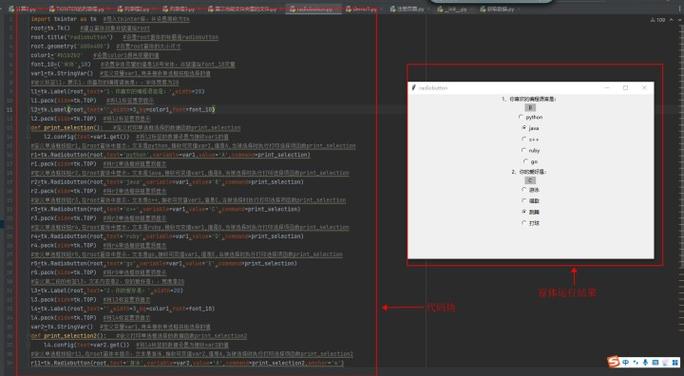
import tkinter as tk
from tkinter import ttk
# --- Create the main window ---
window = tk.Tk()
window.title("Tkinter Radio Button Example")
window.geometry("300x200")
# --- 1. Create a variable to store the selection ---
# We use a StringVar. An IntVar would work just as well.
# The initial value is set to the 'value' of the default selection.
selected_var = tk.StringVar(value="option2")
# --- 2. Define the options ---
options = [
    ("Option 1", "option1"),
    ("Option 2", "option2"),
    ("Option 3", "option3")
]
# --- 3. Create the radio buttons ---
# We loop through our options to create the buttons dynamically.
for text, value in options:
    rb = tk.Radiobutton(
        window,
        text=text,
        variable=selected_var,  # All buttons share the same variable
        value=value            # This button's unique value
    )
    # Pack the button to add it to the window
    rb.pack(anchor=tk.W, padx=20, pady=5) # anchor=tk.W makes them align to the left
# --- 4. Create a function to handle the button click ---
def show_selection():
    # The .get() method retrieves the current value of the variable
    selection = selected_var.get()
    print(f"Selected option: {selection}")
    # You can also use the text, but you'd need a mapping
    # For this simple case, the value is enough.
    result_label.config(text=f"You chose: {selection}")
# --- 5. Create a button to confirm the selection and a label to show it ---
confirm_button = ttk.Button(window, text="Show Selection", command=show_selection)
confirm_button.pack(pady=10)
result_label = ttk.Label(window, text="Please make a selection.")
result_label.pack()
# --- Start the application's main loop ---
window.mainloop()
How to Get the Selected Value
To find out which radio button is selected, you simply call the .get() method on the shared variable.
# In your function or anywhere you need the selection
current_choice = selected_var.get()
print(f"The user chose: {current_choice}")
Using Radio Buttons with PyQt6 / PySide6
PyQt6 and PySide6 are powerful, feature-rich libraries for creating professional-looking desktop applications. They are not included with Python, so you need to install them first.
Installation:
pip install PyQt6
# or
pip install PySide6
The syntax is nearly identical for both. We'll use PyQt6 for this example.
Key Concepts:
QRadioButtonWidget: The individual button.QButtonGroup: This is the crucial component. It ensures that only one radio button in the group can be selected at a time. You add each radio button to this group.toggledSignal: This signal is emitted when a radio button is changed (from checked to unchecked or vice versa). We connect a function (a "slot") to this signal to react to the change.
Step-by-Step Example
import sys
from PyQt6.QtWidgets import (
    QApplication, QMainWindow, QWidget, QVBoxLayout,
    QRadioButton, QButtonGroup, QLabel
)
from PyQt6.QtCore import Qt
class RadioApp(QMainWindow):
    def __init__(self):
        super().__init__()
        self.setWindowTitle("PyQt6 Radio Button Example")
        self.setGeometry(300, 300, 300, 200)
        # --- Create the central widget and layout ---
        central_widget = QWidget()
        self.setCentralWidget(central_widget)
        layout = QVBoxLayout(central_widget)
        # --- 1. Create a QLabel to show the selection ---
        self.selection_label = QLabel("Please make a selection.")
        layout.addWidget(self.selection_label)
        # --- 2. Create a QButtonGroup ---
        # This group will manage the exclusivity of the radio buttons.
        self.button_group = QButtonGroup(self)
        # Optional: You can get an ID for the checked button
        self.button_group.idClicked.connect(self.on_button_clicked)
        # --- 3. Create the radio buttons ---
        options = ["Option 1", "Option 2", "Option 3"]
        self.radio_buttons = []
        for i, text in enumerate(options):
            rb = QRadioButton(text)
            layout.addWidget(rb)
            self.radio_buttons.append(rb)
            # Add the button to the group and assign it an ID
            self.button_group.addButton(rb, i)
        # --- 4. Set a default selection ---
        self.radio_buttons[1].setChecked(True) # Check "Option 2" by default
    # --- 5. Create the slot (function) to handle the change ---
    def on_button_clicked(self, button_id):
        # button_id is the ID we assigned when adding to the group
        selected_button = self.radio_buttons[button_id]
        selected_text = selected_button.text()
        self.selection_label.setText(f"You chose: {selected_text}")
# --- Standard boilerplate to run the app ---
if __name__ == '__main__':
    app = QApplication(sys.argv)
    window = RadioApp()
    window.show()
    sys.exit(app.exec())
How to Get the Selected Value
In PyQt, the most common and idiomatic way is to connect a signal (like idClicked or buttonClicked) to a slot, as shown above. This is called the Signal-Slot mechanism and is the core of event-driven programming in Qt.
You can also manually check the state of buttons:
# To find the checked button from the group:
checked_button = self.button_group.checkedButton()
if checked_button:
    print(f"Selected: {checked_button.text()}")
Summary: Tkinter vs. PyQt/PySide
| Feature | Tkinter | PyQt6 / PySide6 |
|---|---|---|
| Installation | Built-in (No installation needed) | pip install PyQt6 or pip install PySide6 |
| Grouping | Share a StringVar or IntVar |
Use a QButtonGroup |
| Getting Value | variable.get() |
Connect a signal (e.g., idClicked) to a slot. |
| Paradigm | Procedural (create widgets, pack them) | Object-Oriented (subclass QMainWindow or QWidget) |
| Look & Feel | Basic, platform-dependent | Modern, customizable, looks native on all platforms |
| Best For | Simple scripts, quick tools, beginners | Complex, professional applications |
Which One Should I Choose?
- For beginners or simple utility scripts: Start with Tkinter. It's easy to learn and has no dependencies.
- For building professional, complex applications: Choose PyQt6 or PySide6. The object-oriented structure and powerful features are worth the learning curve.