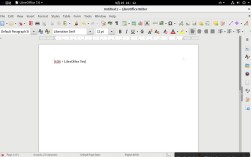
Of course! Using Python with LibreOffice is a powerful way to automate tasks, create custom dialogs, and extend the office suite's functionality. This is often referred to as LibreOffice Basic with Python or more accurately, using the UNO (Universal Network Objects) API with Python.
Here's a comprehensive guide covering the concepts, setup, and practical examples.
The Core Concept: UNO (Universal Network Objects)
LibreOffice, like its sibling OpenOffice, is built on a component architecture called UNO. UNO is a cross-platform, language-neutral technology that allows different applications and programming languages to interact with each other.
When you use Python to control LibreOffice, you are essentially:
- Starting a LibreOffice instance in "headless" mode (without a visible UI) or connecting to a running instance.
- Using Python to send UNO commands to that instance.
- Manipulating documents, spreadsheets, and other objects.
Prerequisites and Setup
A. Install Python
You need a standard Python installation (version 3.6+ is recommended).
B. Install the pyuno Bridge
This is the most critical step. The pyuno package is the bridge that allows Python to "speak" UNO.
The best and easiest way to install it is using the official LibreOffice extension installer:
-
Download the
python-script-provider-for-libreofficeextension from the official LibreOffice extensions website: https://extensions.libreoffice.org/extensions/python-script-provider-for-libreoffice -
In LibreOffice, go to
Tools -> Extension Manager. -
Click
Add...and select the.oxtfile you just downloaded. -
Restart LibreOffice.
This method automatically handles the complex setup of linking your Python installation with the LibreOffice UNO libraries. You do not need to install pyuno via pip.
Your First Python Script for LibreOffice
Let's create a simple script that creates a new text document and adds "Hello from Python!" to it.
Step 1: Create the Python Script
Create a file named hello_world.py and paste the following code into it:
import uno
# Get the UnoContext from the running office
local_context = uno.getComponentContext()
# Get the service manager
service_manager = local_context.ServiceManager
# Create a desktop instance (the main window/application)
desktop = service_manager.createInstanceWithContext("com.sun.star.frame.Desktop", local_context)
# Access the current component (the active document)
# If no document is open, this will fail. We'll create one.
# For this example, we'll create a new text document.
document = desktop.loadComponentFromURL("private:factory/swriter", "_blank", 0, ())
# Get the text from the document's text cursor
text = document.getText()
cursor = text.createTextCursor()
# Insert the text
text.insertString(cursor, "Hello from Python!", 0)
# Optional: Save the document
# The URL must be escaped. 'file:///C:/path/to/my/document.docx'
# For Linux/macOS: 'file:///home/user/my_document.docx'
# For Windows: Use forward slashes or triple-backslashes.
output_url = "file:///C:/Users/YourUser/Desktop/py_test.docx"
props = (
    uno.createUnoStruct("com.sun.star.beans.PropertyValue", {'Name': 'FilterName', 'Value': 'MS Word 97'}),
)
document.storeToURL(output_url, props)
print("Script finished. Check your desktop.")
Important: Change the output_url to a path that exists on your computer.
Step 2: Run the Script from LibreOffice
- Open LibreOffice (Writer, Calc, etc.).
- Go to
Tools -> Macros -> Organize Macros -> Python.... - A dialog box will appear. You can choose to run the script from "My Macros", "LibreOffice Macros", or a specific Python file.
- Navigate to where you saved
hello_world.pyand select it. - Click Run.
A new Writer document should appear with the text, and a copy should be saved on your desktop.
Practical Examples
Example 1: Manipulating a Spreadsheet (Calc)
This script connects to an existing spreadsheet, reads data from a range, and writes it to another range.
Assume you have a spreadsheet named data.ods with numbers in Sheet1.A1:A5.
import uno
# --- Setup (same as before) ---
local_context = uno.getComponentContext()
service_manager = local_context.ServiceManager
desktop = service_manager.createInstanceWithContext("com.sun.star.frame.Desktop", local_context)
# --- Load the Spreadsheet ---
# Replace with the actual path to your file
file_url = "file:///C:/path/to/your/data.ods"
document = desktop.loadComponentFromURL(file_url, "_blank", 0, ())
# --- Get the Sheet and Cell Range ---
sheet = document.getSheets().getByIndex(0) # Get the first sheet
# Get a cell range object
# Range A1:A5
source_range = sheet.getCellRangeByName("A1:A5")
# Range B1:B5
destination_range = sheet.getCellRangeByName("B1:B5")
# --- Read Data ---
# The 'Array' property gives you a 2D tuple of the cell values
data = source_range.Array
print("Read data from A1:A5:", data)
# --- Process and Write Data ---
# Let's just double the values and write them to column B
new_data = [[val * 2] for val in data[0]] # Convert to a 2D list/tuple
# Set the Array property of the destination range
destination_range.Array = tuple(new_data)
# --- Save and Close ---
document.store() # Save the changes
document.close(True) # Close the document (True = discard unsaved changes)
print("Spreadsheet script finished.")
Example 2: Creating a Custom Dialog
This is more advanced but incredibly useful. You create a dialog in the LibreOffice Dialog Editor, then use Python to control it.
Step A: Create the Dialog
- In LibreOffice, go to
Tools -> Macros -> Organize Macros -> LibreOffice Basic.... - In the Macro Organizer, click
New...to create a new library (e.g.,MyDialogs). - In the Basic IDE, go to
Tools -> Dialogs.... - Create a new dialog. Add a "Text Field" control and name it
textField1. Add a "Push Button" and name itokButton. - Close the Dialog Editor and save your library.
Step B: Write the Python Script to Run the Dialog
import uno
# --- Setup ---
local_context = uno.getComponentContext()
service_manager = local_context.ServiceManager
desktop = service_manager.createInstanceWithContext("com.sun.star.frame.Desktop", local_context)
# --- Load the Dialog ---
# The path is 'library.dialog_name'
dialog_model = service_manager.createInstanceWithContext("com.sun.star.awt.UnoControlDialogModel", local_context)
# This is a bit tricky. You need to load the dialog from your Basic library.
# The easiest way is to use the Basic IDE's function to get the dialog.
# A more robust way is to access it via the script provider.
# For simplicity, we'll assume the dialog is in a library named "MyDialogs"
# and is named "MyDialog".
# This requires a helper function to load the Basic library.
# A simpler approach for a single script is to create the dialog model in Python directly,
# but using the Basic editor is often easier for UI design.
# Let's create a simple dialog model in Python for this example
width = 150
height = 50
dialog_model.PositionX = 100
dialog_model.PositionY = 100
dialog_model.Width = width
dialog_model.Height = height
dialog_model.Title = "Python Dialog"
# --- Create Controls ---
# Text Field
text_field = service_manager.createInstanceWithContext("com.sun.star.awt.UnoControlEditModel", local_context)
text_field.PositionX = 10
text_field.PositionY = 10
text_field.Width = 120
text_field.Height = 20
text_field.Name = "myTextField"
dialog_model.insertByName("myTextField", text_field)
# OK Button
ok_button = service_manager.createInstanceWithContext("com.sun.star.awt.UnoControlButtonModel", local_context)
ok_button.PositionX = 30
ok_button.PositionY = 30
ok_button.Width = 50
ok_button.Height = 14
ok_button.Label = "OK"
ok_button.Name = "okButton"
dialog_model.insertByName("okButton", ok_button)
# --- Create the Dialog Control ---
dialog = service_manager.createInstanceWithContext("com.sun.star.awt.UnoControlDialog", local_context)
dialog.setModel(dialog_model)
dialog.setVisible(True)
# --- Show the Dialog (execute it) ---
# This is a blocking call. The script will pause until the dialog is closed.
dialog.execute()
# --- Get the value from the text field after closing ---
text_control = dialog_model.getByName("myTextField")
entered_text = text_control.Text
print("User entered:", entered_text)
# --- Cleanup ---
dialog.dispose()
Important Tips and Resources
- Error Handling: Always wrap your UNO calls in
try...except Exception as e:blocks. UNO exceptions can be cryptic, but this will at least give you a traceback. - Headless Mode: For server-side automation (no GUI), start LibreOffice from the command line:
soffice --headless --accept="socket,host=localhost,port=2002;urp;StarOffice.ServiceManager"
Then, in your Python script, you connect to this running instance instead of creating a new one.
- Official Documentation: The ultimate source is the LibreOffice Developer Documentation. It's dense but contains all the API references for UNO objects.
- API References:
- Learning by Example: The best way to learn is to record a macro in LibreOffice Basic. Go to
Tools -> Macros -> Record Macro..., perform some actions (e.g., format a cell, type text), then stop recording. Open the Basic IDE to see the generated code. You can then translate the Basic UNO calls into Python. This is an invaluable shortcut.