Of course! Using Java to work with FTP servers is a common task. The most popular and robust library for this is Apache Commons Net.
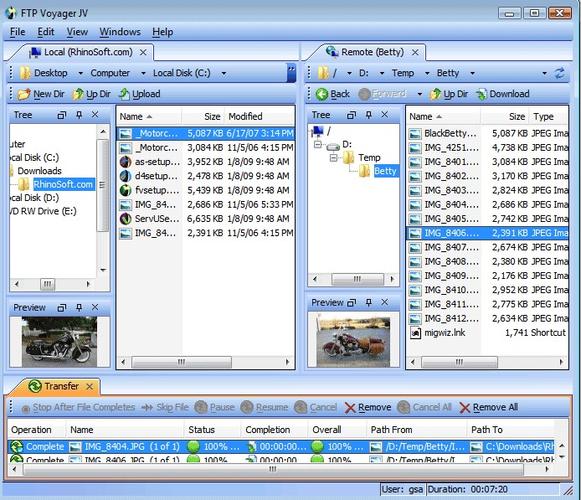
Here's a comprehensive guide covering everything you need to know, from setup to practical examples.
What is Apache Commons Net?
It's a Java library from the Apache Software Foundation that provides a collection of network protocols, including:
- FTP (File Transfer Protocol)
- FTPS (FTP over SSL/TLS)
- SFTP (SSH File Transfer Protocol) - Note: SFTP is handled by a different library, JSch, not Commons Net.
- SMTP, POP3, NNTP, etc.
For FTP, it provides the FTPClient class, which is powerful, flexible, and handles all the low-level details of the FTP protocol.
Setup: Adding the Dependency
You need to add the Apache Commons Net library to your project.
For Maven (pom.xml)
Add this dependency to your pom.xml file:
<dependency>
    <groupId>commons-net</groupId>
    <artifactId>commons-net</artifactId>
    <version>3.9.0</version> <!-- Check for the latest version -->
</dependency>
For Gradle (build.gradle)
Add this line to your dependencies block in build.gradle:
implementation 'commons-net:commons-net:3.9.0' // Check for the latest version
Core FTPClient Concepts
Before diving into code, understand these key concepts:
FTPClient: The main class you'll interact with.FTPClientConfig: Used to configure the client for specific FTP server types (e.g., Unix, Windows, IBM OS/400). This helps with parsing directory listings correctly.- Connection Modes:
- Active Mode: The server initiates a data connection back to the client. This can be problematic if the client is behind a firewall (NAT).
- Passive Mode (Recommended): The client initiates both the control and data connections. This is generally more firewall-friendly. You should almost always use passive mode.
- File Types:
FTP.ASCII_FILE_TYPE: For text files. The client may perform character conversions (e.g., newline characters).FTP.BINARY_FILE_TYPE: For non-text files (images, videos, archives). This is the most common and safest choice.
- Return Codes: Almost every method in
FTPClientreturns an integer. A value of0orpositiveusually indicates success (following the FTP standard), while anegativevalue indicates an error. You should always check the return code.
Practical Code Examples
Here are the most common FTP operations. Each example is a self-contained method.
Example 1: Connecting and Logging In
This is the first step for any FTP operation.
import org.apache.commons.net.ftp.FTP;
import org.apache.commons.net.ftp.FTPClient;
import java.io.IOException;
public class FtpConnectionExample {
    public static void main(String[] args) {
        String server = "ftp.example.com";
        int port = 21;
        String user = "username";
        String pass = "password";
        FTPClient ftpClient = new FTPClient();
        try {
            // 1. Connect to the server
            System.out.println("Connecting to " + server);
            ftpClient.connect(server, port);
            int replyCode = ftpClient.getReplyCode();
            // Check if connection was successful
            if (!FTPReply.isPositiveCompletion(replyCode)) {
                System.out.println("FTP server refused connection.");
                return;
            }
            // 2. Login to the server
            System.out.println("Logging in as " + user);
            boolean loginSuccess = ftpClient.login(user, pass);
            if (!loginSuccess) {
                System.out.println("Login failed. Check username and password.");
                ftpClient.disconnect();
                return;
            }
            System.out.println("Connection and login successful.");
            // ... perform other operations here ...
        } catch (IOException ex) {
            System.out.println("Error: " + ex.getMessage());
            ex.printStackTrace();
        } finally {
            try {
                // 3. Logout and disconnect
                if (ftpClient.isConnected()) {
                    ftpClient.logout();
                    ftpClient.disconnect();
                    System.out.println("Disconnected from the server.");
                }
            } catch (IOException ex) {
                ex.printStackTrace();
            }
        }
    }
}
Example 2: Uploading a File (Upload)
This example uploads a local file to the FTP server in binary mode and using passive mode.
import org.apache.commons.net.ftp.FTP;
import org.apache.commons.net.ftp.FTPClient;
import org.apache.commons.net.ftp.FTPReply;
import java.io.FileInputStream;
import java.io.IOException;
public class FtpUploadExample {
    public static void uploadFile(FTPClient ftpClient, String localFilePath, String remoteFilePath) throws IOException {
        // Enter passive mode
        ftpClient.enterLocalPassiveMode();
        // Set file type to binary
        ftpClient.setFileType(FTP.BINARY_FILE_TYPE);
        // The remote file path might include directories. Make sure they exist.
        String remoteDir = remoteFilePath.substring(0, remoteFilePath.lastIndexOf('/'));
        if (!ftpClient.changeWorkingDirectory(remoteDir)) {
            System.out.println("Could not change to remote directory: " + remoteDir);
            return;
        }
        try (InputStream inputStream = new FileInputStream(localFilePath)) {
            System.out.println("Uploading file: " + localFilePath);
            boolean done = ftpClient.storeFile(remoteFilePath, inputStream);
            if (done) {
                System.out.println("File uploaded successfully.");
            } else {
                System.out.println("File upload failed. Server reply: " + ftpClient.getReplyString());
            }
        }
    }
}
Example 3: Downloading a File (Download)
This is the reverse of uploading.
import org.apache.commons.net.ftp.FTP;
import org.apache.commons.net.ftp.FTPClient;
import java.io.FileOutputStream;
import java.io.IOException;
import java.io.InputStream;
public class FtpDownloadExample {
    public static void downloadFile(FTPClient ftpClient, String remoteFilePath, String localFilePath) throws IOException {
        // Enter passive mode
        ftpClient.enterLocalPassiveMode();
        // Set file type to binary
        ftpClient.setFileType(FTP.BINARY_FILE_TYPE);
        try (OutputStream outputStream = new FileOutputStream(localFilePath)) {
            System.out.println("Downloading file: " + remoteFilePath);
            boolean success = ftpClient.retrieveFile(remoteFilePath, outputStream);
            if (success) {
                System.out.println("File downloaded successfully.");
            } else {
                System.out.println("File download failed. Server reply: " + ftpClient.getReplyString());
            }
        }
    }
}
Example 4: Listing Files in a Directory
This example lists the files and directories in the current or a specified remote directory.
import org.apache.commons.net.ftp.FTP;
import org.apache.commons.net.ftp.FTPClient;
import org.apache.commons.net.ftp.FTPFile;
import java.io.IOException;
public class FtpListExample {
    public static void listFiles(FTPClient ftpClient, String path) throws IOException {
        // Enter passive mode
        ftpClient.enterLocalPassiveMode();
        // Set file type to ASCII is fine for listing, but binary is a safe default
        ftpClient.setFileType(FTP.BINARY_FILE_TYPE);
        FTPFile[] files = ftpClient.listFiles(path);
        System.out.println("Listing files for: " + (path.isEmpty() ? "current directory" : path));
        if (files != null && files.length > 0) {
            for (FTPFile file : files) {
                String details = file.getName();
                if (file.isDirectory()) {
                    details += " (DIR)";
                } else if (file.isFile()) {
                    details += " (" + file.getSize() + " bytes)";
                } else {
                    details += " (UNKNOWN)";
                }
                System.out.println(details);
            }
        } else {
            System.out.println("No files found in directory.");
        }
    }
}
Advanced: Handling FTPS (FTP over SSL/TLS)
For secure file transfers, you should use FTPS. The process is very similar but requires enabling security.
There are two security levels:
- Implicit FTPS: The connection is secured from the very beginning on port 990. This is older and less common.
- Explicit FTPS (Recommended): You start with a regular FTP connection and then explicitly request to upgrade the connection to use SSL/TLS. This is more flexible and widely supported.
Here’s how to do Explicit FTPS:
import org.apache.commons.net.ftp.FTP;
import org.apache.commons.net.ftp.FTPClient;
import org.apache.commons.net.ftp.FTPSClient;
import javax.net.ssl.SSLContext;
import java.io.IOException;
public class FtpsExample {
    public static void main(String[] args) {
        String server = "ftp.example.com";
        int port = 21; // Standard FTP port, will upgrade to secure
        String user = "username";
        String pass = "password";
        // Use FTPSClient instead of FTPClient
        FTPSClient ftpsClient = new FTPSClient("TLS"); // Use "SSL" for older servers
        try {
            // 1. Connect
            System.out.println("Connecting to " + server);
            ftpsClient.connect(server, port);
            int replyCode = ftpsClient.getReplyCode();
            if (!FTPReply.isPositiveCompletion(replyCode)) {
                System.out.println("FTP server refused connection.");
                return;
            }
            // 2. Login
            System.out.println("Logging in as " + user);
            if (!ftpsClient.login(user, pass)) {
                System.out.println("Login failed.");
                return;
            }
            // 3. Enter passive mode and set file type
            ftpsClient.enterLocalPassiveMode();
            ftpsClient.setFileType(FTP.BINARY_FILE_TYPE);
            // 4. Explicitly upgrade the connection to secure
            // This is the key step for Explicit FTPS
            ftpsClient.execPBSZ(0); // Set protection buffer size
            ftpsClient.execPROT("P"); // Set data channel to private (encrypted)
            System.out.println("Connection secured and login successful.");
            // ... now you can perform secure upload/download/list operations ...
            // Example: Upload a file securely
            // uploadFile(ftpsClient, "local.txt", "remote.txt");
        } catch (IOException ex) {
            System.out.println("Error: " + ex.getMessage());
            ex.printStackTrace();
        } finally {
            try {
                if (ftpsClient.isConnected()) {
                    ftpsClient.logout();
                    ftpsClient.disconnect();
                    System.out.println("Disconnected from the server.");
                }
            } catch (IOException ex) {
                ex.printStackTrace();
            }
        }
    }
}
Best Practices and Troubleshooting
- Always use Passive Mode:
ftpClient.enterLocalPassiveMode();is your friend. - Always use Binary Mode:
ftpClient.setFileType(FTP.BINARY_FILE_TYPE);prevents file corruption for non-text files. - Check Return Codes: Never assume an operation succeeded. Check the return code or use a boolean return value. Use
ftpClient.getReplyString()for a human-readable error message from the server. - Use
try-with-resources: ForInputStreamandOutputStreamto ensure they are always closed, even if an exception occurs. - Handle
IOException: Network operations are unreliable. Wrap your code intry-catchblocks. - Common Problems:
Connection timed out/No route to host: Check the server address and port. Ensure the server is running and accessible from your network.530 User cannot log in: Wrong username or password.425 Cannot open data connection: Almost always means you are not in passive mode and the server cannot connect back to your client due to a firewall/NAT. Enable passive mode.- File is corrupted after transfer: You are likely in ASCII mode for a binary file. Set the file type to BINARY.