下面我将为你详细讲解如何使用 ActionChains 进行双击,并提供完整的代码示例和常见问题的解决方案。
核心方法:double_click()
ActionChains 类中的 double_click() 方法就是专门用来执行双击操作的,它的使用流程通常如下:
- 导入
ActionChains:从selenium.webdriver.common.action_chains模块导入。 - 定位元素:使用
find_element()或find_elements()找到你想要双击的目标元素。 - 创建
ActionChains对象:将 WebDriver 实例传递给ActionChains构造函数。 - 执行双击:调用
double_click()方法,并传入目标元素。 - 发送动作:非常重要的一步!调用
perform()方法来执行所有已经构建好的动作链,如果没有perform(),前面的所有操作都不会生效。
完整代码示例
下面是一个完整的、可运行的示例,这个例子会打开一个本地 HTML 文件,该文件包含一个按钮,双击按钮后会改变其背景颜色和显示文字。
准备一个测试 HTML 文件 (double_click_demo.html)
在你的项目目录下创建这个文件,以便 Selenium 可以打开它。
<!DOCTYPE html>
<html lang="en">
<head>
    <meta charset="UTF-8">双击演示</title>
    <style>
        body { font-family: sans-serif; text-align: center; padding-top: 50px; }
        #double-click-me {
            padding: 20px 40px;
            font-size: 18px;
            border: 2px solid #007bff;
            background-color: #f0f8ff;
            cursor: pointer;
            border-radius: 8px;
            transition: all 0.3s ease;
        }
        #double-click-me.clicked {
            background-color: #28a745;
            color: white;
            border-color: #28a745;
        }
    </style>
</head>
<body>
    <h1>双击下面的按钮</h1>
    <p id="message">当前状态:等待双击...</p>
    <button id="double-click-me">双击我</button>
    <script>
        const button = document.getElementById('double-click-me');
        const message = document.getElementById('message');
        button.addEventListener('dblclick', function() {
            button.classList.add('clicked');
            button.textContent = '已双击!';
            message.textContent = '状态:按钮已被双击!';
        });
    </script>
</body>
</html>
Python Selenium 脚本 (double_click_test.py)
在同一目录下创建这个 Python 脚本。
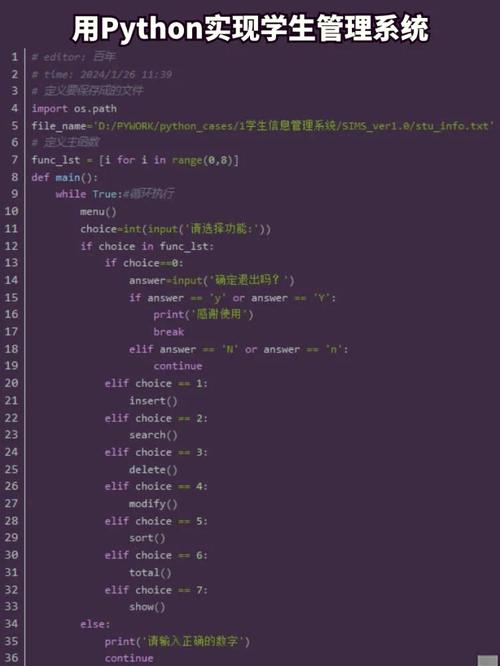
from selenium import webdriver
from selenium.webdriver.common.by import By
from selenium.webdriver.common.action_chains import ActionChains
from selenium.webdriver.chrome.service import Service as ChromeService
from webdriver_manager.chrome import ChromeDriverManager
import time
# 1. 设置 WebDriver
# 使用 webdriver-manager 自动管理驱动,无需手动下载
driver = webdriver.Chrome(service=ChromeService(ChromeDriverManager().install()))
# 2. 打开本地 HTML 文件
# 请确保 'double_click_demo.html' 文件在脚本的同级目录下
file_path = "file:///" + "double_click_demo.html" # 使用 file:// 协议
driver.get(file_path)
# 3. 定位需要双击的元素
# 使用 ID 来定位按钮,这是最可靠的方式之一
try:
    double_click_button = driver.find_element(By.ID, "double-click-me")
    print("成功定位到按钮元素。")
    # 4. 创建 ActionChains 对象
    actions = ActionChains(driver)
    # 5. 执行双击操作并发送动作
    print("正在执行双击操作...")
    actions.double_click(double_click_button).perform()
    print("双击操作已发送。")
    # 6. 验证结果(可选)
    # 等待一秒,让 JavaScript 有时间执行
    time.sleep(2)
    # 检查按钮的文本是否改变
    button_text = double_click_button.text
    expected_text = "已双击!"
    if button_text == expected_text:
        print("验证成功:按钮文本已更新为 '{}', 双击操作成功!".format(button_text))
    else:
        print("验证失败:按钮文本为 '{}', 预期 '{}'。".format(button_text, expected_text))
except Exception as e:
    print(f"发生错误: {e}")
# 7. 关闭浏览器
# time.sleep(5) # 可以多停留几秒观察结果
driver.quit()
如何运行
- 确保你已经安装了必要的库:
pip install selenium webdriver-manager
- 确保 Chrome 浏览器已安装。
- 将两个文件 (
double_click_demo.html和double_click_test.py) 放在同一个文件夹中。 - 在终端中运行 Python 脚本:
python double_click_test.py
你将看到一个 Chrome 窗口自动打开,双击按钮,然后脚本验证结果并关闭浏览器。
关键点解析
-
perform()是必须的! 这是 Selenium 新手最容易犯的错误。ActionChains的设计模式是“先构建,后执行”。double_click(),move_to_element()等方法只是将动作添加到一个队列中,只有当你调用perform()时,Selenium 才会真正在浏览器中执行这些动作序列。 -
元素必须可见且可交互 双击操作和普通点击一样,要求目标元素必须在页面上是可见的(
display和visibility属性不能为none或hidden),并且没有被其他元素遮挡,如果元素被遮挡,双击可能会失败或点错位置。 -
ActionChains上下文ActionChains对象是与特定的 WebDriver 实例绑定的,你创建actions = ActionChains(driver)后,所有后续操作都基于这个driver的当前状态(如窗口句柄、页面等)。 (图片来源网络,侵删)
常见问题与解决方案
问题1:双击没有反应,或者报错 Element is not clickable at point...
-
原因分析:
- 元素没有加载出来就尝试操作。
- 元素被其他元素遮挡了。
- 元素本身不可见(
display: none)。
-
解决方案:
- 增加等待:使用显式等待(
WebDriverWait)确保元素加载完成并且可交互。from selenium.webdriver.support.ui import WebDriverWait from selenium.webdriver.support import expected_conditions as EC
... 在定位元素之前
double_click_button = WebDriverWait(driver, 10).until( EC.element_to_be_clickable((By.ID, "double-click-me")) )
* **检查遮挡**:使用浏览器开发者工具检查目标元素,看是否有其他元素覆盖在上面。 - 增加等待:使用显式等待(
问题2:双击了,但只触发了一次单击事件
-
原因分析: 这是双击操作中最经典的问题,这通常意味着两次点击之间的时间间隔太短,浏览器没有识别出这是一个双击,而是当作了两次独立的单击。
-
解决方案:
ActionChains的double_click()方法内部已经模拟了标准双击的时间间隔(通常是 500ms 左右),所以通常不需要手动处理,但如果遇到问题,可以尝试在两次点击之间增加一个微小的延迟。首选方案是检查目标元素的事件绑定,确保它正确监听了dblclick事件,而不是通过监听两次click事件来模拟双击。如果必须手动模拟,可以这样做(但不推荐,因为
double_click()更标准):# 不推荐的替代方案 actions = ActionChains(driver) actions.click(double_click_button).pause(0.5).click(double_click_button).perform()
问题3:在 iframe 中无法双击
-
原因分析: 如果目标元素位于一个
<iframe>内,你的driver仍然在默认的“主文档”上下文中,任何对iframe内元素的操作都必须先切换到iframe的上下文。 -
解决方案: 在定位元素和执行
ActionChains之前,先使用driver.switch_to.frame()方法切换到对应的iframe。# 假设 iframe 的 ID 是 'my-iframe' driver.switch_to.frame('my-iframe') # 现在可以在这个 iframe 内部定位和操作元素了 element_in_iframe = driver.find_element(By.ID, "target-element") actions.double_click(element_in_iframe).perform() # 操作完成后,如果需要回到主文档 driver.switch_to.default_content()
| 任务 | 代码核心 |
|---|---|
| 导入 | from selenium.webdriver.common.action_chains import ActionChains |
| 定位 | element = driver.find_element(By.ID, "target_id") |
| 构建动作 | actions = ActionChains(driver) |
| 执行双击 | actions.double_click(element) |
| 发送动作 | .perform() |
perform(),并确保元素是可见和可交互的,你就能在 Selenium 中完美地实现双击操作了。