Of course! Using OpenCV with Python on Linux is a powerful and common combination for computer vision tasks. This guide will walk you through the entire process, from installation to a simple "Hello, World!" example, and cover some essential tips.
Why Use OpenCV with Python on Linux?
- Ease of Use: Python is a high-level language that makes OpenCV's complex functions accessible with simple, readable code.
- Powerful Ecosystem: You can easily integrate OpenCV with other essential Python libraries like NumPy (for numerical operations), Matplotlib (for plotting), and Scikit-learn (for machine learning).
- Platform Flexibility: The code you write on Linux will run with minimal to no changes on Windows and macOS.
- Excellent Performance: OpenCV's core is written in highly optimized C/C++, so even though you're scripting in Python, the performance is excellent for most applications.
Prerequisites
Before you start, make sure you have the following:
- A Linux Distribution: Ubuntu, Debian, Fedora, Arch, etc. This guide uses commands common for Debian/Ubuntu-based systems.
- Python 3: Most modern Linux distributions come with Python 3 pre-installed. You can check with:
python3 --version
- pip (Python Package Installer): This is usually installed with Python. Check with:
pip3 --version
- System Dependencies: OpenCV requires some system-level libraries to be compiled and run correctly. You must install these first.
Step-by-Step Installation
There are two primary ways to install OpenCV: using a package manager (like apt) or using pip. The pip method is highly recommended as it's more flexible and gives you the latest version.
Method 1: Install System Dependencies (Essential for both methods)
Open your terminal and run the following commands to install the necessary libraries for OpenCV's compilation and features like image/video I/O and GUI support.
# For Debian / Ubuntu / Mint
sudo apt update
sudo apt install -y build-essential cmake git libgtk2.0-dev pkg-config libavcodec-dev libavformat-dev libswscale-dev libtbb2 libtbb-dev libjpeg-dev libpng-dev libtiff-dev libdc1394-22-dev
# For Fedora / CentOS / RHEL
sudo dnf update
sudo dnf groupinstall "Development Tools"
sudo dnf install cmake gtk2-devel libdc1394-devel libjpeg-turbo-devel libpng-devel libtiff-devel tbb-devel
Method 2: Install OpenCV with pip (Recommended)
This is the simplest and most common method for Python development.
-
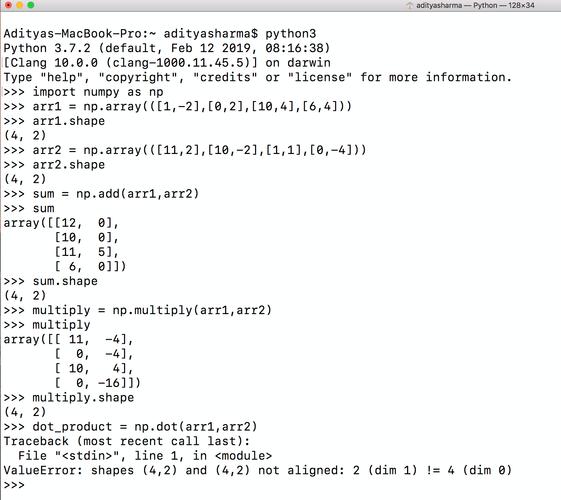
Create a Virtual Environment (Best Practice) This isolates your project's dependencies from your system's Python.
# Create a directory for your project
mkdir opencv_project
cd opencv_project
# Create a virtual environment named 'venv'
python3 -m venv venv
# Activate the virtual environment
source venv/bin/activate
# Your terminal prompt should now change to show (venv)
-
Install OpenCV Now, inside your active virtual environment, install OpenCV using
pip.# Install the main OpenCV package pip install opencv-python # (Optional but Recommended) Install additional contrib modules # These include extra features like SIFT, SURF, and more. pip install opencv-contrib-python
Note:
opencv-pythonis a pre-compiled package, which is why it's so fast to install. It includes the core modules.opencv-contrib-pythonincludes the core modules plus the "contrib" modules.
Verifying the Installation
Let's write a simple Python script to check if everything is working.
-
Create a Python file:
nano test_opencv.py
-
Add the following code. This will print the OpenCV version and display a window with an image for 5 seconds.
import cv2 import sys # Print the OpenCV version print(f"OpenCV Version: {cv2.__version__}") # Check if we can read an image # Replace 'path/to/your/image.jpg' with an actual image path # You can download a sample image or use one from your system image_path = "path/to/your/image.jpg" # If no path is provided, create a black image if len(sys.argv) > 1: image_path = sys.argv[1] try: # Read the image image = cv2.imread(image_path) # Check if the image was loaded successfully if image is None: print(f"Error: Could not read image from {image_path}") else: # Get image dimensions height, width, channels = image.shape print(f"Image loaded successfully. Dimensions: {width}x{height}, Channels: {channels}") # Display the image in a window cv2.imshow('Image Window', image) # Wait for a key press for 5000 milliseconds (5 seconds) # The window will close automatically after 5 seconds or if you press a key. cv2.waitKey(5000) # Close all OpenCV windows cv2.destroyAllWindows() except Exception as e: print(f"An error occurred: {e}") -
Run the script from your terminal:
# If you have an image file named 'my_photo.jpg' in the same directory:
python3 test_opencv.py my_photo.jpg
# Or, just run it to see the error message for a missing file
python3 test_opencv.py
If you see the OpenCV version printed and a window with your image (or a black image if no path was given), your installation is successful!
Basic OpenCV Concepts & Code Examples
OpenCV revolves around a few key data structures, primarily the NumPy array, which is how images are represented in memory.
A. Reading, Displaying, and Saving an Image
import cv2
import numpy as np
# 1. Read an image
# cv2.IMREAD_COLOR loads the image in BGR format
# cv2.IMREAD_GRAYSCALE loads the image in grayscale
image = cv2.imread('path/to/your/image.jpg', cv2.IMREAD_COLOR)
# Always check if the image was loaded
if image is None:
    print("Error: Image not found!")
    exit()
# 2. Display the image
cv2.imshow('Original Image', image)
cv2.waitKey(0) # Wait indefinitely for a key press
cv2.destroyAllWindows()
# 3. Save the image
cv2.imwrite('output_image.jpg', image)
print("Image saved as output_image.jpg")
B. Accessing and Modifying Pixel Values
Images are NumPy arrays. You can access pixels like you would access elements in a 2D array.
import cv2
import numpy as np
image = cv2.imread('path/to/your/image.jpg')
# Get the pixel value at (x=100, y=50)
# The order is [y, x]
pixel = image[50, 100]
print(f"Pixel BGR value at (100, 50): {pixel}")
# Modify the pixel value at (x=100, y=50) to red (B=0, G=0, R=255)
image[50, 100] = [0, 0, 255]
# Get a region of interest (ROI)
# Let's get a 100x100 square from the top-left corner
roi = image[0:100, 0:100]
# Display the ROI
cv2.imshow('Region of Interest', roi)
cv2.waitKey(0)
cv2.destroyAllWindows()
C. Image Processing: Grayscale and Blurring
import cv2
import numpy as np
image = cv2.imread('path/to/your/image.jpg')
# 1. Convert to Grayscale
gray_image = cv2.cvtColor(image, cv2.COLOR_BGR2GRAY)
cv2.imshow('Grayscale Image', gray_image)
cv2.waitKey(0)
# 2. Apply a Gaussian Blur
# (15, 15) is the kernel size, and 0 is the sigma (standard deviation)
blurred_image = cv2.GaussianBlur(image, (15, 15), 0)
cv2.imshow('Blurred Image', blurred_image)
cv2.waitKey(0)
cv2.destroyAllWindows()
Common Issues and Solutions
-
ImportError: libGL.so.1: cannot open shared object- Cause: Missing GUI/OpenGL libraries.
- Solution: Install the required packages.
sudo apt install libgl1-mesa-glx libglib2.0-0
-
ImportError: libgthread-2.0.so.0: cannot open shared object- Cause: Missing GLib threading library.
- Solution:
sudo apt install libglib2.0-0
-
Camera Not Found (
cv2.VideoCapture(0)fails)- Cause: Permissions issue or the camera is being used by another application.
- Solution 1 (Permissions): Add your user to the
videogroup.sudo usermod -aG video $USER # IMPORTANT: You may need to log out and log back in for this to take effect.
- Solution 2 (Check Camera): Use
Cheeseorguvcviewto test if the camera works outside of Python.
-
Performance is Slow
- Cause: For real-time video processing,
cv2.imshow()can be a bottleneck. - Solution: Use the
cv2.WINDOW_NORMALflag and resize the window. For maximum performance, consider using a GUI framework like PyQt or Tkinter to display the frames instead of relying on OpenCV's built-in GUI.
- Cause: For real-time video processing,
Next Steps and Resources
- Official OpenCV Documentation: https://docs.opencv.org/4.x/ - The ultimate source of truth.
- PyImageSearch: https://www.pyimagesearch.com/ - An incredible blog with hundreds of detailed tutorials.
- OpenCV-Python Tutorials: https://opencv-python-tutroals.readthedocs.io/en/latest/ - The official tutorials for the Python bindings.
- GitHub: Search for "OpenCV Python" to find countless example projects and repositories.