Of course! The "Python file closed" error is a very common ValueError that you'll encounter. Let's break down what it means, why it happens, and how to fix it and prevent it.

The Core Concept: What Does "Closed" Mean?
Think of a file as a door to a room (the file on your disk). To do anything with the room, you need to open the door.
- Opening the file (
open()): You walk through the door and can now see and interact with the contents. - Reading/Writing (
read(),write()): You can look around (read) or add/remove furniture (write). - Closing the file (
close()): You walk out and shut the door. The door is now "closed."
Once the door is closed, you can't interact with the room anymore. If you try to look around or add furniture through a closed door, you'll get an error. In Python, this error is ValueError: I/O operation on closed file.
Why You Get the Error: Common Scenarios
The error happens when you try to perform an I/O (Input/Output) operation on a file object that has already been closed.
Scenario 1: Explicitly Closing the File (Most Common)
You manually close the file, and then later in your code, you forget and try to use it again.

# --- THIS CODE WILL CAUSE AN ERROR ---
# 1. Open the file
f = open("my_data.txt", "w")
f.write("Hello, world!")
print("File written.")
# 2. Close the file
f.close()
print("File is now closed.")
# 3. ... some time later in your code, you forget it's closed ...
try:
    # 4. TRY to write to the closed file. THIS WILL RAISE THE ERROR.
    f.write("This will fail.")
except ValueError as e:
    print(f"Caught an error: {e}")
# Also, trying to read will fail
try:
    content = f.read()
except ValueError as e:
    print(f"Caught an error: {e}")
Output:
File written.
File is now closed.
Caught an error: I/O operation on closed file.
Caught an error: I/O operation on closed file.
Scenario 2: The with Statement (A Subtle Trap)
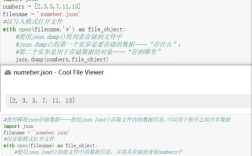
Using a with statement is the best practice, as it automatically closes the file when the block is exited. The error happens when you try to use the file object outside of that with block.
# --- THIS CODE WILL ALSO CAUSE AN ERROR ---
# The 'with' block automatically closes 'f' when it's done.
with open("my_data.txt", "r") as f:
    content = f.read()
    print("Reading file inside the 'with' block...")
    print(f"Content: {content}")
# The file 'f' is now CLOSED!
# Trying to use it here will fail
try:
    print("Trying to read the file again...")
    # The file was closed at the end of the 'with' block
    new_content = f.read()
except ValueError as e:
    print(f"Caught an error: {e}")
Output:
Reading file inside the 'with' block...
Content: Hello, world!
Trying to read the file again...
Caught an error: I/O operation on closed file.
How to Fix and Prevent the Error
Here are the best ways to handle files in Python, from good to best.
Solution 1: Don't Close the File Prematurely (Simple Fix)
If you need to use a file for multiple operations, just keep it open until you're completely done.
f = open("my_data.txt", "w")
# Do multiple operations
f.write("Line 1\n")
f.write("Line 2\n")
# Only close it when you are 100% finished
f.close()
# Now it's safe to do other things, but you can't use 'f' anymore.
Downside: This is error-prone. If an error occurs after you open the file but before you close it, the file might be left open, which can lead to resource leaks.
Solution 2: The Best Practice - Use the with Statement
This is the recommended, "Pythonic" way to handle files. It guarantees the file will be closed, even if errors occur inside the block.
# The 'with' statement handles closing for you.
with open("my_data.txt", "w") as f:
    f.write("This is safe.\n")
    # An error here would still result in the file being closed.
    # f.write(10 / 0) # This would cause a ZeroDivisionError, but the file would close.
# The file is now automatically closed. You can't use 'f' here.
# print(f.read()) # This would raise the "closed file" error.
How to adapt: If you need to use the file's content in a different part of your function, read it into a variable inside the with block and pass that variable around.
def process_data():
    # Read the data into a variable while the file is open
    with open("my_data.txt", "r") as f:
        all_data = f.read()
    # Now you can work with the 'all_data' variable anywhere in the function
    # The file is closed, but you have the data you need.
    line_count = all_data.count('\n')
    print(f"The file had {line_count} lines.")
process_data()
Solution 3: Check if the File is Closed (For Debugging)
If you're dealing with a complex script and aren't sure where a file is being closed, you can check its status using the .closed attribute. This is great for debugging.
f = open("my_data.txt", "r")
print(f"Is file closed initially? {f.closed}") # Prints: False
# Do something...
content = f.read()
f.close()
print(f"Is file closed after calling close()? {f.closed}") # Prints: True
# Now try to use it
if not f.closed:
    f.read()
else:
    print("Cannot read, file is closed.")
Summary Table
| Method | How it Works | Pros | Cons | When to Use |
|---|---|---|---|---|
open() / close() |
Manually manage the file's lifecycle. | Simple to understand. | Error-prone. Easy to forget to close or close too early. Resource leaks on crash. | Only for very simple scripts where you know you won't forget. Generally not recommended. |
with open() |
Automatically closes the file when the block is exited. | Safe, clean, and Pythonic. Guarantees closure. Reduces boilerplate code. | The file object cannot be used outside the with block. |
This is the standard and recommended way for almost all file operations in Python. |
Check .closed |
Use the .closed attribute to check the file's status. |
Useful for debugging to understand where a file is being closed. | Doesn't solve the problem, just helps find it. | Primarily for debugging purposes when you're tracking down why you're getting the "closed file" error. |