Of course! Here is a comprehensive guide to creating boxplots in Python using the popular matplotlib library, with its common alias plt.
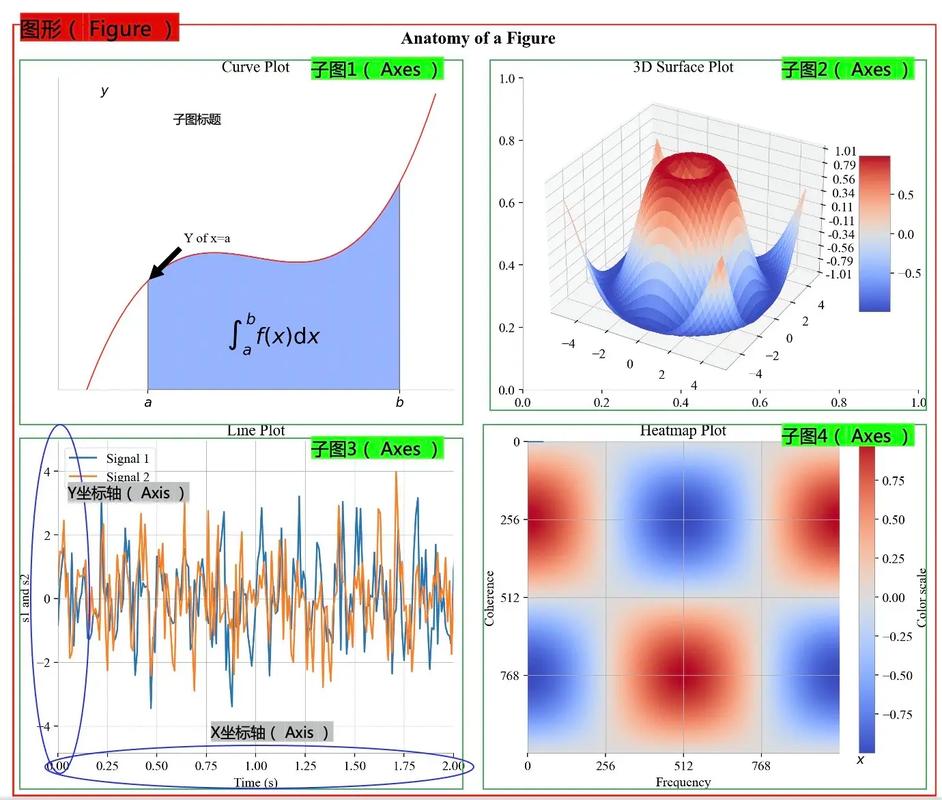
What is a Boxplot?
A boxplot (or box-and-whisker plot) is a standardized way of displaying the distribution of data based on a five-number summary:
- Minimum: The smallest data point (excluding outliers).
- First Quartile (Q1): The median of the lower half of the data.
- Median (Q2): The middle value of the dataset.
- Third Quartile (Q3): The median of the upper half of the data.
- Maximum: The largest data point (excluding outliers).
It also helps identify outliers, which are data points that fall below Q1 - 1.5 * IQR or above Q3 + 1.5 * IQR, where IQR is the Interquartile Range (Q3 - Q1).
The Basics: A Simple Boxplot
First, you need to import the necessary libraries. We'll use matplotlib.pyplot for plotting and numpy to generate some sample data.
import matplotlib.pyplot as plt
import numpy as np
# Generate some sample data
# A normal distribution
data = np.random.normal(100, 20, 200)
# Create a figure and an axes object
fig, ax = plt.subplots()
# Create the boxplot
ax.boxplot(data)
# Add a title and labels
ax.set_title('Simple Boxplot')
ax.set_ylabel('Values')
# Display the plot
plt.show()
Explanation:
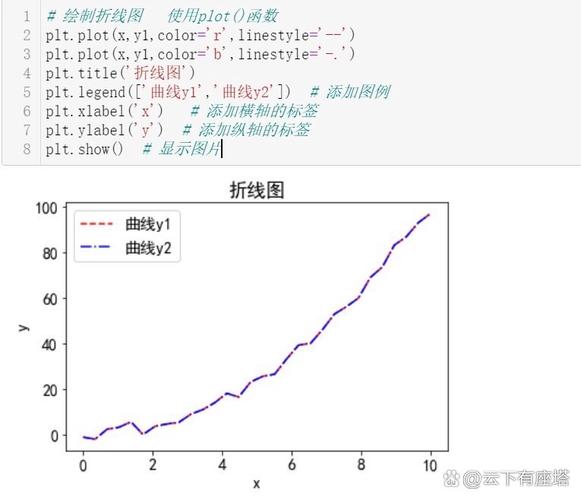
plt.subplots(): Creates a figure and a set of subplots. It's good practice to use this as it gives you anaxobject, which is more powerful for customization.ax.boxplot(data): This is the core function that creates the boxplot from your data.ax.set_title(),ax.set_ylabel(): These functions add labels to your plot, making it easier to understand.
Output:
Customizing Your Boxplot
Boxplots can be customized in many ways to improve their appearance and clarity.
a) Adding a Title and X/Y Labels
You can easily add titles and axis labels to make your plot self-explanatory.
fig, ax = plt.subplots()
ax.boxplot(data)
ax.set_title('Customized Boxplot Title')
ax.set_xlabel('Sample Data Group') # Label for the x-axis
ax.set_ylabel('Measurement Value') # Label for the y-axis
plt.show()
b) Changing Colors
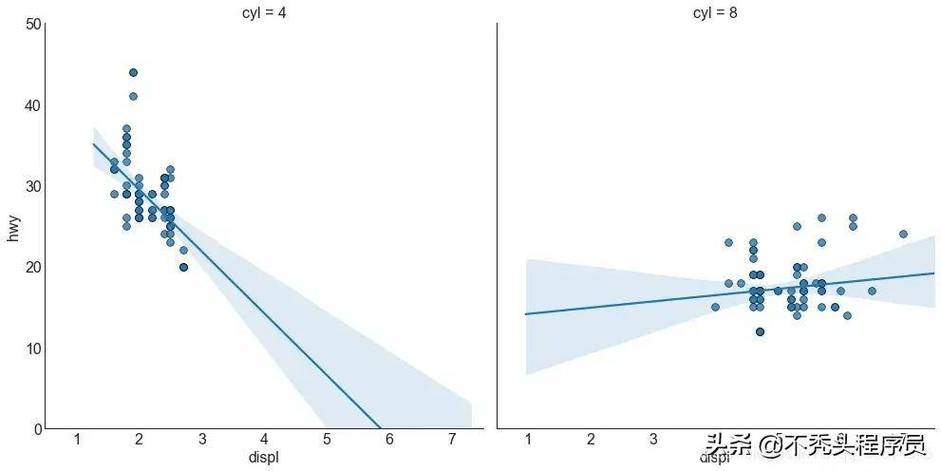
You can change the color of the box, whiskers, median line, and outliers using the patch_artist argument and the boxprops, whiskerprops, medianprops, and flierprops dictionaries.
fig, ax = plt.subplots()
# Create the boxplot with custom colors
bp = ax.boxplot(data,
                patch_artist=True,  # This allows us to color the box
                boxprops=dict(facecolor='lightblue', color='blue'), # Box color and edge color
                whiskerprops=dict(color='red', linewidth=1.5),    # Whisker color
                medianprops=dict(color='yellow', linewidth=2),      # Median line color
                flierprops=dict(marker='o', markerfacecolor='green', markersize=8) # Outlier properties
               )
ax.set_title('Colored Boxplot')
ax.set_ylabel('Values')
plt.show()
Output:
c) Hiding Outliers
If you don't want to display outliers, you can set the showfliers argument to False.
fig, ax = plt.subplots()
ax.boxplot(data, showfliers=False)
ax.set_title('Boxplot Without Outliers')
ax.set_ylabel('Values')
plt.show()
Comparing Multiple Datasets with One Boxplot
One of the most powerful uses of boxplots is to compare the distributions of several different groups. To do this, simply pass a list of datasets to the boxplot function.
Let's create three different datasets and plot them side-by-side.
# Generate three different datasets
group1 = np.random.normal(100, 10, 200)
group2 = np.random.normal(110, 15, 200)
group3 = np.random.normal(90, 20, 200)
# Combine them into a list
data_to_plot = [group1, group2, group3]
fig, ax = plt.subplots()
# Create the boxplot for the list of datasets
bp = ax.boxplot(data_to_plot,
                patch_artist=True,
                labels=['Group A', 'Group B', 'Group C'] # Add labels for each box
               )
# You can still customize colors for each box
colors = ['pink', 'lightblue', 'lightgreen']
for box, color in zip(bp['boxes'], colors):
    box.set_facecolor(color)
ax.set_title('Comparison of Multiple Groups')
ax.set_ylabel('Values')
ax.set_xlabel('Categories')
plt.show()
Explanation:
data_to_plot = [group1, group2, group3]: We create a list where each element is a dataset.labels=['Group A', 'Group B', 'Group C']: This assigns a label to each boxplot on the x-axis.zip(bp['boxes'], colors): Theboxplotfunction returns a dictionary of artists.bp['boxes']gives you access to thePatchobjects for each box, which you can then customize individually.
Output:
Horizontal Boxplots
Sometimes, especially when you have many groups or long category names, a horizontal boxplot is easier to read. You can achieve this by setting the vert (vertical) argument to False.
fig, ax = plt.subplots()
# Create a horizontal boxplot
ax.boxplot(data_to_plot,
           vert=False,  # Set to False for horizontal boxplot
           patch_artist=True,
           labels=['Group A', 'Group B', 'Group C']
          )
ax.set_title('Horizontal Boxplot')
ax.set_xlabel('Values') # xlabel and ylabel swap roles
ax.set_ylabel('Categories')
plt.show()
Output:
Complete Example: A Practical Workflow
Here is a more complete example that simulates a real-world scenario, like comparing test scores from different teaching methods.
import matplotlib.pyplot as plt
import numpy as np
# 1. Prepare the data
# Simulate test scores for three different teaching methods
np.random.seed(42) # for reproducibility
method_A_scores = np.random.normal(85, 8, 100)
method_B_scores = np.random.normal(88, 7, 100)
method_C_scores = np.random.normal(82, 10, 100)
all_scores = [method_A_scores, method_B_scores, method_C_scores]
# 2. Create the plot
fig, ax = plt.subplots(figsize=(10, 6)) # Create a larger figure
# 3. Create and customize the boxplot
boxplot = ax.boxplot(all_scores,
                     patch_artist=True,
                     labels=['Method A', 'Method B', 'Method C'],
                     medianprops=dict(linewidth=3, color='black'),
                     flierprops=dict(marker='D', markerfacecolor='red', markersize=6)
                    )
# 4. Add color to the boxes
colors = ['#1f77b4', '#ff7f0e', '#2ca02c'] # A nice color palette
for box, color in zip(boxplot['boxes'], colors):
    box.set_facecolor(color)
# 5. Add titles and labels
ax.set_title('Distribution of Test Scores by Teaching Method', fontsize=16)
ax.set_ylabel('Test Score', fontsize=12)
ax.set_xlabel('Teaching Method', fontsize=12)
ax.grid(axis='y', linestyle='--', alpha=0.7) # Add a light grid for easier reading
# 6. Show the plot
plt.tight_layout() # Adjust layout to prevent labels from overlapping
plt.show()
Output:
This final example demonstrates a well-labeled, informative, and visually appealing boxplot, which is the goal of most data visualization tasks.