Of course! Creating a file in Python is a fundamental task. The most common and recommended way to do this is by using the with open() statement.
Here’s a complete guide, starting with the simplest method and moving to more advanced and robust techniques.
The Best and Most Common Method: with open()
This is the standard, "Pythonic" way to handle files. It automatically closes the file for you, even if errors occur, preventing resource leaks.
Basic Syntax
with open("filename.txt", "w") as file:
    # Write content to the file here
    file.write("Hello, world!")
Breakdown of the Code:
with open(...): This statement opens the file. Thewithkeyword ensures that the file is properly closed after the block of code is executed."filename.txt": This is the first argument, the path to the file you want to create. If you just provide a filename, Python will create the file in the same directory where your script is running."w": This is the second argument, the mode. The"w"stands for write.- Crucial Note: In
"w"mode, if the file already exists, its contents will be deleted and overwritten. If the file does not exist, it will be created.
- Crucial Note: In
as file: This assigns the opened file object to a variable namedfile. You can name this variable whatever you like (e.g.,f,myfile,output).file.write("..."): This is a method on the file object that writes the given string to the file.
Complete Example
Let's create a file named my_new_file.txt and write a few lines to it.
# Define the filename
file_name = "my_new_file.txt"
# The content to write to the file
content = """
This is the first line.
This is the second line.
And this is the third line.
"""
# Use the 'with open' statement to create and write to the file
try:
    with open(file_name, "w") as f:
        f.write(content)
    print(f"File '{file_name}' created successfully.")
except IOError as e:
    print(f"Error writing to file: {e}")
After running this script, a new file named my_new_file.txt will appear in your project directory with the following content:
This is the first line.
This is the second line.
And this is the third line.
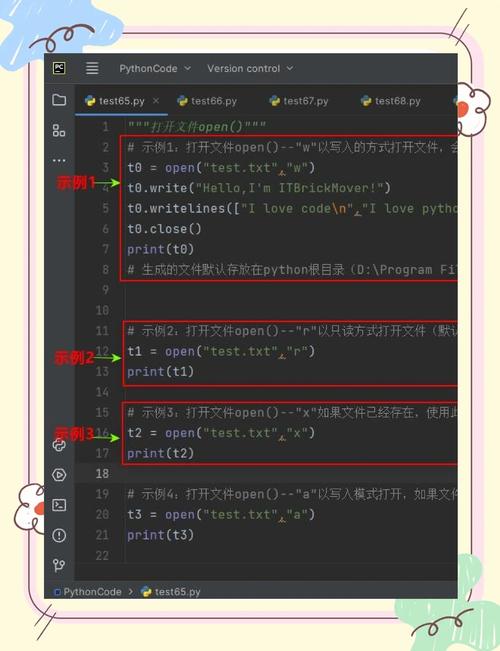
Other File Modes
You're not limited to just writing. Here are other common modes for creating files:
| Mode | Description |
|---|---|
"w" |
Write. Creates a new file or overwrites an existing one. |
"a" |
Append. Creates a new file if it doesn't exist. If it does exist, it adds new content to the end of the file without deleting the old content. |
"x" |
Exclusive creation. Creates a new file, but fails (raises an error) if the file already exists. Useful for ensuring you don't overwrite something. |
"w+" |
Write and Read. Creates a new file or overwrites an existing one. Allows you to read from and write to the file. |
Example: Append Mode
If you run this code multiple times, it will add a new timestamp to the file each time.
import datetime
file_name = "log.txt"
# Use "a" for append mode
with open(file_name, "a") as f:
    timestamp = datetime.datetime.now().strftime("%Y-%m-%d %H:%M:%S")
    log_entry = f"[{timestamp}] This is a new log entry.\n"
    f.write(log_entry)
print(f"Appended to '{file_name}'.")
Advanced: Specifying File Paths
For more control over where your file is saved, use full or relative paths.
- Windows: Use double backslashes
\\or a raw stringr"...". - macOS/Linux: Use a forward slash .
Example: Creating a file in a subdirectory
# This will create a file in a 'data' subfolder
# The 'data' folder must already exist.
file_path = "data/user_info.txt"
content = "Username: test_user\nID: 12345"
with open(file_path, "w") as f:
    f.write(content)
print(f"File created at '{file_path}'")
Example: Creating a file in a new directory (using pathlib)
The pathlib module (available in Python 3.4+) is a modern, object-oriented way to handle filesystem paths. It's highly recommended.

from pathlib import Path
# Define the directory and filename
output_dir = Path("reports") / "2025"
file_path = output_dir / "annual_summary.txt"
# Create the directory if it doesn't exist
output_dir.mkdir(parents=True, exist_ok=True)
# Create and write to the file
file_path.write_text("This is the annual summary for 2025.")
print(f"File created at '{file_path}'")
This pathlib example is very robust because:
Path("reports") / "2025"joins the paths in a platform-independent way.output_dir.mkdir(parents=True, exist_ok=True)creates thereports/2025directory structure.parents=Truemeans it will createreportsif it doesn't exist, andexist_ok=Trueprevents an error if the directory is already there.file_path.write_text()is a convenient shortcut that opens the file, writes the text, and closes it all in one line.
Summary: Which Method to Use?
| Scenario | Recommended Method |
|---|---|
| Quickly create or overwrite a file. | with open("file.txt", "w") as f: |
| Add content to a file without deleting old content. | with open("file.txt", "a") as f: |
| Create a file only if it doesn't already exist. | with open("file.txt", "x") as f: |
| Need to handle complex paths or create directories. | Use the pathlib module. It's safer and more readable. |





![Python reversed()怎么用?[::-1]和它有啥区别?](https://www.jerry.net.cn/zb_users/cache/thumbs/ed28fc61e3e820b31c4e5ed7c6a8b7fc-252-157-1.jpeg)