Of course! Performing face detection in Python is a common and powerful task. The most popular and straightforward way to do this is by using the OpenCV library, which is a massive open-source computer vision library.
I'll guide you through the process step-by-step, from installation to writing a simple script and then a more advanced one that draws bounding boxes.
Prerequisites
You need to have Python installed on your system.
Step 1: Install OpenCV
OpenCV is the core library we'll use. Open your terminal or command prompt and install it using pip:
pip install opencv-python
For face detection, OpenCV uses pre-trained models called "Haar Cascades". These are already included with the opencv-python package, so you don't need to download anything extra.

Step 2: A Simple Face Detection Script
This script will open your webcam, detect faces in the video feed, and display the result in a window.
The Code (simple_face_detect.py):
import cv2
# 1. Load the pre-trained Haar Cascade model for face detection
# The file 'haarcascade_frontalface_default.xml' is included with OpenCV
face_cascade = cv2.CascadeClassifier(cv2.data.haarcascades + 'haarcascade_frontalface_default.xml')
# 2. Access the webcam
# 0 is usually the default webcam. You might need to change this number if you have multiple cameras.
cap = cv2.VideoCapture(0)
# Check if the webcam is opened correctly
if not cap.isOpened():
    print("Error: Could not open video capture device.")
    exit()
print("Press 'q' to quit...")
while True:
    # 3. Read a frame from the webcam
    ret, frame = cap.read()
    # If frame is read correctly, ret is True
    if not ret:
        print("Error: Can't receive frame (stream end?). Exiting ...")
        break
    # 4. Convert the frame to grayscale
    # Haar cascades work on grayscale images for efficiency
    gray_frame = cv2.cvtColor(frame, cv2.COLOR_BGR2GRAY)
    # 5. Detect faces in the grayscale frame
    # The detectMultiScale function detects objects of different sizes in the input image.
    # The detected objects are returned as a list of rectangles.
    faces = face_cascade.detectMultiScale(
        gray_frame,
        scaleFactor=1.1,  # Factor by which the image is scaled down
        minNeighbors=5,   # Minimum number of neighbors required to retain a candidate
        minSize=(30, 30)  # Minimum possible size of a face
    )
    # 6. Print the number of faces found
    print(f"Number of faces detected: {len(faces)}")
    # 7. Display the resulting frame
    cv2.imshow('Webcam Face Detection', frame)
    # 8. Break the loop if 'q' is pressed
    if cv2.waitKey(1) & 0xFF == ord('q'):
        break
# 9. Release the capture and close all windows
cap.release()
cv2.destroyAllWindows()
How to Run It:
- Save the code above as
simple_face_detect.py. - Run it from your terminal:
python simple_face_detect.py. - A window will pop up showing your webcam feed. It will print the number of faces detected to your console. Press
qto close the window and stop the script.
Step 3: Advanced Script - Drawing Bounding Boxes
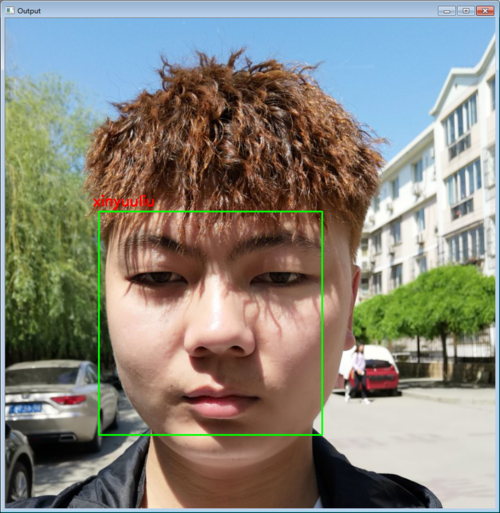
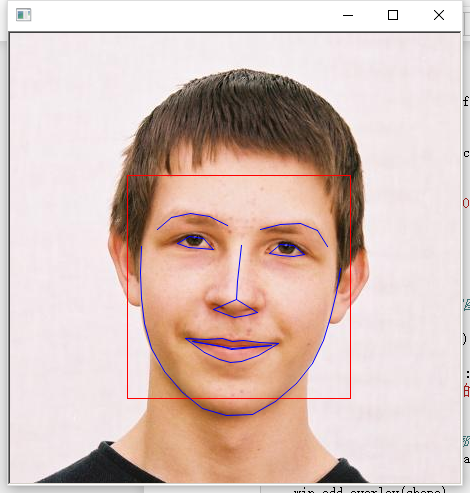
The previous script just printed the number of faces. A more useful application is to draw a rectangle (bounding box) around each detected face. This is the classic face detection demo.
The Code (advanced_face_detect.py):
import cv2
# 1. Load the pre-trained Haar Cascade model
face_cascade = cv2.CascadeClassifier(cv2.data.haarcascades + 'haarcascade_frontalface_default.xml')
# 2. Access the webcam
cap = cv2.VideoCapture(0)
if not cap.isOpened():
    print("Error: Could not open video capture device.")
    exit()
print("Press 'q' to quit...")
while True:
    # 3. Read a frame from the webcam
    ret, frame = cap.read()
    if not ret:
        break
    # 4. Convert to grayscale
    gray_frame = cv2.cvtColor(frame, cv2.COLOR_BGR2GRAY)
    # 5. Detect faces
    faces = face_cascade.detectMultiScale(
        gray_frame,
        scaleFactor=1.1,
        minNeighbors=5,
        minSize=(30, 30)
    )
    # 6. Draw rectangles around the detected faces
    for (x, y, w, h) in faces:
        # (x, y) is the top-left corner
        # (w, h) is the width and height
        cv2.rectangle(frame, (x, y), (x+w, y+h), (0, 255, 0), 2)
    # 7. Display the resulting frame with rectangles
    cv2.imshow('Webcam Face Detection with Bounding Boxes', frame)
    # 8. Break the loop if 'q' is pressed
    if cv2.waitKey(1) & 0xFF == ord('q'):
        break
# 9. Release the capture and close all windows
cap.release()
cv2.destroyAllWindows()
How to Run It:
- Save the code as
advanced_face_detect.py. - Run it:
python advanced_face_detect.py. - Now, you will see your webcam feed with green rectangles drawn around any detected faces!
Explanation of Key Functions
cv2.CascadeClassifier(): This loads the pre-trained model. The XML file defines the features of a face (like the pattern of eyes, nose, etc.).cv2.VideoCapture(0): This creates a video capture object.0is the index of the camera. If you have a video file, you can pass its path as a string, e.g.,cv2.VideoCapture('my_video.mp4').cap.read(): This reads a single frame from the video source. It returns a boolean (ret) indicating if the frame was read successfully, and the frame itself (frame).cv2.cvtColor(): Converts an image from one color space to another. We convert from BGR (OpenCV's default) toGRAYSCALEbecause the Haar cascade algorithm is much faster and more effective on grayscale images.detectMultiScale(): This is the core function for detection.image: The input grayscale image.scaleFactor: How much the image size is reduced at each image scale. A smaller value increases accuracy but also computation time.minNeighbors: Defines how many neighbors each candidate rectangle should have to retain it. Higher values result in less false positives but might miss some faces.minSize: Minimum possible size of a face. Smaller faces will be ignored.
cv2.rectangle(): Draws a rectangle on an image.img: The image to draw on.pt1: The top-left corner of the rectangle (a tuple(x, y)).pt2: The bottom-right corner of the rectangle (a tuple(x+w, y+h)).color: The color of the rectangle in BGR format (e.g.,(0, 255, 0)for green).thickness: The thickness of the rectangle's lines.
Alternative: Deep Learning-based Detection (DNN)
While Haar Cascades are fast, they are not very accurate, especially in non-ideal conditions (side profiles, low light, etc.). For better accuracy, you can use a deep learning model.
OpenCV has a DNN module that can use models trained on frameworks like Caffe or TensorFlow. A popular choice is the Caffe-based OpenCV Caffe model.
Download the Model Files: You need two files:
- The model architecture:
deploy.prototxt.txt - The pre-trained weights:
res10_300x300_ssd_iter_140000.caffemodel
You can find them here: OpenCV's GitHub Repository
Python Script using DNN:
import cv2
# 1. Load the DNN model
# Replace with the actual paths to your downloaded files
model_file = "res10_300x300_ssd_iter_140000.caffemodel"
config_file = "deploy.prototxt.txt"
net = cv2.dnn.readNetFromCaffe(config_file, model_file)
# 2. Access the webcam
cap = cv2.VideoCapture(0)
if not cap.isOpened():
    print("Error: Could not open video capture device.")
    exit()
while True:
    ret, frame = cap.read()
    if not ret:
        break
    # Get the height and width of the frame
    h, w = frame.shape[:2]
    # 3. Create a "blob" from the image
    # The DNN module expects a 4D blob (NCHW format)
    # We resize the image to 300x300 and perform mean subtraction
    blob = cv2.dnn.blobFromImage(cv2.resize(frame, (300, 300)), 1.0, (300, 300), (104.0, 177.0, 123.0))
    # 4. Set the blob as the input to the network and perform a forward pass
    net.setInput(blob)
    detections = net.forward()
    # 5. Loop over the detections
    for i in range(detections.shape[2]):
        confidence = detections[0, 0, i, 2]
        # Filter out weak detections
        if confidence > 0.7: # You can adjust this threshold
            # Compute the (x, y)-coordinates of the bounding box
            box = detections[0, 0, i, 3:7] * np.array([w, h, w, h])
            (startX, startY, endX, endY) = box.astype("int")
            # Draw the bounding box
            cv2.rectangle(frame, (startX, startY), (endX, endY), (0, 255, 0), 2)
    # 6. Display the output
    cv2.imshow('DNN Face Detection', frame)
    if cv2.waitKey(1) & 0xFF == ord('q'):
        break
cap.release()
cv2.destroyAllWindows()
Note: This DNN script requires numpy for the array operations. If you don't have it, install it with pip install numpy. The DNN model is generally more accurate than the Haar Cascade but requires more computational power.