Of course! Here is a comprehensive guide on how to use GPIO with the Orange Pi using Python. This will cover the most common methods, from simple direct control to using a powerful library.
The Core Concept: /dev vs. /sys/class/gpio
Like most Linux-based SBCs (Single Board Computers), the Orange Pi exposes its GPIO pins through the Linux kernel's sysfs interface. This means you interact with the pins by reading from and writing to special files in the /sys directory.
There are two main approaches in Python:
- Direct Sysfs (Low-Level): You manually write to the sysfs files. This is great for understanding what's happening under the hood and for very simple scripts.
- Python Libraries (High-Level): A library handles the low-level sysfs interaction for you, providing a cleaner, more Pythonic, and often more feature-rich API. This is the recommended approach for most projects.
Method 1: Direct Sysfs (The "Hard Way")
This method directly manipulates the virtual GPIO files. It's fundamental to understanding how GPIO works on Linux.
Step 1: Find Your Orange Pi Model and Pinout
This is the most critical step. The GPIO pin layout is different for every Orange Pi model (e.g., Orange Pi Zero, Orange Pi Plus 2, Orange Pi 5).
- Resource: OrangePi.io Pinouts Page is a great place to find your specific model's pinout.
- Example: For an Orange Pi Zero, the
GPIO 17pin is physical pin 11.
Step 2: Enable the GPIO Pin
You need to "export" the pin to make it available in the /sys/class/gpio/ directory. Open a terminal on your Orange Pi and run:
# Replace '17' with the GPIO number you want to use
echo 17 > /sys/class/gpio/export
This will create a new directory: /sys/class/gpio/gpio17/.
Step 3: Set the Pin Direction
Inside the gpio17 directory, you'll find files like direction and value.
outfor Output (to control a LED, for example)infor Input (to read a button press)
Set the pin as an output:
echo out > /sys/class/gpio/gpio17/direction
Step 4: Control the Pin with Python
Now you can write a simple Python script to control the pin's state (HIGH/1 or LOW/0).
import time
# The GPIO number we exported
gpio_number = 17
# Path to the value file
value_file_path = f"/sys/class/gpio/gpio{gpio_number}/value"
try:
    # Open the value file in write mode
    with open(value_file_path, 'w') as f:
        print(f"GPIO {gpio_number} is now an OUTPUT pin.")
        print("Toggling LED every second. Press Ctrl+C to stop.")
        while True:
            # Set pin to HIGH (1)
            f.seek(0) # Go to the beginning of the file
            f.write('1')
            f.flush() # Ensure data is written
            print("GPIO State: HIGH")
            time.sleep(1)
            # Set pin to LOW (0)
            f.seek(0)
            f.write('0')
            f.flush()
            print("GPIO State: LOW")
            time.sleep(1)
except FileNotFoundError:
    print(f"Error: GPIO {gpio_number} not found. Did you export it?")
except PermissionError:
    print("Error: You need root privileges to write to GPIO files.")
    print("Try running your script with 'sudo python your_script.py'")
except KeyboardInterrupt:
    print("\nExiting script.")
finally:
    # It's good practice to unexport the pin when done
    print(f"Unexporting GPIO {gpio_number}")
    with open("/sys/class/gpio/unexport", 'w') as f:
        f.write(str(gpio_number))
To run this script:
sudo python3 your_script_name.py
Method 2: Using the OPi.GPIO Library (The "Easy & Recommended Way")
The OPi.GPIO library is specifically designed for Orange Pi boards and provides an API very similar to the popular RPi.GPIO library for the Raspberry Pi. This makes it easy to find examples and port code.
Step 1: Install the Library
You need to install it using pip. It's often best to do this in a virtual environment.
# It's good practice to use sudo for system-wide installs
sudo pip3 install OPi.GPIO
Step 2: Write a Python Script
This script does the same thing as the one above but is much cleaner and more readable.
import OPi.GPIO as GPIO
import time
# Use the Orange Pi's pin numbering scheme (the numbers on the board)
# For an Orange Pi Zero, this is physical pin 11
GPIO_PIN = 17
# Set up the GPIO mode
GPIO.setmode(GPIO.BCM)  # Use BCM numbering (Broadcom SOC channel numbers)
GPIO.setup(GPIO_PIN, GPIO.OUT) # Set the pin as an output
print(f"GPIO {GPIO_PIN} is now an OUTPUT pin.")
print("Toggling LED every second. Press Ctrl+C to stop.")
try:
    while True:
        # Turn the LED on (HIGH)
        GPIO.output(GPIO_PIN, GPIO.HIGH)
        print("GPIO State: HIGH")
        time.sleep(1)
        # Turn the LED off (LOW)
        GPIO.output(GPIO_PIN, GPIO.LOW)
        print("GPIO State: LOW")
        time.sleep(1)
except KeyboardInterrupt:
    print("\nExiting script.")
finally:
    # Clean up and reset all GPIO pins
    GPIO.cleanup()
    print("GPIO pins have been cleaned up.")
To run this script:
sudo python3 your_script_name.py
Why use a library?
- Readability:
GPIO.HIGHis much clearer than'1'. - Abstraction: Handles file opening, closing, and permissions for you.
- Additional Features: Libraries like
OPi.GPIOoften include easy-to-use functions for things like PWM (Pulse Width Modulation) and event detection (e.g., waiting for a button press).
Method 3: Using gpiozero (The "Modern & Object-Oriented Way")
gpiozero is a fantastic, modern library that comes pre-installed on many Raspberry Pi OS images and is also compatible with Orange Pi. It uses an object-oriented approach, which is very intuitive.
Step 1: Install gpiozero (if not already present)
sudo pip3 install gpiozero
Step 2: Write a Python Script
gpiozero abstracts away the pin numbering and focuses on the device you are controlling (e.g., an LED, a Button).
from gpiozero import LED
import time
# gpiozero often uses BOARD numbering by default, but you can specify BCM.
# Check the library documentation for your board. For Orange Pi, BCM is common.
# For an Orange Pi Zero, BCM 17 is physical pin 11.
led = LED(17)
print("LED on pin 17 is now an OUTPUT pin.")
print("Toggling LED every second. Press Ctrl+C to stop.")
try:
    while True:
        led.on()      # Turn the LED on
        print("GPIO State: ON")
        time.sleep(1)
        led.off()     # Turn the LED off
        print("GPIO State: OFF")
        time.sleep(1)
except KeyboardInterrupt:
    print("\nExiting script.")
finally:
    led.close() # Clean up the resource
    print("LED resource has been cleaned up.")
To run this script:
sudo python3 your_script_name.py
Troubleshooting & Common Issues
-
PermissionError: [Errno 13] Permission denied- Cause: Your user doesn't have the rights to write to the system's GPIO files.
- Solution: Run your Python script with
sudo.sudo python3 your_script.py.
-
FileNotFoundError: [Errno 2] No such file or directory- Cause (for Sysfs): You forgot to
exportthe GPIO pin number before running your script. - Cause (for Libraries): You are using the wrong pin number for your specific Orange Pi model. Double-check your pinout!
- Cause (for Sysfs): You forgot to
-
ImportError: No module named 'OPi.GPIO'- Cause: The library is not installed.
- Solution: Run
sudo pip3 install OPi.GPIO.
-
Nothing Happens / LED Doesn't Blink
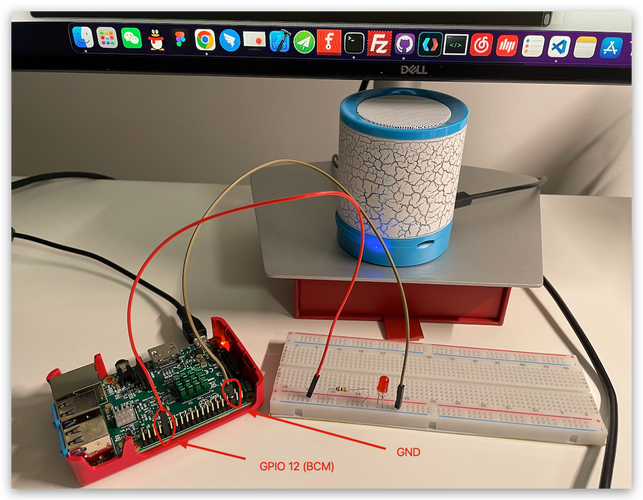
- Check Hardware: Is the LED connected correctly? Anode (long leg) to the GPIO pin, Cathode (short leg) to a resistor (e.g., 330Ω), and the other end of the resistor to a Ground (GND) pin.
- Check Pinout: Are you 100% sure you are using the correct pin number for your board model? This is the #1 mistake.