Of course! The combination of Linux, Java, and Shell scripting is a powerhouse for backend development, DevOps, automation, and system administration. They work together to create robust, scalable, and maintainable systems.

Let's break down each component and then see how they interact seamlessly in a Linux environment.
The Core Trio
Linux: The Foundation
Linux is a family of open-source, Unix-like operating systems. It's the kernel (the core part of the OS that manages hardware) and is the foundation for almost all modern servers, cloud infrastructure (AWS, Google Cloud, Azure), and many embedded devices.
- Why it's important for Java/Shell:
- Stability & Performance: Linux is renowned for its stability and performance under heavy loads, making it the standard for running Java applications.
- Command-Line Power: It provides a rich, powerful command-line interface (CLI), which is the native environment for both Java compilation/execution and shell scripting.
- Permissions & Security: Its granular user and permission model is crucial for securing applications and scripts.
- Ubiquity: It's the dominant OS in server environments, so knowing it is essential for any developer or sysadmin.
Java: The Portable Application Logic
Java is a high-level, class-based, object-oriented programming language. Its key feature is "write once, run anywhere" (WORA), thanks to the Java Virtual Machine (JVM).
- Why it's important:
- Portability: A compiled Java
.classfile or.jararchive can run on any system with a compatible JVM (Linux, Windows, macOS, etc.), without recompilation. - Ecosystem: A massive ecosystem of libraries (via Maven/Gradle) and frameworks (Spring, Quarkus, Micronaut) for building everything from simple utilities to large-scale enterprise applications.
- Performance: The JVM has excellent performance optimizations, including a Just-In-Time (JIT) compiler.
- Concurrency: Built-in, robust support for multi-threading is ideal for handling many tasks simultaneously, which is common on servers.
- Portability: A compiled Java
Shell Scripting: The Automation Glue
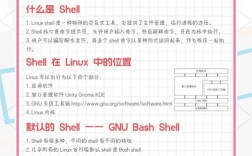
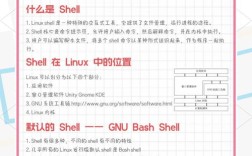
A shell script is a text file containing a sequence of commands for a Unix shell (like Bash) to execute. It's the primary way to automate tasks on Linux.
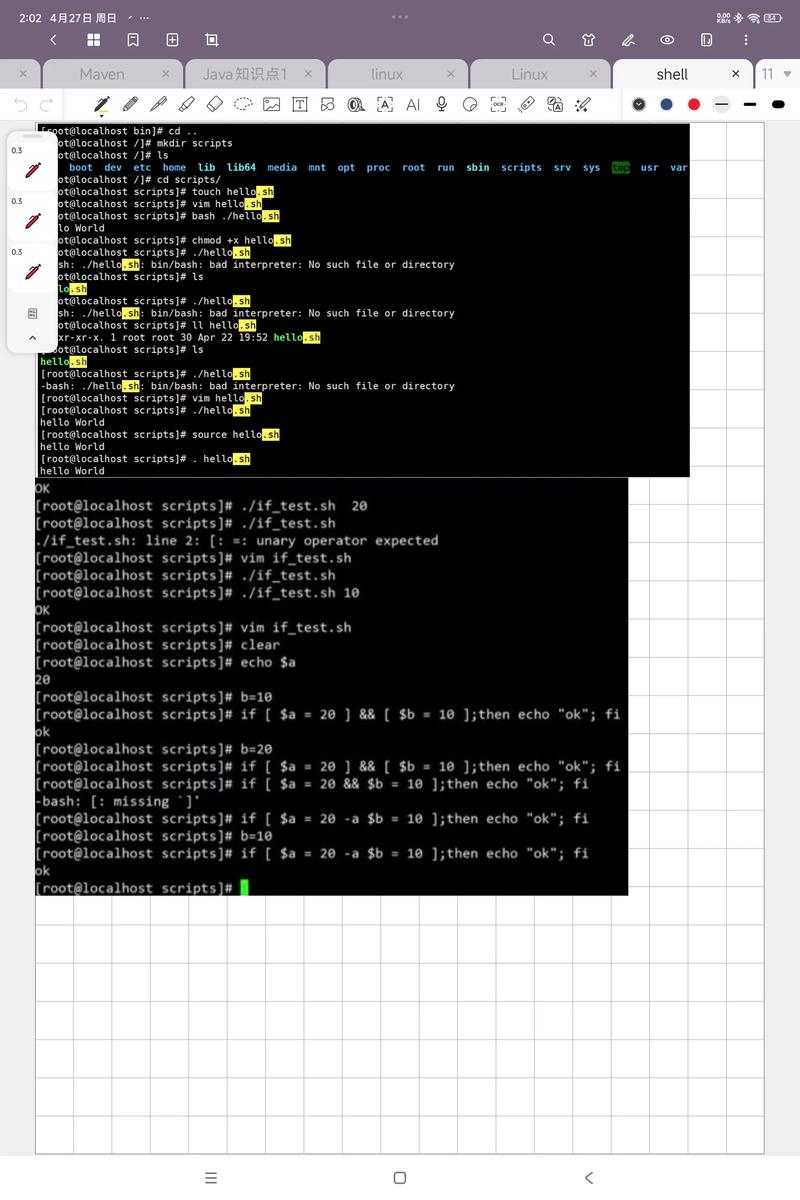
- Why it's important:
- Automation: Automate repetitive tasks: backups, deployments, log analysis, system monitoring, etc.
- System Interaction: Directly interact with the OS: manage files, processes, users, and network configurations.
- Orchestration: Control and coordinate other programs, including Java applications.
- Simplicity: For many tasks, a shell script is much faster to write than a full Java program.
How They Work Together: A Practical Workflow
Let's walk through a common scenario: building, running, and managing a simple Java application on Linux using a shell script.
Step 1: The Java Code (HelloWorld.java)
This is a simple "Hello, World!" application.
// HelloWorld.java
public class HelloWorld {
    public static void main(String[] args) {
        // Print a simple message
        System.out.println("Hello from Java!");
        // Access an environment variable from the shell
        String user = System.getenv("MY_APP_USER");
        if (user != null) {
            System.out.println("Running as user: " + user);
        } else {
            System.out.println("Environment variable MY_APP_USER is not set.");
        }
    }
}
Step 2: The Build Script (build.sh)
This shell script will compile the Java code and package it into a JAR file. This is a much more robust way to build than doing it manually.
#!/bin/bash
# A simple build script for our Java application
# Exit immediately if a command exits with a non-zero status.
set -e
# Define variables
JAR_FILE="hello-world.jar"
MAIN_CLASS="HelloWorld"
echo "Starting build process..."
# 1. Clean previous builds
rm -f *.class $JAR_FILE
echo "Cleaned old files."
# 2. Compile the Java source file
# The 'javac' compiler is part of the JDK
javac HelloWorld.java
echo "Compilation successful."
# 3. Package the class file into a JAR (Java Archive)
# 'cf' means 'create file'. We specify the main class for "executable" JARs.
jar cfe $JAR_FILE $MAIN_CLASS HelloWorld.class
echo "Packaging successful. Created $JAR_FILE."
echo "Build complete!"
Make the script executable:
chmod +x build.sh
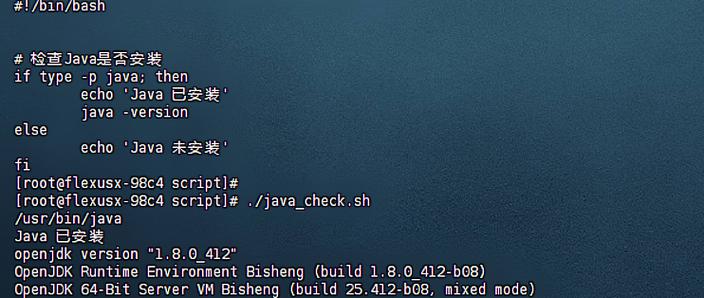
Run the build script:
./build.sh
This will create hello-world.jar.
Step 3: The Run Script (run.sh)
This script will execute our Java application. It demonstrates how the shell can pass information to the Java program.
#!/bin/bash
# A script to run our Java application
# Define variables
JAR_FILE="hello-world.jar"
JAVA_OPTS="-Xms128m -Xmx512m" # Example JVM options: min and max heap size
# Check if the JAR file exists
if [ ! -f "$JAR_FILE" ]; then
    echo "Error: $JAR_FILE not found. Please run ./build.sh first."
    exit 1
fi
# Set an environment variable that our Java app will read
export MY_APP_USER="linux-user"
echo "Starting Java application..."
echo "Running as user: $(whoami)"
echo "--------------------------------"
# Execute the JAR file using the 'java' command from the JDK
# We pass the JVM options and the main class (from the JAR's manifest)
java $JAVA_OPTS -jar $JAR_FILE
echo "--------------------------------"
echo "Application finished."
Make the script executable:
chmod +x run.sh
Run the application script:
./run.sh
Expected Output:
Starting Java application...
Running as user: linux-user
--------------------------------
Hello from Java!
Running as user: linux-user
--------------------------------
Application finished.
Notice how the Java program successfully read the MY_APP_USER variable that the shell script set.
Advanced Interactions and Use Cases
This simple example is just the tip of the iceberg. Here are more advanced ways they interact:
| Interaction | Description | Example |
|---|---|---|
| Shell → Java: Passing Arguments | A shell script can pass command-line arguments to a Java application. | java -jar myapp.jar --mode=production --threads=10 |
| Shell → Java: Environment Variables | The shell sets environment variables that the Java app can read for configuration (e.g., database URLs, API keys). | export DB_URL="jdbc:postgresql://localhost:5432/mydb" |
| Java → Shell: Executing Commands | A Java application can execute shell commands and capture their output. This is powerful for interacting with the OS. | Process p = Runtime.getRuntime().exec("ls -l /tmp"); |
| Java → Shell: Logging | A Java application writes its logs to a file, and a shell script is used to manage those logs (rotate, compress, archive). | A cron job runs logrotate /etc/myapp/logrotate.conf daily. |
| Shell → Java: Process Control | A shell script is used to start, stop, and monitor the Java application as a background process (a "daemon"). | nohup java -jar myapp.jar > app.log 2>&1 & (runs in the background) |
| CI/CD Pipeline | A continuous integration server (like Jenkins) uses shell scripts to orchestrate the entire process: checkout code, run the build.sh script, run tests, and deploy the resulting JAR to a server. |
A Jenkins job runs a shell script that calls ./build.sh && ./test.sh && ./deploy.sh |
| Production Deployment | A shell script automates the deployment of a new version of a Java application: stop the old service, back up the old JAR, copy the new JAR to the deployment directory, and start the new service. | ./deploy.sh v1.2.3 |
Summary: The Synergy
- Linux provides the stable, powerful, and ubiquitous operating system environment.
- Java provides the portable, robust, and feature-rich platform for running your application's core business logic.
- Shell Scripting provides the flexible and direct "glue" to automate everything around the Java application—from building and deploying it to managing its environment and logs.
Together, they form a foundational skill set for anyone working in software development, operations, or infrastructure in the modern tech world.