Of course! Python is one of the most popular and powerful languages for web scraping due to its rich ecosystem of libraries. This guide will walk you through the fundamentals, from basic concepts to practical examples and best practices.
What is Web Scraping?
Web scraping is the process of automatically extracting data from websites. Instead of manually copying and pasting information, you write a script that does it for you. This data can then be saved to a file (like CSV or JSON) or used for analysis.
Core Tools (Libraries) in Python
You'll primarily use two libraries:
requests: For fetching the web page. It's the standard library for making HTTP requests in Python. It's like your browser asking a server for a webpage.Beautiful Soup: For parsing the HTML (or XML) content of the page. It takes the raw HTML and turns it into a structured Python object that you can easily navigate and search.Selenium: For interacting with dynamic websites (Single Page Applications - SPAs). These sites load content using JavaScript after the initial page has loaded.Seleniumautomates a real web browser to control it programmatically.
Step 1: Installation
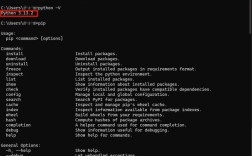
First, you need to install the necessary libraries. Open your terminal or command prompt and run:
pip install requests
pip install beautifulsoup4
pip install lxml  # A fast and efficient HTML parser
Step 2: The Scraping Workflow (A Simple Example)
Let's scrape the titles and links of the top news stories from Fake News Website, a great site for practicing because it's simple and stable.
Our goal: Get the headline and URL for each article on the front page.
Step 2.1: Fetch the Web Page with requests
We'll use requests.get() to download the HTML content of the page.
import requests
# The URL of the page we want to scrape
url = 'https://www.reuters.com/'
try:
    # Send an HTTP GET request to the URL
    response = requests.get(url, timeout=10) # timeout is good practice
    # Check if the request was successful (status code 200)
    response.raise_for_status()
    # The HTML content of the page is in the .text attribute
    html_content = response.text
    print("Successfully fetched the page!")
    # print(html_content[:500]) # Print the first 500 characters to see it
except requests.exceptions.RequestException as e:
    print(f"Error fetching the URL: {e}")
Step 2.2: Parse the HTML with Beautiful Soup
Now, we'll use BeautifulSoup to parse the raw HTML and make it easy to work with.
from bs4 import BeautifulSoup
# (Assuming 'html_content' is the variable from the previous step)
soup = BeautifulSoup(html_content, 'lxml')
# 'soup' is now a BeautifulSoup object that represents the document as a nested data structure.
Step 2.3: Find the Data (Inspecting the Website)
This is the most crucial step. You need to inspect the website's HTML to find the tags and classes that contain the data you want.
- Open the website in your browser (e.g., Chrome, Firefox).
- Right-click on an element you want to scrape (like a news headline).
- Select "Inspect" or "Inspect Element". This will open the Developer Tools, showing you the HTML code for that element.
On Reuters.com, you'll notice that each news story is wrapped in an <article> tag with the class story__content. The headline is an <h3> tag with the class story__title.
Step 2.4: Extract the Data using Beautiful Soup Methods
Now we'll use the information from our inspection to find the data in our soup object.
soup.find(): Finds the first matching element.soup.find_all(): Finds all matching elements (returns a list).
# Find all the article containers
# We use a class_ because 'class' is a reserved keyword in Python
article_containers = soup.find_all('article', class_='story__content')
# List to store our scraped data
scraped_data = []
for article in article_containers:
    # Find the headline (h3 tag with class 'story__title')
    headline_element = article.find('h3', class_='story__title')
    # Find the link (a tag inside the h3)
    if headline_element:
        link_element = headline_element.find('a')
        # Get the text of the headline and the 'href' attribute of the link
        if link_element:
            headline = link_element.get_text(strip=True) # strip() removes whitespace
            link = link_element.get('href')
            # Make sure the link is a full URL
            if link.startswith('/'):
                link = 'https://www.reuters.com' + link
            scraped_data.append({
                'headline': headline,
                'link': link
            })
# Print the scraped data
for i, data in enumerate(scraped_data):
    print(f"{i+1}. {data['headline']}")
    print(f"   URL: {data['link']}\n")
Step 3: Handling Dynamic Websites with Selenium
Some websites, like modern social media feeds or e-commerce sites, load content using JavaScript after the page loads. requests and Beautiful Soup can't see this content because they only get the initial HTML.
This is where Selenium comes in. It controls a real browser (like Chrome or Firefox) to load the page completely, including all JavaScript.
Installation for Selenium
pip install selenium
You also need a WebDriver. This is a small program that Selenium uses to communicate with your browser. You need to download one that matches your browser version.
- ChromeDriver: https://googlechromelabs.github.io/chrome-for-testing/
- GeckoDriver (for Firefox): https://github.com/mozilla/geckodriver/releases
Place the downloaded chromedriver (or geckodriver) executable in a known location or in your project's root directory.
Simple Selenium Example
Let's scrape a page that requires scrolling to load more content.
from selenium import webdriver
from selenium.webdriver.common.by import By
from selenium.webdriver.chrome.service import Service
from selenium.webdriver.chrome.options import Options
from bs4 import BeautifulSoup
import time
# --- Setup Selenium WebDriver ---
# Path to your downloaded chromedriver
# Make sure you have the chromedriver executable in this path or update it
# Alternatively, you can use 'selenium-manager' if you have a recent version of Selenium
service = Service(executable_path='path/to/your/chromedriver')
# Optional: Configure options to run headlessly (without opening a browser window)
options = Options()
# options.add_argument("--headless")
# options.add_argument("--window-size=1920,1080")
driver = webdriver.Chrome(service=service, options=options)
# --- Scraping Logic ---
url = "https://quotes.toscrape.com/js/" # A site that requires JS
driver.get(url)
# Wait for the dynamic content to load
# You can use explicit waits (better) or just a simple sleep (easier for demos)
time.sleep(3)
# Get the page source after JS has rendered it
html_content = driver.page_source
# --- Parsing with Beautiful Soup ---
soup = BeautifulSoup(html_content, 'lxml')
quotes = soup.find_all('div', class_='quote')
for quote in quotes:
    text = quote.find('span', class_='text').get_text(strip=True)
    author = quote.find('small', class_='author').get_text(strip=True)
    print(f'"{text}" - {author}')
# --- Clean Up ---
driver.quit()
Best Practices and Ethics
- Check
robots.txt: Before scraping any site, check itsrobots.txtfile (e.g.,https://www.example.com/robots.txt). This file tells bots which parts of the site they are not allowed to access. Always respect it. - Set a User-Agent: Some websites block default
requestsuser agents. Make your script look like a real browser.headers = { 'User-Agent': 'Mozilla/5.0 (Windows NT 10.0; Win64; x64) AppleWebKit/537.36 (KHTML, like Gecko) Chrome/91.0.4472.124 Safari/537.36' } response = requests.get(url, headers=headers) - Be Polite - Add Delays: Don't send requests too quickly. This can overload the server and get your IP address blocked. Add delays between requests.
import time
time.sleep(2) # Wait for 2 seconds
- Handle Errors: Network connections can fail. Websites can change their structure. Always wrap your code in
try...exceptblocks to handle potential errors gracefully. - Identify Yourself: If possible, include a contact email in your
User-Agentso the site owner can contact you if there's an issue.headers = { 'User-Agent': 'MyCoolScraper/1.0 (myemail@example.com)' } - Use APIs: If a website offers a public API (Application Programming Interface), always use it instead of scraping. APIs are faster, more reliable, and the officially supported way to get data.