Of course! Let's dive deep into Python's filehandler functionality, which is primarily managed by the built-in open() function.
What is a File Handler?
In Python, a file handler (or file object) is not the file itself, but a pointer or an interface that allows your program to interact with a file on your computer's disk.
Think of it like this:
- The file on disk is a book in a library.
- The file handler is the librarian who gives you the key to access a specific section of that book. You can read from it, write to it, or close it when you're done. You don't manipulate the book directly; you work through the librarian.
The most common way to get a file handler is by using the open() function.
The open() Function
The open() function is the gateway to file handling in Python.
file_handler = open(filename, mode)
filename
This is a string representing the path to the file. It can be:
- A relative path (e.g.,
"my_data.txt","data/sales.csv") - An absolute path (e.g.,
"/Users/yourname/documents/report.docx")
Best Practice: Use raw strings (prefixed with r) for Windows paths to avoid issues with backslashes.
# Good for Windows
path = r"C:\Users\YourName\Documents\data.txt"
mode
This is a string that specifies what you want to do with the file. Here are the most common modes:
| Mode | Description |
|---|---|
'r' |
Read (default). Opens a file for reading, error if the file doesn't exist. |
'w' |
Write. Opens a file for writing. Creates the file if it doesn't exist, or overwrites it if it does. |
'a' |
Append. Opens a file for appending. Creates the file if it doesn't exist. Data is written to the end of the file. |
'x' |
Exclusive creation. Opens a file for creation only. Fails if the file already exists. |
'r+' |
Read and Write. Opens a file for both reading and writing. The file pointer starts at the beginning. |
'b' |
Binary. Used for non-text files (e.g., images, PDFs). Can be combined with other modes: 'rb', 'wb', 'ab'. |
't' |
Text (default). Used for text files. This is the default, so you don't usually need to specify it. |
The Crucial Step: Closing the File
When you are done with a file, you must close it using the .close() method.
f = open("my_file.txt", "w")
# ... do stuff with the file ...
f.close()
Why is closing so important?
- Frees up resources: The operating system limits how many files a program can have open at once. Closing files releases these resources.
- Ensures data is written: When you write to a file, the data is often first held in a memory buffer (a temporary storage area). Closing the file flushes this buffer, ensuring all your data is actually written to the disk.
The Modern & Recommended Approach: The with Statement
Manually closing files can be error-prone. What if an error occurs in your code and the f.close() line is never reached? The file would remain open.
The with statement solves this problem. It automatically handles closing the file for you, even if errors occur. This is called a context manager.
This is the preferred way to handle files in Python.
# The recommended way
with open("my_file.txt", "w") as f:
    # Inside this block, 'f' is an active file handler
    f.write("Hello, World!")
    # No need to call f.close()! It's done automatically when the block exits.
Practical Examples
Let's create a file named greeting.txt.
Example 1: Writing to a File ('w' mode)
# This will create 'greeting.txt' or overwrite it if it exists.
with open("greeting.txt", "w") as f:
    f.write("Hello from Python!\n") # \n is a newline character
    f.write("This is the second line.\n")
print("File written successfully.")
After running this, greeting.txt will contain:
Hello from Python!
This is the second line.
Example 2: Reading from a File ('r' mode)
# The 'r' mode is the default, so we can omit it.
with open("greeting.txt") as f:
    # Read the entire file content into a single string
    content = f.read()
    print("--- Reading all at once ---")
    print(content)
print("\n" + "="*30 + "\n")
# Read the file line by line
with open("greeting.txt") as f:
    print("--- Reading line by line ---")
    for line in f:
        # The 'line' variable will include the newline character '\n'
        print(f"Line: {line.strip()}") # .strip() removes leading/trailing whitespace
Example 3: Appending to a File ('a' mode)
Let's add more text to our existing file without deleting its current content.
with open("greeting.txt", "a") as f:
    f.write("This line was appended.\n")
print("Appended to the file.")
# Let's read the file again to see the change
with open("greeting.txt") as f:
    print("\n--- File content after appending ---")
    print(f.read())
The new content of greeting.txt will be:
Hello from Python!
This is the second line.
This line was appended.
Handling Different File Types (e.g., CSV, JSON)
While the open() function is the foundation, Python's standard library has modules that make working with specific file types much easier.
Example: Reading a CSV File
import csv
# Create a sample CSV file
with open("users.csv", "w", newline='') as f:
    writer = csv.writer(f)
    writer.writerow(["name", "age", "city"])
    writer.writerow(["Alice", 30, "New York"])
    writer.writerow(["Bob", 25, "London"])
# Read the CSV file
print("--- Reading CSV file ---")
with open("users.csv", "r") as f:
    reader = csv.reader(f)
    for row in reader:
        print(f"Name: {row[0]}, Age: {row[1]}, City: {row[2]}")
Example: Reading a JSON File
import json
# Create a sample JSON file
data = {
    "name": "David",
    "age": 42,
    "is_student": False,
    "courses": ["History", "Math"]
}
with open("data.json", "w") as f:
    json.dump(data, f, indent=4) # indent=4 makes it pretty-printed
# Read the JSON file
print("\n--- Reading JSON file ---")
with open("data.json", "r") as f:
    loaded_data = json.load(f)
    print(f"Name: {loaded_data['name']}")
    print(f"Courses: {loaded_data['courses']}")
Error Handling: try...except
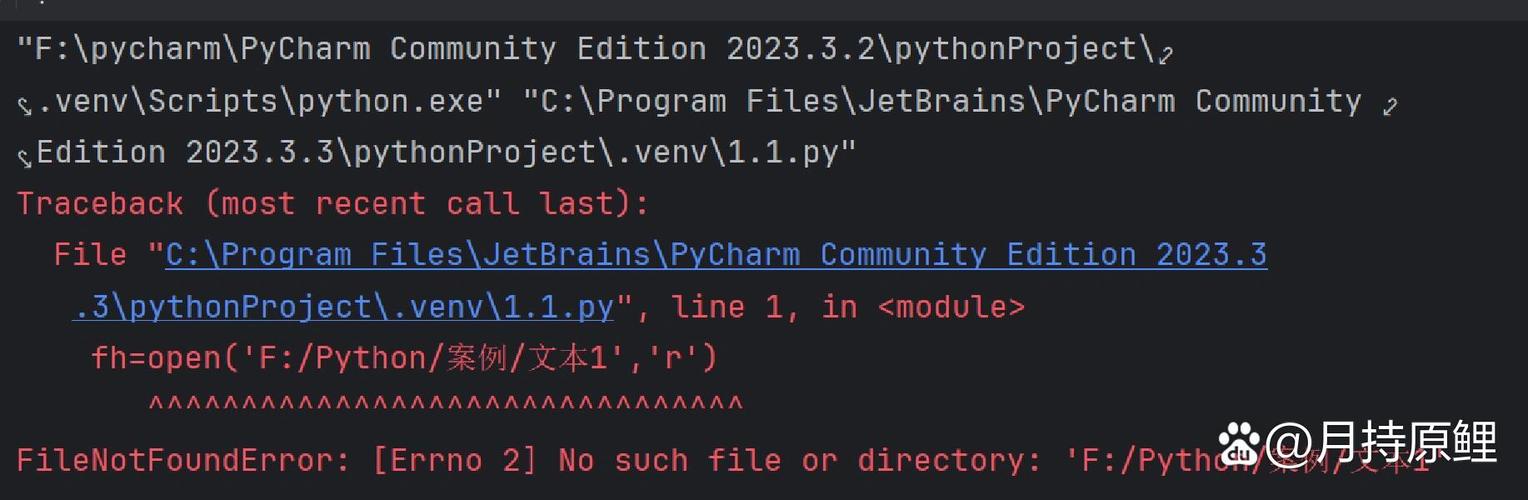
Sometimes things go wrong (e.g., the file doesn't exist, you don't have permission). It's good practice to handle these potential errors.
try:
    with open("non_existent_file.txt", "r") as f:
        content = f.read()
except FileNotFoundError:
    print("Error: The file was not found.")
except PermissionError:
    print("Error: You do not have permission to read this file.")
except Exception as e:
    print(f"An unexpected error occurred: {e}")
Summary of Best Practices
- Always use the
withstatement. It ensures your files are closed automatically. - Be explicit with your file modes. Use
'r','w','a', etc., to make your code's intent clear. - Handle potential errors. Use
try...exceptblocks for file operations that might fail. - Use the right tool for the job. For structured data like CSV or JSON, use the
csvandjsonmodules instead of manually parsing text.